
View devices connected to MagicInfo Server, retrieve details for each device, and remotely control devices. Create groups for each organization to manage devices by the group. For each organization, a default group is created by default.
Click Device from the sub-menu items.
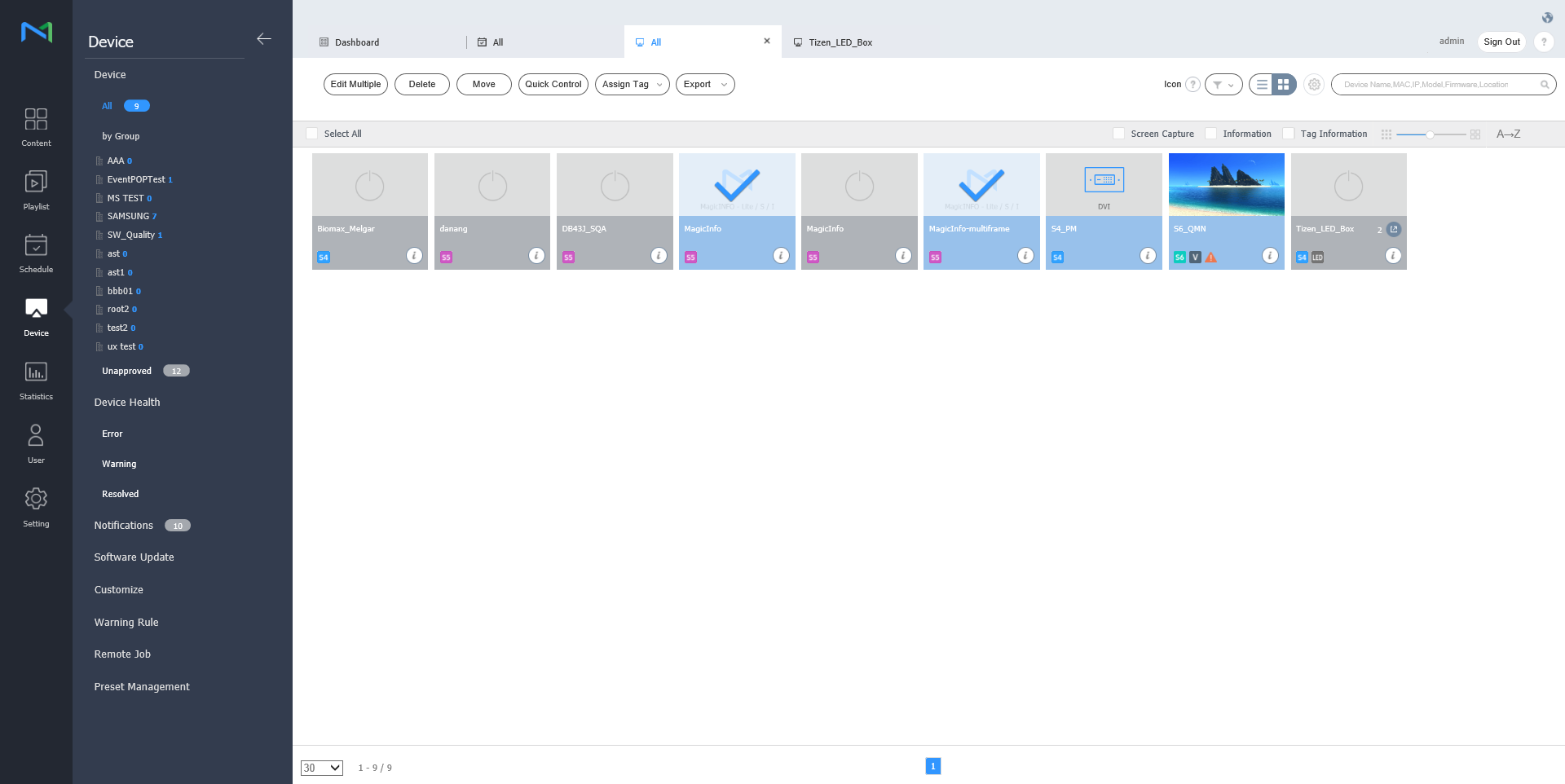
- All: View all devices connected to MagicInfo Server, retrieve details for each device, and remotely control devices.
- by Group: View devices connected to MagicInfo Server by the group.
- Unapproved: View and authorize devices that are connected to MagicInfo Server but not authorized.
Note
- If VideoWall devices are connected to MagicInfo Server, click the appropriate menu item view details for each device.
- With Device Permissions enabled, the device manager can only manage devices authorized by general administrator or organization administrators. For details on device management privilege settings, refer to ► Managing user information
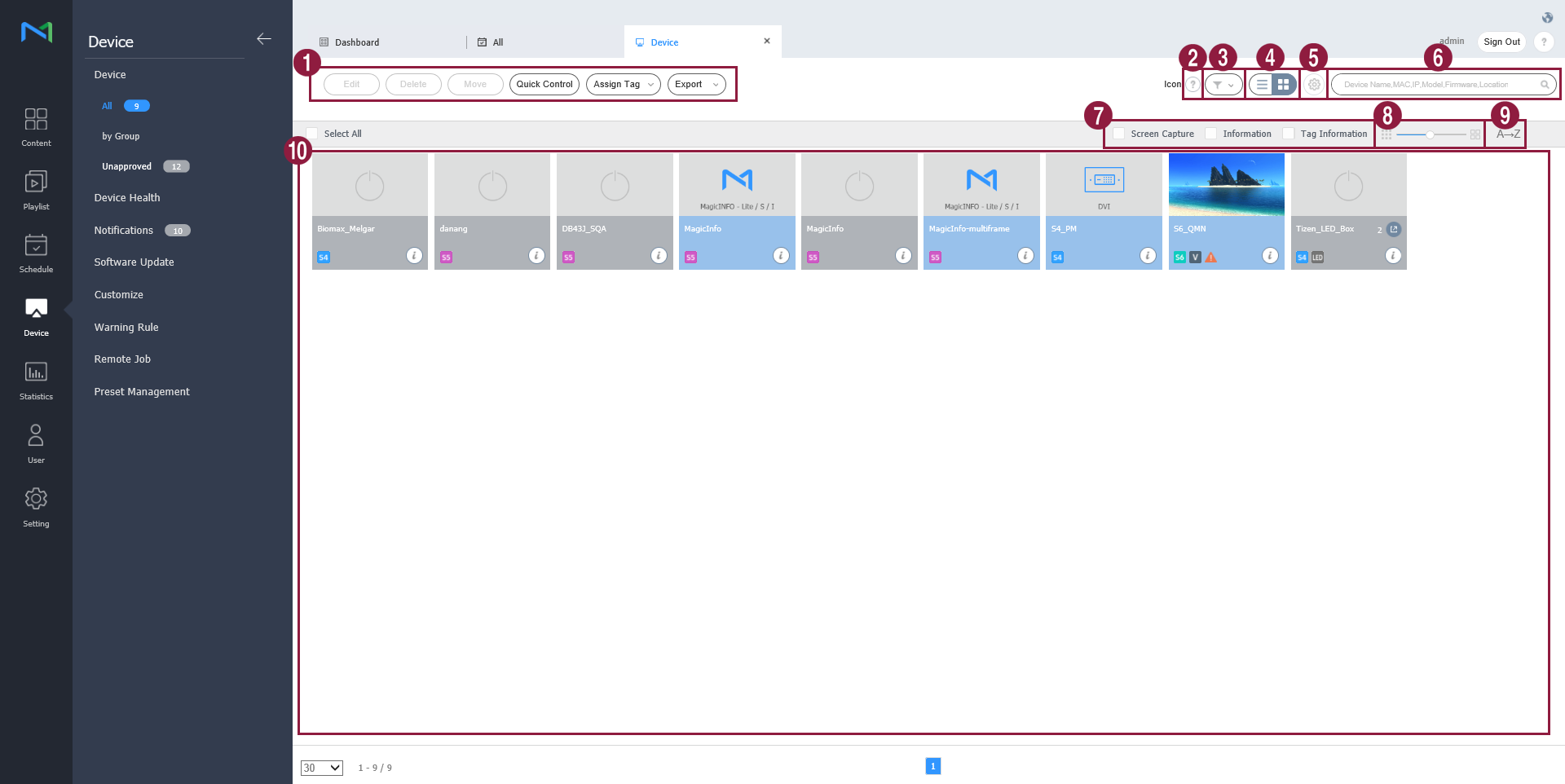
| 1 |
|
| 2 | View a description of icons displayed on the device list. |
| 3 | Filter the device list to view specific devices only. Select a condition from the filter settings window and click Save. Note If you select Device Type, only devices that currently have licenses registered to MagicInfo Server appear. |
| 4 | Change the view mode for the device list.
|
| 5 | Configure device polling settings. |
| 6 | Search devices by using keywords. |
| 7 | Select info items to display in thumbnails. This option appears only when the device view mode is set to thumbnail mode. |
| 8 | Adjust the size of thumbnails. This option appears only when the device view mode is set to thumbnail mode. |
| 9 | Display the device list in alphabetical or reverse alphabetical order. This option appears only when the device view mode is set to thumbnail mode. |
| 10 | View the list of devices.
|


Authorizing devices
View and authorize devices that are connected to MagicInfo Server but not authorized.
Click Device > Unapproved. Unapproved devices appear.
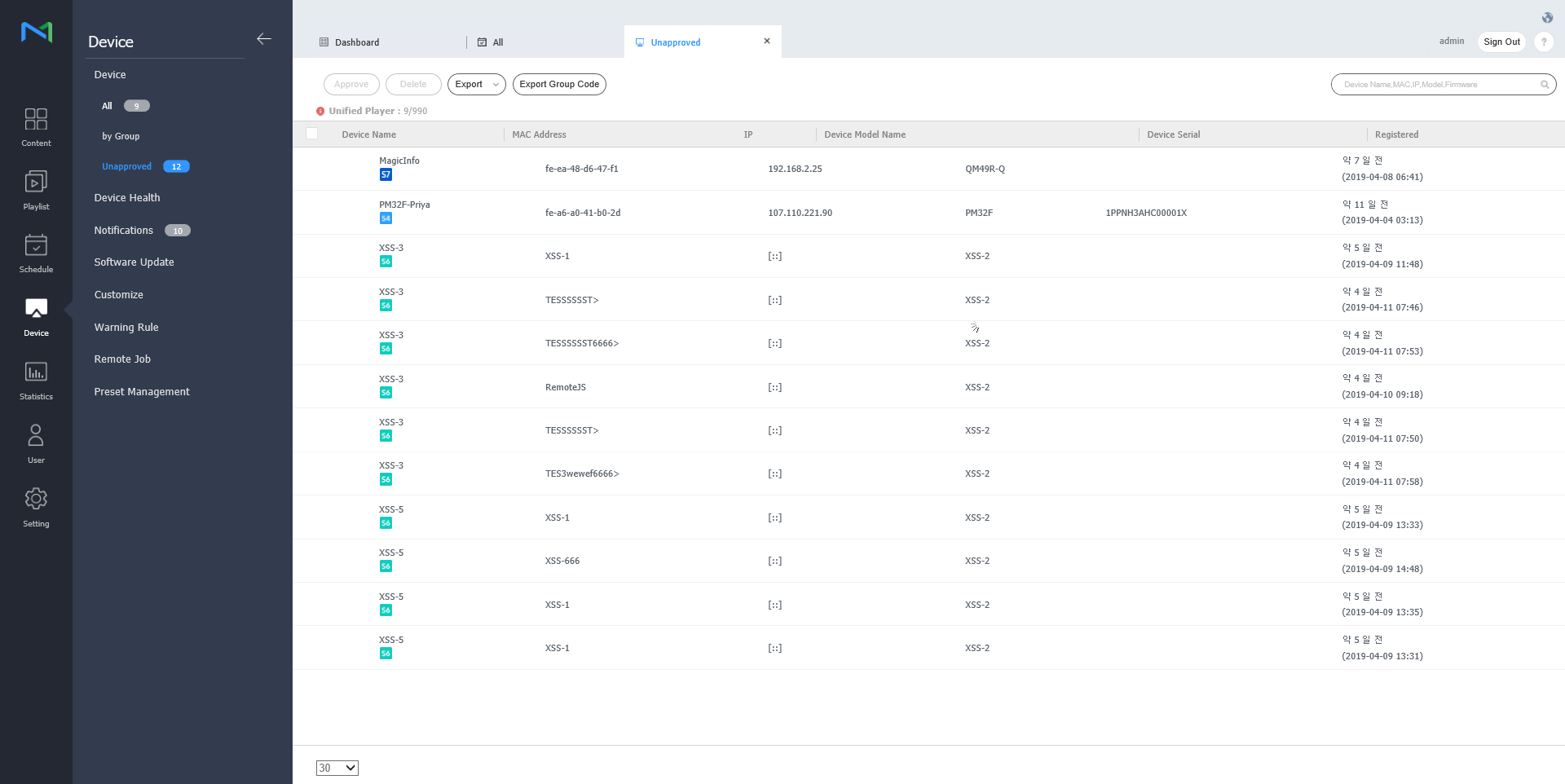
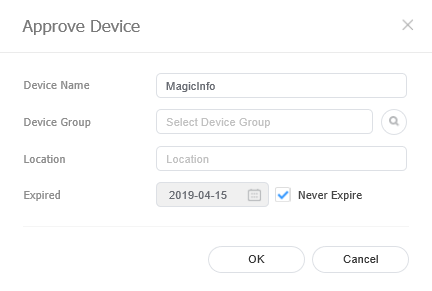
- Select a device and click Approve. A window appears where a device can be authorized.
Specify the name, group, location and expiration date. Click OK. The device has been authorized.
Note
- To delete an unauthorized device without authorizing it, select the device and click Delete.
- To approve multiple devices of the same model simultaneously, select the device checkboxes and click 승인. If you enter representative names of devices, the device names are saved in the "representative name_(sequence number)" format.
Managing device groups
- Click by Group.
- Manage groups, using one of the following options:
- Option 1: Select a group and right-click on the mouse.
- Option 2: Place the mouse cursor on a group name and click
 .
.
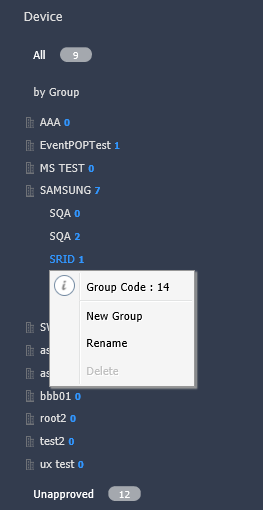
New Group Create a sub-group under the selected group.
Note
A root group can be created by adding an organization. For details on adding organizations, refer to ► 소속 생성하기
Rename Rename the selected group.
Note
It is not possible to rename a root group.
Delete Delete the selected group.
Note
It is not possible to delete a root group.
Note
- To move a group, drag the group from by Group to a desired location. Sub-groups can be moved to root groups. It is not possible to move root groups to sub-groups. When moving a group that contains sub-groups, all the sub-groups will move together maintaining the group hierarchy.
- The number of users in a group will be displayed next to the group name.
Quick Control
Quick Control is the collection of frequently used remote device control functions.
To use Quick Control dashboard, select a device from the list and click Quick Control.
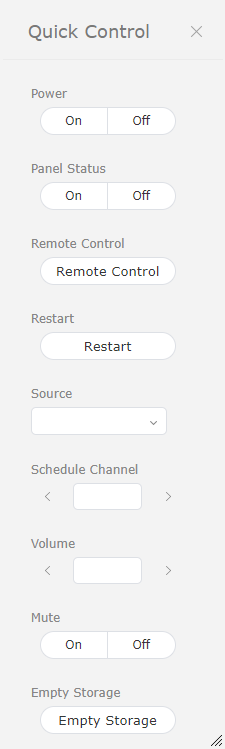
| Power | Turn the device on or off. |
| Panel Status | Switch the device panel on or off. |
| VNC | Enable the remote access function. The remote access function is only available in MagicInfo Player I. |
| Restart | Restart the device. |
| Input Source | Select an input source from the dropdown list. |
| Schedule Channel | Change the device channel. |
| Volume | Adjust the volume of the device. |
| Mute | Mute or unmute the device. |
| Empty Storage | Empty the storage in a device. |
Assigning tags to devices
Assign a tag to a device. This allows the device to selectively display information that satisfies conditions of the tag assigned to a DLK element or playlist.
Select a device from the device list and click Assign Tag. It is possible to select more than one device.
Use the tag settings window to configure tag settings and click Save.
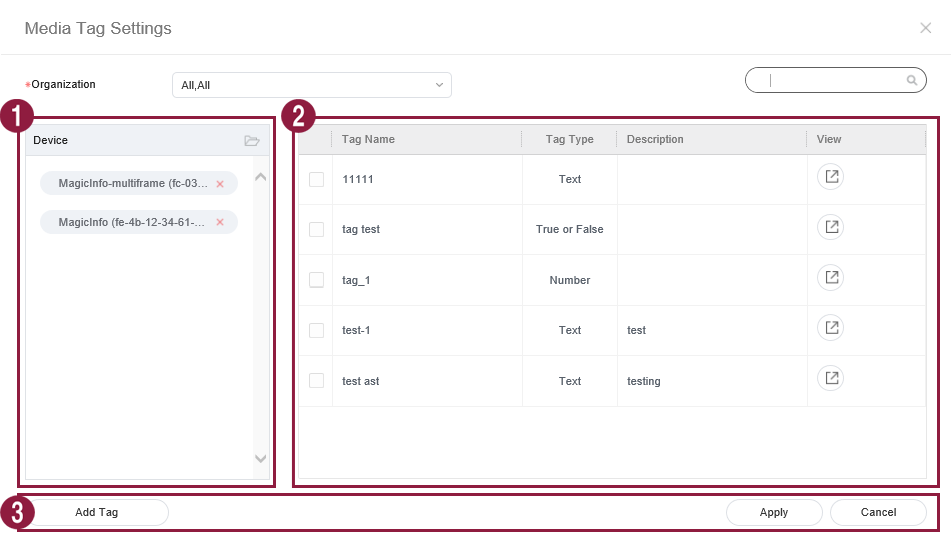
1 Tags are displayed as a list. - Select and drag a tag to a device.
- To add or delete tags, click Edit.
2 View the list of devices.
Add a tag to each device.
To delete a tag, click
 .
.
3 Save: Save tag settings.
Close: Close the tag settings window.
Note
To assign a tag to a device, first make sure to add the tag to MagicInfo Server. For details on adding or editing tags, refer to ► Managing tags