
- Press
 > Player.
Player screen is executed. Execute desired functions.
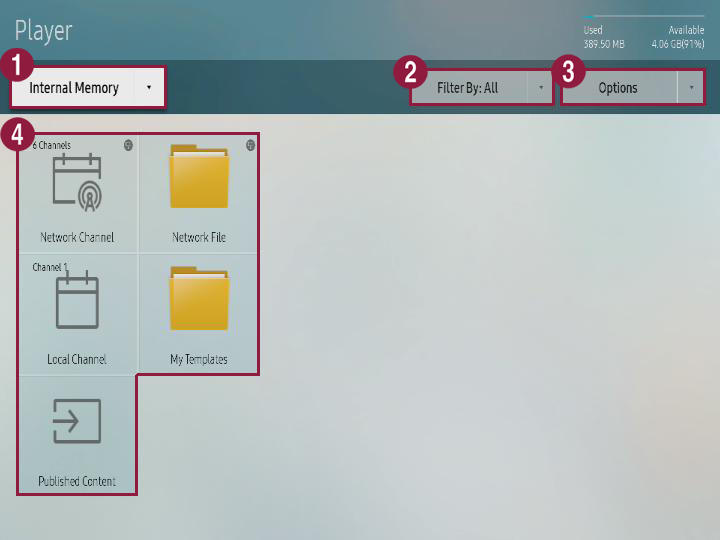
1 You can use S player to select the save position for the contents that will be played.
Internal memory: You can play the contents that are saved in S player.
External memory: You can play the contents that are saved in external memory such as USB storage device.
Note
External memory is only displayed when external memory is connected to S player. Name of the external memory is displayed differently depending on the external memory type that is connected.
2 Contents can be viewed in each category.
Note
Filter type can be different depending on the model type.
3 You can execute different options such as playing contents and slide shows. Refer to following for details. ► Using contents option menu 4 Network channel: You can play contents, template, and schedule that are set from the server.
Local channel: You can play the contents that are saved in external memory or external memory.
Distribution contents: You can play the .LFD contents that are made from author and distributed to external memory.
Refer to author user guide for details about making .LFD contents and distributing them to external memory.Note
When contents that are made from author and distributed to external memory are copied to internal memory, it is classified as distributed contents.
Network file: You can play the contents that are saved in connected server.
My template: You can play My template that is saved in internal memory.
Using contents option menu
Press option from player screen.
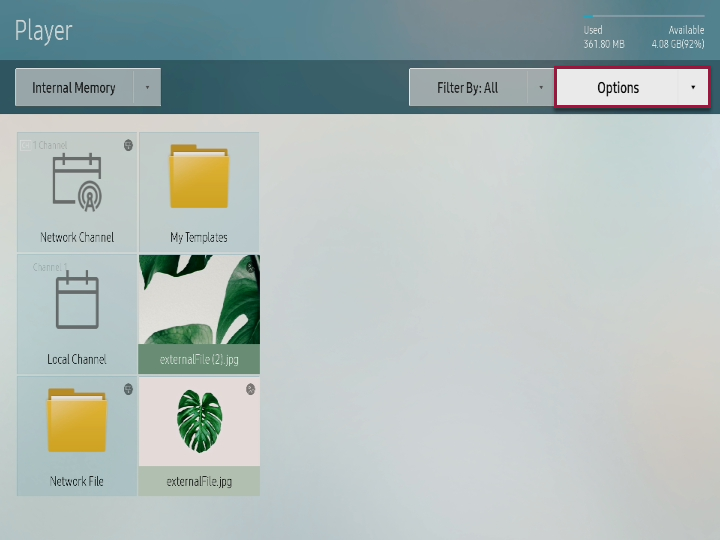
- Execute desired menu.
- Play selected: You can select the contents that will be played in S player. Refer to following for details. ► Playing selected contents
- Send: You can send the contents that are saved in internal memory to external memory or bring the contents that are saved in external memory to internal memory. Refer to following for details. ► Copying contents
- Delete: You can delete the contents. Refer to following for details. ► Delete contents
- Storage space: You can select the position for saving the schedule that is downloaded from server or other device.
- Safely remove device: You can safely remove the external memory that is connected.
- Contents size: You can apply setting to screen ratio for playing contents.
- Slide show speed: You can apply different setting to slide play speed depending on the contents type (picture, PDF, office documents).
- Slide show effect: In case of playing picture contents in slide show, you can set conversion effect for each slide.
- Contents direction: You can apply setting on contents display direction depending on arrangement status on the player.
- Basic contents: You can set basic contents that will be played when there are no reserved program or contents. Refer to following for details. ► Setting basic contents
- Initialization: You can return player setting value to initial status.
Playing selected contents
You can select the contents that will be played in S player.
- Press Option > Play selected from player screen.
Select the contents and press Play from upper side.
Corresponding contents are played.
Copying contents
You can send the contents that are saved in internal memory to external memory or bring the contents that are saved in external memory to internal memory.
Press Option > Send from player screen.
Note
This menu is activated only when external memory is connected to S player.
- Select the contents and press Send from upper side.
Select the device for sending and press Start.
Corresponding contents are copied to target device.Note
To stop sending contents, press Cancel.
Deleting contents
- Press Option > Delete from player screen.
- Select contents and press Delete from upper side.
When window appears, press Delete.
Note
Deleted contents cannot be restored.
Setting basic contents
- Press Option > Basic contents from player screen.
Select contents and press Complete.
Corresponding contents are automatically played when there are no reserved program or contents.