


Managing Rate Plans
Manage the basic rate plan and optional rate plans currently in use, screen licenses,
workspaces, payment, and rate plan status.
On the VXT CMS Home screen, click  and then select Settings > Plan.
Viewing Basic Rate Plan Details
View the following rate plan details.
|
Item |
Description |
|---|---|
|
Plan |
View the current rate plan and order number in use. |
|
Screen License |
View which workspaces are using a specific rate plan, and view the number of screen licenses to which the specific rate plan is assigned. |
|
Workspace |
View the number of workspaces where a specific rate plan is in use. |
|
Next Payment |
View the expiration date of the current rate plan. |
Different rate plan names are indicated with colored icons. These icons change color depending on the rate plan status.
|
icon |
Status |
|---|---|
 |
Pricing plan awaiting to be allocated |
 |
Pricing plan scheduled to be restarted or extended |
 |
Allocated pricing plan |
 |
Expired pricing plan |
Managing your subscribed rate plan
-
On the VXT CMS Home screen, click
and then select Settings > Plan. -
Select the Primary Plan tab.
-
From the list of rate plans, select the rate plan you want to manage. The rate plan details appear.
-
You can also change the number of licenses assigned to a workspace, add licenses by adding new workspaces, or delete workspaces.
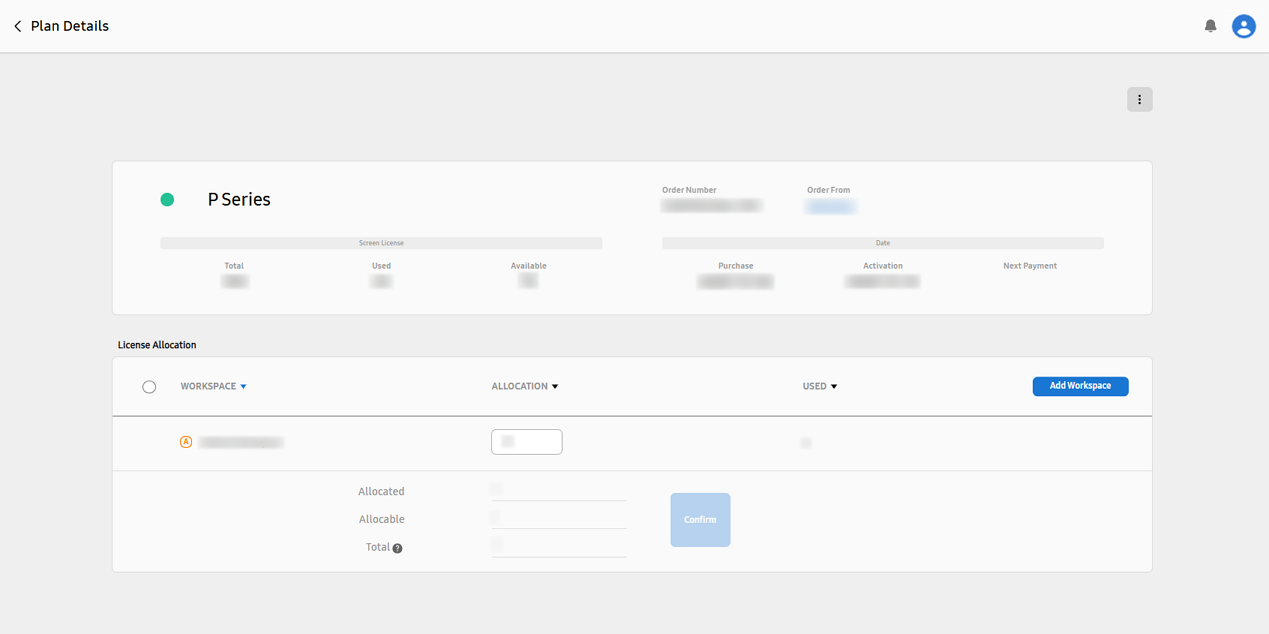
Assigning a License
Assign a rate plan license to a specific workspace.
-
On the Plan Details page, click Add Workspace under Allocate Licenses. Workspaces to which a rate plan license can be assigned appear.
-
Select the workspace to which you want to assign a rate plan license and then click Add.
-
An alternative way to assign a license is to use the workspace management page. Refer to the following for details:
-
Merging Rate Plans
Merge two different rate plans to increase the number of screens you can connect simultaneously.
-
Only same-type rate plans can be merged.
-
At the top right of the Plan Details page, click
 (More) > Merge Plan.
 -
Select the checkboxes of the rate plans you want to merge and then click Select. The rate plans are merged.
-
After rate plans are merged, the numbers of screens belonging to the two plans are merged, and a new rate plan end date is set by averaging the remaining terms of the two plans.
-
This option is not available for rate plans that were purchased through the VXT Portal or a third-party marketplace.
Types of Rate Plans
VXT CMS offers several rate plans. The characteristics of each rate plan are as follows:
|
S series |
P series |
X series |
|---|---|---|
|
Provides basic digital signage management features. |
Provides the following advanced features, in addition to the features available with the S series.
|
Offers the most advanced features, which include additional features for large-scale digital signage networks.
|
Managing Optional Rate Plans
Optional rate plans can be selected in addition to the basic rate plan. Users can optionally use additional features or services as needed for their work environment.
-
On the VXT CMS Home screen, click
and then select Settings > Plan. -
Select the Additional Plan tab.
-
From the list of rate plans, select the optional rate plan(s) you want to manage. The rate plan details appear.
-
More information about the basic and optional rate plans can be obtained from the following website:
-
Once your rate plan purchase is complete, an authentication code required for registration is sent to the provided email address. Enter this authentication code to complete registration.