


Creating E-Paper Content
E-paper is a display technology designed to mimic the appearance of ink on paper. It consumes less power and is visible even under sunlight, making it easy on the eyes and suitable for displaying the same content for long periods of time. With VXT Canvas, create and publish E-Paper content.
Creating E-Paper Content from VXT Canvas
-
On the main page of the Content menu, click Create Content to open the VXT Canvas page. An untitled canvas with a white background appears.
-
Enter the content name.
-
In the element properties panel on the right, click the Canvas tab and then set the size to QHD (for E-Paper).
-
Select elements from the Templates, Widgets, Media, or Text menu item, and then design the content.
-
Some content can be saved as E-Paper and some cannot, depending on their properties.
-
Refer to the following for details:
-
Some art may not be saved in E-Paper format, depending on the provider.
-
-
From the page thumbnail area beneath the canvas, set the playback time for each page to 5 minutes (300 seconds) or longer.
-
From the top menu above the canvas, click
 (More) > Save as E-Paper.
 -
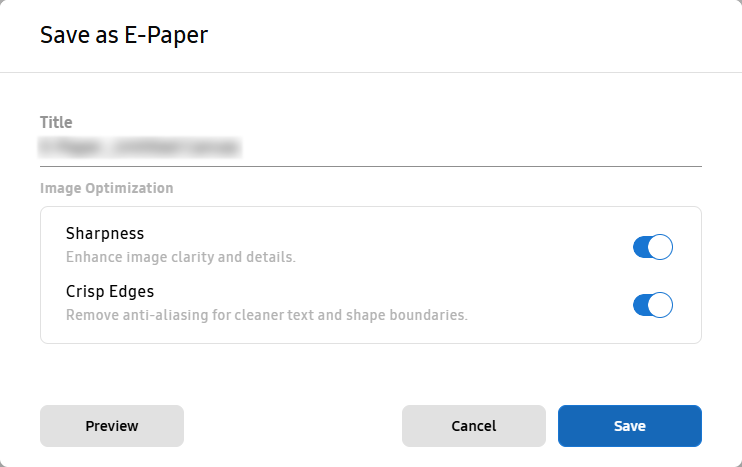
In the displayed Save as E-Paper window, enter a name for the E-Paper content and then click Save.
-
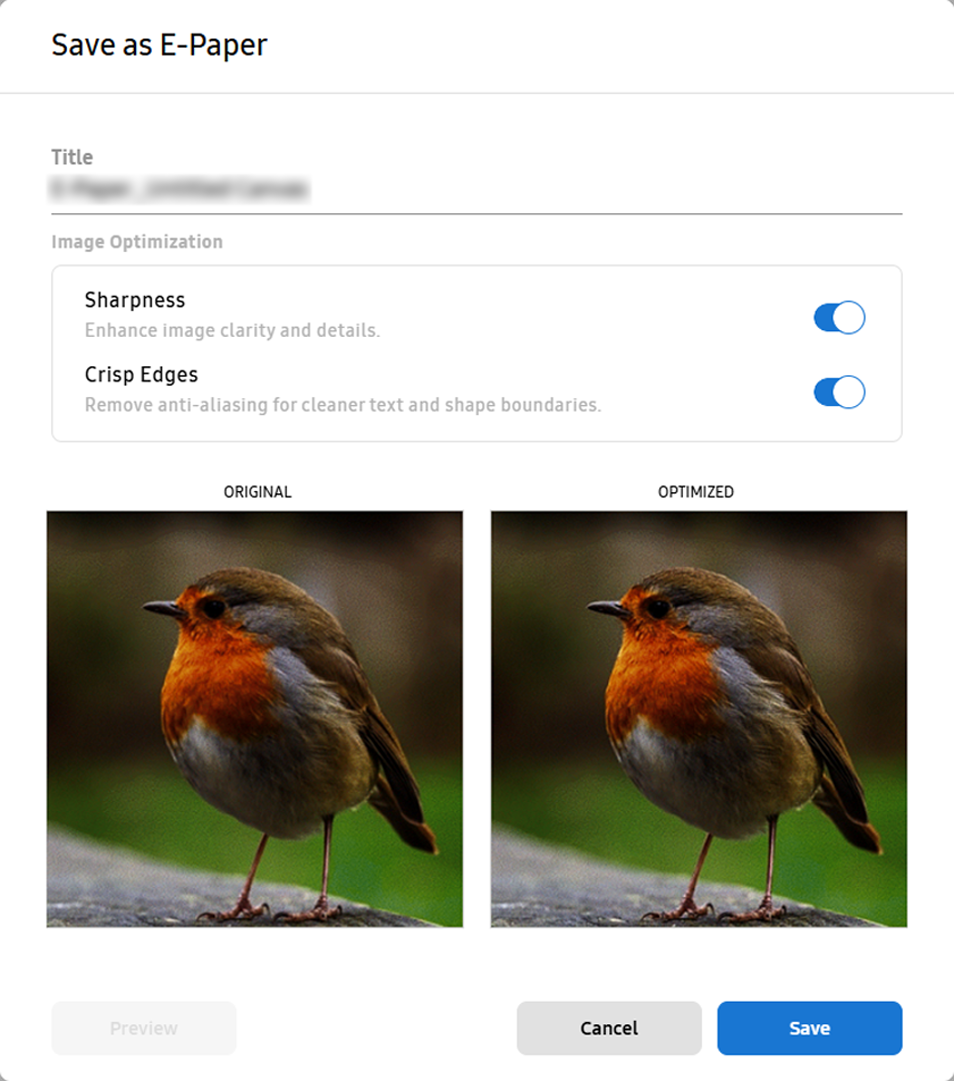
In the Save as E-Paper window, select the desired image optimization option. To compare the optimized version and the regular version, click Preview.
-
Using the E-Paper Preview Function
Colors shown on the screen may differ from the colors actually displayed on E-Paper content. To reduce this difference, VXT Canvas provides a preview function to help users view and adjust colors for E-Paper content.
-
We recommend that users check for color differences using the preview function before saving E-Paper content.
-
After creating E-Paper content from the canvas, set the playback time to 5 minutes (300 seconds) or longer.
-
From the top menu above the canvas, click
(More) > Save as E-Paper. -
In the Save as E-Paper window, select an image optimization option and then click Preview. The original version and optimized version images appear for comparison.
-
Use the mouse wheel to zoom in or out on the images for comparison.
-
-
Enter a name for the E-Paper content and then click Save. The content is saved in E-Paper format. Saved E-Paper content is displayed on the main page of the Content menu.
Assessing e-Paper Content Using the Canvas Preview Function
Before publishing E-Paper content to screens, preview it and make sure that it is played as intended.
-
Playback mode options used in preview mode are not saved.
-
On the Canvas page, display the E-Paper content you want to preview.
-
Click Preview from the top menu above the canvas. The preview window opens and the content plays.
-
To change the E-Paper playback mode, click
 (Picture Mode for E-Paper) at the bottom right of the currently playing preview page. A selected setting is
maintained.
(Picture Mode for E-Paper) at the bottom right of the currently playing preview page. A selected setting is
maintained.
|
Playback mode |
Description |
|---|---|
|
Original |
Retains the original colors and design that were used before saving as E-Paper content. |
|
Normal |
Saves content as E-Paper content and then changes to standard content. Automatically adjusts settings to basic colors and contrast suitable for E-Paper content. |
|
Vivid |
Increases color saturation and contrast to create a more vivid and powerful impression. Use this mode when you want to increase visual attention within a limited color palette. |
|
Text |
Adjust color contrast and simplify the background to maximize text legibility. This mode is suitable for playing informational content. |
Adjusting Brightness and Color Temperature of E-Paper Content
When setting E-Paper content to Normal, Vivid, or Text mode, fine-tine the brightness and color temperature values for each mode.
-
Color temperature and brightness adjustment is not available in Original mode.
-
On the Canvas page, display the E-Paper content you want to preview.
-
Click Preview from the top menu above the canvas. The preview window opens and the content plays.
-
While a preview is playing, at the bottom of the page, click
(Picture Mode for E-Paper) and then select Advanced Settings. Drag the slider to adjust the Brightness and Color Temperature levels for the content.