
Add a virtual box to detect events in the camera view area.
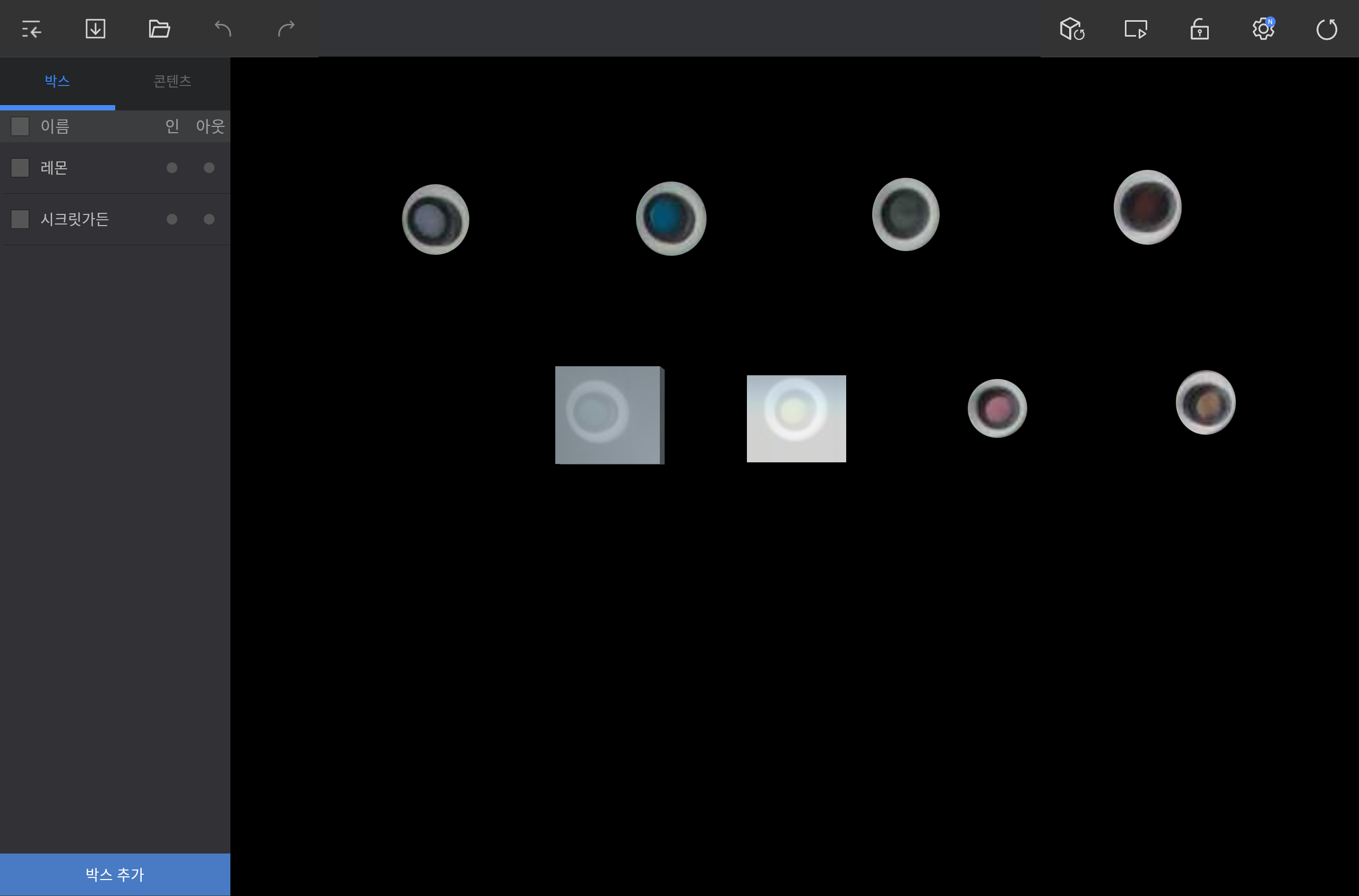
Tap ADD BOX on the lower left screen in the editor and add a box to a desired position.
Note
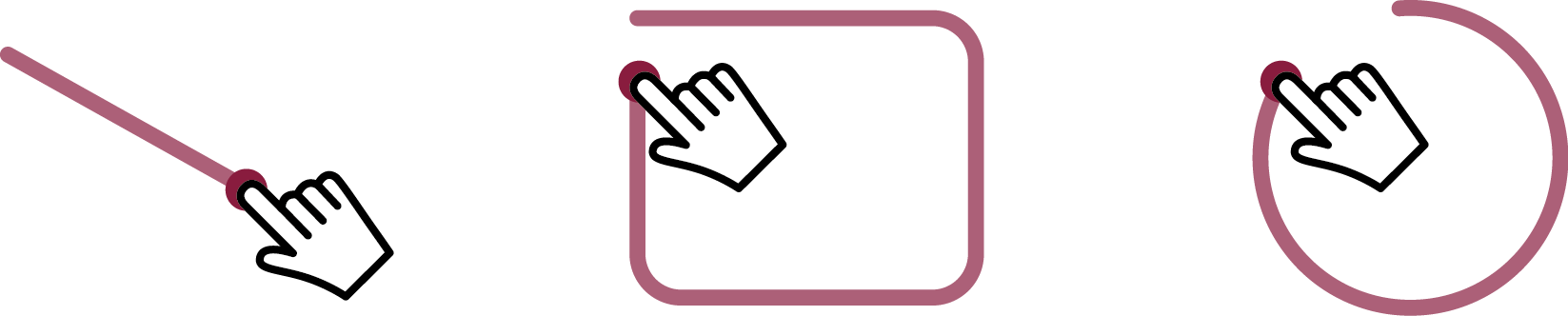
Drag diagonally or in circle to create a box that fits the dragged space.
Editing a box
Select a box from the BOX tab or in the angle area.
Use the available options to edit the box.
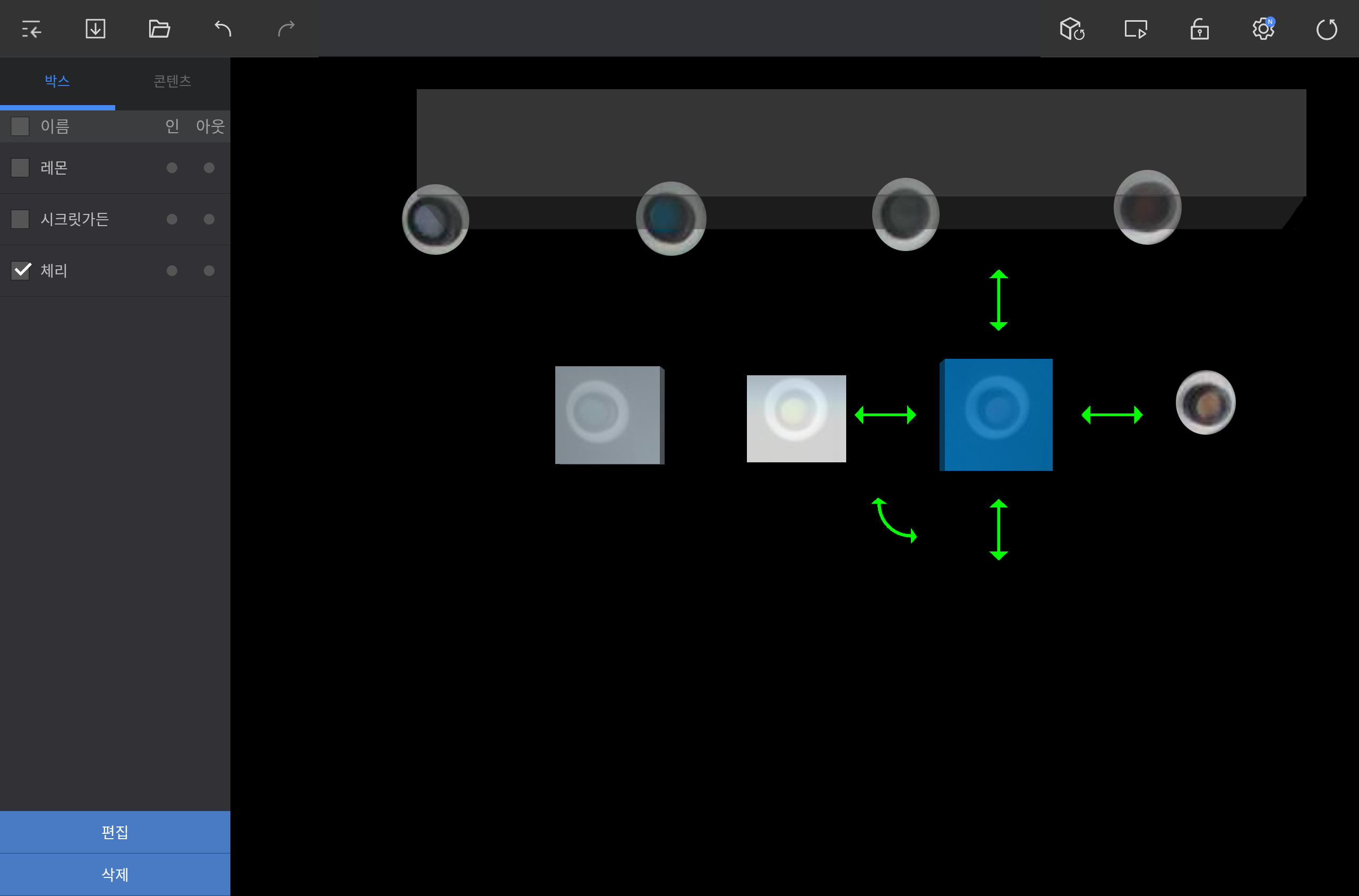
To reposition the box, press and hold the box and then drag it to a desired position.
To adjust the box size, press and hold and then drag the straight double arrows around the box (up/down/right/left).
To rotate the box, press and hold and then drag the curved double arrow.
To rename the box or add a tag, tap EDIT on the lower left screen.
To delete the box, tap DELETE on the lower left screen.
Note
- To delete multiple boxes at once, select them from the BOX tab.
- When editing boxes, check the effective area using the Player screen to allow more precise detection.