Setting date and time
To use W Player properly, first run S Player, set the date and time correctly, and then link the S Player to the Server. The Server date and time set for the W Player are synchronized to the date and time set for the S Player. For details on how to set the date and time from the S Player, refer to the S Player user manual. ► Setting date and time
Linking to server
Link the W Player to the Server to play content saved on the Server or schedules published from the Server.
Required steps before using W Player
Install the MagicINFO Server. (MagicINFO Server 8)
Run S Player. (Smart Signage model series)
- Perform update to a version that supports W Player.
Before updating the firmware, make sure the model supports conversion to W Player. If the model supports conversion to W Player, an icon indicating that the device can be converted from the Server appears. |
- A version of S Player that supports conversion to W Player can be found on the Server.
- Convert the device from S Player to W Player.
Update the W Player to the latest version.
The converted W Player is not the latest version. After a device conversion, make sure you update the W Player to the latest version. |
Updating W Player to the latest version
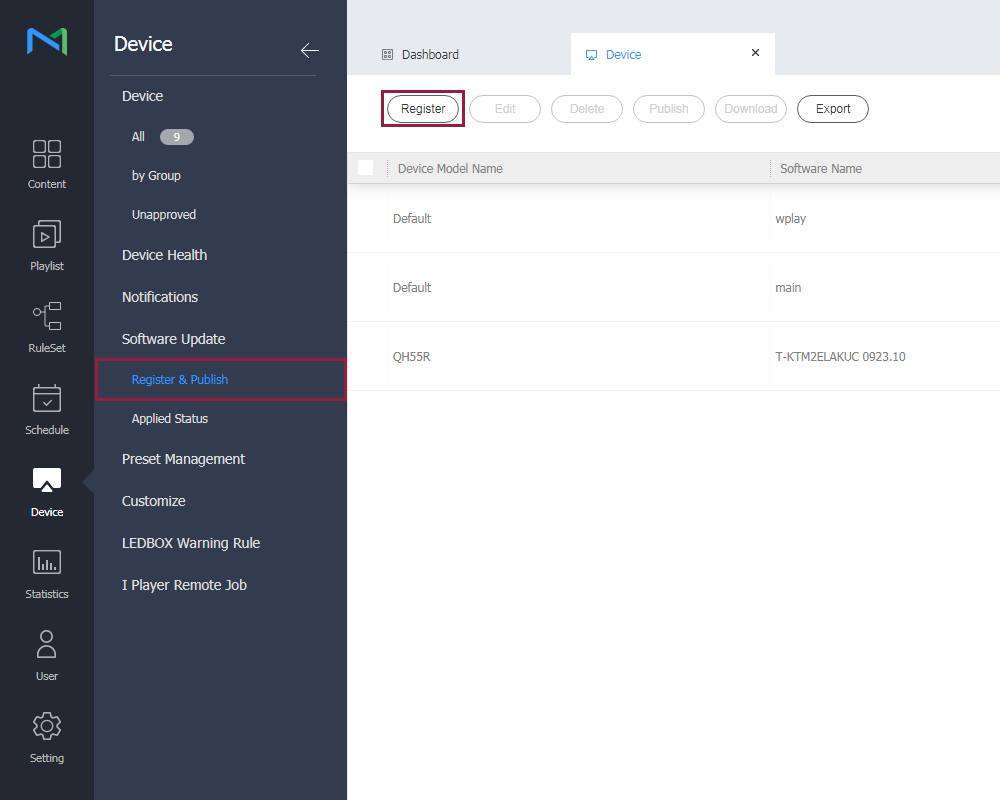
Select Device > Software Update > Register & Publish and click Register to register the W Player.
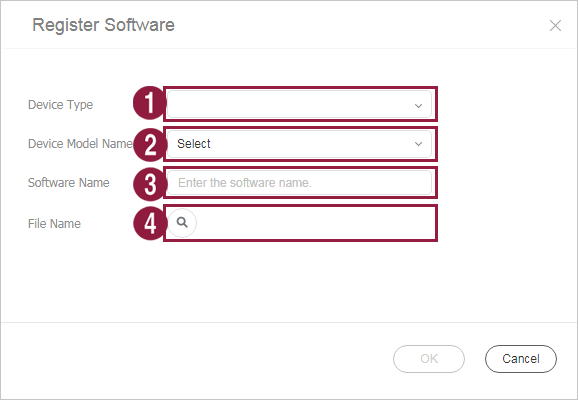
On the displayed Register Software window, configure the W Player settings.
| 1 | Device Type: Select “WPLAYER.” |
| 2 | File Type: Select “Web App.” |
| 3 | Software Name: Enter the software name. |
| 4 | File Name: Browse and find the zip file path of the W Player update, and then select the zip file. |
Select the update file for the W Player registered in the previous step and select Publish. After W Player update to the latest version is completed, the system automatically reboots.
If W Player is an unapproved device
Click Device > Unapproved. Select the S Player that supports conversion to W Player.
Click Device conversion. Click OK.
| After settings are completed, the S Player is closed and the system automatically reboots. |
The S Player is removed from the MagicINFO Server, and W Player is created in the list of Unapproved devices.
Select the created W Player and click Approve.
If W Player is an approved device
Click Device > All and change the view mode to  .
.
Select the Setup tab.
- The grayed-out Device conversion option appears.
- Select the S Player to enable the Device conversion option.
- On the displayed Convert window, select “W Player.”
After settings are completed, the S Player is closed, and the Tizen system converts the S Player to W Player and automatically reboots. |