
A report contains statistics that have been aggregated by searching for data, analyzed using Insight, based on search conditions. It is possible to create a report using retrieved data and download the report.
Creating a report
To create a report, follow the steps below.
- On the menu bar on the Insight screen, click Report .
- Set the analysis period in the search area at the top. Analysis result is displayed based on the period specified in Settings > Index Settings > Date Range .
-
Click Search .
Note
- To use more specific search conditions for search and analysis, click Open Detailed Search . It is possible to select specific device groups, key indexes, or a screen type, as well as an analysis period. It is also possible to analyze data collected during a maximum of 60 days within the last two years.
- Logs and processed data are retained for a maximum of two years.
Report screen
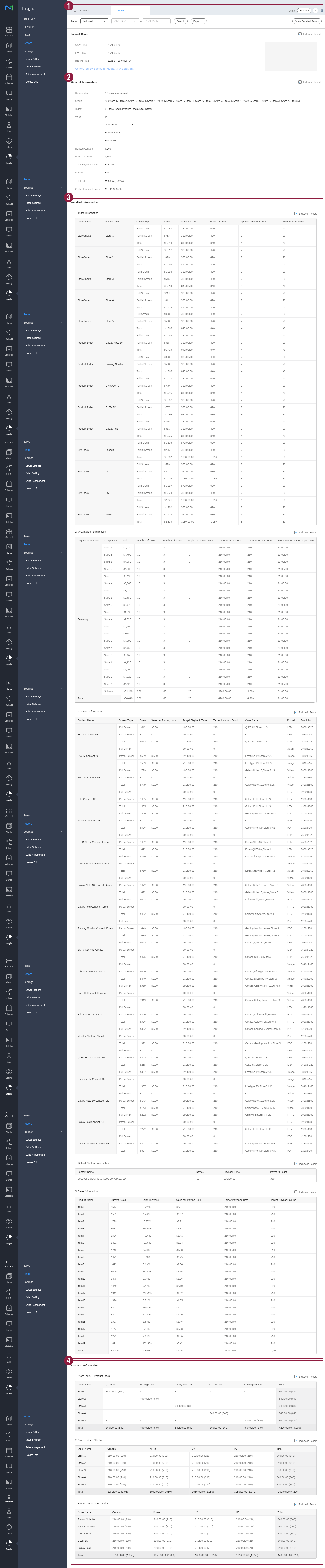
The following data items are displayed.
| 1 |
Insight report |
Shows the analysis start/end times and the time the report was created. To insert an image, e.g., your company logo, in the report, click
Note To change or delete the inserted image, click the image again. |
| 2 |
General information |
Shows the following overall information about the selected option: the group, indexes, values, content details, total playback time, playback count, devices used for playback, total sales, and content-related sales. |
| 3 |
Detailed information |
Shows specific details of the results of analysis of the selected option.
|
| 4 |
Cross-tabulation analysis information |
Select and combine specific key indexes to display the playback time and the relationship between individual indexes as numerical values. If key indexes A, B, and C are selected, the screen displays graphs in which three different pairs (A-B, B-C, and C-A) are analyzed.
You can select a preferred type from the variety of graph types. You can also display information about specific indexes simply by clicking the index names at the top of the graph. |

Downloading a report
Include or exclude an item in the report by selecting or deselecting the checkbox at the top right of the item.
A displayed report can be downloaded in PDF or HTML format.
- On the report that has been displayed after analysis, click Export .
- Select a download format. Download begins.