Versions Compared

Key

  • This line was added.
  • This line was removed.
  • Formatting was changed.
Comment: Removed translated content for 'fi'

...

تعيين التاريخ والوقت

لاستخدام W Player بشكل سليم، قم أولاً بتشغيل S Player وتعيين التاريخ والوقت بصورة سليمة ثم قم بتوصيل S Player بالخادم. تتم مزامنة تاريخ ووقت الخادم المعينين لجهاز W Player مع التاريخ والوقت المعينين لجهاز S Player. للاطلاع على تفاصيل حول كيفية تعيين التاريخ والوقت من جهاز S Player، راجع دليل المستخدم لجهاز S Player. ► S Player 사전 환경 설정하기

التوصيل بالخادم

قم بتوصيل W Player بالخادم لتشغيل المحتوى المحفوظ على الخادم أو الجداول المنشورة من الخادم.

خطوات مطلوبة قبل استخدام W Player

  1. قم بتثبيت MagicINFO Server. (MagicINFO Server 8)

  2. قم بتشغيل S Player. (سلسلة طراز Smart Signage)

    • قم بإجراء تحديث إلى الإصدار الذي يدعم W Player.
Sv translation
languageen

Setting date and time


To use W Player properly, first run S Player, set the date and time correctly, and then link the S Player to the Server. The Server date and time set for the W Player are synchronized to the date and time set for the S Player. For details on how to set the date and time from the S Player, refer to the S Player user manual. ► Setting date and time

Linking to server


Link the W Player to the Server to play content saved on the Server or schedules published from the Server.

Required steps before using W Player

  1. Install the MagicINFO Server. (MagicINFO Server 8)

  2. Run S Player. (Smart Signage model series)

    • Perform update to a version that supports W Player.
    Info
    titleNote

    Before updating the firmware, make sure the model supports conversion to W Player. If the model supports conversion to W Player, an icon indicating that the device can be converted from the Server appears.

    • A version of S Player that supports conversion to W Player can be found on the Server.
  3. Convert the device from S Player to W Player.
  4. Update the W Player to the latest version.

    Info
    titleNote

    The converted W Player is not the latest version. After a device conversion, make sure you update the W Player to the latest version.

Updating W Player to the latest version

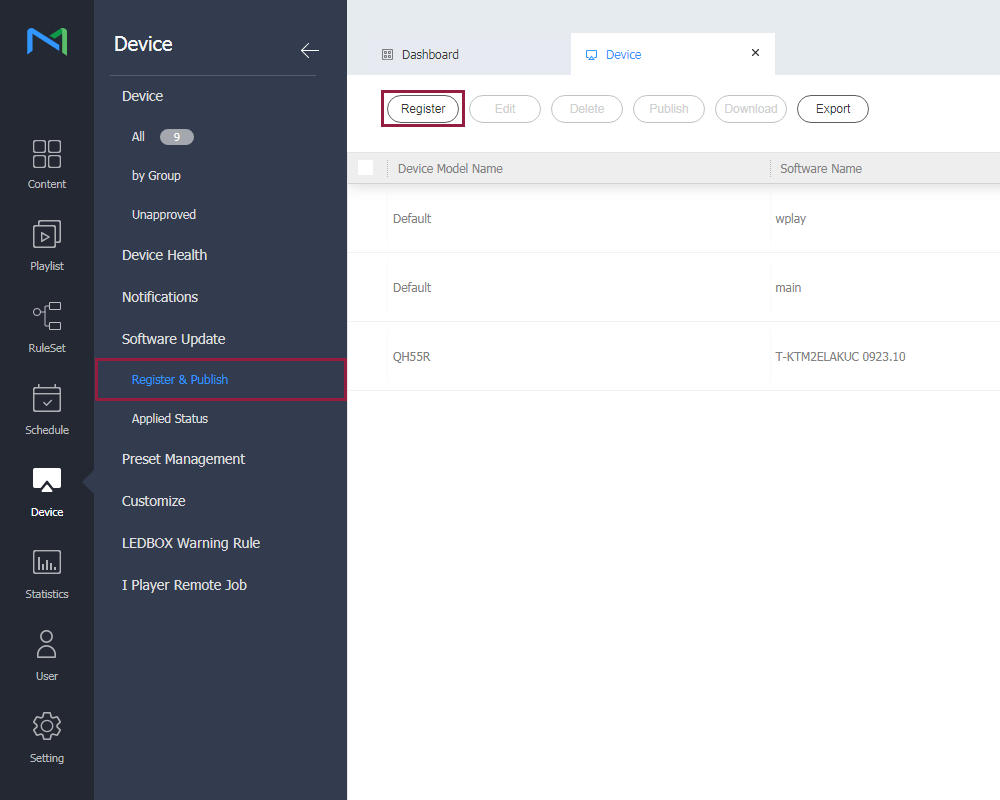
  1. Select Device > Software Update > Register & Publish and click Register to register the W Player.

    Stylesheet
    classscreen

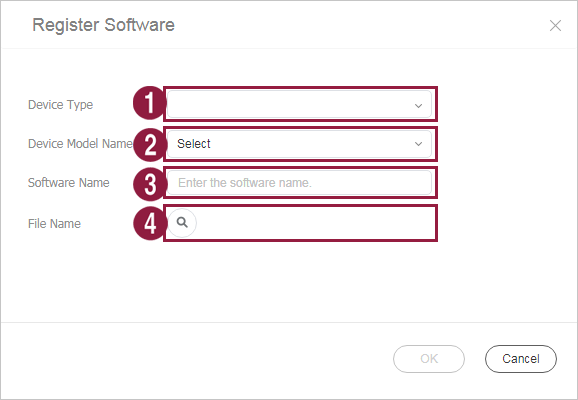
  2. On the displayed Register Software window, configure the W Player settings.

    Stylesheet
    classscreen

    1

    Device Type: Select “WPLAYER.”

    2

    File Type: Select “Web App.”

    3

    Software Name: Enter the software name.

    4

    File Name: Browse and find the zip file path of the W Player update, and then select the zip file.

  3. Select the update file for the W Player registered in the previous step and select Publish. After W Player update to the latest version is completed, the system automatically reboots.

Info
titleNote

For details on software update, refer to the Server user manual. ► Updating the software

If W Player is an unapproved device

  1. Click Device > Unapproved. Select the S Player that supports conversion to W Player.

  2. Click Device conversion. Click OK.

    Info
    titleNote
    After settings are completed, the S Player is closed and the system automatically reboots.
  3. The S Player is removed from the MagicINFO Server, and W Player is created in the list of Unapproved devices.

  4. Select the created W Player and click Approve.

If W Player is an approved device

  1. Click Device > All and change the view mode to .

  2. Select the Setup tab.

    • The grayed-out Device conversion option appears.
    • Select the S Player to enable the Device conversion option.
    • On the displayed Convert window, select “W Player.”
Info
titleNote

After settings are completed, the S Player is closed, and the Tizen system converts the S Player to W Player and automatically reboots.

Sv translation
languagear
Info
titleملحوظة

قبل تحديث البرنامج الثابت، تأكد أن الطراز يدعم التحويل إلى W Player. إذا كان الطراز يدعم التحويل إلى W Player، فسيظهر رمز يوضح أن الجهاز يمكن تحويله من الخادم.

  • يمكن العثور على إصدار S Player الذي يدعم التحويل إلى W Player على الخادم.
  • قم بتحويل الجهاز من S Player إلى W Player.
  • قم بتحديث W Player إلى أحدث إصدار.

    Info
    titleملحوظة

    ليس W Player المُحوَّل هو أحدث إصدار. بعد تحويل الجهاز، تأكد أنك قمت بتحديث W Player إلى أحدث إصدار.

  • تحديث W Player إلى أحدث إصدار

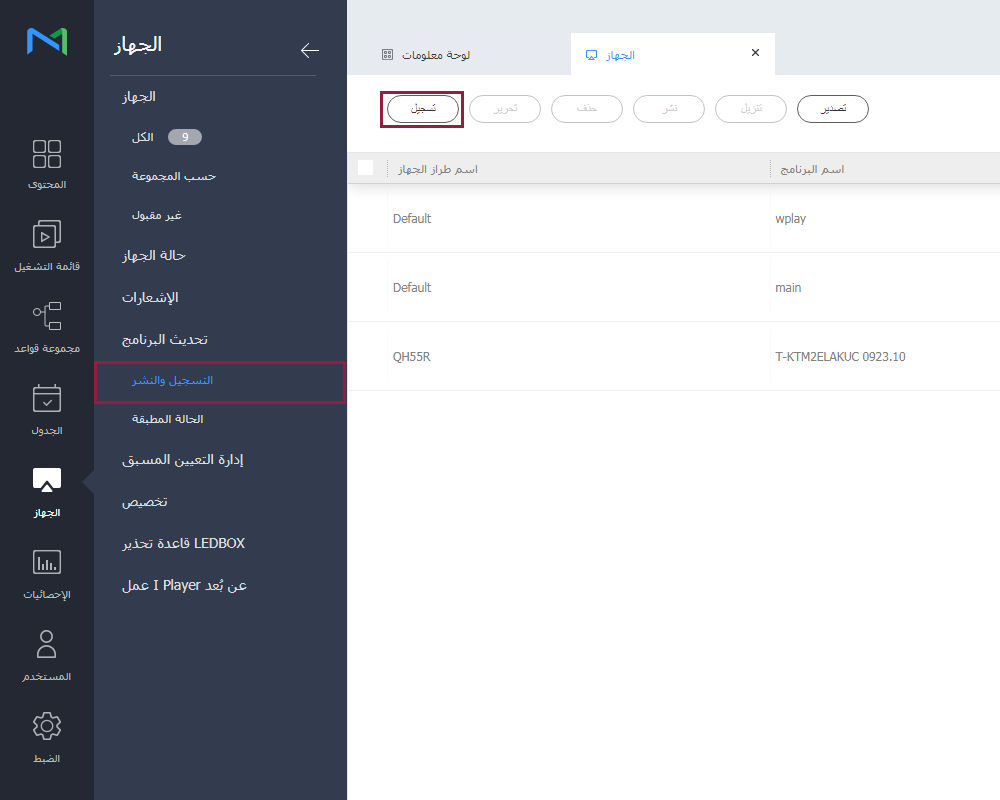
  • حدد الجهاز > تحديث البرنامج > التسجيل والنشر وانقر فوق التسجيل لتسجيل W Player.

    Stylesheet
    classscreen

    Image Removed

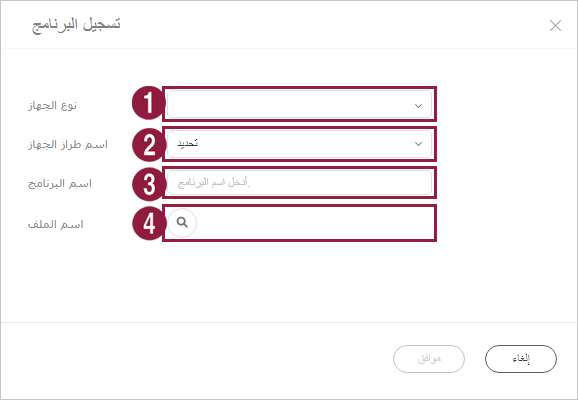
  • في نافذة تسجيل البرنامج المعروضة، قم بتكوين إعدادات W Player.

    Stylesheet
    classscreen

    Image Removed

    1

    نوع الجهاز: حدد "WPLAYER."

    2

    نوع الملف: حدد "Web App."

    3

    اسم البرنامج: أدخل اسم البرنامج.

    4

    اسم الملف: تصفح وابحث عن مسار ملف zip لتحديث W Player، ثم حدد ملف zip.

  • حدد ملف التحديث لمشغل W Player المسجل في الخطوة السابقة وحدد النشر. بعد اكتمال تحديث W Player إلى أحدث إصدار، ستتم إعادة تشغيل النظام تلقائيًا.

  • Info
    titleملحوظة

    للاطلاع على تفاصيل حول تحديث البرنامج، راجع دليل المستخدم للخادم. ► 소프트웨어 업데이트 하기

    إذا كان W Player جهاز غير معتمد

    1. انقر فوق الجهاز > غير معتمد. حدد S Player الذي يدعم التحويل إلى W Player.

    2. انقر فوق تحويل الجهاز. انقر فوق موافق.

      Info
      titleملحوظة
      بعد اكتمال الإعدادات، يتم إغلاق S Player وإعادة تشغيل النظام تلقائيًا.
    3. يتم حذف S Player من MagicINFO Server، ويتم إنشاء W Player في قائمة الأجهزة غير المعتمدة.

    4. حدد W Player الذي تم إنشاؤه وانقر فوق قبول.

    إذا كان W Player جهاز معتمد

    1. انقر فوق الجهاز > الكل وقم بتغيير وضع العرض إلى Image Removed.

    2. حدد علامة تبويب إعداد.

      • يظهر خيار تحويل الجهاز باللون الرمادي.
      • حدد S Player لتمكين الخيار تحويل الجهاز.
      • في نافذة تحويل المعروضة, حدد "W Player."
    Info
    titleملحوظة

    بعد اكتمال الإعدادات، يتم إغلاق S Player ويقوم نظام Tizen بتحويل S Player إلى W Player وإعادة التشغيل تلقائيًا.