Versions Compared

Key

  • This line was added.
  • This line was removed.
  • Formatting was changed.

...

Sv translation
languageen

Adding preset


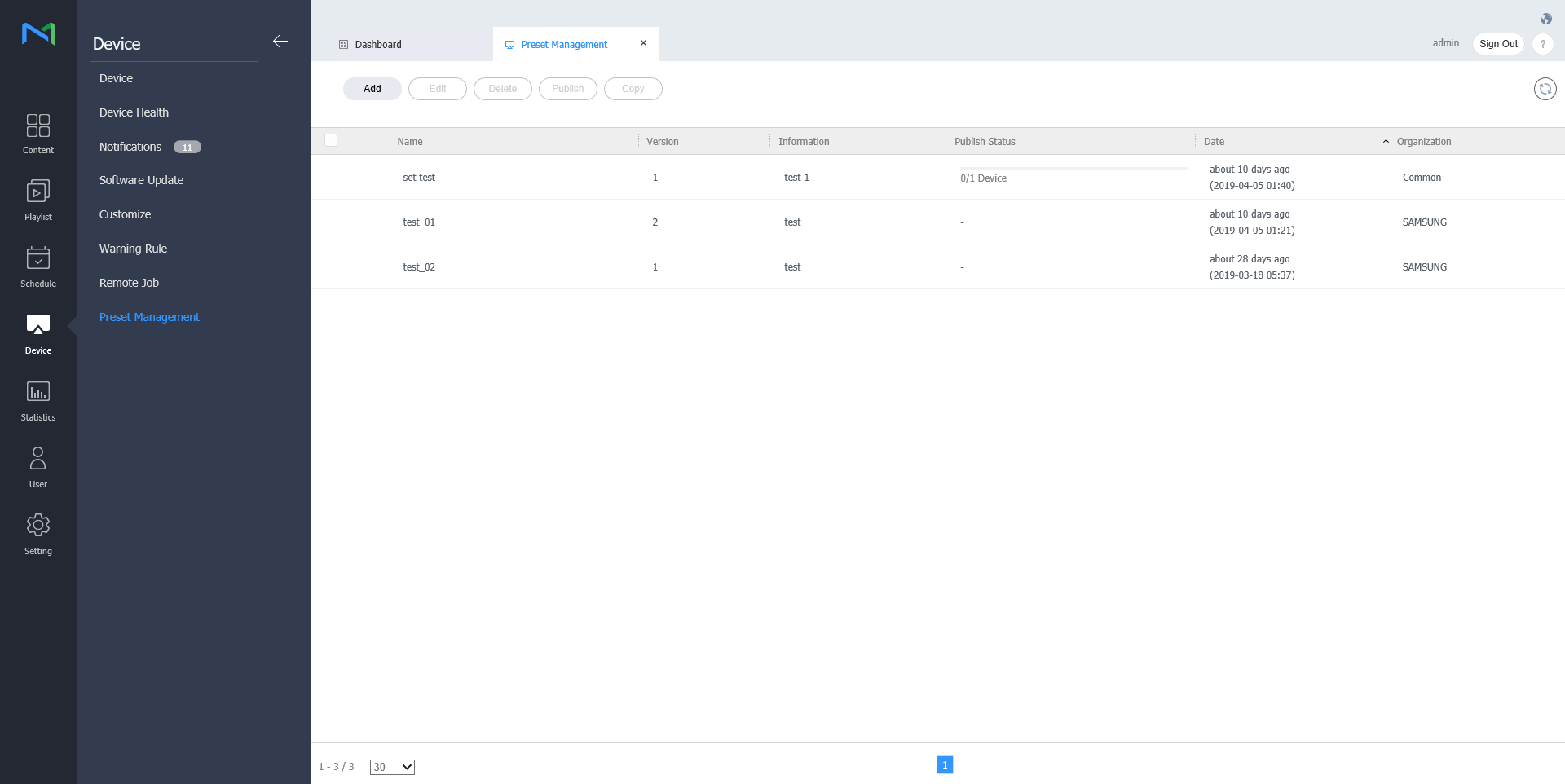
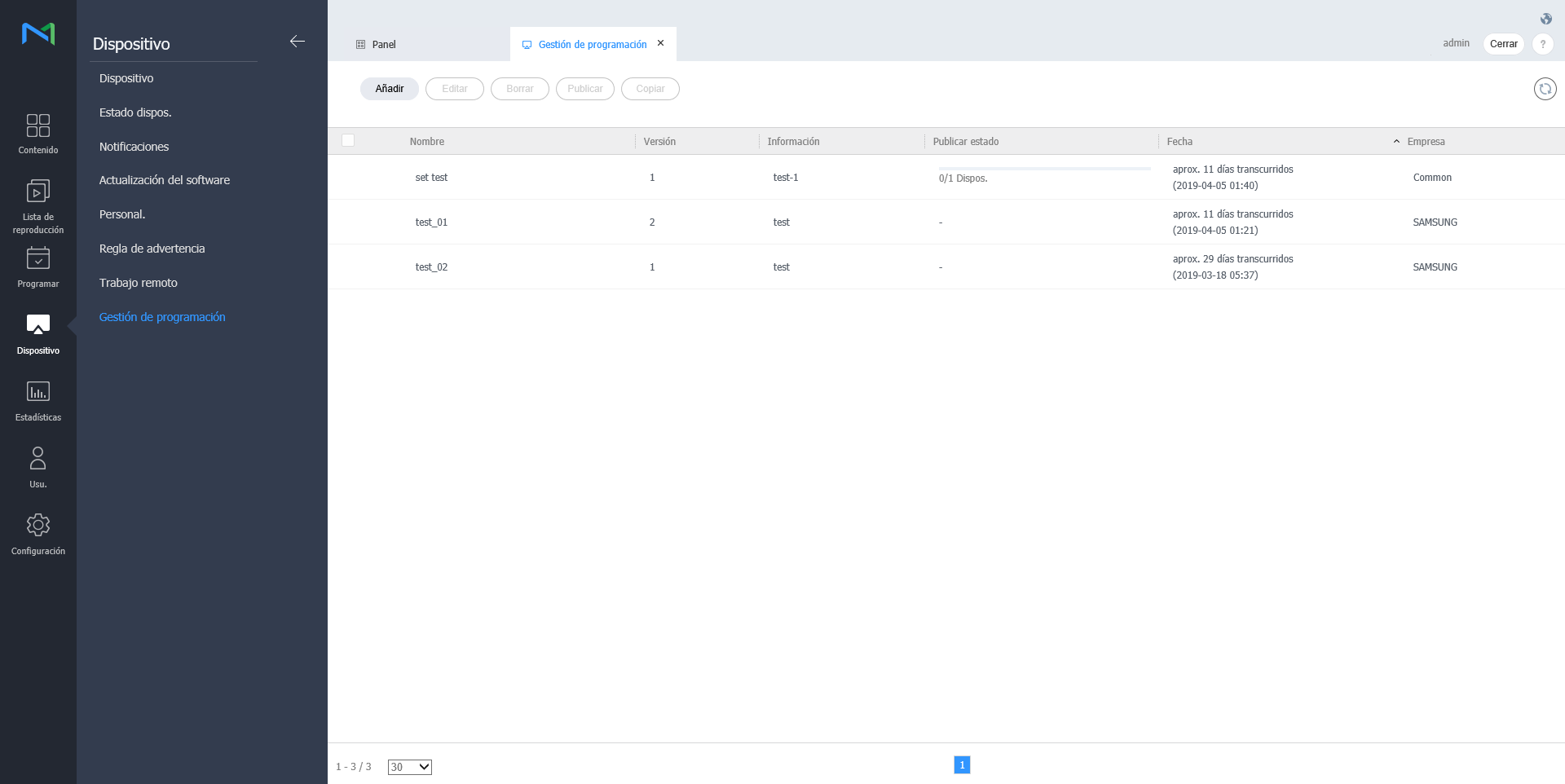
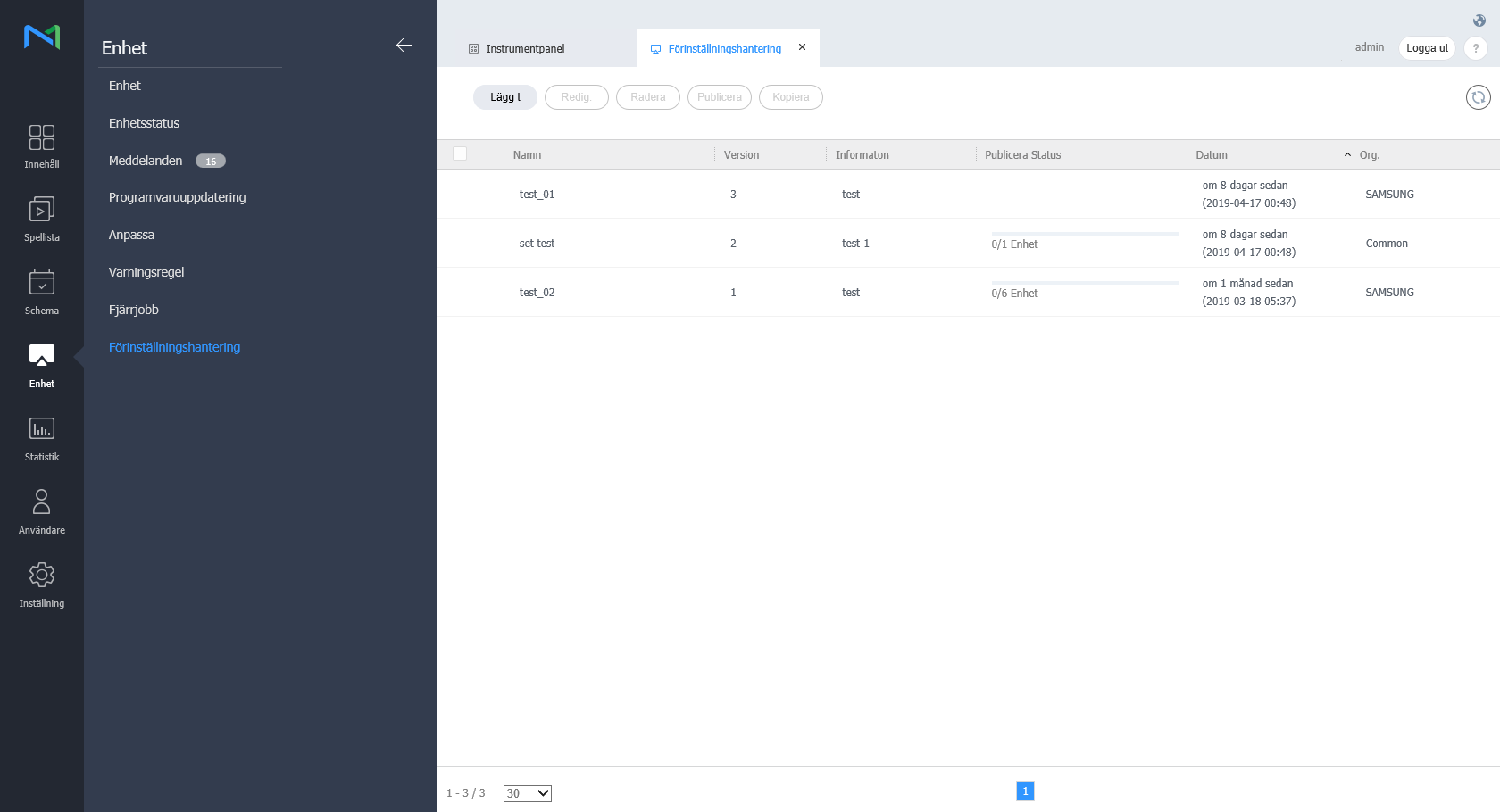
  1. Click on Add from the device list.

    Stylesheet
    classscreen
    Image Modified
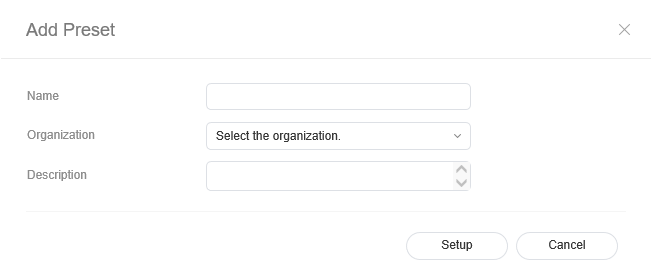
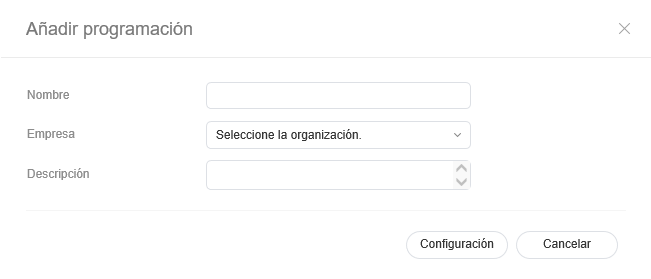
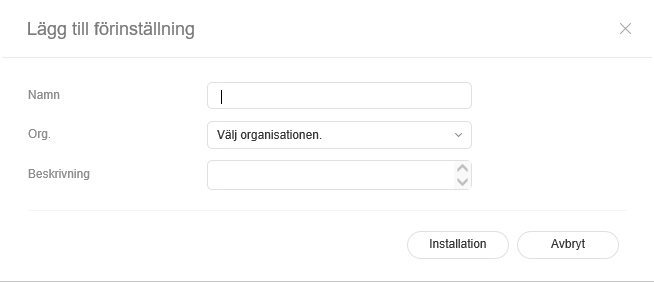
  2. Enter name, organization and description when the add preset setting window appears and click Setting.

    Stylesheet
    classscreen

Deleting preset


  1. Select a preset to delete from the preset list and click Delete.

  2. Click OK to delete the selected preset.

Publishing preset


  1. Select a preset from the preset list and click Publish.
  2. Select a device to which you want to publish the preset setting and click Save.

Copying preset


  1. Select a preset from the preset list and click Copy
  2. Enter name, organization and description when the save as window appears and click Save.


...

Sv translation
languagezh_TW

新增預設


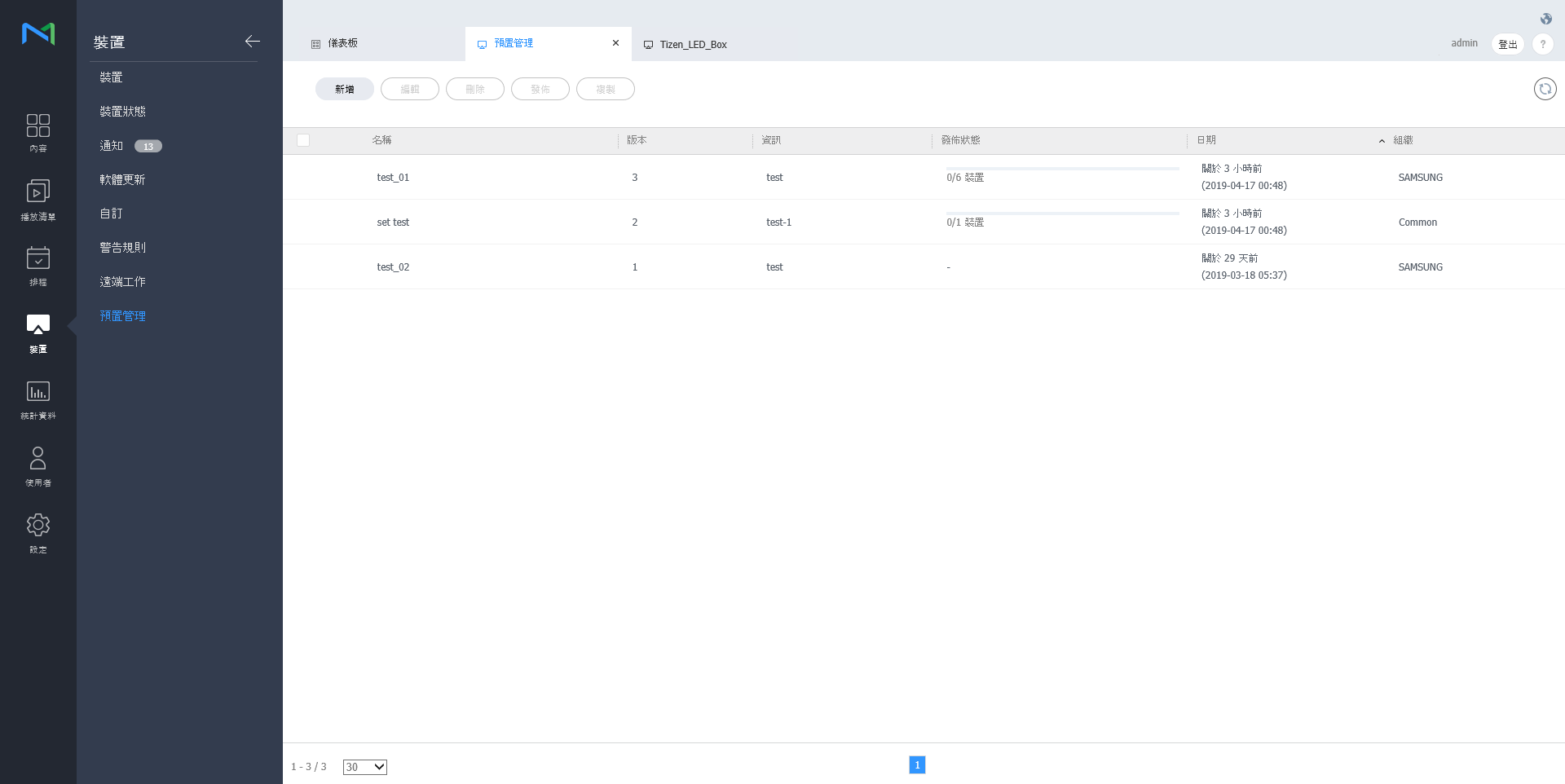
  1. 按一下裝置清單中的 新增

    Stylesheet
    classscreen
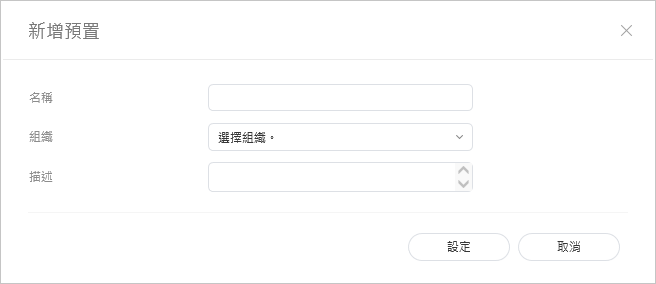
  2. 在出現新增預設設視窗時輸入名稱、組織和描述,然後按一下 設定

    Stylesheet
    classscreen

刪除預設


  1. 在預設清單中選擇要刪除的預設,然後按一下 刪除

  2. 按一下 確定 以刪除所選預設。

發佈預設


  1. 在預設清單中選擇預設,然後按一下 發佈
  2. 選擇要發佈預設設定的裝置,然後按一下 儲存

複製預設


  1. 在預設清單中選擇預設,然後按一下 複製。
  2. 在出現另存新檔視窗時輸入名稱、組織和描述,然後按一下 儲存


Sv translation
languagear

Edit preset information, using one of the following options.

  • Option 1: Select a preset from the preset list and click Edit.
  • Option 2: Click a preset name from the preset list and edit in the preset editor window.

Editing preset time

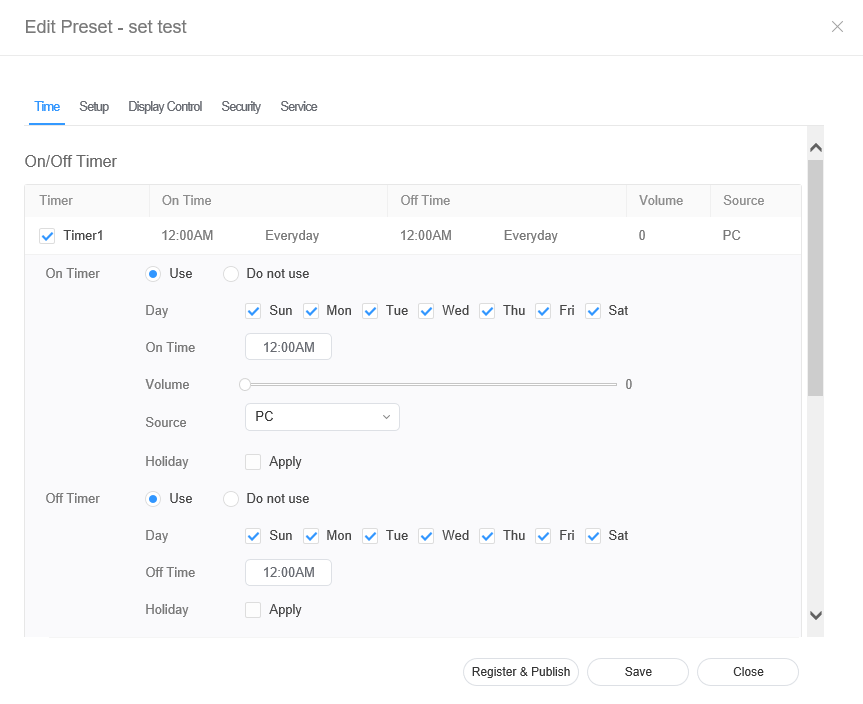
  • Select the Time tab from the preset editor window.
  • Set the timer to automatically turn the device on or off.
  • Click a Timer from the on/off timer list.
  • Configure timer details.
  • Configure the time and click Save. Click Register & Publish to immediately apply the set value to a group.

    إضافة تعيين مسبق


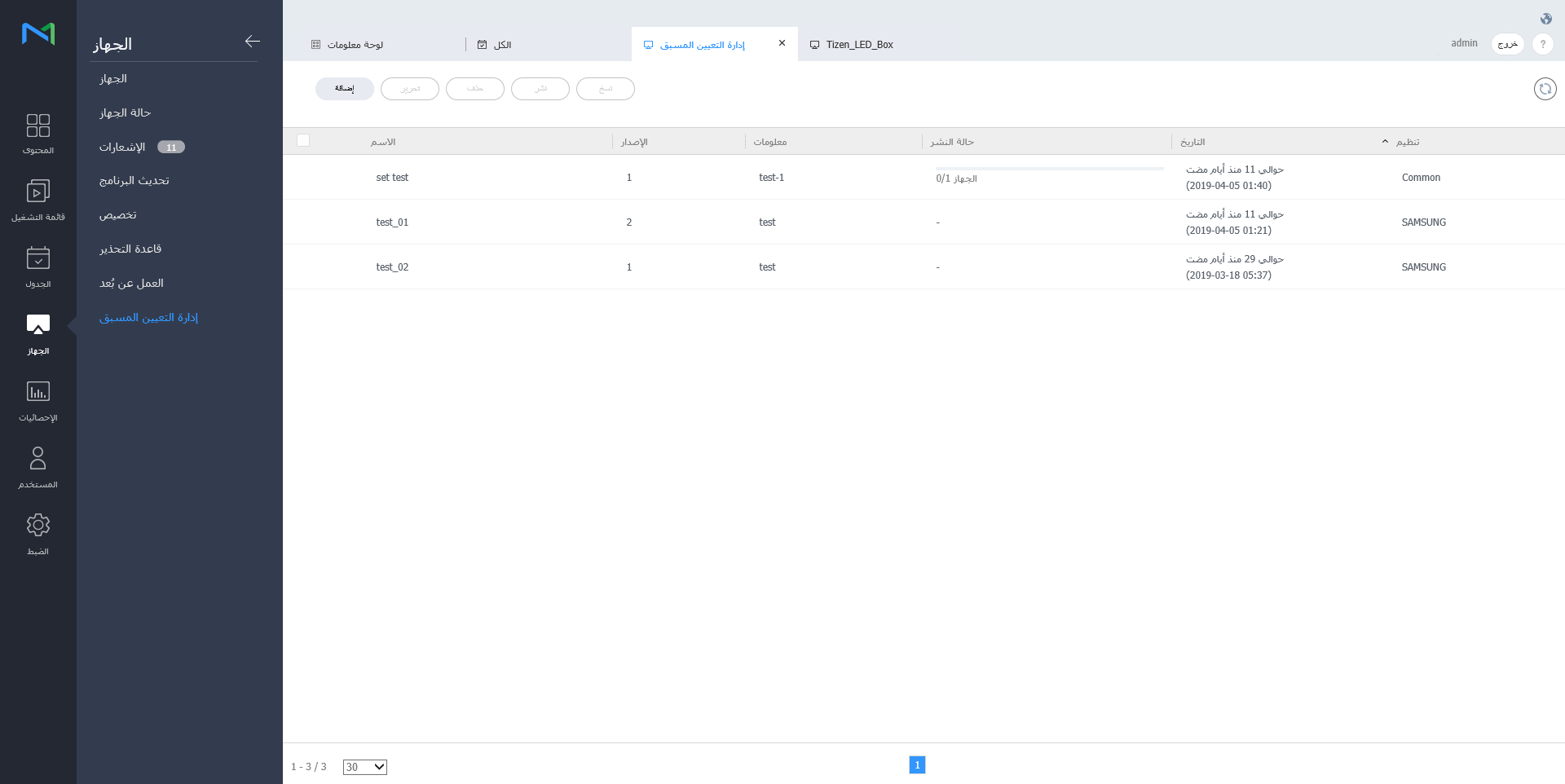
    1. انقر فوق إضافة من قائمة الجهاز.

      Stylesheet
      classscreen
      Image Added
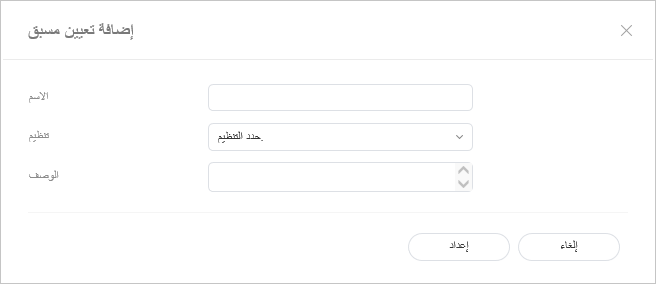
    2. أدخل الاسم والتنظيم والوصف عندما تظهر نافذة إضافة ضبط التعيين المسبق وانقر فوق ضبط.

      Stylesheet
      classscreen

      Image Added

    حذف التعيين المسبق


    1. حدد تعيينًا مسبقًا مطلوب حذفه من قائمة التعيين المسبق وانقر فوق حذف.

    2. انقر فوق موافق لحذف التعيين المسبق المحدد.

    نشر التعيين المسبق


    1. حدد تعيينًا مسبقًا من قائمة التعيين المسبق وانقر فوق نشر.
    2. حدد جهازًا تريد نشر ضبط التعيين المسبق إليه وانقر فوق حفظ.

    نسخ التعيين المسبق


    1. حدد تعيينًا مسبقًا من قائمة التعيين المسبق وانقر فوق نسخ.
    2. أدخل الاسم والتنظيم والوصف عندما تظهر نافذة حفظ باسم وانقر فوق حفظ.


    Sv translation
    languageru

    Добавление предустановки


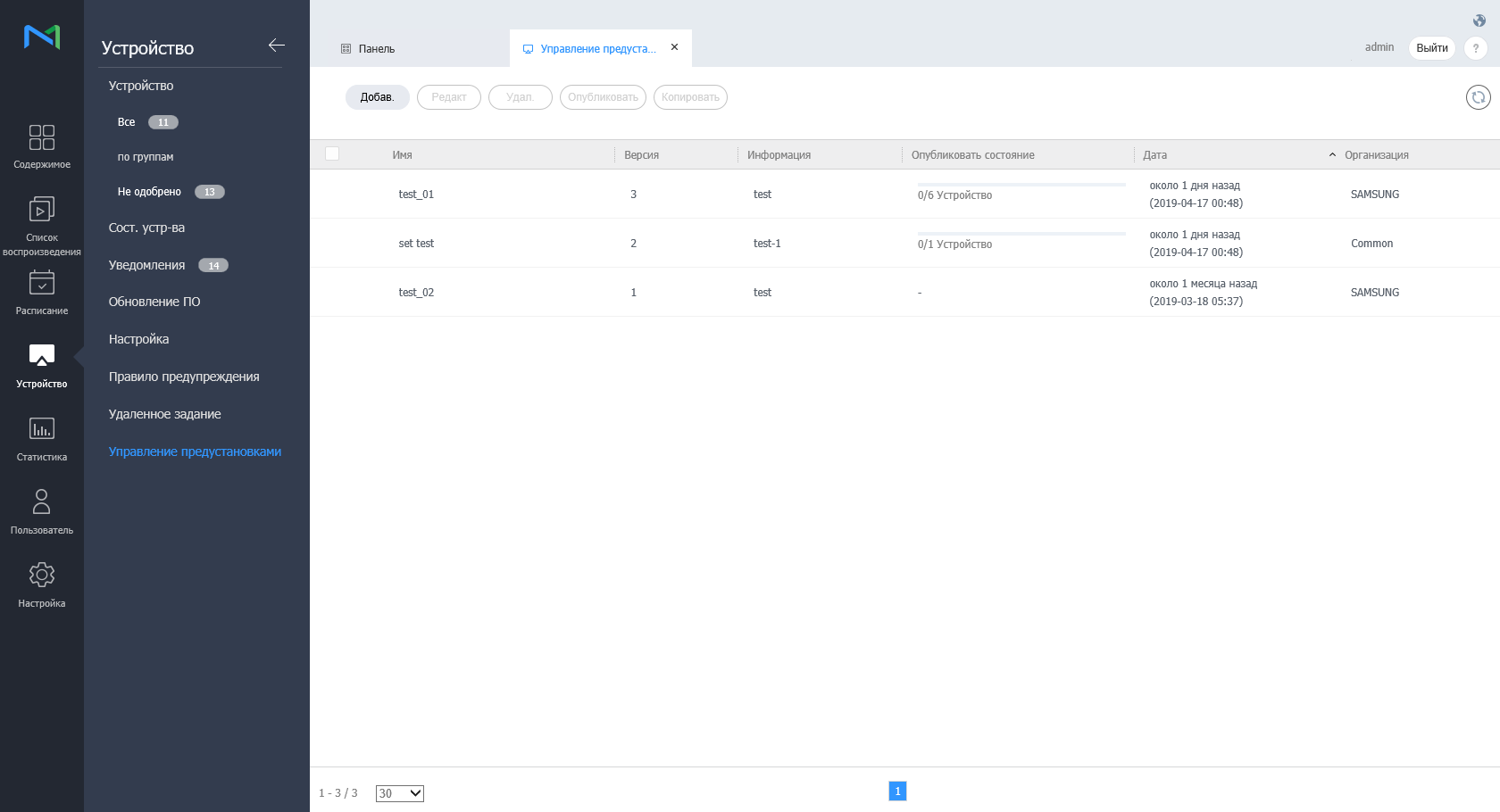
    1. Выберите Добав. из списка устройств.

      Stylesheet
      classscreen
      Image Added
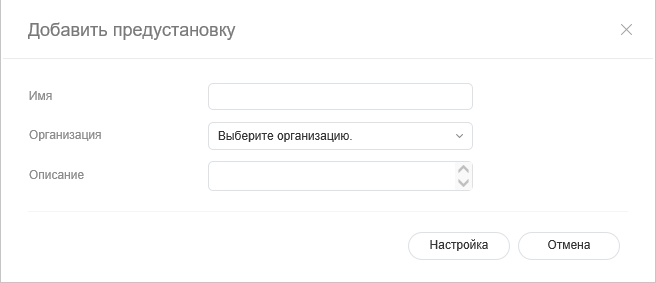
    2. Введите имя, организацию и описание, когда появится окно добавления предустановок, затем нажмите Настройка.

      Stylesheet
      classscreen

      Image Added

    Удаление предустановки


    1. В списке выберите предустановку, которую нужно удалить из списка, и нажмите Удалить.

    2. Щелкните OK, чтобы удалить выбранную предустановку.

    Опубликовать предустановку


    1. Выберите предустановку из списка и нажмите Опубликовать.
    2. Выберите устройство, на котором вы хотите опубликовать предустановку, и нажмите Сохр..

    Копирование предустановки


    1. Выберите предустановку из списка и нажмите Копировать.
    2. Введите имя, организацию и описание, когда появится окно «Сохранить как», затем нажмите Сохр..


    Sv translation
    languageit

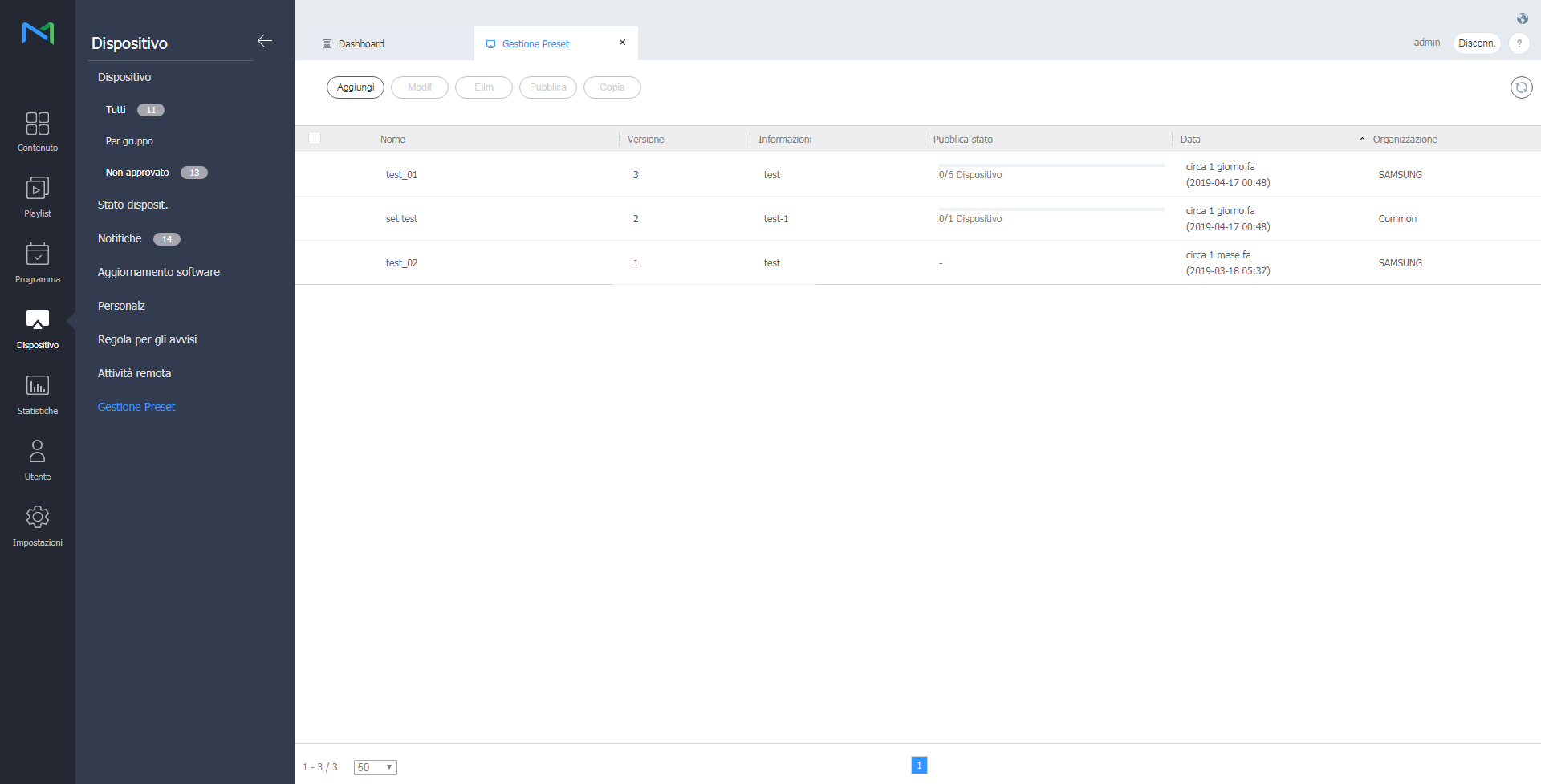
    Aggiunta di un preset


    1. Cliccare su Aggiungi nell'elenco dei dispositivi.

      Stylesheet
      classscreen
      Image Added
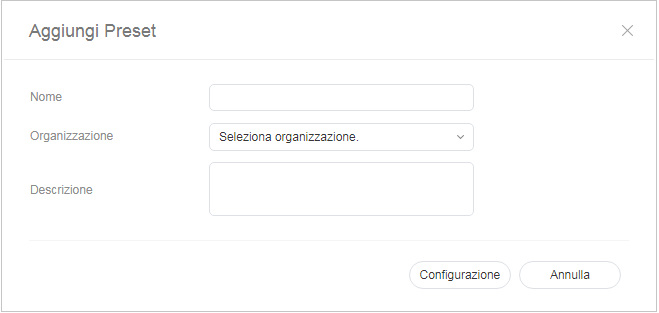
    2. Immettere nome, organizzazione e descrizione nella finestra visualizzata, quindi cliccare su Impostazioni.

      Stylesheet
      classscreen

      Image Added

    Eliminazione di un preset


    1. Selezionare il preset da eliminare dall'elenco dei preset e cliccare su Elimina.

    2. Cliccare su OK per eliminare il preset selezionato.

    Pubblicazione di un preset


    1. Selezionare un preset dall'elenco dei preset e cliccare su Pubblica.
    2. Selezionare il dispositivo in cui si desidera pubblicare il preset e cliccare su Salva.

    Copia di un preset


    1. Selezionare un preset dall'elenco dei preset e cliccare su Copia.
    2. Immettere nome, organizzazione e descrizione nella finestra Salva con nome visualizzata e cliccare su Salva.


    Sv translation
    languagede

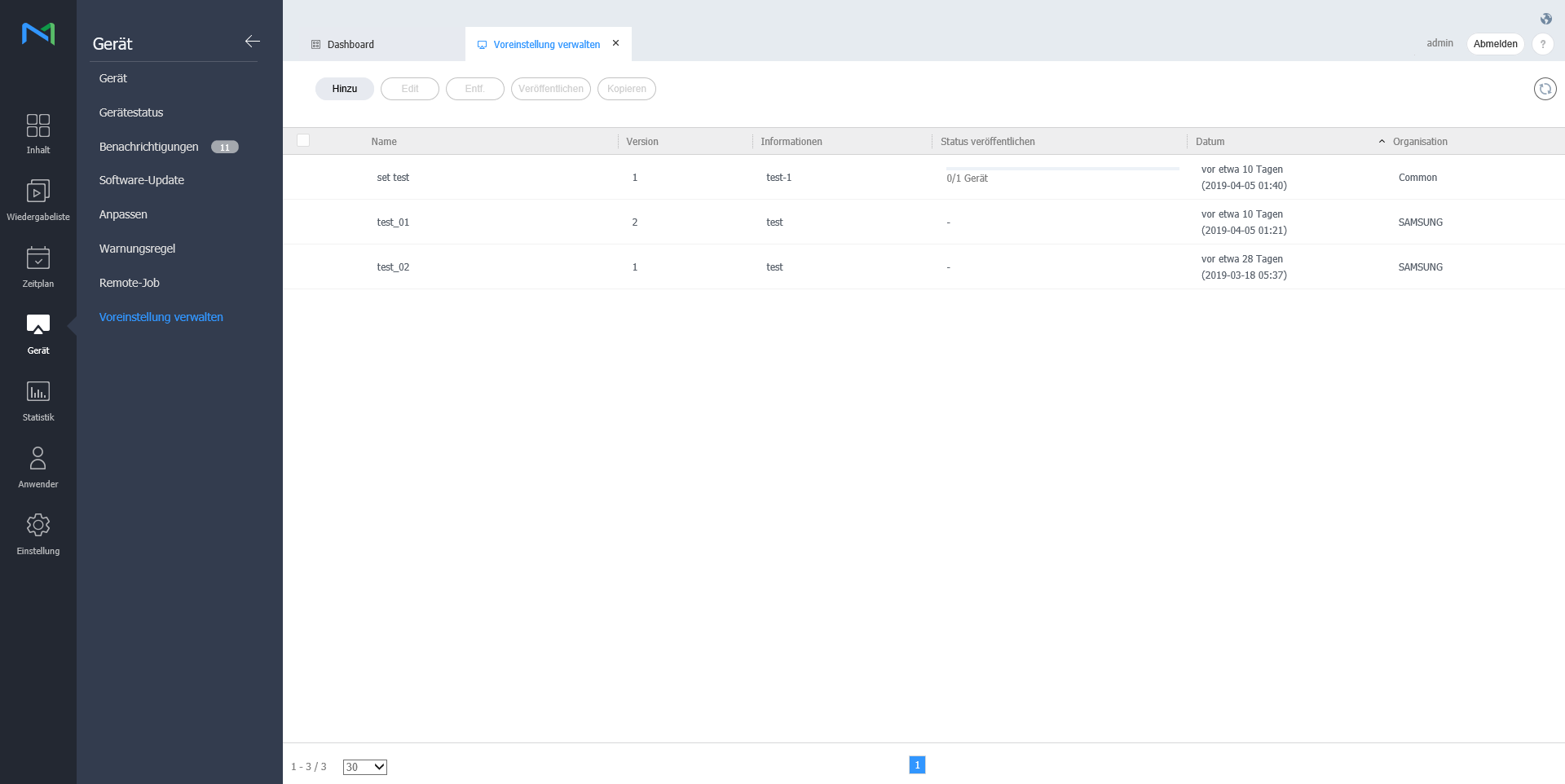
    Hinzufügen einer Voreinstellung


    1. Klicken Sie in der Geräteliste auf Hinzufügen.

      Stylesheet
      classscreen
      Image Added
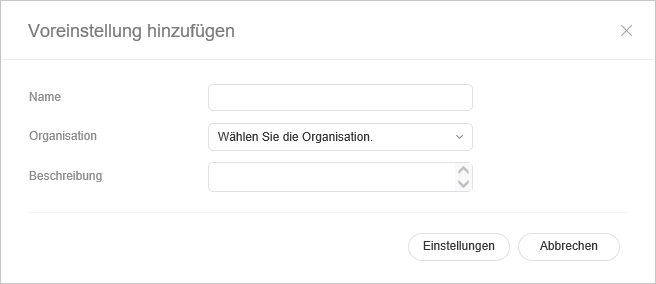
    2. Geben Sie im Fenster den Namen, die Organisation und die Beschreibung ein, wenn das Fenster zum Hinzufügen von Voreinstellungen angezeigt wird, und klicken Sie auf Einstellung.

    Editing preset settings

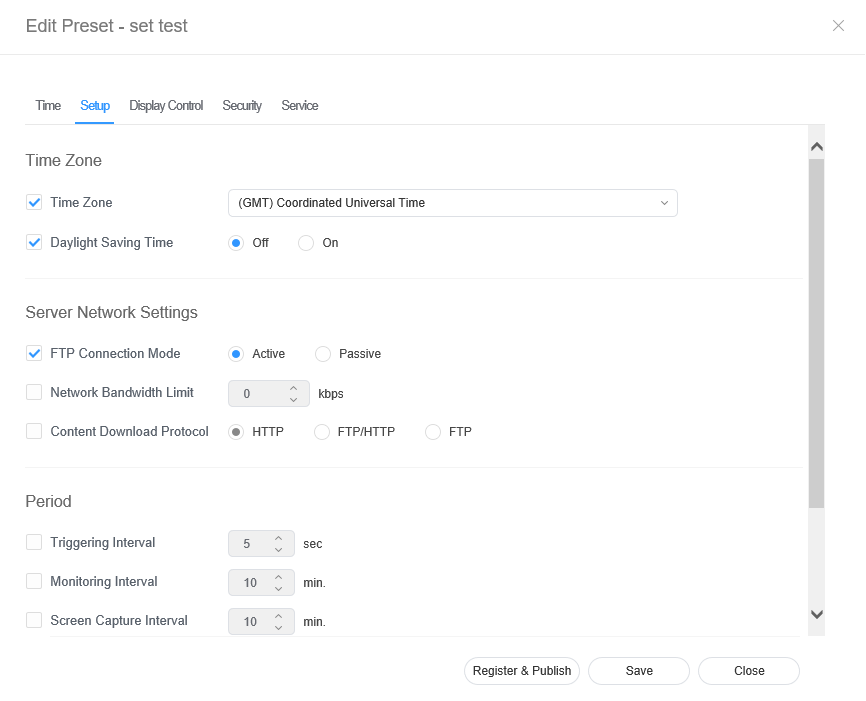
    1. Select the Setup tab from the preset editor window.
    2. Edit information and click Save. Click Register & Publish to immediately apply the set value to a group.
      Stylesheet
      classscreen

      Image Removed

    On Timer

    Set the time to turn on the device. To use the timer, select Use.

    • Day: Select day(s) of the week to repeat the timer.
    • On Time: Set the time to turn on the device.
    • Volume: Set the device volume to apply when it turns on.
    • Source: Select an input source to apply when the device turns on.
    • Holiday: Specify whether to use holidays.
    Off Timer

    Set the time to automatically turn off the device. To use the timer, select Use.

    • Day: Select day(s) of the week to repeat the timer.
    • Off Time: Set the time to turn off the device.
    • Holiday: Specify whether to use holidays.
    Holiday managementHoliday: Set holidays to prevent the device from operating on specified days.

    Image Added

    Löschen einer Voreinstellung


    1. Wählen Sie eine Voreinstellung, die aus der Voreinstellungsliste gelöscht werden soll, und klicken Sie auf Löschen.

    2. Klicken Sie auf OK, um die ausgewählte Voreinstellung zu löschen.

    Veröffentlichen der Voreinstellung


    1. Wählen Sie das entsprechende Gerät aus der Liste und klicken Sie auf Veröffentlichen.
    2. Wählen Sie ein Gerät aus, auf dem Sie die Voreinstellung veröffentlichen möchten und klicken Sie auf Speichern.

    Kopieren der Voreinstellung


    1. Wählen Sie das entsprechende Gerät aus der Liste und klicken Sie auf Kopieren.
    2. Geben Sie im Fenster den Namen, die Organisation und die Beschreibung ein, wenn das Fenster „Speichern unter“ angezeigt wird, und klicken Sie auf Speichern.


    Sv translation
    languagefr

    Ajout d’une préconfiguration


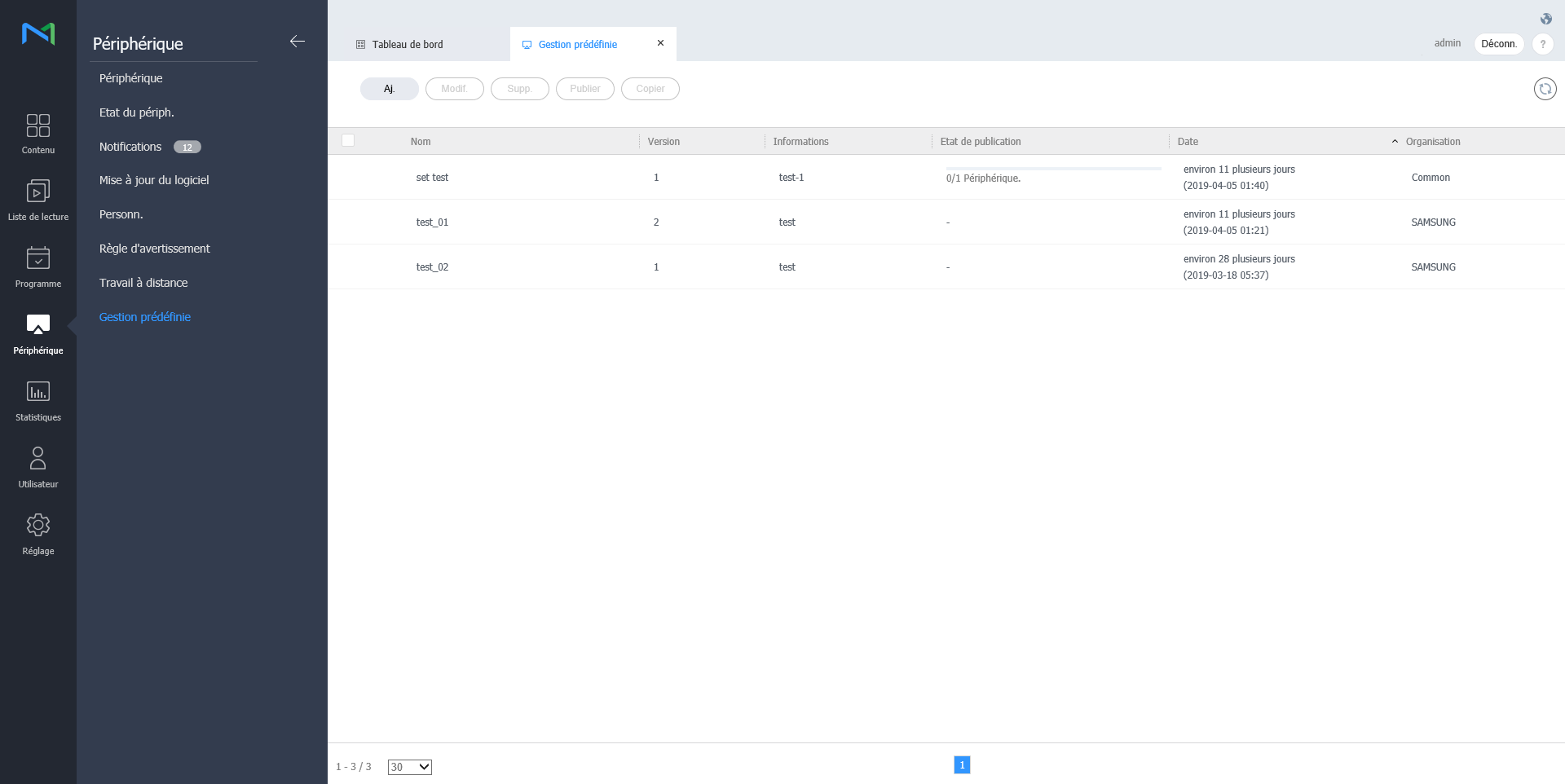
    1. Cliquez sur Aj. à partir de la liste de périphériques.

      Stylesheet
      classscreen
      Image Added
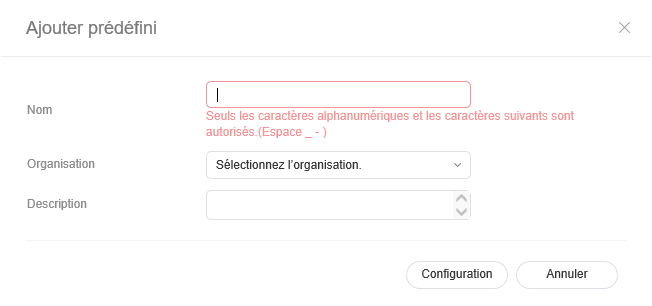
    2. Entrez un nom, une organisation et une description dans la fenêtre de réglage de préconfiguration qui apparaît et cliquez sur Réglage.

      Stylesheet
      classscreen

      Image Added

    Suppression d’une préconfiguration


    1. Sélectionnez une préconfiguration à supprimer dans la liste de préconfigurations et cliquez sur Supprimer.

    2. Cliquez sur OK pour supprimer la préconfiguration sélectionnée.

    Publication d’une préconfiguration


    1. Sélectionnez une préconfiguration dans la liste de préconfigurations et cliquez sur Publier.
    2. Sélectionnez un périphérique sur lequel vous souhaitez publier le réglage de préconfiguration et cliquez sur Enr..

    Copie d’une préconfiguration


    1. Sélectionnez une préconfiguration dans la liste de préconfigurations et cliquez sur Copier.
    2. Entrez un nom, une organisation et une description dans la fenêtre Enregistrer sous qui apparaît et cliquez sur Enr..


    Sv translation
    languagept

    Adicionar a predefinição


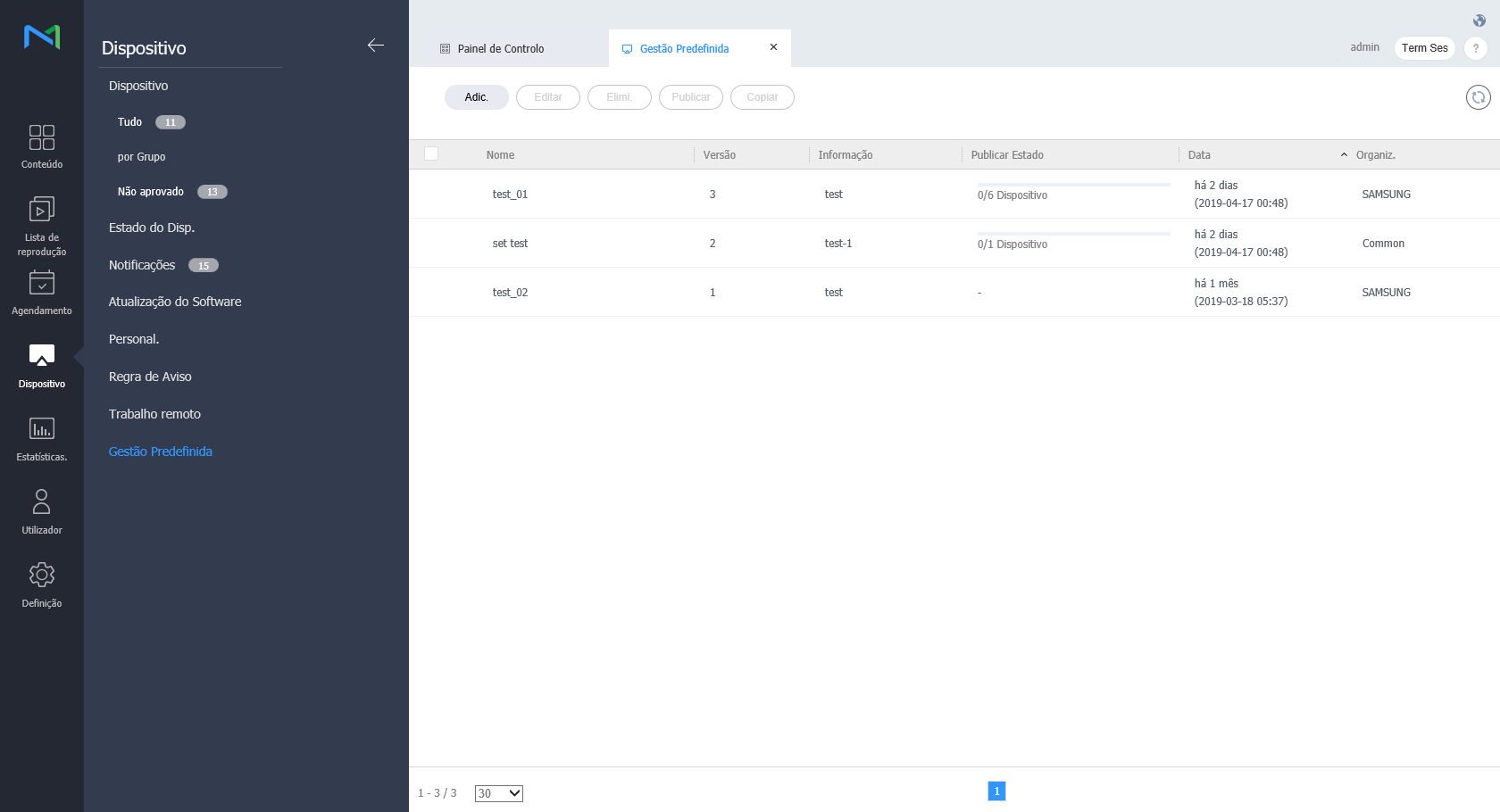
    1. Clique em Adic. da lista de dispositivos.

    Editing preset display control

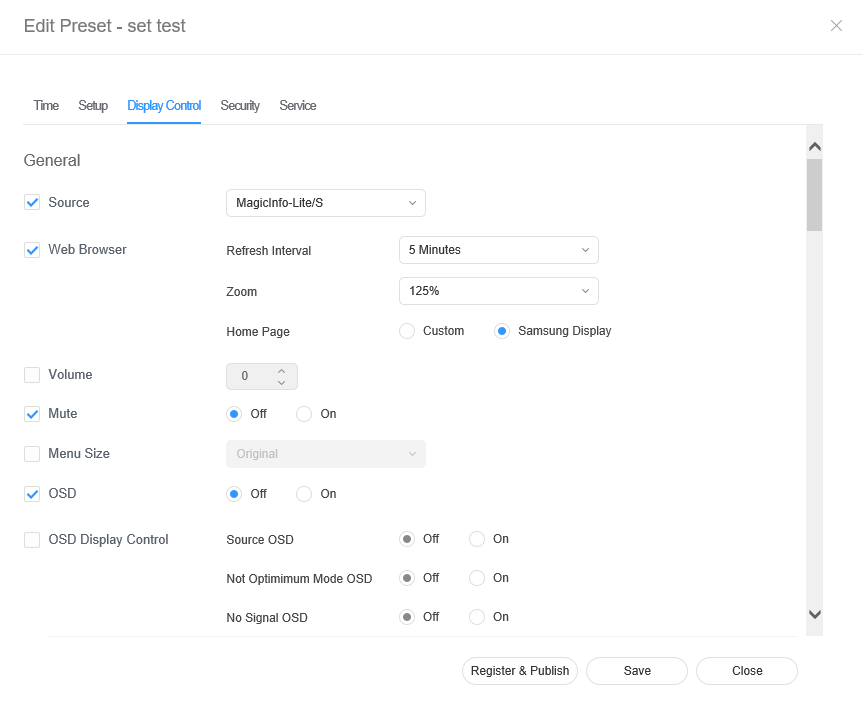
    1. Select the Display Control tab from the preset editor window.
    2. Edit information and click Save. Click Register & Publish to immediately apply the set value to a group
      Stylesheet
      classscreen

      Image Removed

    Time Zone
    • Time Zone: Select a time zone for each city.
    • Daylight Saving Time: Turn daylight savings time mode on or off. To use daylight savings time mode, configure start and end settings.

      Info
      titleNote

      Daylight Saving Time, also known as Summer Time, is a system that advances clocks one hour forward in summer.

    Server Network Settings
    • FTP Connection Mode: Configure the FTP connection mode.
    • Network Bandwidth Limit: Limit the bandwidth for the server network to connect.
    • Download protocol: Configure the download mode.
    Period
    • Triggering Interval: Specify the triggering cycle.
    • Monitoring Interval: Specify the monitoring cycle.
    • Screen Capture Interval: Specify the screen capture cycle.
    • System Restart Interval: Specify the system restart interval..
    Image Added
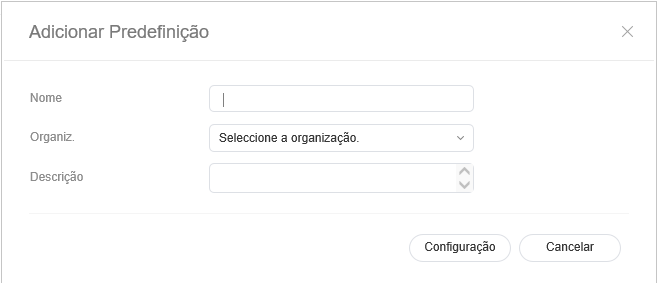
  • Introduza o nome, a organização e a descrição quando a janela para adicionar a definição da predefinição surgir e clique em Definição.

    Stylesheet
    classscreen

    Image Added

  • Eliminar a predefinição


    1. Selecione uma predefinição a eliminar na lista de predefinições e clique em Eliminar.

    2. Clique em OK para eliminar a predefinição selecionada.

    Publicar a predefinição


    1. Selecione uma predefinição na lista de predefinições e clique em Publicar.
    2. Selecione um dispositivo no qual pretende publicar a definição da predefinição e clique em Guard..

    Copiar a predefinição


    1. Selecione uma predefinição na lista de predefinições e clique em Copiar.
    2. Introduza o nome, a organização e a descrição quando a janela Guardar como surgir e clique em Guard..


    Sv translation
    languagetr

    Ön ayar ekleme


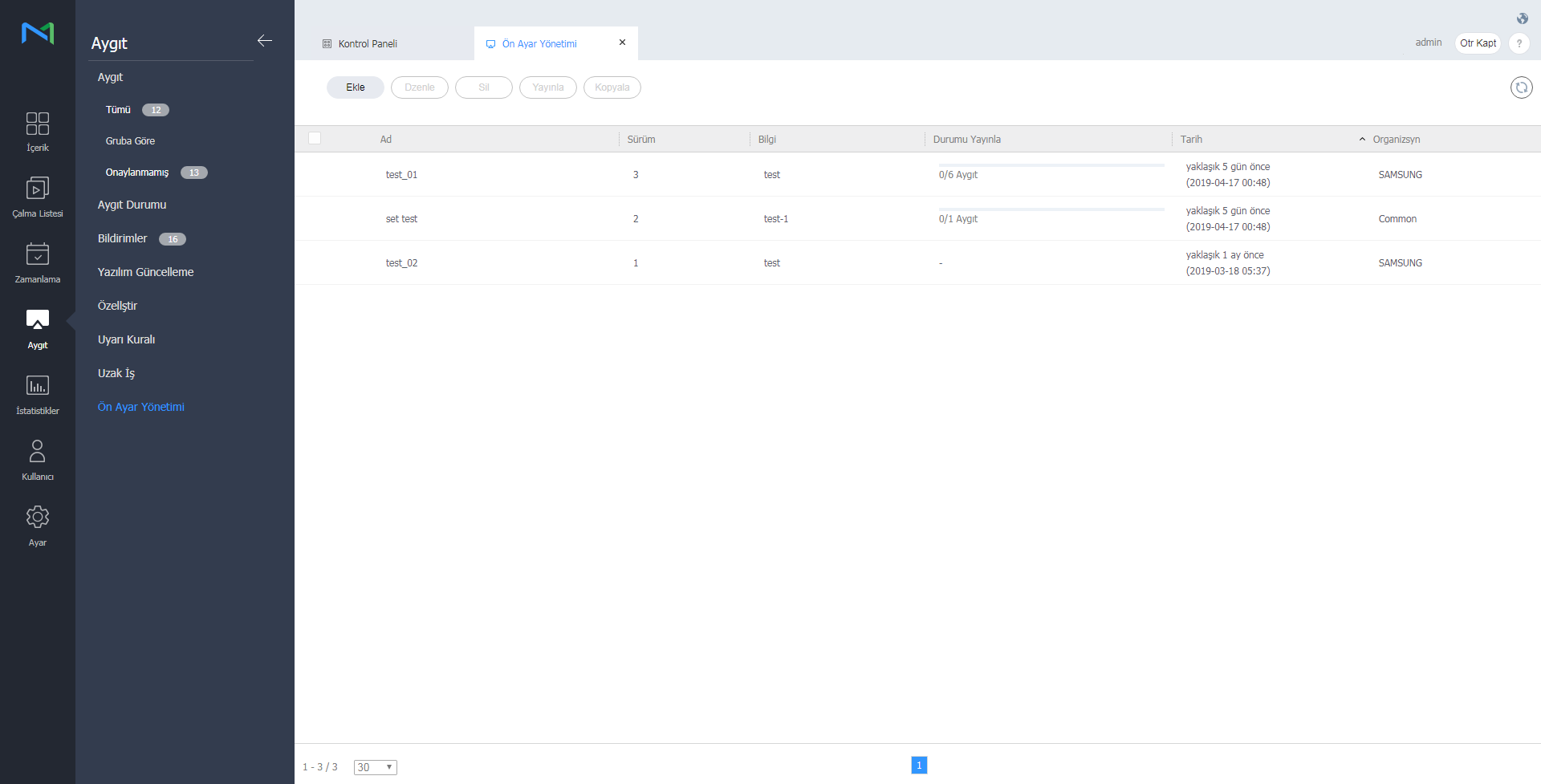
    1. Aygıt listesinden Ekle öğesine tıklayın.

      Stylesheet
      classscreen
      Image Added
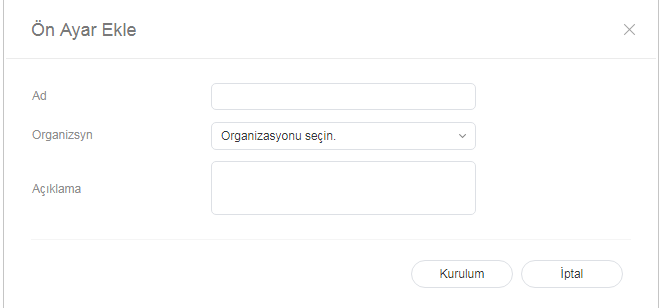
    2. Ön ayar ekle ayar penceresi görüntülendiğinde ad, organizasyon ve açıklama girin ve Ayar öğesine tıklayın.

      Stylesheet
      classscreen

      Image Added

    Ön ayar silme


    1. Ön ayar listesinden, silinecek ön ayarı seçip Sil öğesine tıklayın.

    2. Seçili ön ayarı silmek için Tamam öğesine tıklayın.

    Ön ayarı yayınlama


    1. Ön ayar listesinden bir ön ayar seçip Yayınla öğesine tıklayın.
    2. Ön ayarı yayınlamak istediğiniz aygıtı seçip Kaydet öğesine tıklayın.

    Ön ayarı kopyalama


    1. Ön ayar listesinden bir ön ayar seçip Kopyala öğesine tıklayın.
    2. Farklı kaydet penceresi görüntülendiğinde ad, organizasyon ve açıklama girip Kaydet öğesine tıklayın.


    Sv translation
    languagees

    Adición de una programación


    1. Haga clic en Añadir desde la lista de dispositivos.

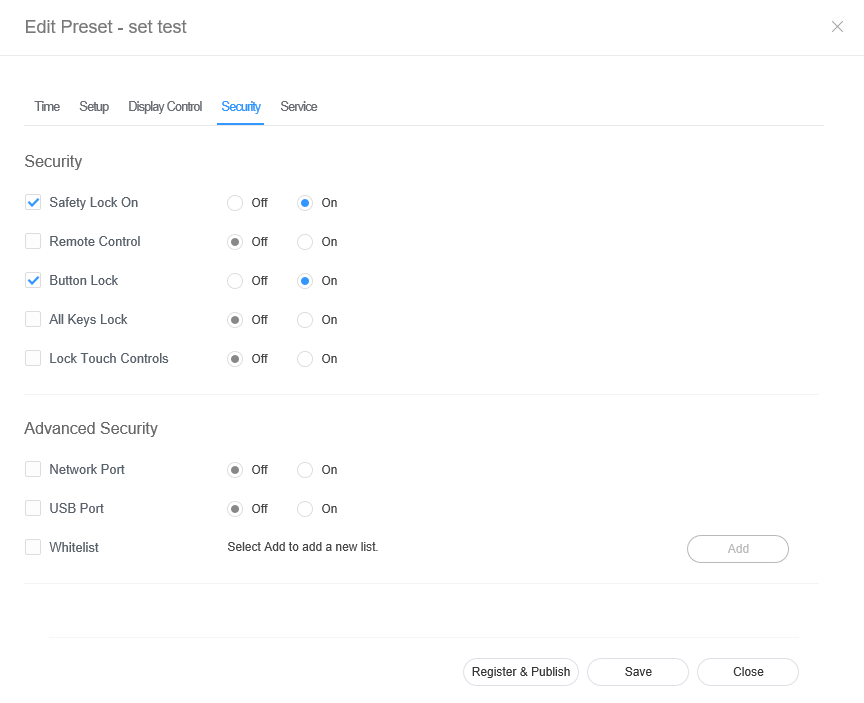
    2. Select the Security tab from the edit preset window. 
    3. Edit information and click Save. Click Register & Publish to immediately apply the set value to a group.

      Stylesheet
      classscreen

      Image Removed

    Editing preset security 

    1. Image Added
    2. Introduzca el nombre, la empresa y la descripción cuando aparezca la ventana de adición del ajuste de programación y haga clic en Ajuste.

      Stylesheet
      classscreen

      Image Added

    Eliminación de una programación


    1. Seleccione la programación que desee eliminar de la lista de programación y haga clic en Borrar.

    2. Haga clic en Aceptar para borrar la programación seleccionada.

    Publicación de una programación


    1. Seleccione la programación de la lista de programación y haga clic en Publicar.
    2. Seleccione el dispositivo en el que desee publicar la programación y haga clic en Guard..

    Copia de una programación


    1. Seleccione la programación de la lista de programación y haga clic en Copiar.
    2. Introduzca el nombre, la empresa y la descripción cuando aparezca la ventana de guardar como y haga clic en Guard..


    Sv translation
    languagesv

    Lägg till förinställning


    1. Klicka på Lägg till i enhetslistan.

      Stylesheet
      classscreen

      Image Removed


    1. Image Added
    2. Ange namn, organisation och beskrivning när inställningsfönstret för att lägga till inställning visas och klicka på Inställning.

      Stylesheet
      classscreen

      Image Added

    Ta bort förinställning


    1. Välj en förinställning som ska tas bort från förinställningslistan och klicka på Ta bort.

    2. Klicka på OK så tas den valda förinställningen bort.

    Publicera förinställning


    1. Välj en förinställning i förinställningslistan och klicka på Publicera.
    2. Välj en enhet som du vill publicera förinställningen till och klicka på Spara.

    Kopiera förinställning


    1. Välj en förinställning i förinställningslistan och klicka på Kopiera.
    2. Ange namn, organisation och beskrivning när fönstret Spara som visas och klicka på Spara.