Versions Compared

Key

  • This line was added.
  • This line was removed.
  • Formatting was changed.
Sv translation
languageko_KR

개별 태그, 주요 지표 그룹 등 태그별 재생 현황 및 주요 지표를 조합한 현황을 살펴볼 수 있습니다. 조회된 자료는 그래프와 표 등 시각화 자료로 구현되어 태그 재생 현황을 기간별로 한눈에 파악할 수 있습니다

  1. Insight 화면 메뉴 바에서 태그를 클릭하세요.
  2. 위쪽의 검색 영역에 분석할 기간을 설정하세요. 분석 기간은 7일 전, 지난 주, 지난 달로 검색할 수 있습니다.

    Info
    title참고
    • 전체 현황을 선택하거나 특정 현황만 분석할 경우, 상세 검색 열기를 클릭하세요. 분석 기간 외에도 기기 그룹, 주요 지표를 세부 선택할 수 있으며 2년 내 최대 60일간 자료를 분석할 수 있습니다.
    • 로그 및 처리된 데이터의 최대 저장 기간은 2년입니다.
  3. 검색을 클릭하세요. 검색 조건에 일치하는 통계가 그래프와 표로 나타납니다.

    Stylesheet
    classscreen
  4. 조회된 통계를 PDF나 HTML 파일로 저장하려면, 내보내기를 클릭하세요.

조회된 정보 이해하기

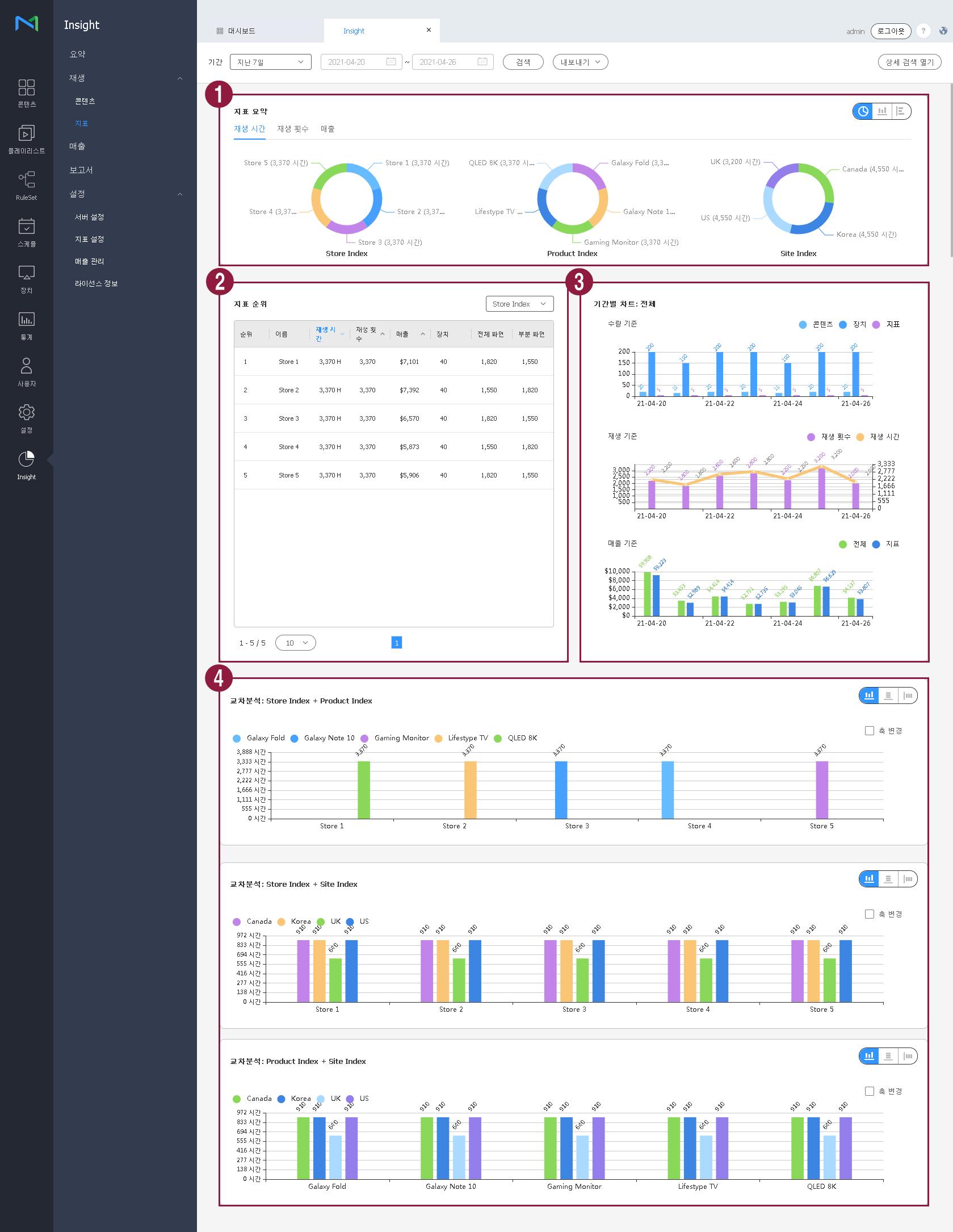
표시된 항목은 다음과 같습니다.

1

태그 요약

주요 지표로 설정한 각 지표의 태그 사용 통계를 비교 그래프로 표시하며, 표시할 그래프의 형식을 다양하게 선택할 수 있습니다.

2

태그 순위

개별 주요 지표 또는 전체 태그 중 재생 시간 기준 가장 많이 재생된 태그가 표시됩니다. 태그가 10개 이상일 경우 페이지를 이동하면서 확인이 가능합니다.

태그 순위, 태그명, 재생 시간, 재생 횟수, 재생 기기, 전체/분할화면 재생 정보 등을 확인할 수 있습니다. 또한 전체 또는 개별 주요 지표를 선택하여 해당 항목만 확인할 수 있습니다.

  • 순위의 태그를 클릭하면 해당 태그에 대한 정보를 그래프로 확인할 수 있습니다.
3

기간별 차트

  • 수량 기준: 전체 태그에 대해 분석 결과가 시간 그래프로 나타납니다. 그래프 상단의 콘텐츠/장치/태그 항목을 클릭하면 해당 항목을 제외한 분석결과가 자동으로 표시됩니다.
  • 재생 기준: 태그의 재생 횟수와 재생 시간을 그래프로 표시합니다. 그래프 상단의 재생 횟수/재생 시간 항목을 클릭하면 해당 항목을 제외한 분석 결과가 자동으로 표시됩니다.
4

교차분석

원하는 주요 지표를 선택하고 조합하여 재생 시간과 개별 태그의 관계를 그래프로 표시할 수 있습니다. 선택한 주요 지표가 A, B, C일 경우 각각 A와 B, B와 C, C와 A로 조합된 그래프가 표시됩니다.

  • 주요 지표 하나만 선택할 경우: 교차 분석이 실행되지 않습니다.
  • 주요 지표 두 개를 선택할 경우: 두 개의 주요 지표 정보로 조합된 한 개의 교차 분석 그래프가 표시됩니다. (A와 B)
  • 주요 지표 세 개를 선택할 경우: 세 개의 주요 지표 정보로 조합된 세 개의 교차 분석 그래프가 표시됩니다. (A와 B, B와 C, C와 A)

 여러 종류의 그래프 중 원하는 유형을 선택할 수 있으며, 그래프 상단의 개별 태그 명을 클릭하면 사용자가 원하는 태그의 정보만 선별하여 표시할 수 있습니다.

Sv translation
languageen

View the playback status for each tag, e.g., an individual tag or key index group, and the status of playback in which key indexes are combined. Retrieved data is shown in visual format, e.g., graphs and a table, so that you can obtain an intuitive view of tag playback status by period.

  1. On the menu bar on the Insight screen, click Tag.
  2. Set the analysis period in the search area at the top. The analysis period can be set to “7 days ago,” “Last Week,” or “Last Month.”

    Info
    titleNote
    • To select all data items or only analyze specific data items, click Open Detailed Search. It is possible to select specific device groups or key indexes, as well as a search period. It is also possible to analyze data collected during a maximum of 60 days within the last two years.
    • Logs and processed data are retained for a maximum of two years.
  3. Click Search. The statistics that match the search conditions are presented in graphs and a table.

    Stylesheet
    classscreen
  4. To save retrieved statistics as a PDF or HTML file, click Export.

Understanding retrieved data

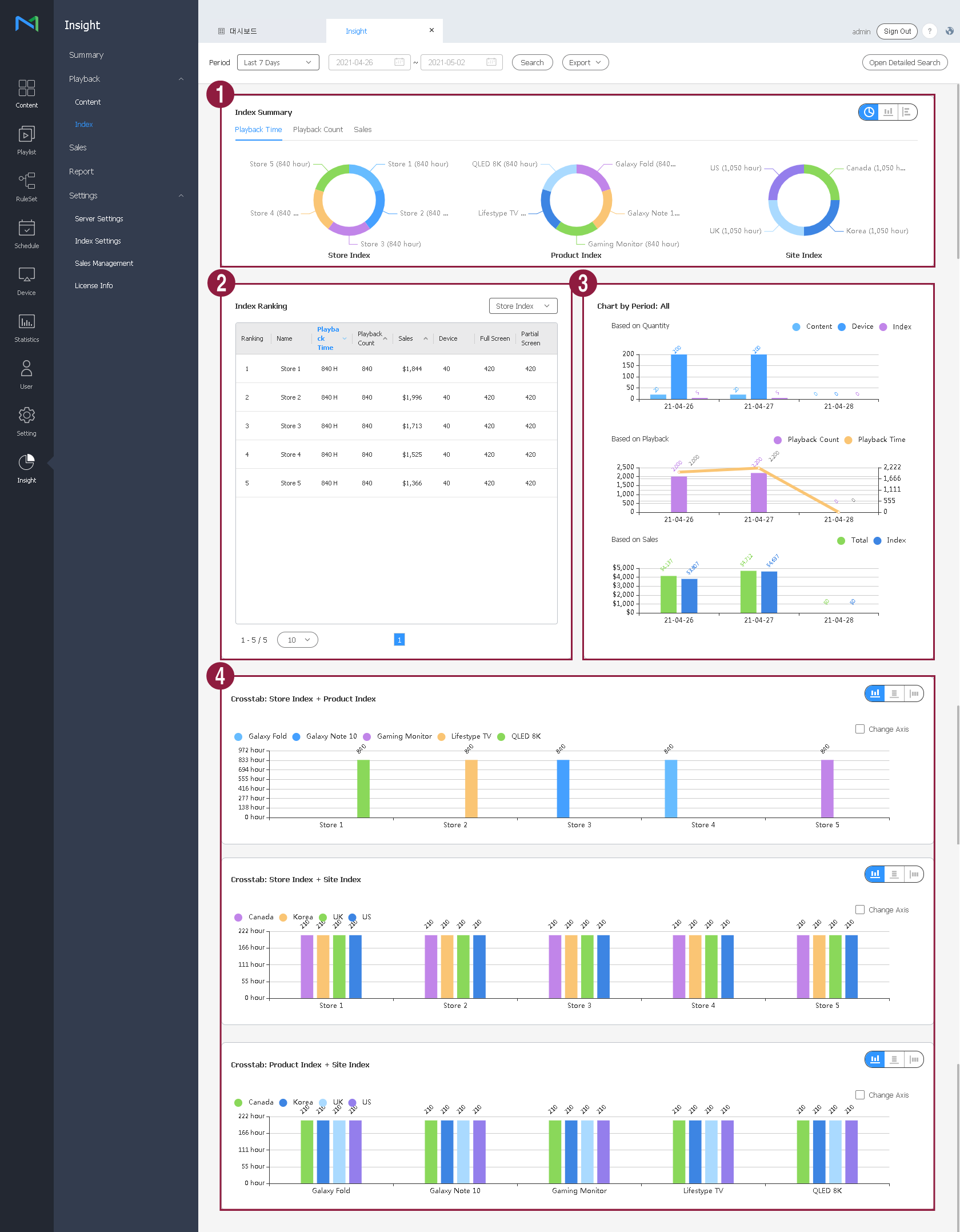
The following data items are displayed.

1

Tag summary

Statistics on the usage of tags for each key index are displayed as a graph providing a comparison, and there are a wide variety of graph formats.

2

Tag ranking

Shows the tags that were played more frequently among individual key indexes or all tags, based on the playback time. If there are ten or more tags, move between pages to view tags not shown on the current page.

View the tag rankings, tag names, playback time, playback count, devices used for playback, and full/split-screen playback details. You can view all key indexes or select specific key indexes to view.

  • To view details of a specific tag as a graph, click the tag in the ranking list.
3

Chart by period

  • Based on Quantity: Shows the results of analysis on all tags as a time graph. If you click a legend item (e.g., Content, Device, Tag) at the top of the graph, the screen automatically displays updated analysis results with the clicked item excluded.
  • Based on Playback: Shows the tag playback count and playback time as a graph. If you click a legend item (e.g., Playback Count, Playback Time) at the top of the graph, the screen automatically displays updated analysis results with the clicked item excluded.
4

Cross-tabulation analysis

Select and combine specific key indexes to display the playback time and the relationship between individual tags as graphs. If key indexes A, B, and C are selected, the screen displays graphs in which three different pairs (A-B, B-C, and C-A) are analyzed.

  • If only one key index is selected: Cross-tabulation analysis does not take place.
  • If two key indexes are selected: The screen displays one cross-tabulation analysis graph in which two key indexes (A and B) are combined and analyzed.
  • If three key indexes are selected: The screen displays three cross-tabulation analysis graphs in which three different key index pairs (A-B, B-C, and C-A) are analyzed.

 You can select a preferred type from the variety of graph types. You can also display information about specific tags simply by clicking the tag names at the top of the graph.