Versions Compared

Key

  • This line was added.
  • This line was removed.
  • Formatting was changed.
Sv translation
languageko_KR

날짜 및 시간 설정하기


W Player를 원활하게 사용하려면 먼저, S Player를 실행하여 날짜와 시간을 정확히 설정한 다음 서버와 연동하세요. W Player의 서버 날짜와 시간 설정은 S Player의 설정과 연동됩니다. S Player에서 날짜와 시간을 설정하는 방법은 S Player사용 설명서를 참조하세요. ► 날짜 및 시간 설정하기

Server 연동하기


W Player를 Server와 연동하여 Server의 콘텐츠 또는 Server에서 배포한 스케줄을 재생할 수 있습니다.

W Player 시작하기 전 필수단계

  1. MagicINFO 서버를 설치하세요. (MagicINFO Server 8)

  2. S Player를 실행하세요. (Smart Signage 모델 시리즈)

    • W Player를 지원하는 버전으로 업데이트하세요.
    Info
    title참고

    펌웨어 업데이트 전에, W Player 변환을 지원하는 모델인지 확인하세요. W Player 변환을 지원하는 모델일 경우 서버에서 전환이 가능한 장치임을 표시하는 아이콘이 표시됩니다.

    • W Player로의 변환을 지원하는 S Player는 Server에 있습니다.
  3. S Player에서 W Player로 장치 변환하세요.
  4. 최신버전으로 W Player를 업데이트하세요.

    Info
    title참고

    변환 된 W Player는 최신 업데이트 버전이 아닙니다. 장치 변환한 후 반드시 W Player를 최신버전으로 업데이트하세요.

W Player 최신 버전으로 업데이트 하기

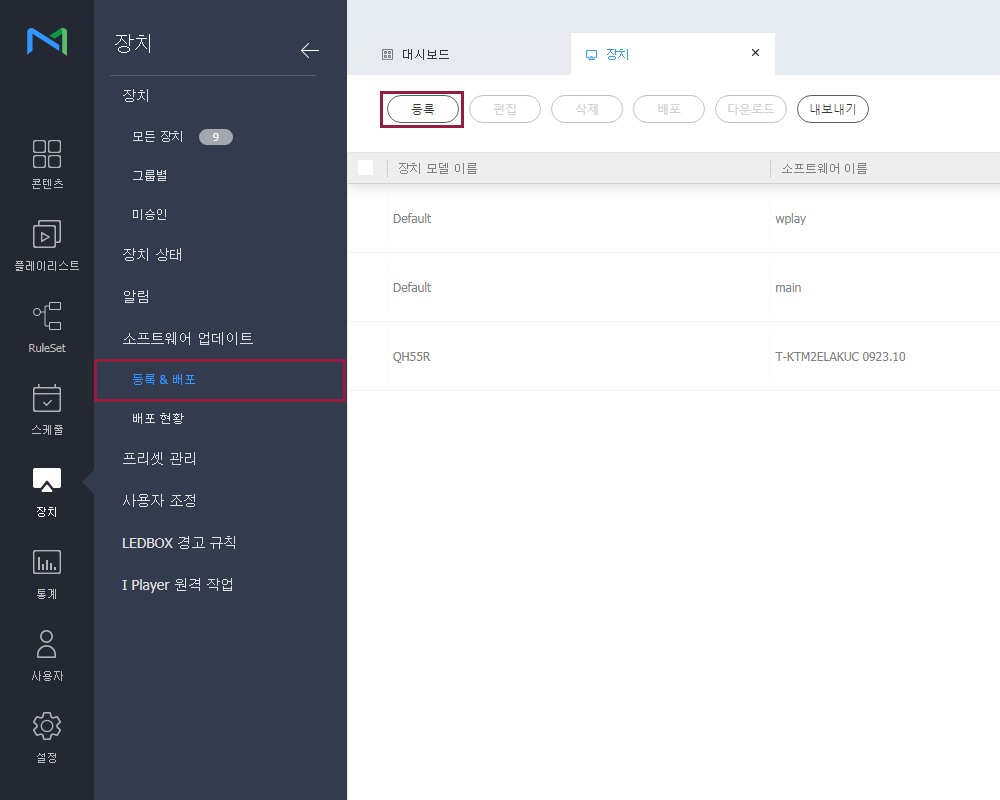
  1. 장치 > 소프트웨어 업데이트 > 등록 & 배포에서 등록을 클릭하여 W Player를 등록하세요.

    Stylesheet
    classscreen

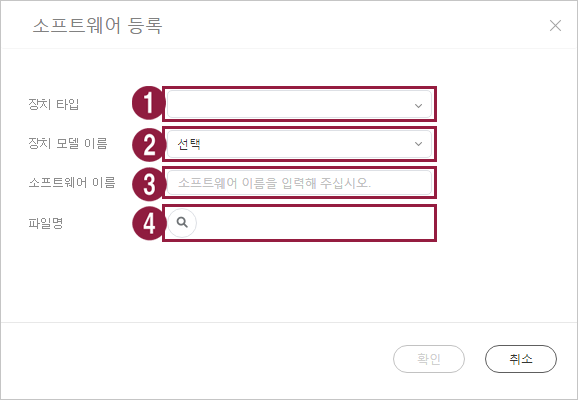
  2. 소프트웨어 등록 팝업창에서 W Player에 대한 내용을 선택하세요.

    Stylesheet
    classscreen

    1

    장치 타입: WPLAYER을 선택하세요.

    2

    파일 유형: Web App을 선택하세요.

    3

    소프트웨 이름: 소프트웨어 이름을 입력하세요.

    4

    파일명: W Player 업데이트를 위한 압축파일 경로를 탐색해서 선택하세요.

  3. 이전단계에서 등록한 W Player 업데이트용 소프트웨어 파일을 선택하고 배포하세요. W Player를 최신버전 업데이트 완료 후 자동으로 재부팅 됩니다.

Info
title참고

자세한 소프트웨어 업데이트 내용은 Server 사용 설명서를 참조하세요. ► 소프트웨어 업데이트 하기

W Player가 미승인 장치인 경우

  1. 장치 > 미승인을 클릭하세요. W Player로 변환을 지원하는 S Player를 선택하세요.

  2. 선택 후 장치 변환을 클릭하세요. 확인을 클릭하세요.

    Info
    title참고
    설정 완료 후 S Player가 닫히고 자동으로 재부팅 됩니다.
  3. S Player가 MagicINFO Server에서 삭제되고 W Player가 미승인 목록에 생성됩니다.

  4. 생성된 W Player를 선택 후 승인을 클릭하세요.

W Player가 승인 장치인 경우

  1. 장치 > 모든장치를 클릭하고 보기 방식을 로 변경하세요.

  2. Setup 탭을 선택하세요.

    • 숨김옵션인 Device conversion이 생성됩니다.
    • S Player를 선택하면 Device conversion이 활성화됩니다.
    • Convert 팝업창에서 W Player를 선택하세요.
Info
title참고

설정 완료 후 S Player가 닫히고 Tizen 시스템이 S Player를 W Player로 변환하면서 자동으로 재부팅 됩니다.

Sv translation
languageen

Setting date and time


To use W Player properly, first run S Player, set the date and time correctly, and then link the S Player to the Server. The Server date and time set for the W Player are synchronized to the date and time set for the S Player. For details on how to set the date and time from the S Player, refer to the S Player user manual. ► Setting date and time

Linking to server


Link the W Player to the Server to play content saved on the Server or schedules published from the Server.

Required steps before using W Player

  1. Install the MagicINFO Server. (MagicINFO Server 8)

  2. Run S Player. (Smart Signage model series)

    • Perform update to a version that supports W Player.
    Info
    titleNote

    Before updating the firmware, make sure the model supports conversion to W Player. If the model supports conversion to W Player, an icon indicating that the device can be converted from the Server appears.

    • A version of S Player that supports conversion to W Player can be found on the Server.
  3. Convert the device from S Player to W Player.
  4. Update the W Player to the latest version.

    Info
    titleNote

    The converted W Player is not the latest version. After a device conversion, make sure you update the W Player to the latest version.

Updating W Player to the latest version

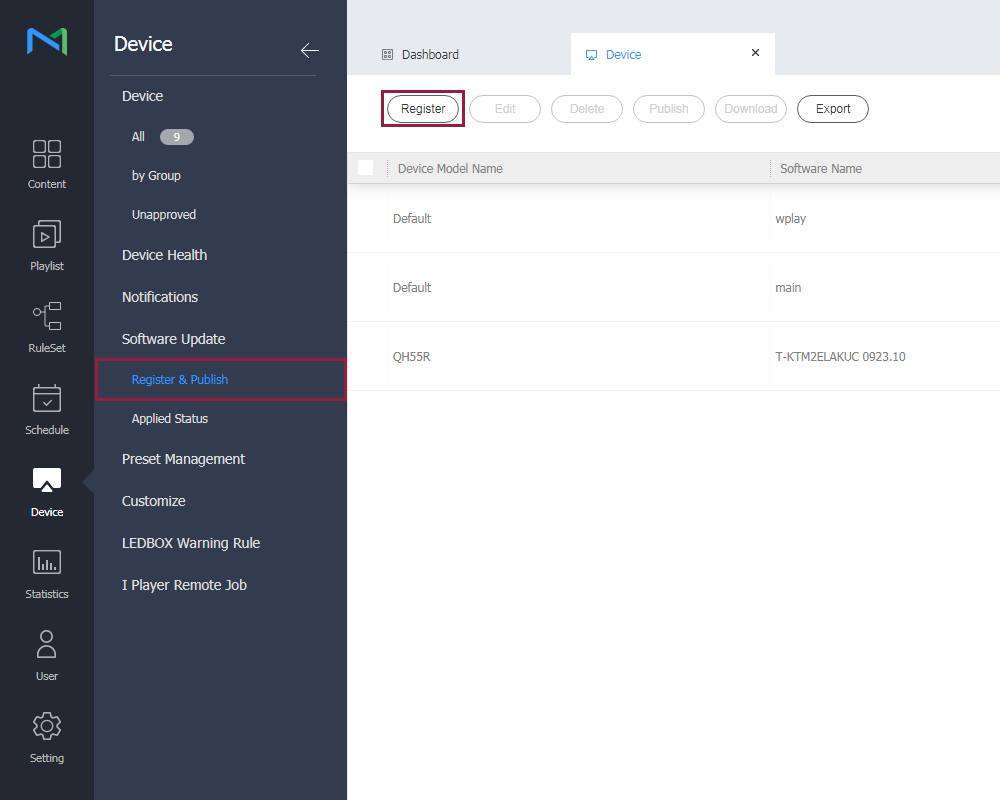
  1. Select Device > Software Update > Register & Publish and click Register to register the W Player.

    Stylesheet
    classscreen

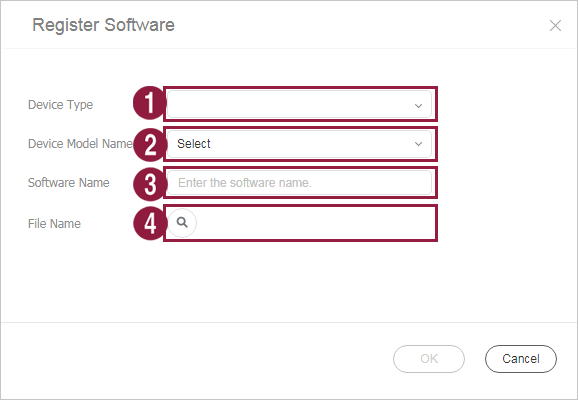
  2. On the displayed Register Software window, configure the W Player settings.

    Stylesheet
    classscreen

    1

    Device Type: Select “WPLAYER.”

    2

    File Type: Select “Web App.”

    3

    Software Name: Enter the software name.

    4

    File Name: Browse and find the zip file path of the W Player update, and then select the zip file.

  3. Select the update file for the W Player registered in the previous step and select Publish. After W Player update to the latest version is completed, the system automatically reboots.

Info
titleNote

For details on software update, refer to the Server user manual. ► Updating the software

If W Player is an unapproved device

  1. Click Device > Unapproved. Select the S Player that supports conversion to W Player.

  2. Click Device conversion. Click OK.

    Info
    titleNote
    After settings are completed, the S Player is closed and the system automatically reboots.
  3. The S Player is removed from the MagicINFO Server, and W Player is created in the list of Unapproved devices.

  4. Select the created W Player and click Approve.

If W Player is an approved device

  1. Click Device > All and change the view mode to .

  2. Select the Setup tab.

    • The grayed-out Device conversion option appears.
    • Select the S Player to enable the Device conversion option.
    • On the displayed Convert window, select “W Player.”
Info
titleNote

After settings are completed, the S Player is closed, and the Tizen system converts the S Player to W Player and automatically reboots.