Versions Compared

Key

  • This line was added.
  • This line was removed.
  • Formatting was changed.
Comment: Content imported from a Scroll Translations translation file.
Sv translation
languageko
  1. Image Modified > 플레이어를 누르세요.
    플레이어 화면이 실행됩니다.
  2. 원하는 기능을 실행하세요.

    Stylesheet
    classscreen

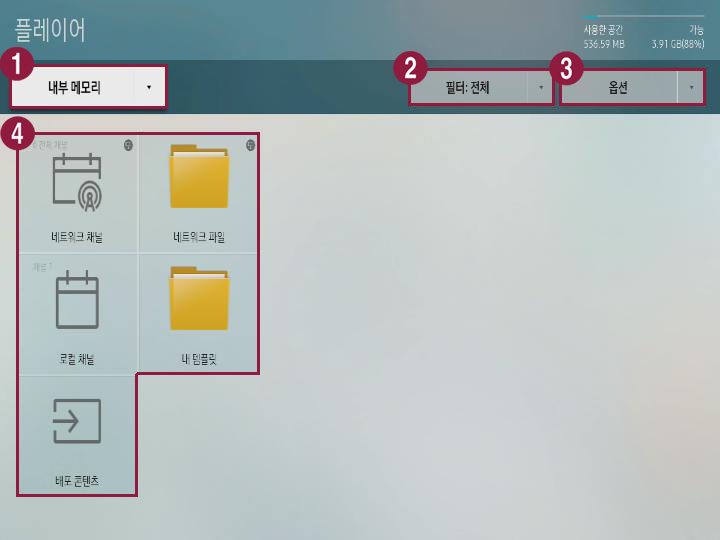
    Image Modified

    1

    S Player로 재생할 콘텐츠의 저장 위치를 선택할 수 있습니다.

    • 내부 메모리: S Player에 저장되어 있는 콘텐츠를 재생할 수 있습니다.

    • 외부 메모리: USB 저장 장치 등 외부 메모리에 저장되어 있는 콘텐츠를 재생할 수 있습니다.

      Info
      title참고

      외부 메모리는 S Player에 외부 메모리가 연결되어 있을 경우에만 나타납니다. 외부 메모리의 이름은 연결된 외부 메모리의 종류에 따라 다르게 표기됩니다.

    2

    콘텐츠를 유형별로 분류하여 볼 수 있습니다.

    Info
    title참고

    모델 기종에 따라 제공되는 필터의 종류가 다를 수 있습니다.

    3콘텐츠 재생, 슬라이드 쇼 실행 등 다양한 옵션을 실행할 수 있습니다. 자세한 내용은 다음을 참고하세요. ► 콘텐츠 옵션 메뉴 활용하기
    4
    • 네트워크 채널: Server에서 설정한 콘텐츠, 템플릿, 스케줄 등을 재생할 수 있습니다.

    • 로컬 채널: 제품의 내부 메모리나 연결되어 있는 외부 메모리에 저장된 콘텐츠를 재생할 수 있습니다.

    • 배포 콘텐츠: Author에서 저작하여 외부 메모리로 배포한 .LFD 콘텐츠를 재생할 수 있습니다.
      .LFD 콘텐츠를 저작하고 외부 메모리로 배포하는 방법은 Author 사용 설명서를 참고하세요.

      Info
      title참고

      Author에서 저작하여 외부 메모리로 배포한 콘텐츠를 내부 메모리로 복사한 경우에도 배포 콘텐츠로 분류됩니다.

    • 네트워크 파일: 연결된 Server에 저장된 콘텐츠를 재생할 수 있습니다.

    • 내 템플릿: 내부 메모리에 저장된 내 템플릿을 재생할 수 있습니다.

Anchor
1567_s_w_89011
1567_s_w_89011
콘텐츠 옵션 메뉴 활용하기


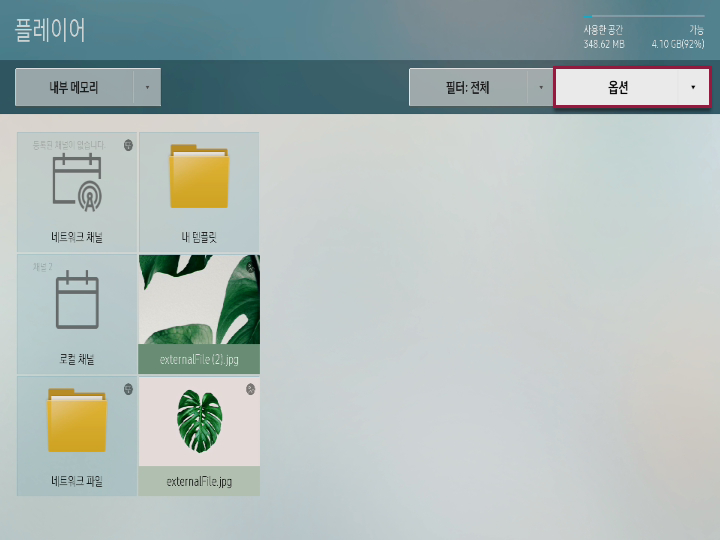
  1. 플레이어 화면에서 옵션을 누르세요.

    Stylesheet
    classscreen

    Image Modified

  2. 원하는 메뉴를 실행하세요.
    • 선택 재생: S Player로 재생할 콘텐츠를 선택할 수 있습니다. 자세한 내용은 다음을 참조하세요. ► 콘텐츠 선택 재생하기
    • 전송: 내부 메모리에 저장된 콘텐츠를 외부 메모리로 내보내거나 외부 메모리에 저장된 콘텐츠를 내부 메모리로 가져올 수 있습니다. 자세한 내용은 다음을 참조하세요. ► 콘텐츠 복사하기
    • 삭제: 콘텐츠를 삭제할 수 있습니다. 자세한 내용은 다음을 참조하세요. ► 콘텐츠 삭제하기
    • 저장공간: Server나 다른 장치에서 다운로드한 스케줄을 저장할 위치를 선택할 수 있습니다.
    • 장치 안전 제거: 연결되어 있는 외부 메모리를 안전하게 제거할 수 있습니다.
    • 콘텐츠 크기: 콘텐츠 재생 시 실행할 화면 비율을 설정할 수 있습니다.
    • 슬라이드 쇼 속도: 콘텐츠의 종류(사진, PDF, office 문서 등)에 따라 슬라이드 재생 속도를 설정할 수 있습니다.
    • 슬라이드 쇼 효과: 사진 콘텐츠를 슬라이드 쇼로 실행할 경우 각 슬라이드별 전환 효과를 설정할 수 있습니다.
    • 콘텐츠 방향: 플레이어의 배치 상태에 맞춰 콘텐츠의 표시 방향을 설정할 수 있습니다.
    • 기본 콘텐츠: 예약된 프로그램이나 콘텐츠가 없을 때 재생할 기본 콘텐츠를 설정할 수 있습니다. 자세한 내용은 다음을 참조하세요. ► 기본 콘텐츠 설정하기
    • 초기화: 플레이어의 설정값을 초기 상태로 되돌릴 수 있습니다.

Anchor
85659_s_q_123113
85659_s_q_123113
콘텐츠 선택 재생하기

S Player로 재생할 콘텐츠를 선택할 수 있습니다.

  1. 플레이어 화면에서 옵션 > 선택 재생을 누르세요.
  2. 콘텐츠를 선택한 후 상단의 재생을 누르세요.
    해당 콘텐츠만 재생됩니다.

Anchor
2546853_y_z_33829481
콘텐츠 복사하기

내부 메모리에 저장된 콘텐츠를 외부 메모리로 내보내거나 외부 메모리에 저장된 콘텐츠를 내부 메모리로 가져올 수 있습니다.

  1. 플레이어 화면에서 옵션 > 전송을 누르세요.

    Info
    title참고

    이 메뉴는 S Player에 외부 메모리가 연결되어 있을 경우에만 활성화됩니다.

  2. 콘텐츠를 선택한 후 상단의 전송을 누르세요.
  3. 전송할 장치를 선택한 후 시작을 누르세요.
    해당 콘텐츠가 대상 장치로 복사됩니다.

    Info
    title참고

    콘텐츠 전송을 중단하려면 취소를 누르세요.

Anchor
452514_x_z_d_142141
452514_x_z_d_142141
콘텐츠 삭제하기

  1. 플레이어 화면에서 옵션 > 삭제를 누르세요.
  2. 콘텐츠를 선택한 후 상단의 삭제를 누르세요.
  3. 확인 창이 나타나면 삭제를 누르세요.

    Info
    title참고

    삭제된 콘텐츠를 복원할 수 없으니 주의하세요.

Anchor
131947_k_d_z_32818
131947_k_d_z_32818
기본 콘텐츠 설정하기

  1. 플레이어 화면에서 옵션 > 기본 콘텐츠를 누르세요.
  2. 콘텐츠를 선택한 후 완료를 누르세요.
    예약된 프로그램이나 콘텐츠가 없을 때 해당 콘텐츠가 자동으로 재생됩니다.

Sv translation
languageen
  1. Press Image Added > Player.
    Player screen is executed.
  2. Execute desired functions.

    Stylesheet
    classscreen

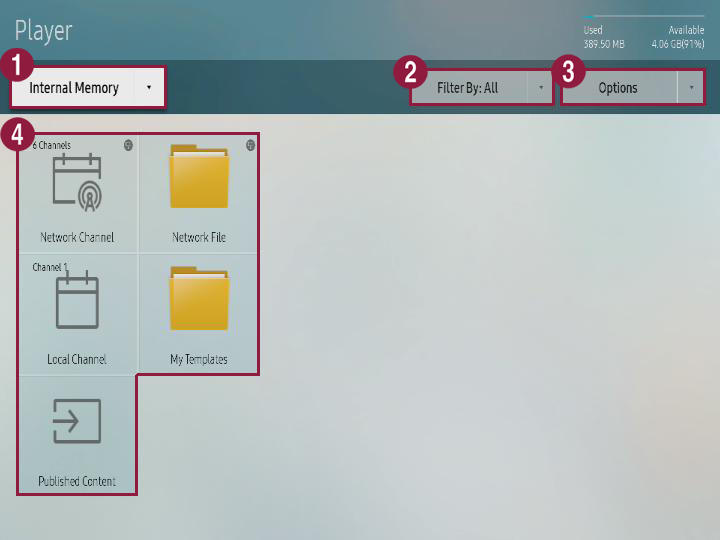
    Image Added

    1

    You can use S player to select the save position for the contents that will be played.

    • Internal memory: You can play the contents that are saved in S player.

    • External memory: You can play the contents that are saved in external memory such as USB storage device.

      Info
      titleNote

      External memory is only displayed when external memory is connected to S player. Name of the external memory is displayed differently depending on the external memory type that is connected.

    2

    Contents can be viewed in each category.

    Info
    titleNote

    Filter type can be different depending on the model type.

    3You can execute different options such as playing contents and slide shows. Refer to following for details. ► Using contents option menu
    4
    • Network channel: You can play contents, template, and schedule that are set from the server.

    • Local channel: You can play the contents that are saved in external memory or external memory.

    • Distribution contents: You can play the .LFD contents that are made from author and distributed to external memory.
      Refer to author user guide for details about making .LFD contents and distributing them to external memory.

      Info
      titleNote

      When contents that are made from author and distributed to external memory are copied to internal memory, it is classified as distributed contents.

    • Network file: You can play the contents that are saved in connected server.

    • My template: You can play My template that is saved in internal memory.

Anchor
1567_s_w_89011
1567_s_w_89011
Using contents option menu


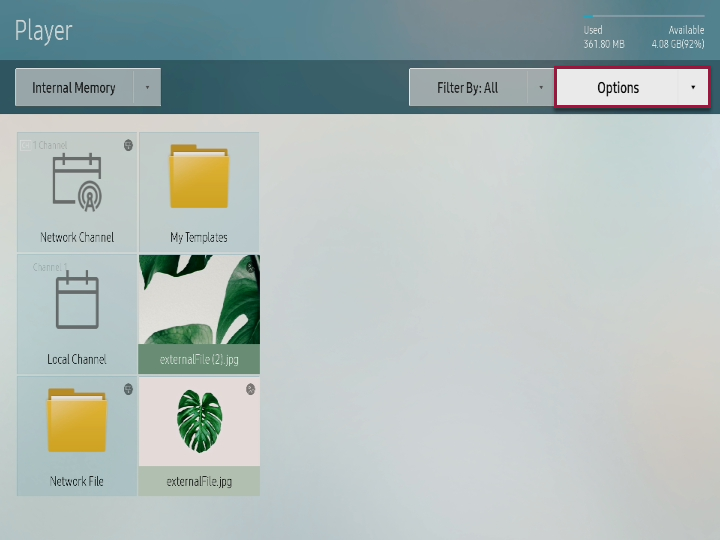
  1. Press option from player screen.

    Stylesheet
    classscreen

    Image Added

  2. Execute desired menu.
    • Play selected: You can select the contents that will be played in S player. Refer to following for details. ► Playing selected contents
    • Send: You can send the contents that are saved in internal memory to external memory or bring the contents that are saved in external memory to internal memory. Refer to following for details. ► Copying contents
    • Delete: You can delete the contents. Refer to following for details. ► Delete contents
    • Storage space: You can select the position for saving the schedule that is downloaded from server or other device.
    • Safely remove device: You can safely remove the external memory that is connected.
    • Contents size: You can apply setting to screen ratio for playing contents.
    • Slide show speed: You can apply different setting to slide play speed depending on the contents type (picture, PDF, office documents).
    • Slide show effect: In case of playing picture contents in slide show, you can set conversion effect for each slide.
    • Contents direction: You can apply setting on contents display direction depending on arrangement status on the player.
    • Basic contents: You can set basic contents that will be played when there are no reserved program or contents. Refer to following for details. ► Setting basic contents
    • Initialization: You can return player setting value to initial status.

Anchor
85659_s_q_123113
85659_s_q_123113
Playing selected contents

You can select the contents that will be played in S player.

  1. Press Option > Play selected from player screen.
  2. Select the contents and press Play from upper side.
    Corresponding contents are played.

Anchor
2546853_y_z_33829481
Copying contents

You can send the contents that are saved in internal memory to external memory or bring the contents that are saved in external memory to internal memory.

  1. Press Option > Send from player screen.

    Info
    titleNote

    This menu is activated only when external memory is connected to S player.

  2. Select the contents and press Send from upper side.
  3. Select the device for sending and press Start.
    Corresponding contents are copied to target device.

    Info
    titleNote

    To stop sending contents, press Cancel.

Anchor
452514_x_z_d_142141
452514_x_z_d_142141
Deleting contents

  1. Press Option > Delete from player screen.
  2. Select contents and press Delete from upper side.
  3. When window appears, press Delete.

    Info
    titleNote

    Deleted contents cannot be restored.

Anchor
131947_k_d_z_32818
131947_k_d_z_32818
Setting basic contents

  1. Press Option > Basic contents from player screen.
  2. Select contents and press Complete.
    Corresponding contents are automatically played when there are no reserved program or contents.