Versions Compared

Key

  • This line was added.
  • This line was removed.
  • Formatting was changed.
Comment: Content imported from a Scroll Translations translation file.
Sv translation
languageko

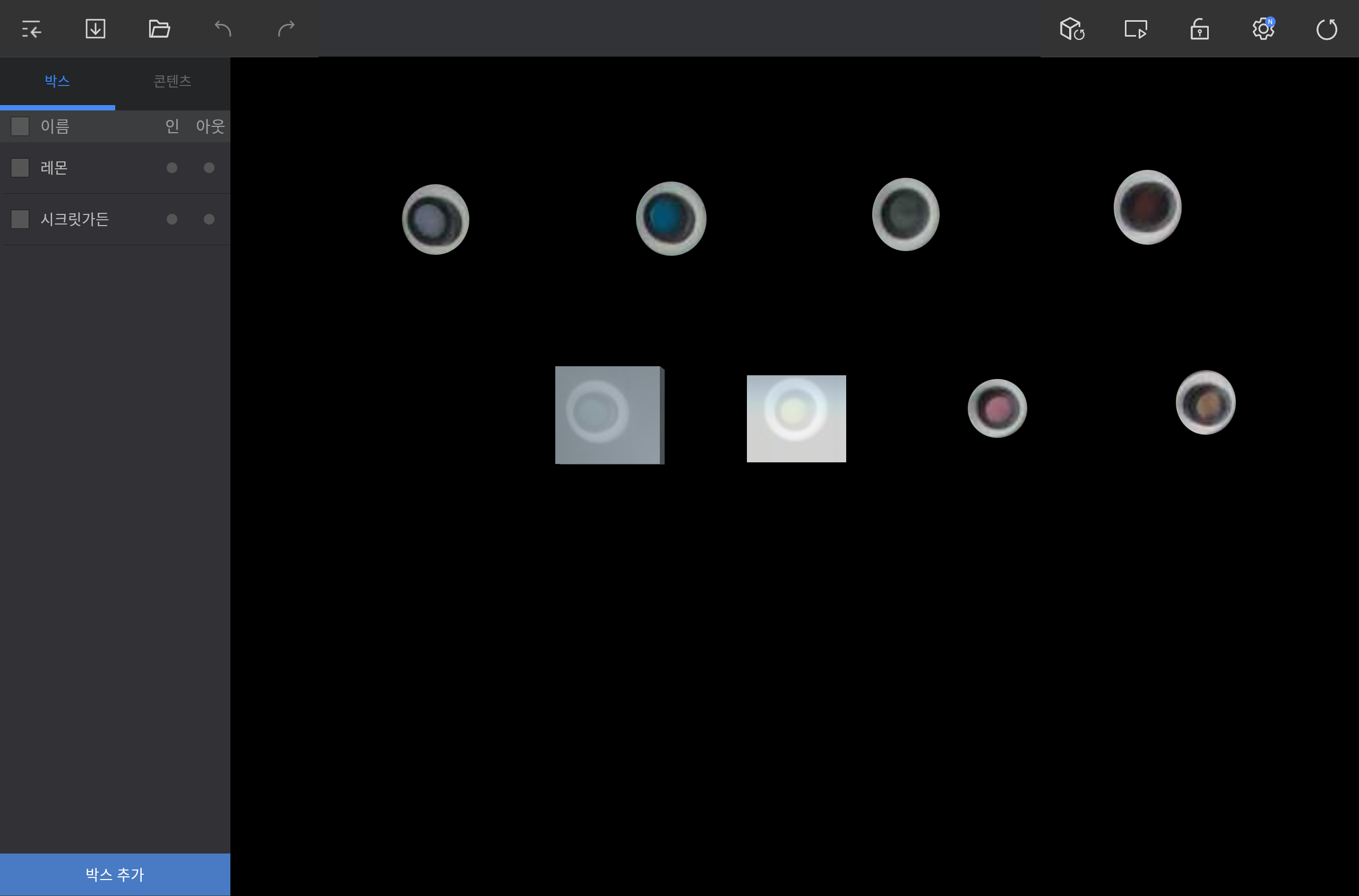
카메라에 비치는 화면 영역에 동작을 감지할 가상의 박스를 추가할 수 있습니다.

편집 화면 왼쪽 하단의 박스 추가를 누른 후 원하는 위치에 박스를 추가하세요.

Stylesheet
classscreen

Info
title참고

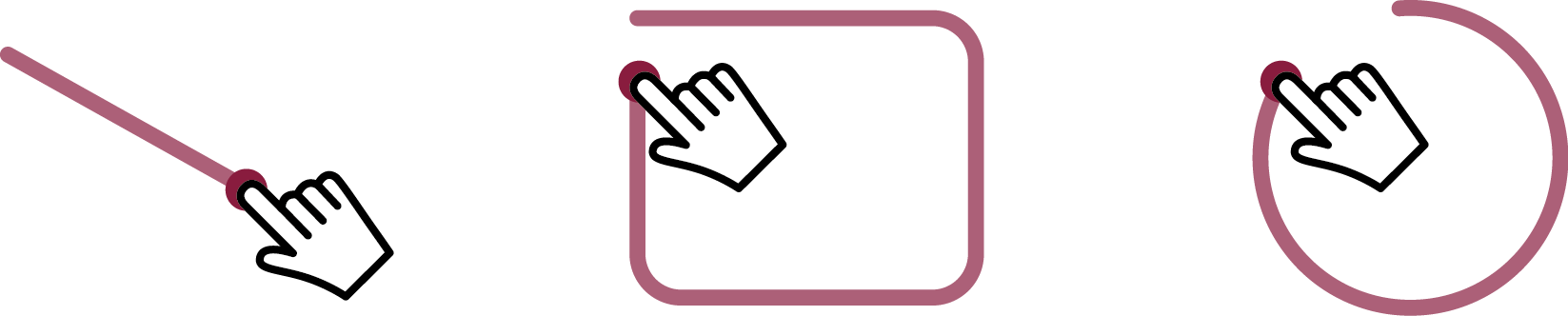
대각선 또는 동그라미 등으로 자유롭게 드래그하면 드래그된 영역에 맞는 박스가 생성됩니다.


동작 감지 박스 편집하기


  1. 박스 탭에서 한 개의 박스를 선택하거나 앵글 영역에서 원하는 박스를 누르세요.

  2. 원하는 기능을 실행하여 박스를 편집하세요.

    Stylesheet
    classscreen

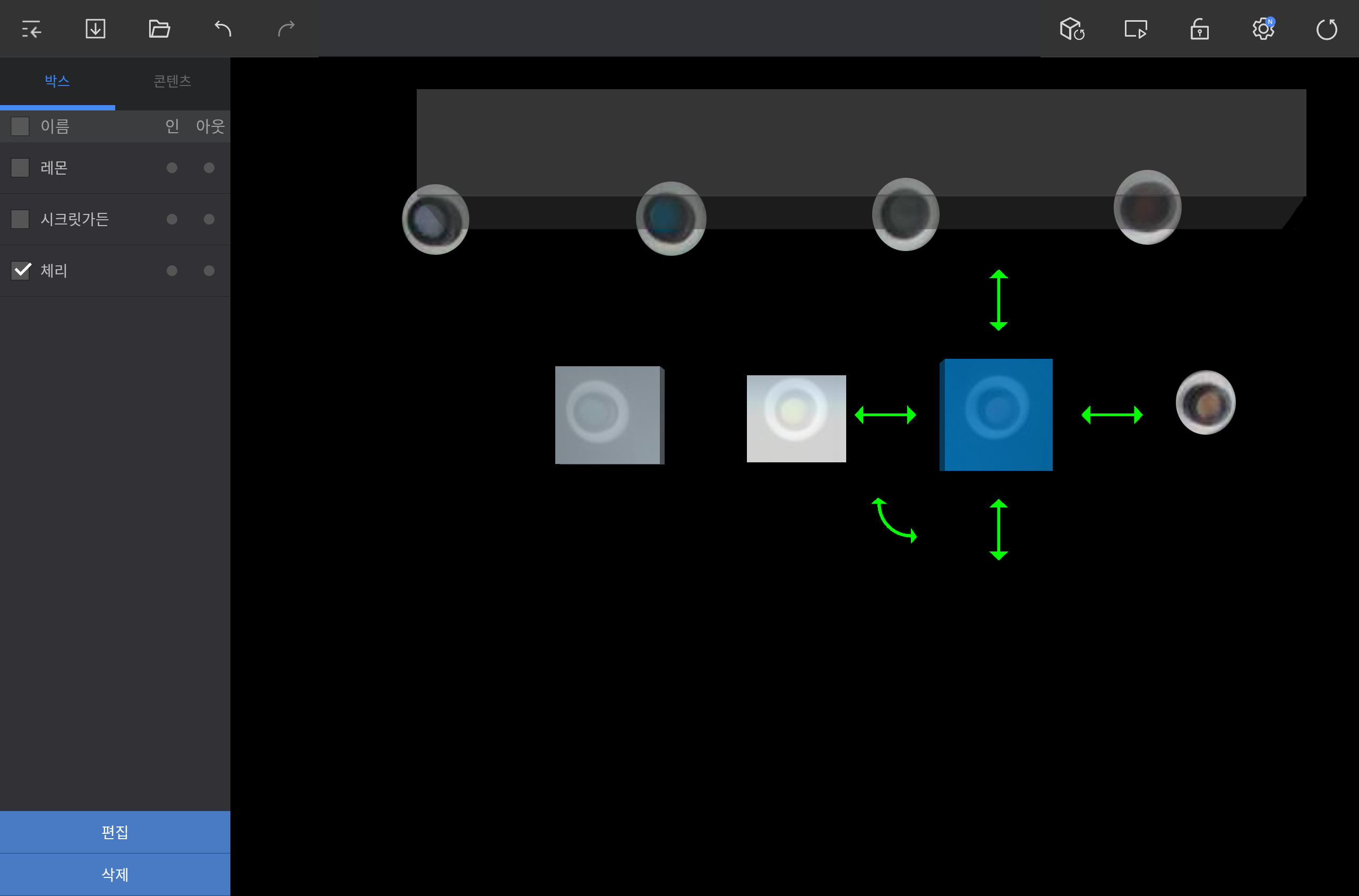
    • 박스 위치를 이동하려면 박스를 누른 채 원하는 위치로 드래그하세요.

    • 박스의 크기를 조정하려면 박스 상하좌우의 양방향 직선 화살표를 누른 채 드래그하세요.

    • 박스를 회전시키려면 박스 모서리의 양방향 곡선 화살표를 누른 채 드래그하세요.

    • 박스의 이름을 변경하거나 태그를 설정하려면 화면 왼쪽 하단의 편집을 누르세요.

    • 박스를 삭제하려면 화면 왼쪽 하단의 삭제를 누르세요.

      Info
      title참고
      • 여러 박스를 한 번에 삭제하려면 박스 탭에서 삭제할 박스를 모두 선택하세요.
      • 보다 정밀한 동작 감지를 위해 Player 화면을 틍해 동작 감지 영역을 확인하면서 박스를 편집하세요.
Sv translation
languageen

Add a virtual box to detect events in the camera view area.

Tap ADD BOX on the lower left screen in the editor and add a box to a desired position.

Stylesheet
classscreen

Image Added

Info
titleNote

Drag diagonally or in circle to create a box that fits the dragged space.

Image Added


Editing a box


  1. Select a box from the BOX tab or in the angle area.

  2. Use the available options to edit the box.

    Stylesheet
    classscreen

    Image Added

    • To reposition the box, press and hold the box and then drag it to a desired position.

    • To adjust the box size, press and hold and then drag the straight double arrows around the box (up/down/right/left).

    • To rotate the box, press and hold and then drag the curved double arrow.

    • To rename the box or add a tag, tap EDIT on the lower left screen.

    • To delete the box, tap DELETE on the lower left screen.

      Info
      titleNote
      • To delete multiple boxes at once, select them from the BOX tab.
      • When editing boxes, check the effective area using the Player screen to allow more precise detection.