


Switching Content to Emergency Guidance
In the event of an emergency, instantly switch specific screens to the content set
to be broadcast in an emergency situation.
Users can set it up so that the pre-set content automatically plays on specified screens
when an event occurs on an external system. They can also manually play alerting content
by selecting content and screens. The screens automatically return to the previous
content after a specified period of time.
It is possible to set different content depending on the alarm type and workspaces.
-
If Emergency Alert is activated, the emergency alert window appears at the bottom of the screen’s remote control page. Click on About to redirect to the details page for the selected alert.
-
If the storage space is insufficient, the Emergency Alert content may not play properly. This feature only works when the player is running.
-
This feature may not be available, depending on user privileges.
-
This function may not be available, depending on the rate plan in use.
 |
Viewing the List of Activated Emergency Alerts
Check the emergency alerts that are currently activated.
-
On the VXT CMS Home screen, click
 and then select Settings > Emergency Alert.
 -
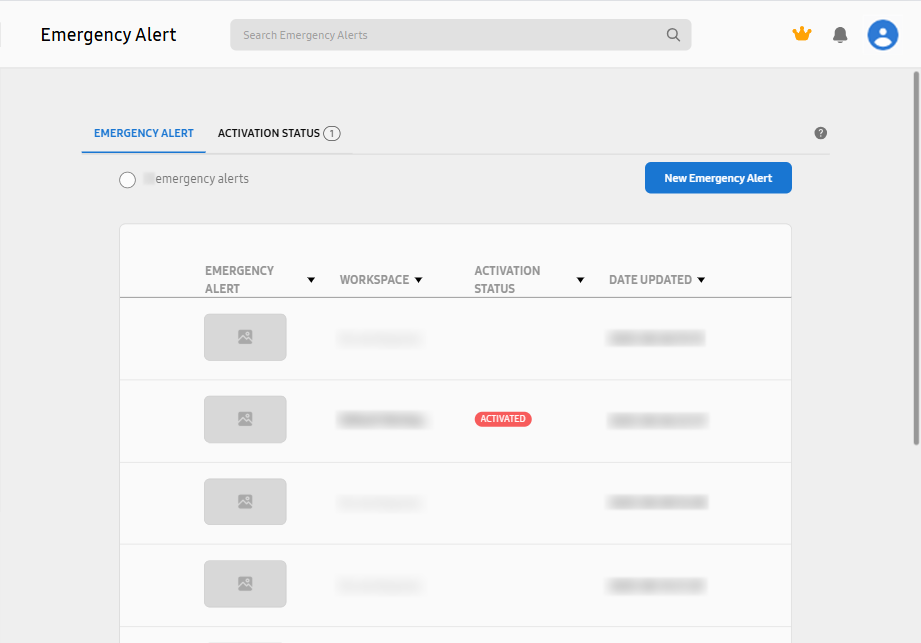
A list of registered emergency alerts appears. This list provides brief information on the alerts.
-
Click an alert on the list to view the alert details.
-
It is possible to turn on automatic alert deactivation from this details page.
Setting Emergency Alert Content
Administrators can specify content to play when an emergency occurs.
-
On the VXT CMS Home screen, click
and then select Settings > Emergency Alert. -
Click New Alert.
-
Set the emergency alert name, content to play, workspaces to assign the alert to, sound volume, and brightness/backlight.
-
Click Save to save the configured emergency alert settings.
Deleting Emergency Alerts
Delete unnecessary emergency alerts. If you delete an emergency alert, it will be deleted from all of the workspaces to which it is assigned.
-
On the VXT CMS Home screen, click
and then select Settings > Emergency Alert. -
On the list of emergency alerts, hover the mouse cursor over the emergency alert(s) you want to delete. The
 (More) icon appears.
 -
Click Delete Emergency Alert from the menu list.
-
In the pop-up window, click Yes to delete the selected alert(s).