


Using the SharePoint App
VXT Canvas supports the SharePoint App for business. Link your VXT screen to SharePoint
and display your news posts from your SharePoint site on the screen.
Follow the steps below to use the SharePoint app.
-
Samsung VXT CMS only provides pairing with the user's SharePoint account for displaying content on a Signage device, and is not involved in actual data processing.
-
All data is processed according to the terms of use and privacy policy of Microsoft.
-
Samsung is not involved in any SharePoint content and assumes no responsibility for SharePoint content unrelated to Samsung.
Presets (Account Preparation)
To use the Microsoft SharePoint App, first, you need to create a Microsoft organizational account.
Creating a Microsoft Organization account
If you do not have a Microsoft organizational account, follow the steps below to create one:
-
Go to the Microsoft sign-in page.
Visit https://login.microsoftonline.com/ and click on "Create account" or "Sign up for an account".
-
Enter your organization's email address.
If you already have an organizational email address, enter it and follow the prompts to create a Microsoft account associated with your organization.
-
Create a new Microsoft account.
If you don't have an organizational email address, click on "Create a new account". Enter your name, organizational email address, and password.
-
Verify your email address.
Check your email inbox for a verification link from Microsoft.
-
Agree to Microsoft's terms of service.
Review and agree to Microsoft's terms of service and privacy policy.
-
Set up your organization (if applicable).
If you're creating an account for an organization, you need to set up an Azure Active Directory (Azure AD) tenant. Visit https://portal.azure.com/ and sign in with your new account. Follow the prompts to create an Azure AD tenant for your organization.
-
For more information on creating a Microsoft organizational account, refer to the following webpage:
Sign in to SharePoint (Using the App)
Sign in to your Microsoft work/school account that is linked to your SharePoint site.
Make sure that you have your own Microsoft account.
-
In VXT Canvas, click the Apps menu, then search for the Microsoft SharePoint App and click it.
-
On the app information, click the Install button.
-
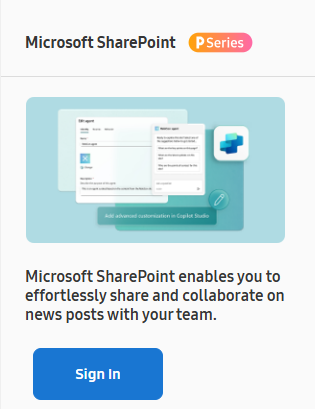
After the app is installed, click the Sign In button.
-
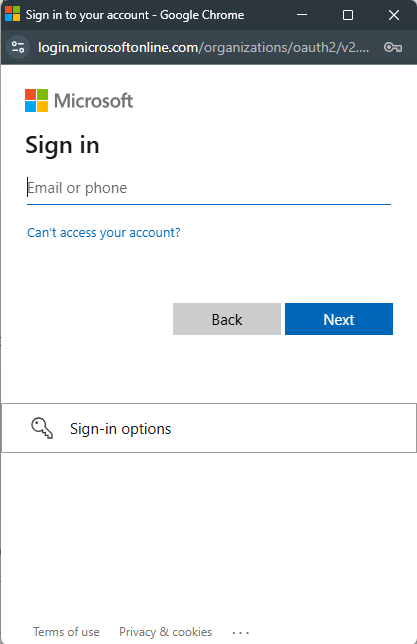
Please input the credentials of your Microsoft account.
-
To accept all the access granted to the Samsung VXT Canvas App, check the consent and click the Accept button.
-
You need to grant access for the Microsoft SharePoint App to be able to work properly.
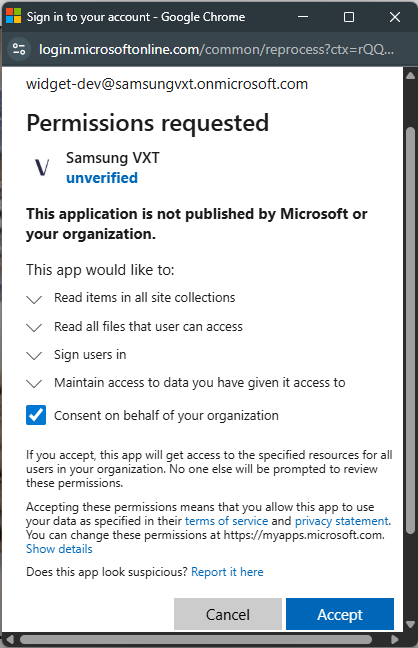
The Samsung VXT Canvas app has been connected to your Microsoft account.
How to Use the Microsoft SharePoint App
Selecting a SharePoint Site and News Pages
 |
-
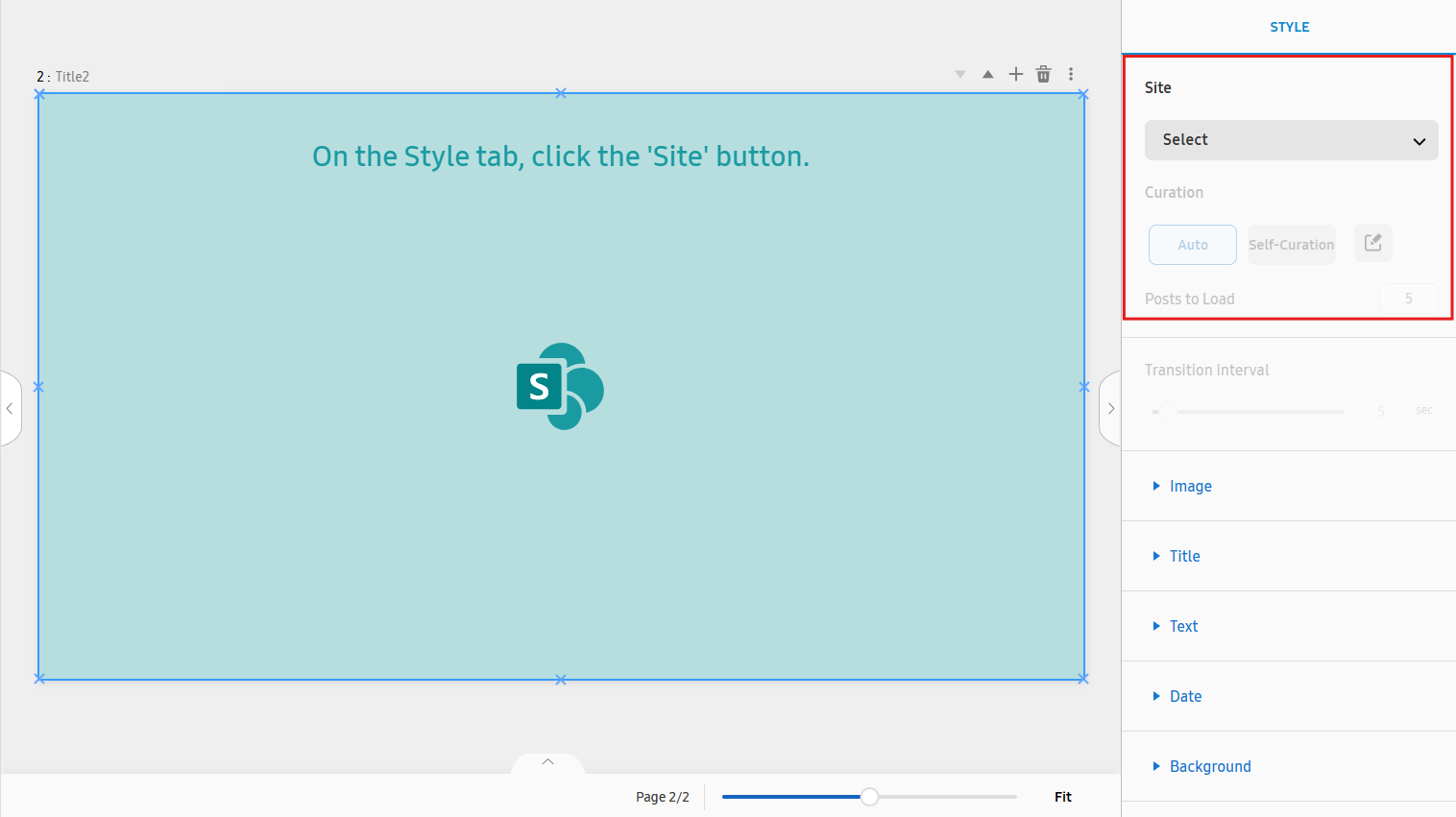
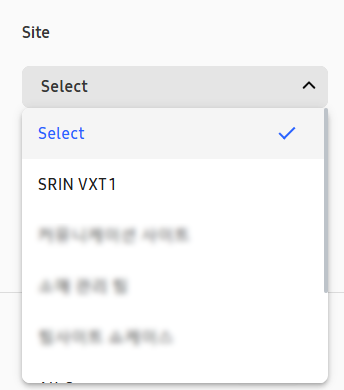
Select a SharePoint site by clicking the Site dropdown.
-
All of the SharePoint sites of the Microsoft account organization will automatically be listed.
-
Select a site that contains news posts. If a site without a news page is selected, the app will not display any content.
-
The app will only display news posts from the site. Other types of posts will not be displayed.
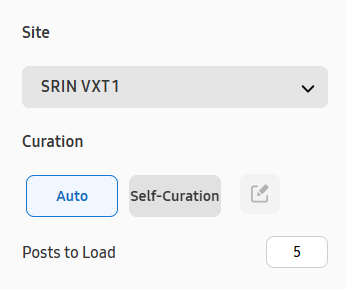
Configure how to curate the news posts by selecting one of the Curation options.
-
Auto: Display all of the latest news posts from the selected site. Set the number of the latest news posts displayed from the Post to Load text field. (1~10 posts)
-
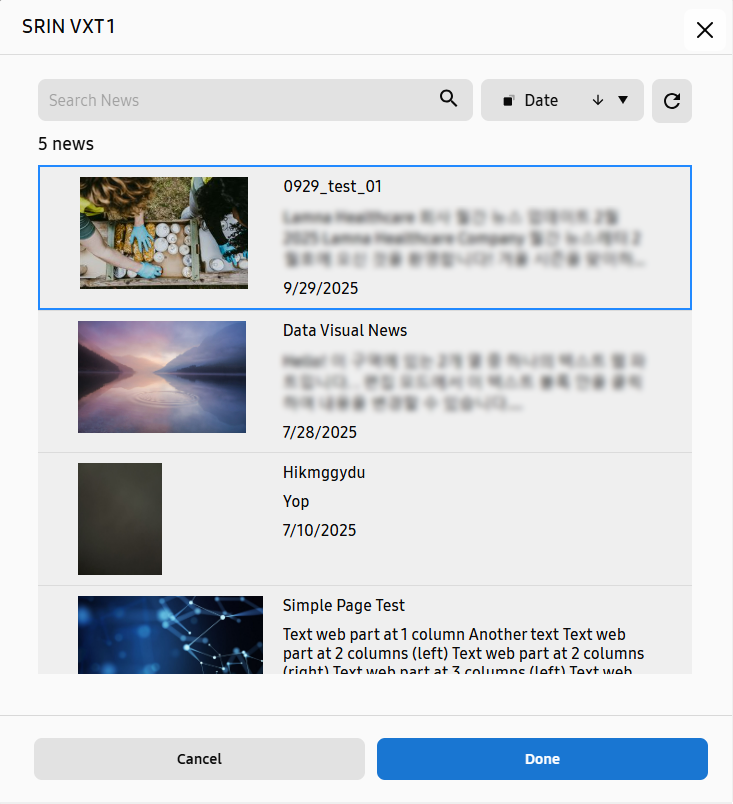
Self-Curation: Display only a news post selected by the user. The UI page to select the news post to be displayed will open when the user changes the Curation option to Self-Curation. To select a news post, choose one of the news posts listed on the page and click the Done button. The user can change the news post selected by clicking the button with the Edit logo beside the Self-Curation option.
Specifying the Transition Interval and Styles of The Displayed News Posts Components
The Transition Interval and component styles of the news posts can only be specified after a SharePoint site has been selected.
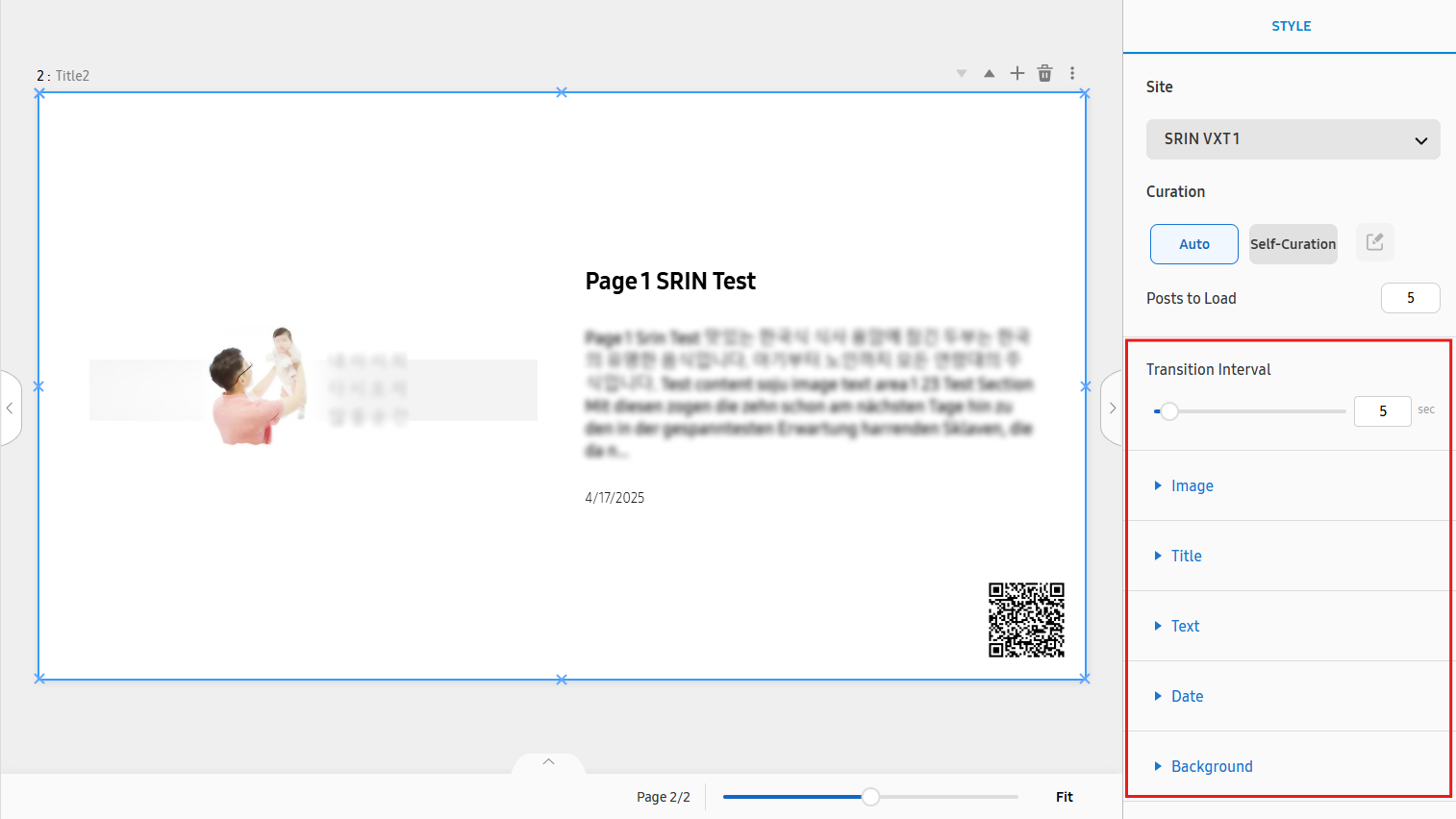 |
Transition Interval
Transition Interval is used to set the duration for which each post slide is displayed. (5~10 seconds)
For example, if you set the Transition Interval to 10, each news post is displayed for 10 seconds until it is changed to the next
post.
If only one news post is displayed, the Transition Interval option will be disabled since the news post displayed will not change.
Image Style Tab
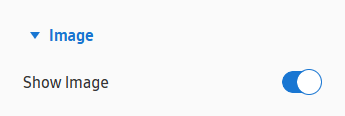 |
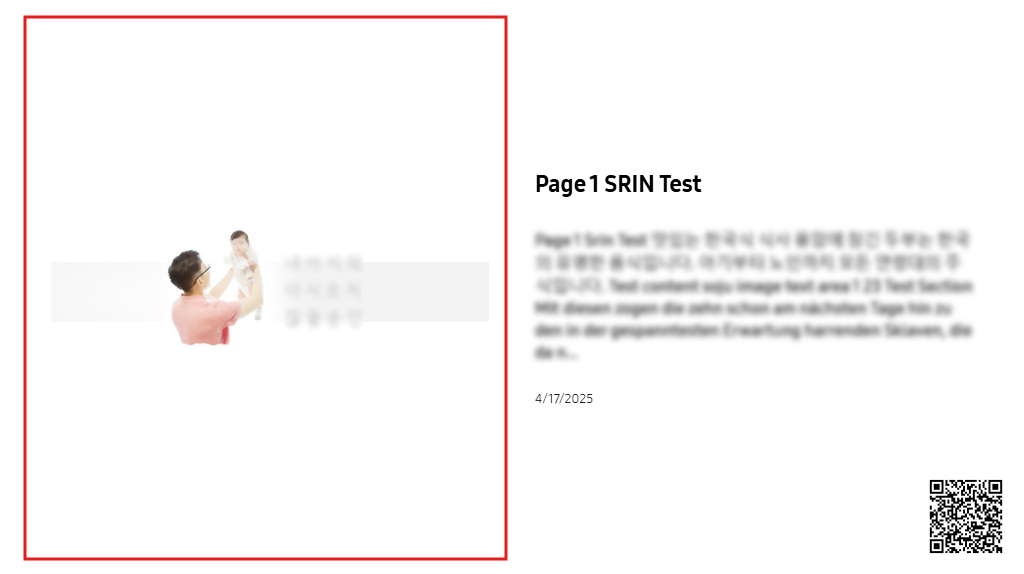
Image Style refers to the image displayed on the left side of the news post.
-
Show Image: To display the image of the news post. If toggled off, the image will not be displayed, and texts on the right side will fill the area where the image previously was.
Title Style Tab
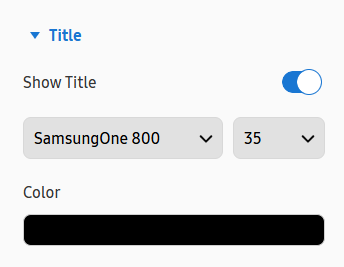 |
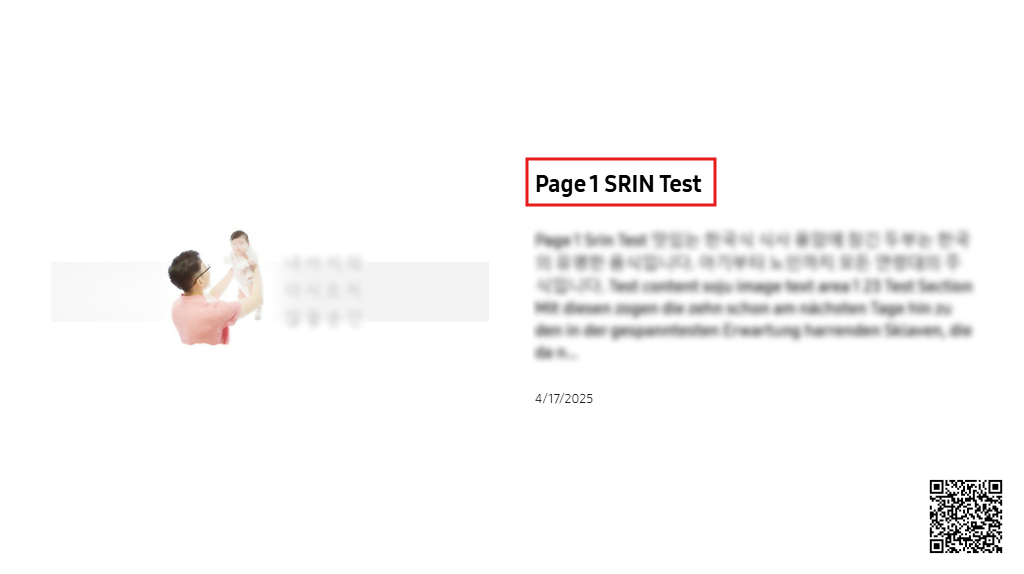
Title Style refers to the header text displayed on the right side of the news post.
-
Show Title: To display the title of the news post. If toggled off, the title will not be displayed.
-
Title Font Styling: To configure the font family and font size of the news title. Cannot be set if the Show Title is turned off.
-
Color: To configure the color of the news title. Cannot be set if the Show Title is turned off.
Text Style Tab
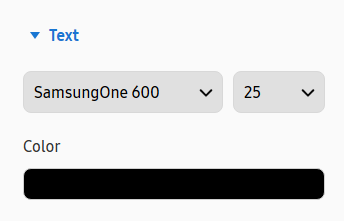 |
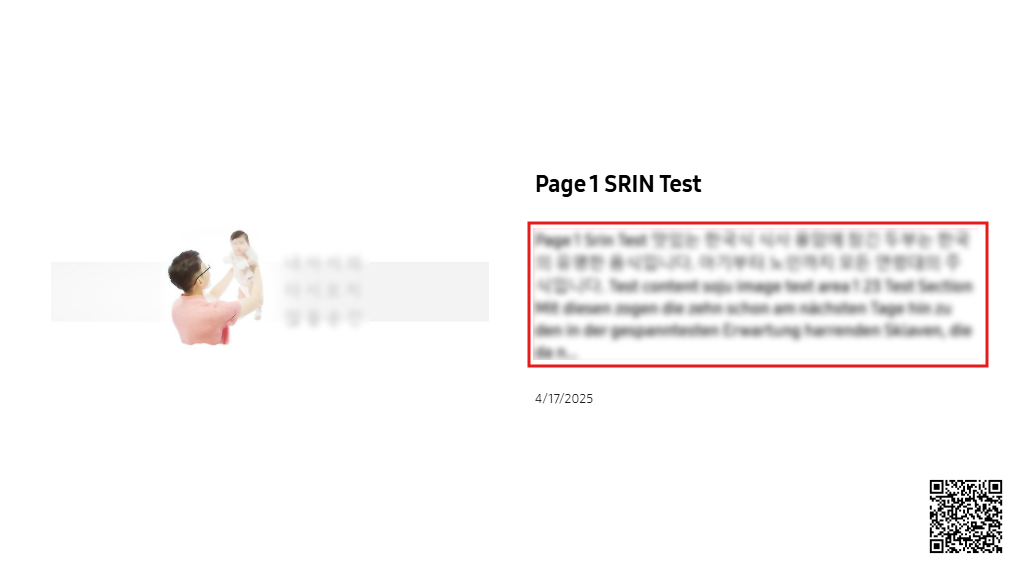
Text Style refers to the content text displayed on the right side of the news post.
-
Text Font Styling: To configure the font family and font size of the news text content.
-
Color: To configure the color of the news text content.
Date Style Tab
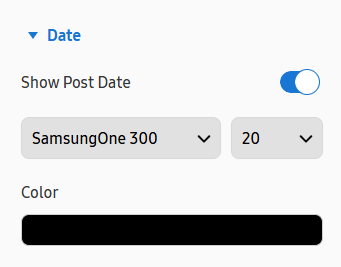 |
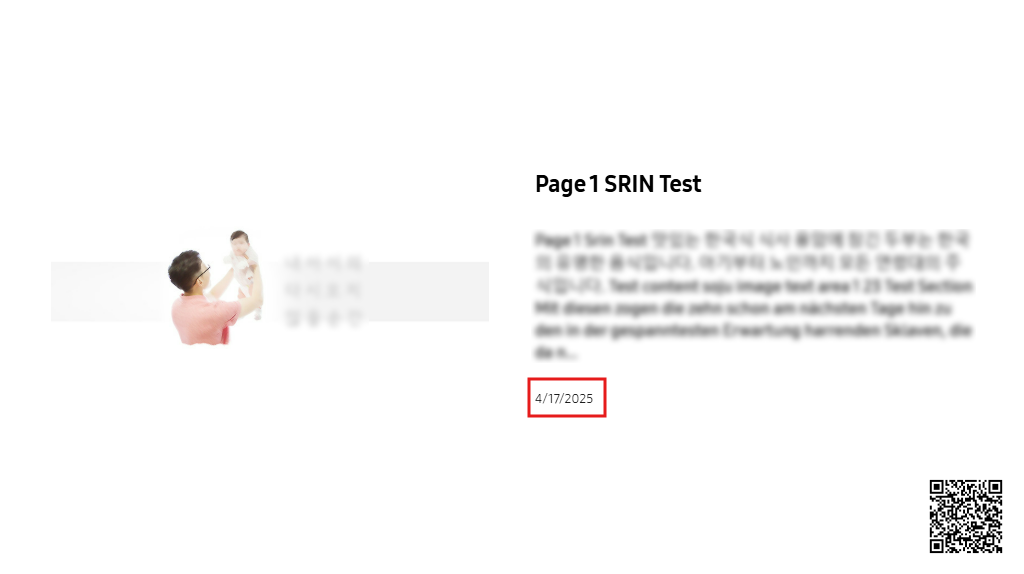
Date Style refers to the date text displayed on the right side of the news post.
-
Show Post Date: To display the created date of the news post. If toggled off, the date will not be displayed.
-
Date Font Styling: To configure the font family and font size of the news date. Cannot be set if the Show Date is turned off.
-
Color: To configure the color of the news date. Cannot be set if the Show Date is turned off.
Background Style Tab
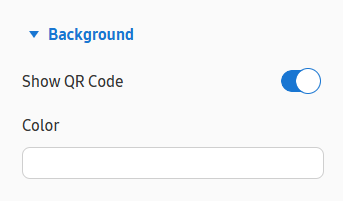 |
Background Style refers to the background of the news post.
-
Show QR Code: To display the QR containing the URL link to the news post. If toggled off, the QR will not be displayed.
-
Color: Configure the background color of the news post.