


Using the Microsoft Excel App
VXT Canvas supports the Microsoft Excel app for both personal and business. Link your
VXT screen to OneDrive and display Excel from your OneDrive on the screen.
Follow the steps below to use the Microsoft Excel app.
-
Samsung VXT CMS only provides pairing with the user's Microsoft account for displaying content on a Signage device, and is not involved in actual data processing.
-
All data is processed according to the terms of use and privacy policy of Microsoft.
-
Samsung is not involved in any Microsoft Excel content and assumes no responsibility for Microsoft Excel content unrelated to Samsung.
Presets (Account Preparation)
To use the Microsoft Excel App, first, you need to create a Microsoft account using the procedure provided below.
Creating a Microsoft account
To use the Microsoft Excel App, first, you need to create a Microsoft personal or work and school account that can be used as a OneDrive account. To create a personal Microsoft account, follow the procedure as follows:
-
Go to https://account.microsoft.com/account and click Create an account.
-
On sign in page, click Create an account and click Next.
-
Enter the code send to your email.
-
Enter your country/region and birthdate and click Next.
-
Enter your first name and last name, by click Next you agree to Microsoft Services Agreement and Privacy Statement.
-
After your account is successfully created, you can access Microsoft Excel by going to http://onedrive.live.com/.
-
You can change the sign in method on Security by add password or phone number.
-
For more information on signing up for an account, refer to the following webpage:
-
And for more information regarding a Microsoft personal or work/school account, refer to the following webpage:
Difference between a Microsoft account and a work or school account - Microsoft Support
Sign in to Microsoft Excel (Using the App)
Sign in to your Microsoft personal or work/school account.
Make sure that you have your own Microsoft account.
-
In VXT Canvas, click the Apps menu, then search for the Microsoft Excel App and click it.
-
On the app information, click the Install button.
-
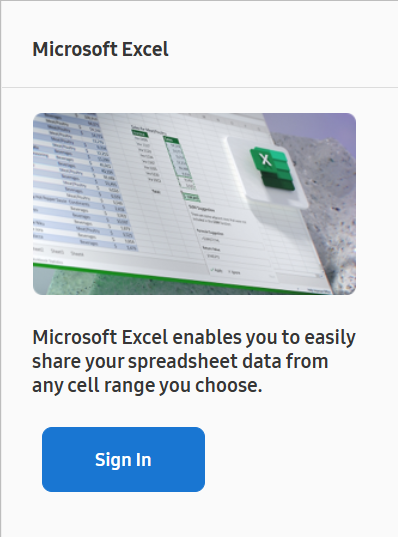
After the app is installed, click the Sign In button.
-
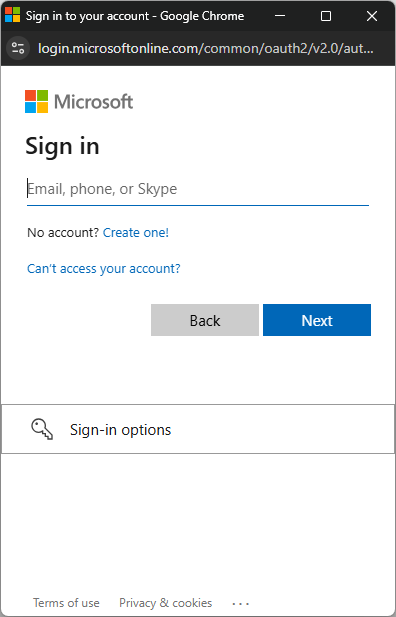
Please input the credentials of your Microsoft account.
-
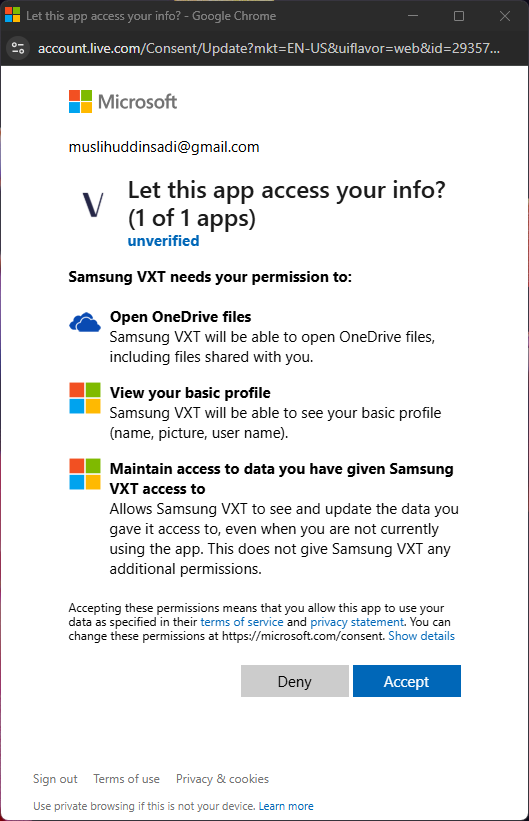
To accept all the access granted to the Samsung VXT Canvas App, click the Accept button.
-
If you disable any of the access, the Microsoft Excel App may not be able to work properly.
-
-
The Samsung VXT Canvas app has been connected to your Microsoft account.
How to Use the Microsoft Excel App
Selecting an Excel file
 |
-
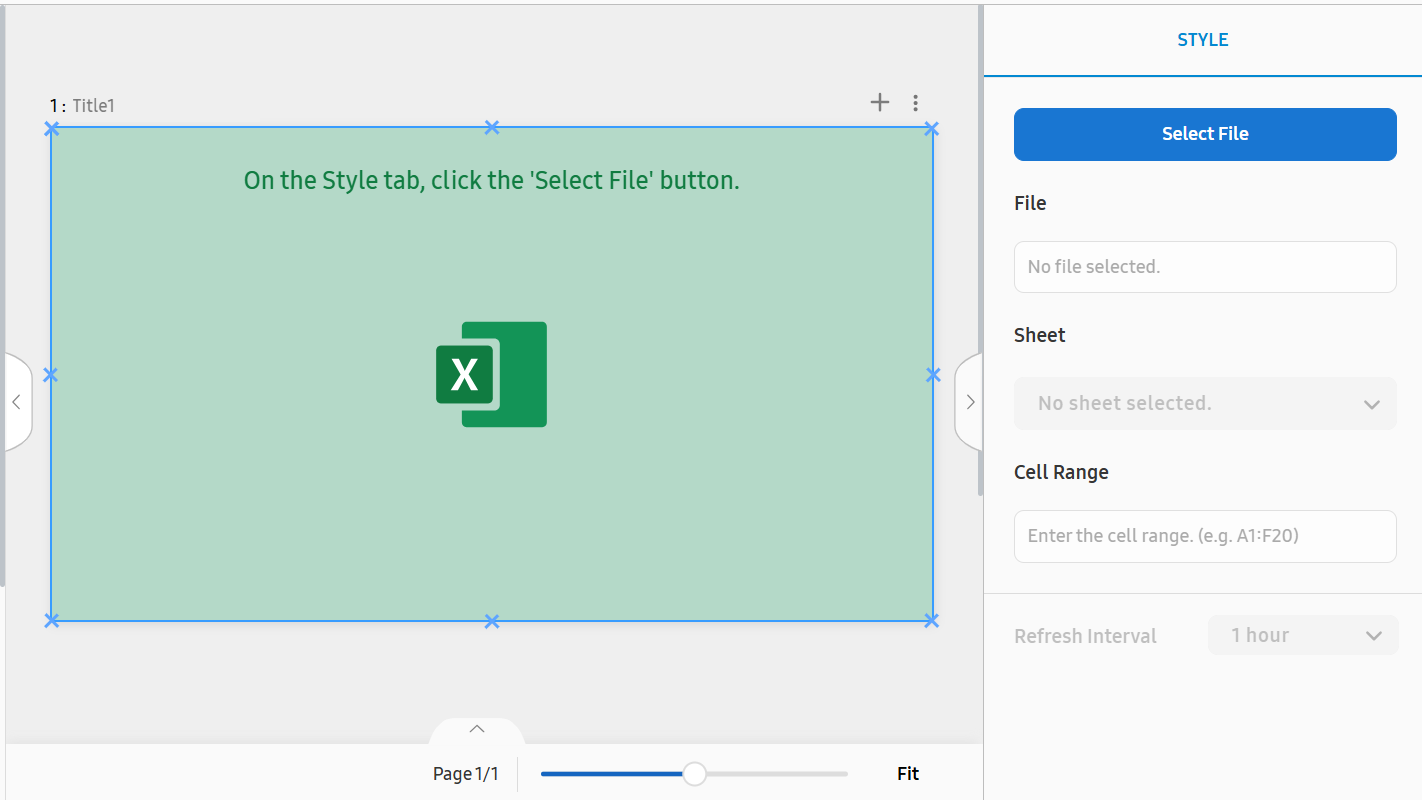
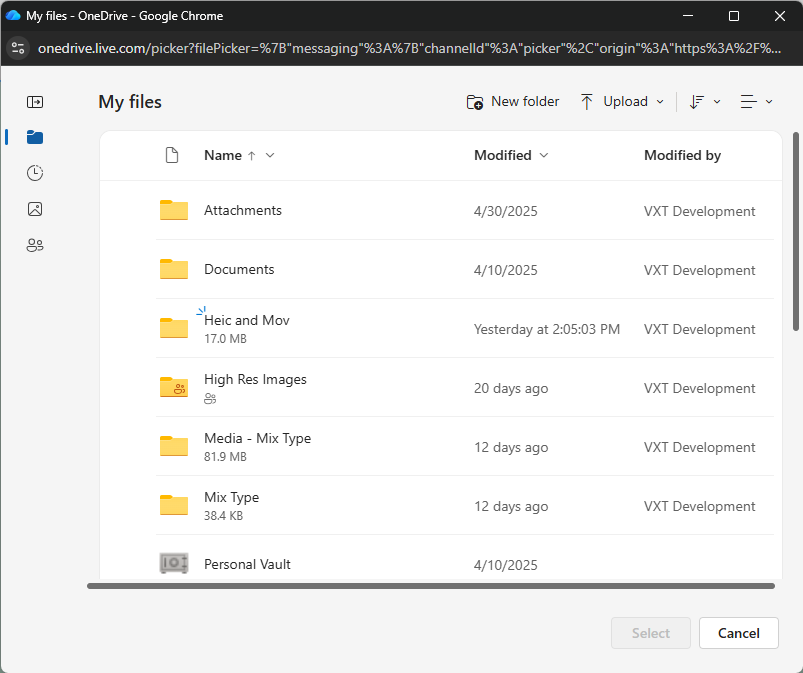
Open the OneDrive Filepicker by clicking the Select File button.
-
The OneDrive Filepicker displays the content of the Microsoft Excel associated with the account used for login.
-
Select an Excel file to be displayed, and click the Select button. Currently, only supports .xlsx type.
-
After a file is selected, the content will display an Excel sheet.
Specifying the Content Sheet, Cell Range, and Refresh Interval
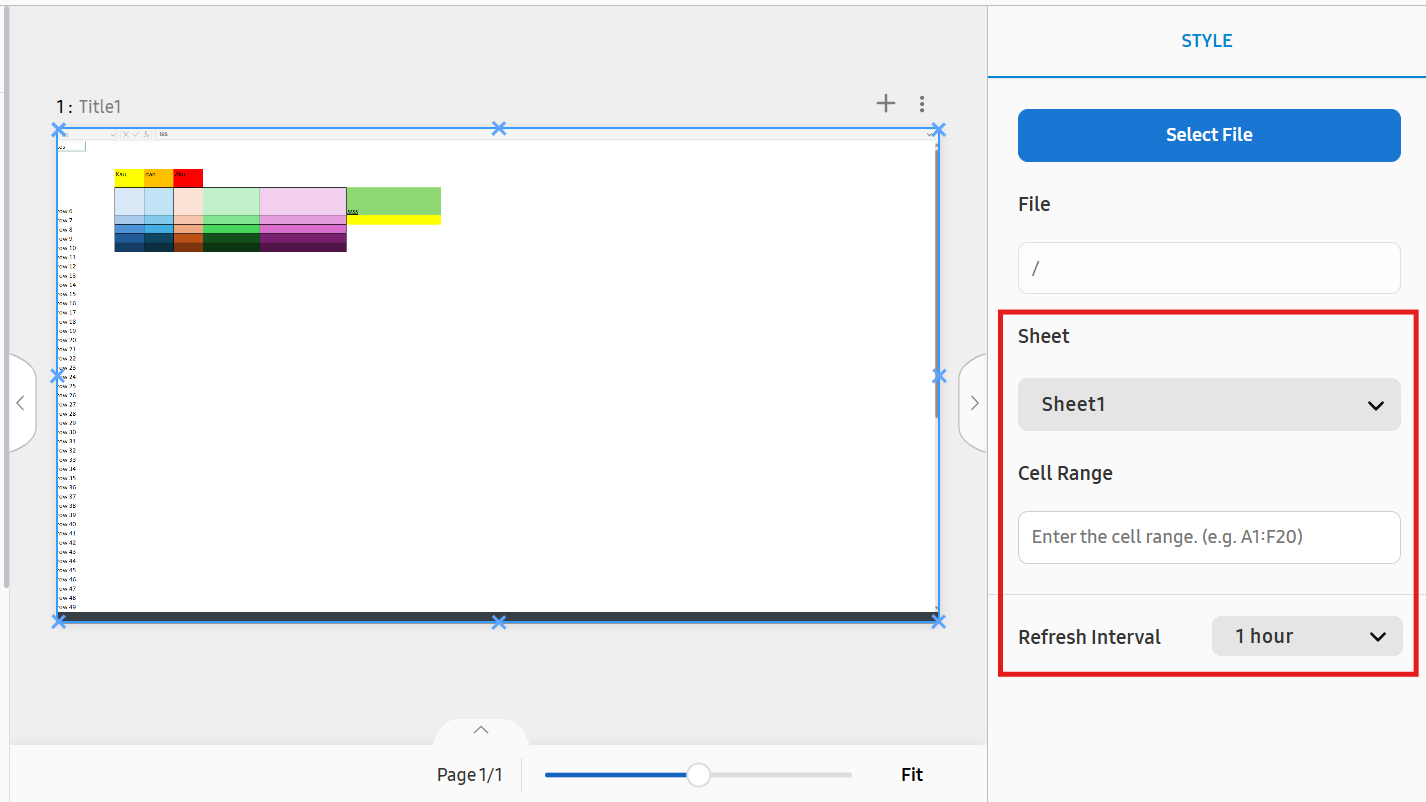 |
The Sheet, Cell Range, and Refresh Interval can only be specified after the Microsoft Excel content has been selected and the sheet is displayed.
Sheet
Sheet is used to set the sheet inside the Excel file to be displayed.
Cell Range
Cell Range is used to set the cell range to be displayed.
Refresh Interval
Refresh Interval is used to set the duration for the selected file to be refreshed. (15 minutes~24
hours)
For example, if you set the Refresh Interval to 1 hour, the excel file will be checked every hour, and if there are any changes,
the content will be updated.