


Using the Instagram Widget
VXT Canvas supports the Instagram widget for business. Link your VXT screen to Instagram
and publish Instagram posts of your choice to the screen.
Follow the steps below to use the Instagram widget.
-
Samsung VXT CMS only provides pairing with the user's Instagram account for displaying content on a Signage device, and is not involved in actual data processing.
-
All data is processed according to the terms of use and privacy policy of Instagram.
-
Samsung is not involved in any Instagram content and assumes no responsibility for Instagram content unrelated to Samsung.
Presets
To use the Instagram widget, first you need to create a Facebook account and business page. Create a Facebook account and business page, and link your Instagram business account to your Facebook page, using the procedure provided below.
1. Creating a Facebook account
To use the Instagram widget, you must have your own Facebook account and business page. If you do not have a Facebook account and page, create an account, as follows:
-
Go to facebook.com and click Create New Account.
-
Enter your name, email or mobile phone number, password, date of birth and gender.
-
Click Sign Up.
-
To finish creating your account, you need to confirm your email or mobile phone number.
-
For more information on signing up for an account, refer to the following webpage:
2. Creating a Facebook business page
To create a Facebook business page, you should have a Facebook account.
-
From the Page section, click Create new Page.
-
Add your Page name and category.
-
Add your Page’s bio and click Create a page.
-
Click Done.
-
For more information on opening a Facebook page, refer to the following webpage:
https://www.facebook.com/business/help/473994396650734?id=939256796236247
-
3. Creating an Instagram business account
Use the steps below to create an Instagram business account. One user is allows to have a maximum of five Instagram accounts.
-
Navigate to Profile and click Edit Profile.
-
Click Account type and tools.
-
For some accounts, the Switch to professional account option will be listed directly under Settings.
-
-
Click Switch to professional account.
-
Select the Business checkbox and click Next.
-
Click Next.
-
Select a Category for your Business and tap Done.
-
Add your contact details and click Save.
-
To skip this step, tap Don't use my contact info.
-
If you'd like, you can follow the steps to connect your business account to a Facebook Page associated with your business. This step is optional, and will make it easier to use all of the features available for businesses across Meta. At this time, only one Facebook Page can be connected to your business account.
-
-
Click Done. You are returned to the profile page.
-
For more information on creating an Instagram business account, refer to the following webpage:
-
4. Connect an Instagram account with classic Pages
Link your existing Facebook page to your Instagram account.
-
Open your Facebook Page.
-
Select Settings from the left menu.
-
Select Instagram.
-
To connect an Instagram account to your Page, select Connect Account. Check that “Confirm you want to allow access to Instagram messages in Inbox” is enabled, and then click Continue.
-
Enter your Instagram account's Username and Password, and select Log in.
-
If you do not have an Instagram professional account, you will be prompted to convert your personal account.
-
5. Linking your Instagram account to your new Facebook page
Link your Instagram account to your new Facebook page, as follows:
-
Switch into your new Page.
-
From your new Page, click Manage.
-
From the left menu under Professional dashboard, click Linked accounts.
-
To connect an account, click Connect Account. Enter your Instagram account's Username and Password, and select Log in.
-
For more information on linking your Instagram business account to your Facebook business page, refer to the following webpage:
-
-
Click Continue with Facebook to start.
Signing in to Facebook and Instagram Accounts
Sign in to your Facebook and Instagram accounts.
Make sure that you have your own Facebook account, Facebook business page, and Instagram
business account, and that your Instagram business account is linked to your Facebook
page.
Signing in to Facebook
-
In VXT Canvas, click Instagram Business.
-
In the element properties panel on the right, click Continue with Facebook from the Style tab.
If you have a Facebook account that is already log devices that are in, select the account displayed under "Or choose an account" Select the account shown under the displayed text to use the Instagram widget.
-
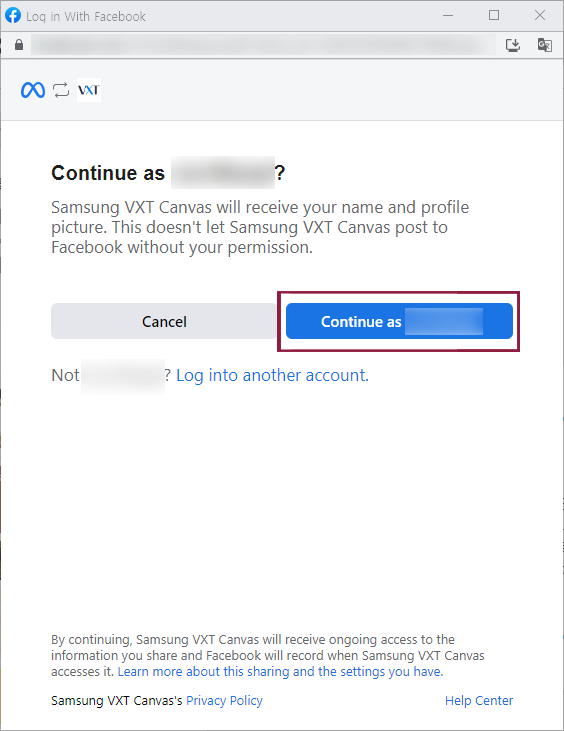
Click Sign in with Facebook to sign in to the created Facebook account. To use the Samsung VXT Canvas app with your logged-in Facebook account, click the continue button.
-
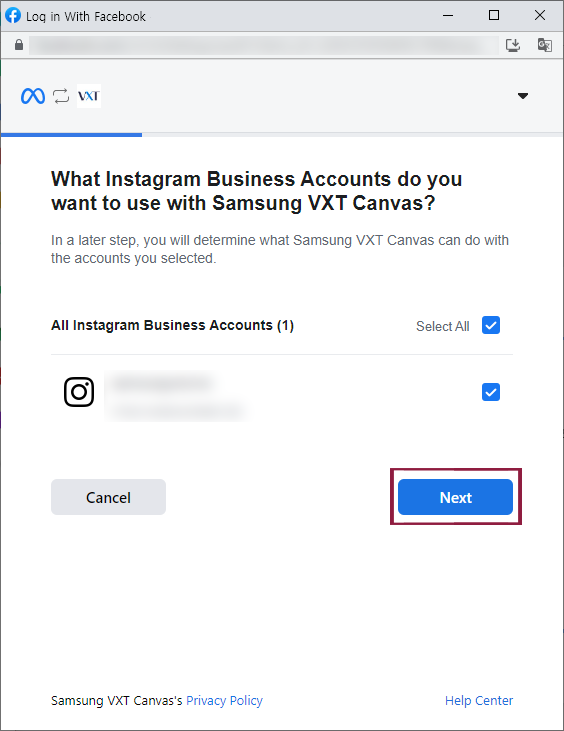
Select the Instagram business account with which to access the Samsung VXT Canvas app, and click Next.
-
Select the Facebook business page to grant the Samsung VXT Canvas app access, and click Next.
-
Check the privileges granted to the Samsung VXT Canvas app, and click Done.
-
If you disable this option, the app may not work properly.
-
-
The Samsung VXT Canvas app has been connected to your Facebook account. Click OK.
Selecting a Facebook Business Page
If you have more than one Facebook business page, select the one to use.
If you have only one Facebook business page, your log-in process will be automatically
completed.
How to Use Instagram Widget
Searching by Profile or Hashtag
First, click on either Profile or Hashtag and type in the keyword that you would like to search.
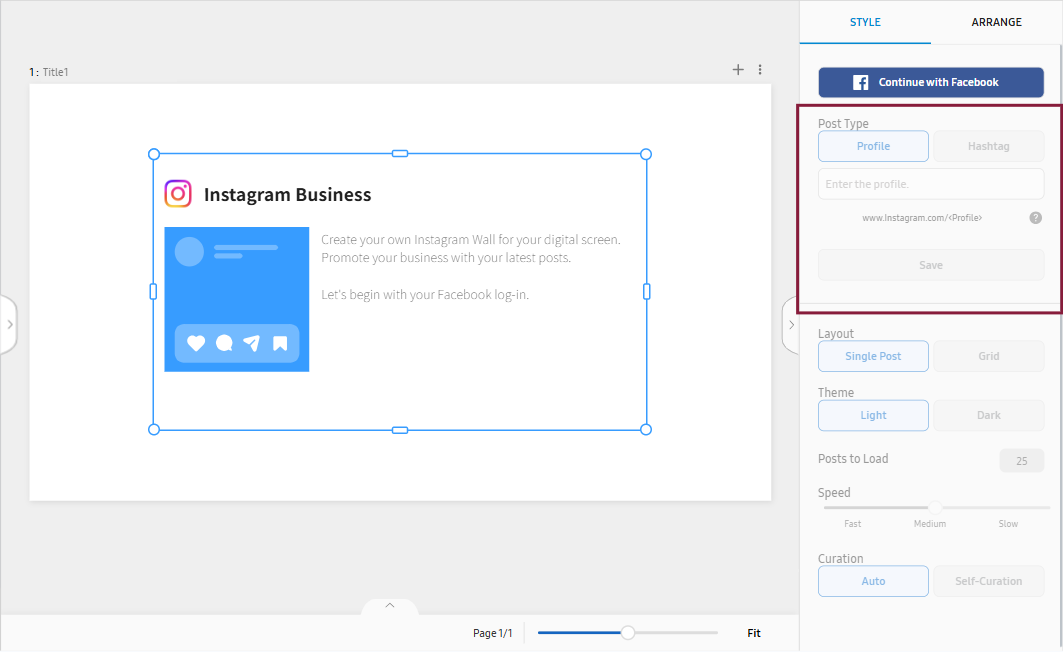 |
Fill in the Profile field to sort your Instagram posts by most recent.
-
Instagram consumer accounts do not support profile browsing. Only Instagram business or creator accounts support profile browsing.
-
Data about age-gated Instagram Business Instagram Users will not be returned.
If you are searching by Hashtag, you will be able to choose Recent or Popular for the order of the Instagram Posts before clicking on Save.
-
Popular: You can query a maximum of 30 unique hashtags within a 7 day period.
-
Recent: Only returns media objects published within 24 hours of query execution.
Selecting a layout and theme
-
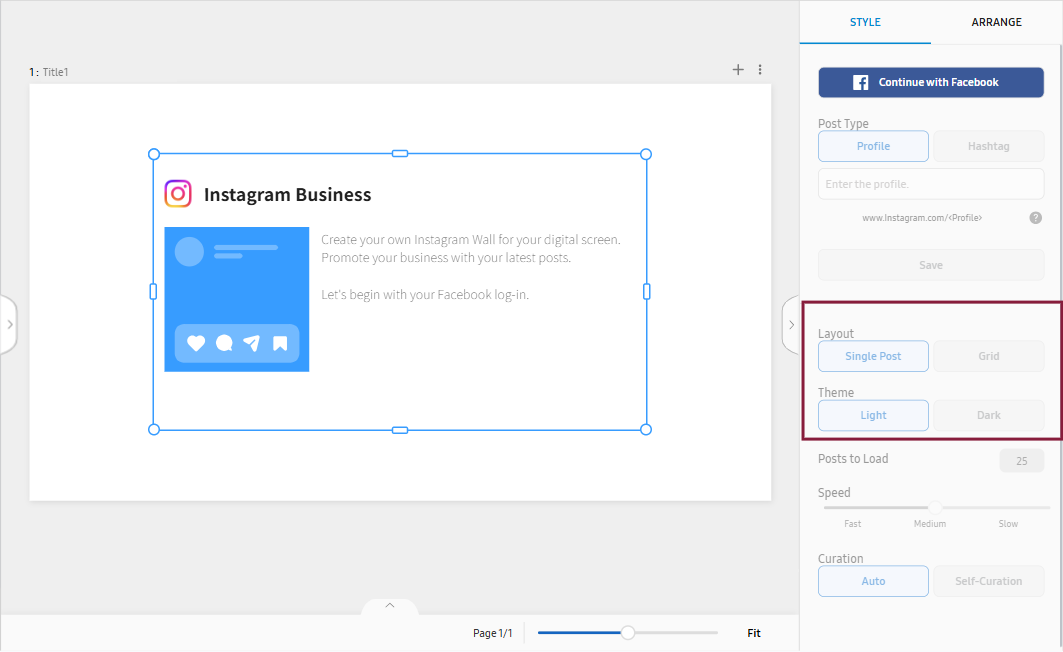
After you have Instagram posts with Profile or Hashtag of your choice, you can choose Layout and Theme.
-
For the Layout, you can choose between Single Post and Grid.
-
For Theme, you have a choice between Light and Dark. Upon your selection, the background color of Instagram posts will turn either light or dark.
Specifying the post display count and duration
Instagram posts containing the selected Profile or Hashtag are refreshed every 5 minutes.
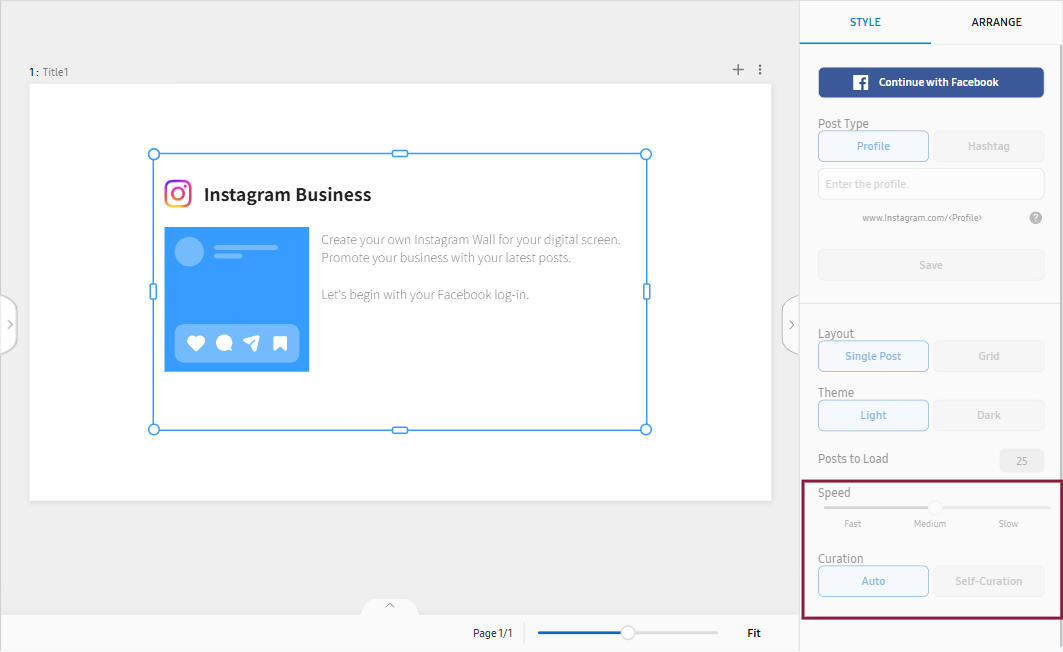 |
Post to Load
Specify the number of Instagram posts to be displayed on screens. (0~50)
For example, if you set number of posts to 10, ten Instagram posts are shuffled for
5 minutes during which Instagram posts are refreshed.
Speed
Speed is used to set the duration for which each Instagram post is displayed. (0~60)
For example, if you set Speed to 10, each Instagram post is displayed for 10 seconds
until it is refreshed.
In case of video clip, Instagram post will be transitioned to the next post after
it is played until its completion.
Curation
Choose the Instagram posts to display, using the Curation feature.
Click Self-Curation to display a list of Instagram posts retrieved in a search using the selected profile
or hashtag. To hide specific Instagram posts, click on the intended posts. Hidden
posts are grayed out.