


Setting Content Lifespan
Set a period of time for use of content, or set it up so that content is prevented from being made public until a certain point in time.
-
These settings can only be changed by users with privileges to edit the content.
Setting a lifespan
Set a period of time for use of content, as follows. If this period of time is set, it is possible to add content to a playlist or schedule outside of the specified period, but content publishing is not possible.
-
This function may not be available, depending on the rate plan in use.
-
A lifespan can be set for the following content:
-
Content included in a normal playlist or in a single-content sync playlist
-
Content that has not been published to any screens
-
Content not used in any canvas, schedule, channel, or multi-content sync playlist
-
Content that has not been shared to any workspaces
-
-
Navigate to the Content menu.
-
Click the content for which you want to set a lifespan.
-
On the right side of the page, select the Settings tab.
-
Under Lifespan Within Playlist, set the content start and end times.
-
At the top right of the page, click
 (Save) to save the settings.
-
Content outside of its lifespan is grayed out.
-
It is possible to set only the Start or End value. According to the Lifespan settings, a Start or End tag is automatically added to the content.
-
To automatically delete the content from the workspaces at the end of its lifespan, enable the Auto-Delete on End feature.
-
Set an Embargo
Set it up so that content is prevented from being made public until the start of the content’s lifespan.
-
This function may not be available, depending on the rate plan in use.
-
This feature is only available when the lifespan feature is enabled.
-
Under Lifespan Within Playlist, enable Embargo.
-
Set the embargo start date and time.
-
Add embargo permissions as needed.
-
At the top right of the page, click
(Save) to save the settings.-
Under Privileged User, use the Add button to add users authorized to edit the Embargo settings.
-
The content’s thumbnail changes according to lifespan and embargo settings.
-
If an embargo is set, an embargo tag is automatically added to the content.
-
Setting Content Lifespan from a Playlist
Set a period of time for use of content within a playlist, using the Make Program feature.
If this period is set, the content does not play within the playlist outside of the
specified period.
-
This feature may not be supported, depending on the rate plan in use.
-
This feature may not be available on some playlists.
-
Navigate to the Playlist menu.
-
Click the playlist for which you want to set a content lifespan.
-
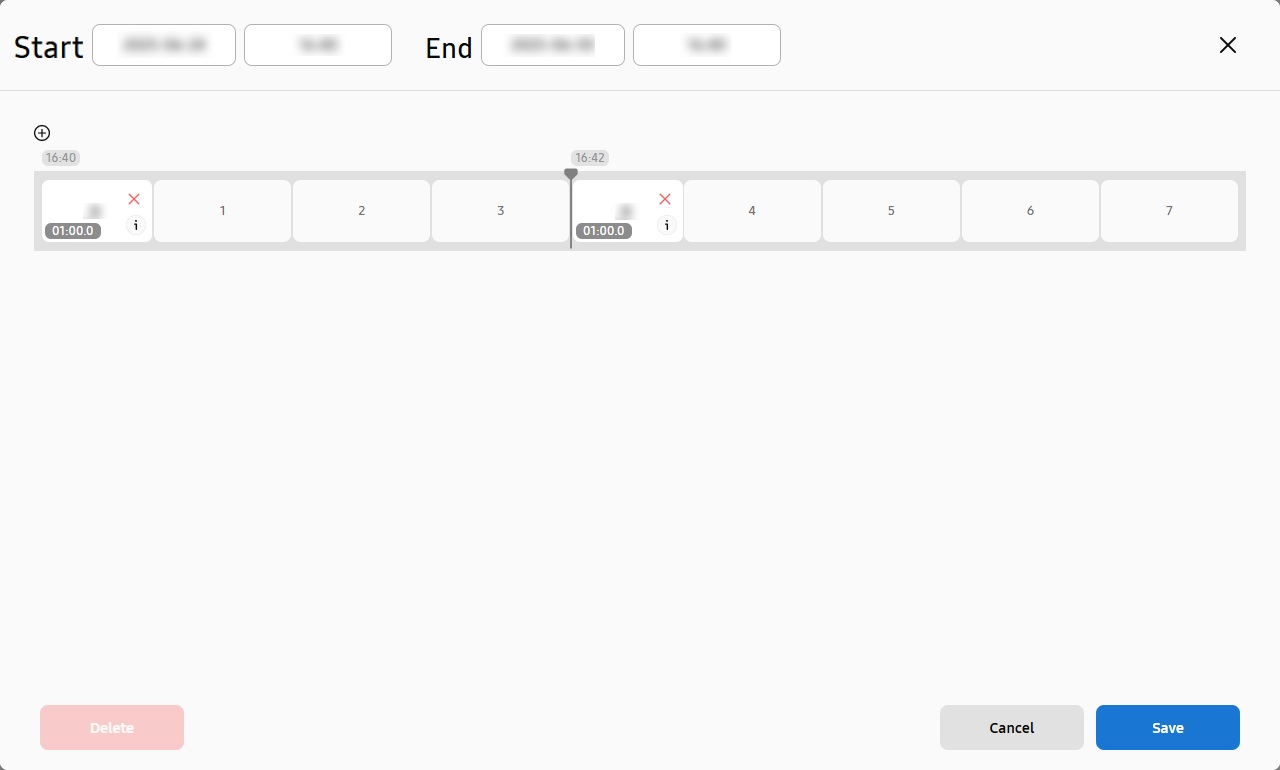
Hover the mouse cursor over the content for which you want to set a lifespan within the playlist. The
 (Make Program) icon appears. Click the icon.
 -
At the top of the pop-up window, set the Start time and End time for the playback of all content.
-
Click
 (Add Content) to add other content to be played at the end of the current content lifespan.
 -
At the bottom right of the page, click Save to save the settings.
-
If there are two or more content items under Make Program, it is possible to change the content playback order and playback expiration period. Hover the mouse cursor over content in the pop-up window. The content Handler appears. Move the Handler to change the playback order.
-
Make Program allows you to set different lifespans for the same content depending on the playlist.
-
A lifespan cannot be set for content with Make Program enabled.
No
Content

Set the content playback start time.

Set the content playback start time.

Set the content playback dates.

If there are two or more content items for playback, it is possible to edit the playback start time for each content item by dragging the Handler.