


Using Playlists
A playlist groups multiple pieces of content together and plays them in sequence. Users can set the content playback order and time from the Playlist menu.
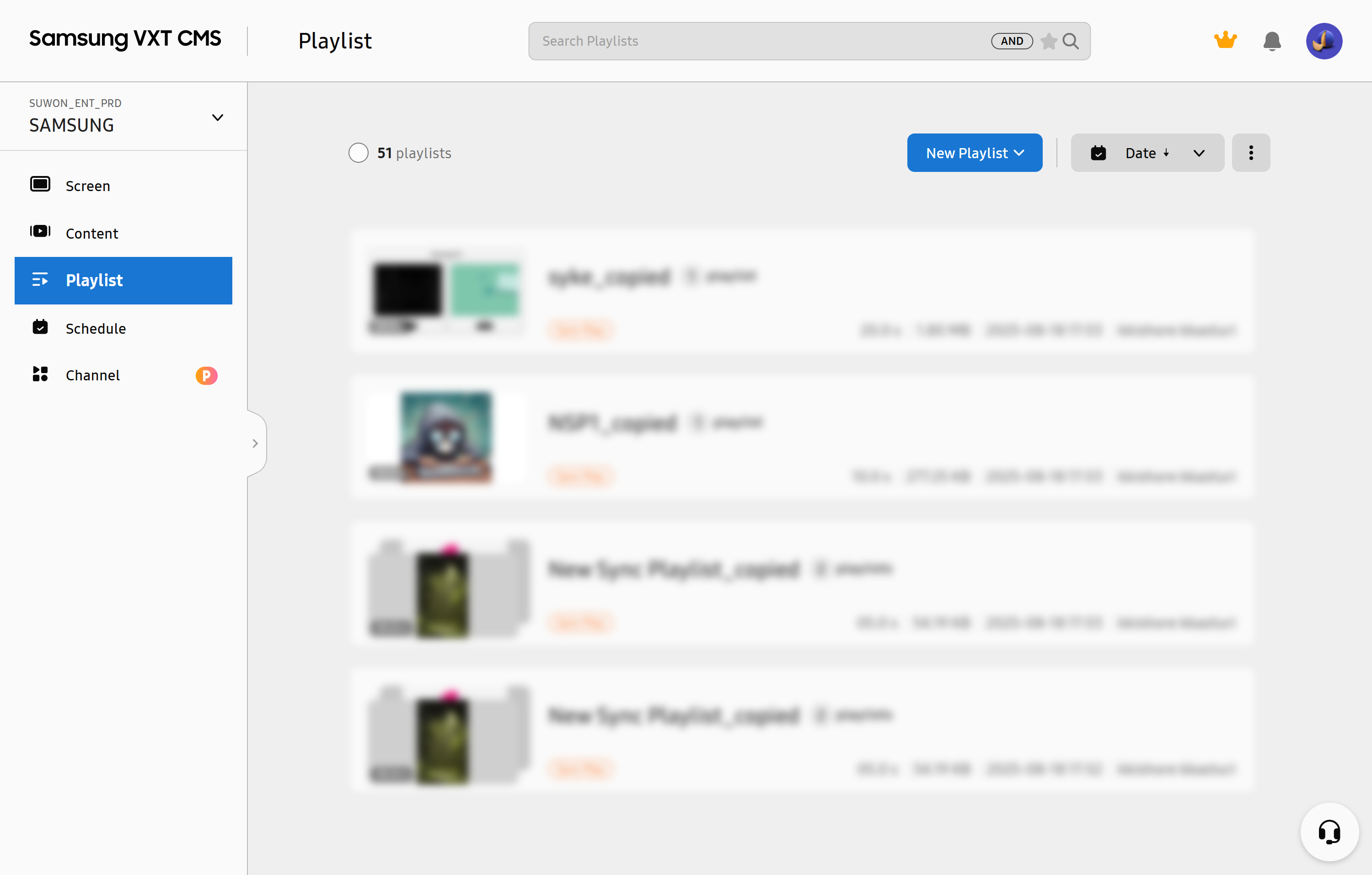 |
Types of Playlists
Available playlist types include Normal, Sync Play, and Takeover Sync Play.
General
This is the most basic playlist type, which plays a single playlist on a single screen.
Sync Play
Plays the same playlist on multiple screens simultaneously, or splits up different content pieces to display them as a larger single image across multiple screens.
-
This function may not be available, depending on the rate plan in use.
Takeover-Synced Playback
Allows users to add or delete other content in multiple screens simultaneously while
maintaining existing playlists. With this feature, users can flexibly add and publish
event content, such as breaking news or timed sale, even while content is playing.
When a Takeover Sync playlist finishes the playback, the screens resume playing the
previously playing playlists.
-
This function may not be available, depending on the rate plan in use.
-
For more information on the playback of Takeover Sync playlists, refer to the following:
Creating a General Playlist
Add new playlists.
-
On the VXT CMS Home screen, click Playlist.
-
Click New Playlist > General.
-
It is not possible to change the types of created playlists.
-
-
Enter a playlist name in the title field at the top left.
-
Click Add Content.
-
Select the content you want to add to the playlist.
-
Multiple content items can be selected simultaneously. It is not possible to select content and playlists at the same time.
-
Turning off Hide Inactivated will show content and playlists in the list that are not selectable based on the playlist.
-
-
At the top right, click Save to save the playlist.
Creating Sync Playlists
Set it up so that multiple screens start and stop displaying the same content simultaneously at specified times. This feature makes multiple screens appear as a single screen, as all the screens use the same playback time and speed.
-
On the VXT CMS Home screen, click Playlist.
-
Click New Playlist > Sync Play.
-
Select the sync playlist type you want to play:
-
Single Playlist to Screen Wall: The same content is played on multiple screens at the same specified time.
-
Multi Playlist to Screen Wall: Different content items are played on multiple screens but appear as a large single content item as they move together. This works only when the number of screens and the number of playlists assigned to the screen wall are identical.
-
-
Set the screen wall layout and click Done.
-
At the top right, click Save to save the playlist.
Publishing Playlists
Publish stored playlists to a registered screens or screen walls.
-
Only one playlist can be published at a time.
-
This function may not be available, depending on the rate plan in use.
-
Navigate to the Playlist menu.
-
Click on the playlist you want to publish.
-
Click Set to Screens at the top right of the page.
-
From the pop-up window, select the screen(s) to which you want to publish the playlist.
-
To display a list of screens that are not selectable depending on the playlist, turn off the Hide Inactivated option.
-
-
At the bottom of the pop-up window, click Publish to publish the playlist.
 Tips
Tips
-
An alternative way to publish playlists is to use the
 (More) icon from the list page of the Playlist menu.
Deleting Playlists
Delete stored playlists. If you delete a playlist, it is also deleted from any screens, schedules, and channels that use it.
-
Navigate to the Playlist menu.
-
Click the playlist you want to delete.
-
Click
(More) at the top right of the page. -
Click Delete from the menu list.
-
In the pop-up window, click Yes to delete the playlist.
Tips
-
It is possible to delete multiple playlists simultaneously using the list page of the Playlist menu. Click the checkboxes of the playlists you want to delete. The
 (Delete) button appears.