In case of upgrading MagicINFO Server to the latest version, a preliminary inspection is automatically activated to check if the computing environment is suitable for the latest version of MagicINFO Server.
If the environment is deemed not suitable for installation, the upgrade cannot be proceeded.
- To upgrade the MagicINFO Server, .NET Framework 2.0 or above must have been installed.
- To upgrade the MagicINFO Server, PostgreSQL 9.0 or above must have been installed. If a version lower than 9.0 is being used, the existing database should be backed up. Then, PostgreSQL 9.0 or above should be installed and the database that has been backed up should be recovered.
If there have been changes to the database schema of the server in use, the changes are shown. If there have been changes to the database schema, upgrade may proceed as normal but the server may not operate properly. Make sure Chrome is installed before installing updates. If Chrome is not installed, database upgrade cannot proceed.
|
1. Preconditions
- The account you install must have administrative authority and the authority to run the CMD.Prepare the installation file for the upgrade target version
- Make sure Chrome is installed. If Chrome is not installed, you cannot proceed to the next stage from preliminary check. Install Chrome from the following link: ▶ https://www.google.com/intl/en/chrome/?standalone=1
2. Backup
If the upgrade fails before the upgrade and roll back to the previous stable version, the application server and database server must be backed up.
- Application Server Backup
- Database Server Backup
3. DB Upgrade
DB upgrades vary depending on the existing installation environment.
When DB is installed in the same server
Run the MagicINFO Server installation file and proceed with the installation. DB Upgrade is automatically reflected.
In case DB is installed separately
When updating WAS, you can update the database from the database update page.
4. Backup setup file
Back up the files below in case the settings fail.
- C:\ MagicInfo Premium \ conf \ config.properties
- C:\ MagicInfo Premium \ tomcat \ conf \ Server.xml
5. Upgrade installation
The upgrade allows you to run the installation file just like the initial installation.
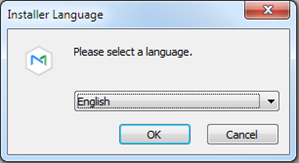
Run the downloaded installation file and select the language to install.
A warning window regarding use of HTTP appears. Read the details and click OK.
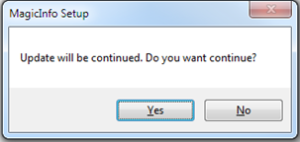
Click on the Yes button
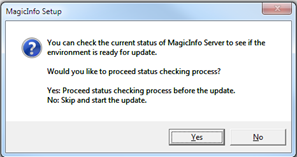
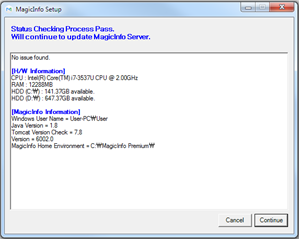
Click Yes to check and proceed with the current system status.
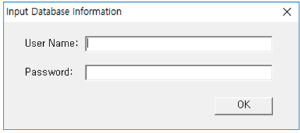
Enter database information.
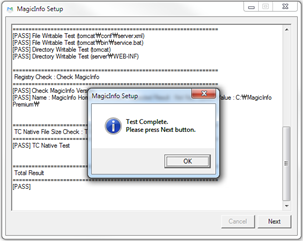
Click OK after confirmation
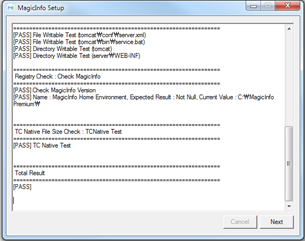
If there have been changes to the database schema, "Fail" appears. When "Fail" is displayed, update may proceed as normal but the server may not operate properly. |
Click Next
Click Continue
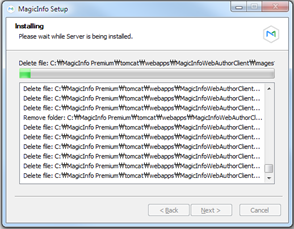
Proceed installation
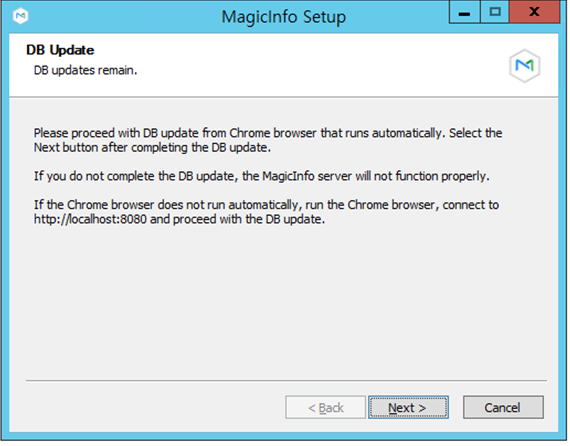
Click Next
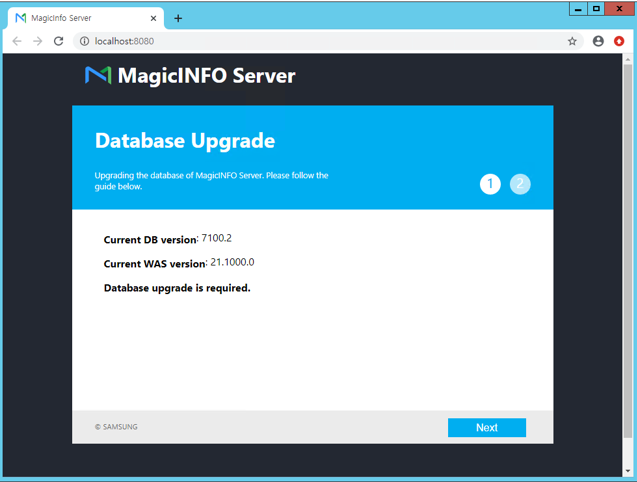
Chrome runs automatically.
If you select Next without updating the database, a warning message pops up and you cannot proceed to the installation complete window. |
Confirm the database information and click Next.
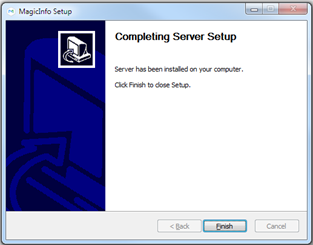
Database update is complete.
Exit
6. Restore settings file
Restore the backed up configuration file in step 2.4 Please keep the following in mind when you restore it.
- Do not restore all files. This is because new properties are added as the MI Server version is upgraded.
- The same information is reflected in the newly installed configuration file. For example, only check for changes such as DB connection information, log level, and cache usage settings.
7. Start and confirm the service
MagicInfo-i Check if the service of the premium edition server item is running on the Windows Service, and access the administrator page for confirmation.