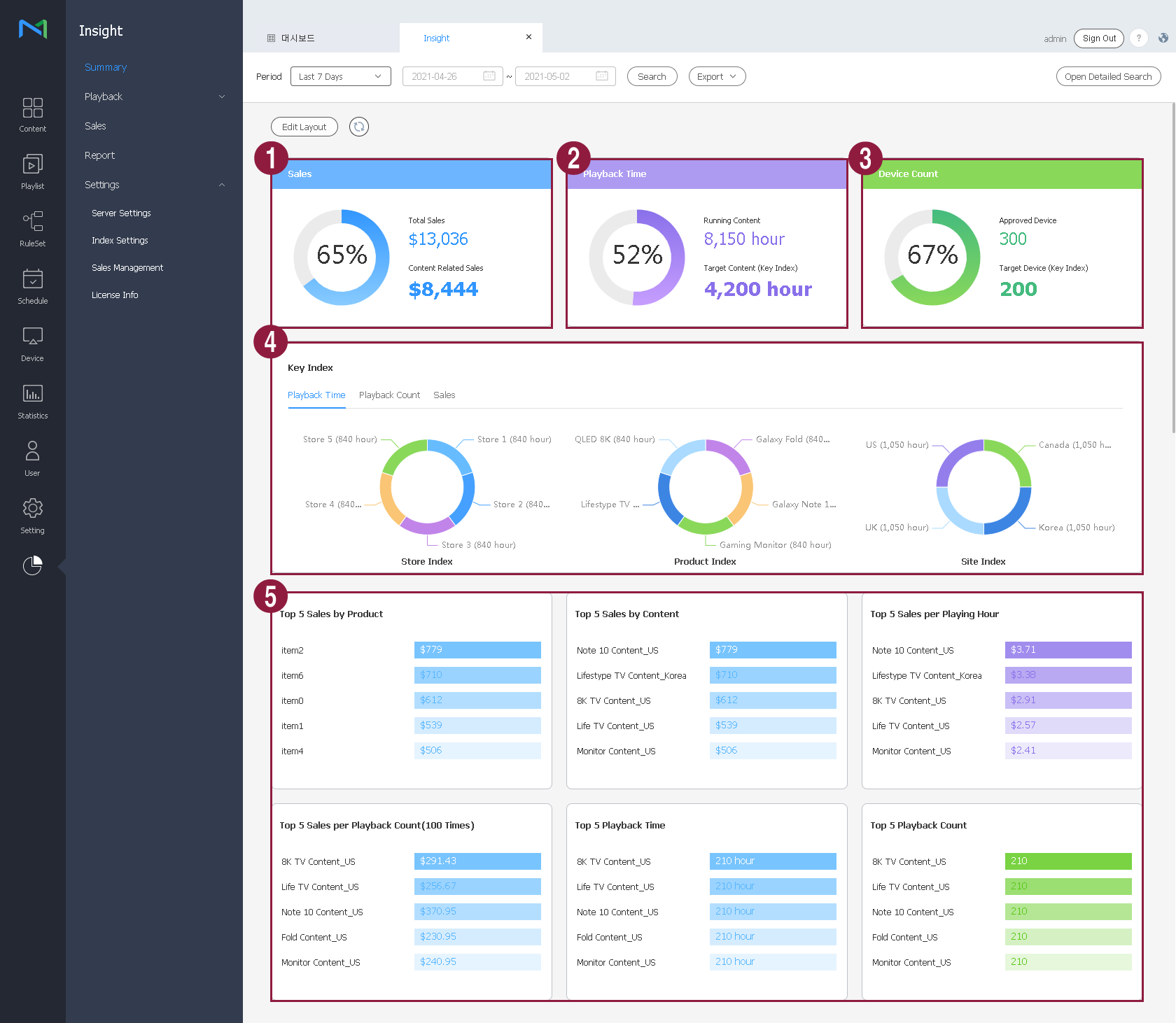
View overall information, e.g., the usage status of all devices and data items that were played using key indexes. Retrieved data is shown in visual format, e.g., graphs and a table, so that you can obtain an intuitive view of overall information by period.
- From the menu bar on the Insight screen, click
Summary
.
-
Set the analysis period in the search area at the top. Analysis result is displayed based on the period specified in
Settings
>
Index Settings
>
Date Range
.
- To select all data items or only analyze specific data items, click
Open Detailed Search
. It is possible to select specific device groups or key indexes, as well as a search period. It is also possible to analyze data collected during a maximum of 60 days within the last two years.
- Logs and processed data are retained for a maximum of two years.
|
-
Click
Search
. The statistics that match the search conditions are presented in graphs and a table.
- To save retrieved statistics as a PDF or HTML file, click
Export
.
Understanding retrieved data
The following data items are displayed. A "sales" graph is also displayed if there is sales data.
| 1 |
Sales
|
View the sales related to content items that were registered using key indexes, compared to the total sales.
|
| 2 |
Playback time
|
View the playback time of all content.
View the duration of playback that used key indexes.
|
| 3 |
Number of devices
|
View the total number of devices that were used for playback.
View the number of devices that were used for playback using key indexes.
|
| 4 |
Key indexes
|
View details of tags that were used as key indexes.
- View details of the playback ranking tag for each index.
- View the playback count of each index.
- The ranking is shown as levels between 1 and 4 or as “rest.”
|
| 5 |
Top 5 content
|
View the rankings of content items that were played using key indexes, based on the sales, playback count, and playback time.
The sales-related graph will also be activated if there is sales data.
- To view details, select the product name or content name.
|