A report contains statistics that have been aggregated by searching for data, analyzed using Insight, based on search conditions. It is possible to create a report using retrieved data and download the report.
Creating a report
To create a report, follow the steps below.
- On the menu bar on the Insight screen, click Report.
- Set the analysis period in the search area at the top. The analysis period can be set to “7 days ago,” “Last Week,” or “Last Month.”
Click Search.
- To use more specific search conditions for search and analysis, click Open Detailed Search. It is possible to select specific device groups or key indexes, as well as a search period. It is also possible to analyze data collected during a maximum of 60 days within the last two years.
- Logs and processed data are retained for a maximum of two years.
|
Report screen
The following data items are displayed.
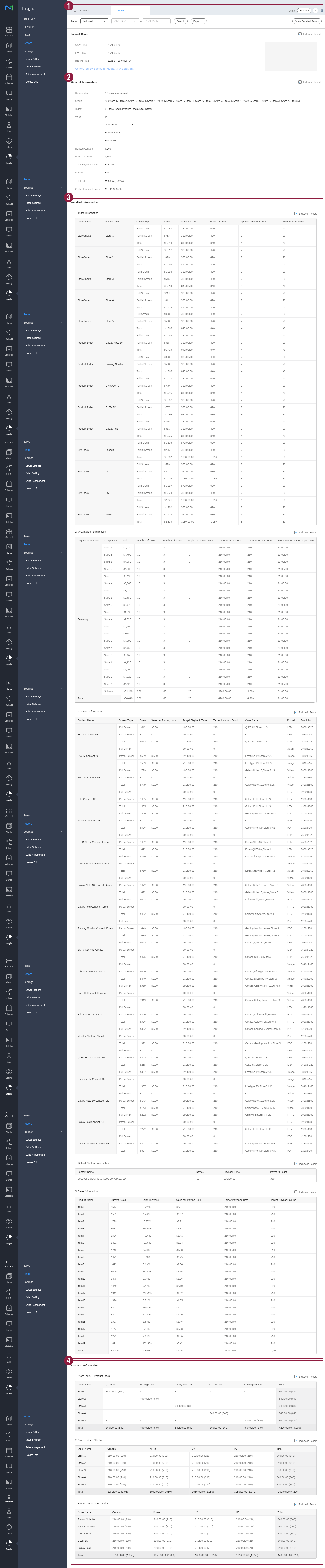 |
| 1 | Insight report | Shows the analysis start/end times and the time the report was created. To insert an image, e.g., your company logo, in the report, click  . . - Image format: *.jpg, *.png
- File size: Max. 10 MB
To change or delete the inserted image, click the image again. |
|
| 2 | General information | Shows the following overall information about the selected option: the group, indexes, tags, content details, total playback time, playback count, and devices used for playback. |
| 3 | Detailed information | Shows specific details of the results of analysis of the selected option. - Tag-Value Information: Shows the following information for each tag that belongs to the selected option in list format: the index name, screen type, playback time, playback count, number of content items to use, and devices to use.
- Group Information: Shows the following information for each group that belongs to the selected option in list format: the number of devices used for playback, number of tags / content items, playback time, and daily average playback time.
- Content Information: Shows the following information for each content that belongs to the selected option in list format: the screen type, playback time, playback count, playback tag, format, and resolution.
- Default Content Information: Shows the playback time and playback count of the devices that played default content among the selected options.
|
| 4 | Cross-tabulation analysis information | Select and combine specific key indexes to display the playback time and the relationship between individual tags, using numerical values. If key indexes A, B, and C are selected, the screen displays graphs in which three different pairs (A-B, B-C, and C-A) are analyzed. - If only one key index is selected: Cross-tabulation analysis does not take place.
- If two key indexes are selected: The screen displays one cross-tabulation analysis material in which two key indexes are combined and analyzed. (A and B) are combined and analyzed.
- If three key indexes are selected: The screen displays three cross-tabulation analysis materials in which three key indexes are combined and analyzed. (A-B, B-C, and C-A) are analyzed.
You can select a preferred type from the variety of graph types. You can also display information about specific tags simply by clicking the tag names at the top of the graph. |
Downloading a report
A displayed report can be downloaded in PDF or HTML format.
- On the report that has been displayed after analysis, click Export.
- Select a download format. Download begins.