Press  > Player.
Player screen is executed.
When it is connected to external memory, player screen is automatically executed. |
Select internal memory or external memory that is connected.
|
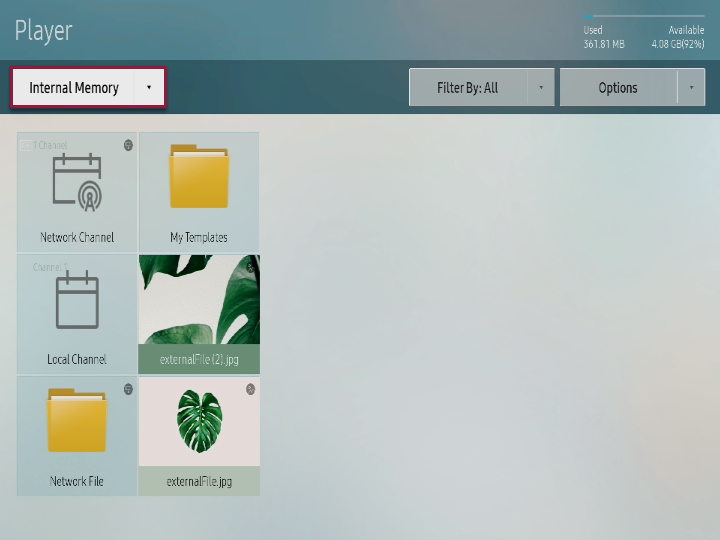
Corresponding contents are played on the screen.
Press > Player.
Player screen is executed.
When it is connected to external memory, player screen is automatically executed. |
Select internal memory or external memory that is connected.
|
|
You can apply setting to automatically play S player when connecting to external memory where MagicINFO contents are contained.
 > System > Security Setting > Lock USB Auto Play > OFF.
 Distributed contents are played when distributed contents exist both in external memory and MagicInfoSlide folder. |
You can use remote controller to play or stop the contents and move contents in play list.
| You can use player menu. |
| You can check the information of the contents that are being played. |
| You can move to previous file or previous page. |
| You can move to next file or next page. |
| You can play or stop slide show or video. |
| You can finish contents playing and return to player screen. |
| You can rewind the video. |
| You can fast forward the video. |
|
Press  button on remote controller to select desired option when playing contents.
Channel list: You can check the channel list. You can press desired channel from channel list to change the channel.
This menu is only displayed when contents that are distributed to network channel, local channel, or server are played. |
Sound mode: You can apply setting to sound mode depending on the environment. Repeatedly press  to change the sound mode.
This menu is only displayed when contents saved in internal memory are played. |
to change the repeated play method.Background music: You can insert background music that can be played when contents are played.
Refer to following for details. ► Setting background music
When video contents are played while background music is set, background music is played instead of video sound. |
> Background music.
 > MagicInfo S to play the contents that were last displayed in S player.


 /
/ 


 /
/  to move the channel.