The software can be installed by selecting either Express Install or Advanced Install as the installation type. Express Install automatically configures settings, and Advanced installation enables the user to customize settings. You can select either PostgreSQL or Microsoft SQL Server database to install MagicINFO Server.
|
MagicINFO Server can only be installed using a Windows administrator account. |
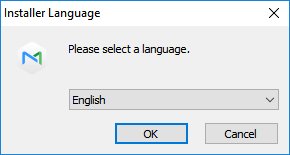
On the screen, specify the installation language and click OK.
|
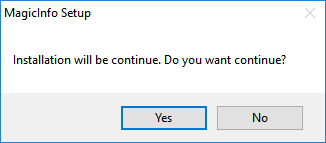
To proceed with the installation, click Yes.
|
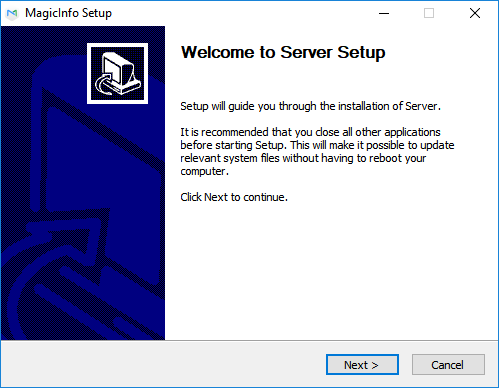
Read installation messages and click Next.
|
Agree to the license agreement and click Next.
|
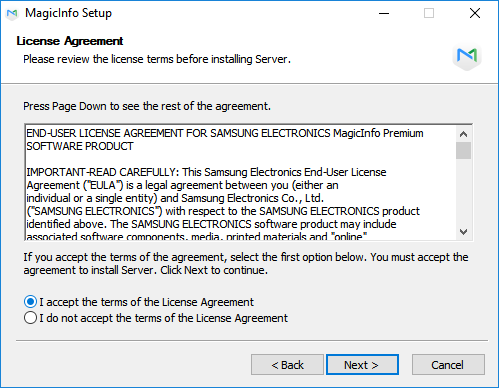
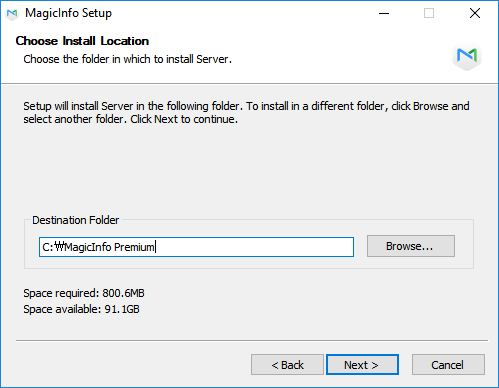
Choose the location to install MagicINFO Server and click Next.
|
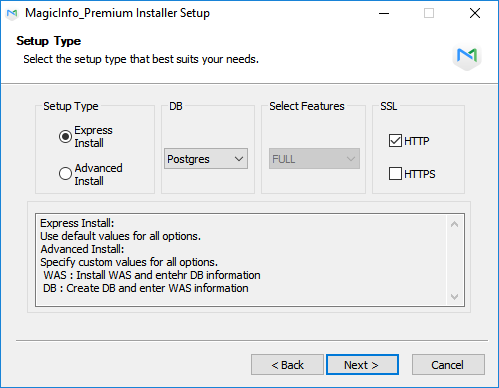
Select Express Install as the installation type, set the DB and SSL protocol, and then click Next.
|
|
Enter the PostgreSQL administrator password created when installing PostgreSQL, and click Next.
|
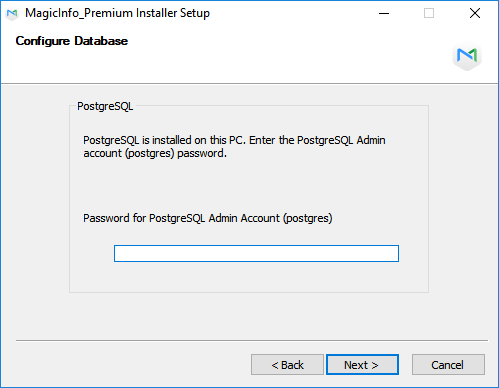
This step does not appear when the selected DB is MSSQL. |
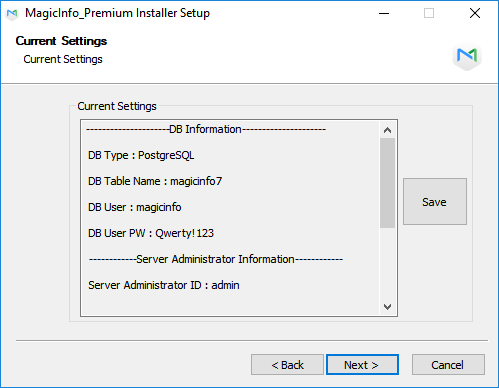
When MagicINFO Server installation information appears, click Save to save the information as a file and click Next.
|
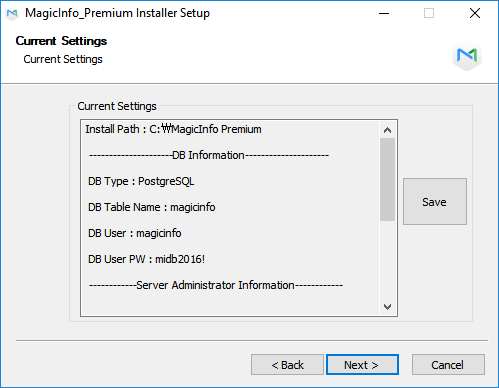
|
Select the Start Menu folder for MagicINFO Server and click Install.
|
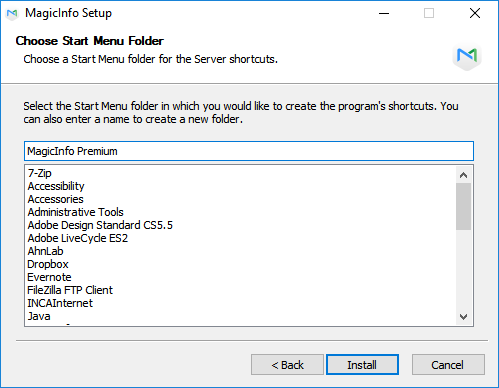
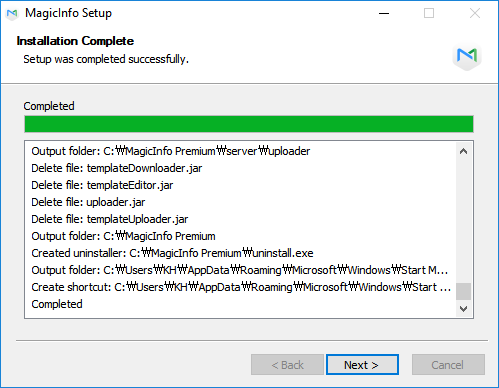
When installation is complete, click Next.
|
Click Finish.
|
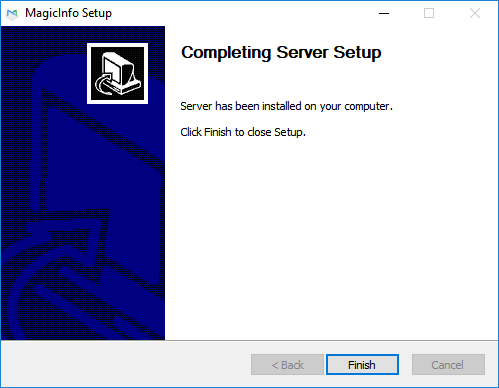
Change Microsoft Internet Explorer settings as follows after installing the MagicINFO Server.
|
On the screen, specify the installation language and click OK.
|
To proceed with the installation, click Yes.
|
Read installation messages and click Next.
|
Agree to the license agreement and click Next.
|
Choose the location to install MagicINFO Server and click Next.
|
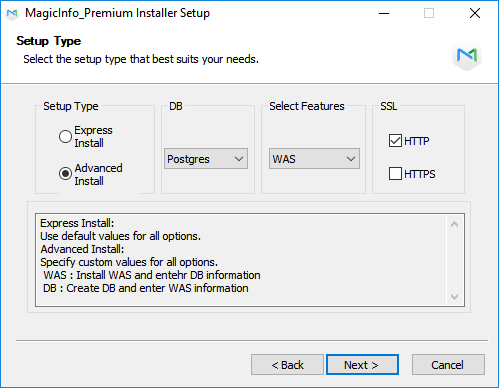
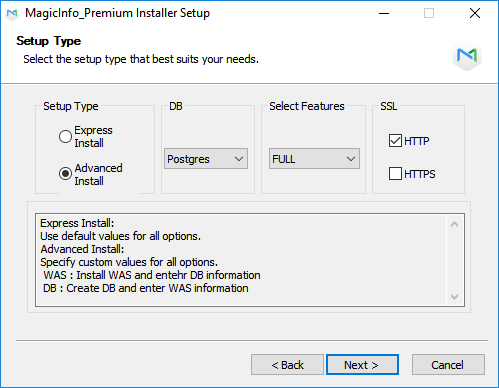
Set the installation type to Advanced Install, select FULL under Select Features, customize the DB and SSL protocol, and then click Next.
|
The installation process varies depending on the selected setup type.
|
Enter the PostgreSQL administrator password created when installing PostgreSQL, and click Next.
|
This step does not appear when the selected DB is MSSQL. |
Configure settings for the database to create, such as the database name, database user ID and password. Click Next.
|
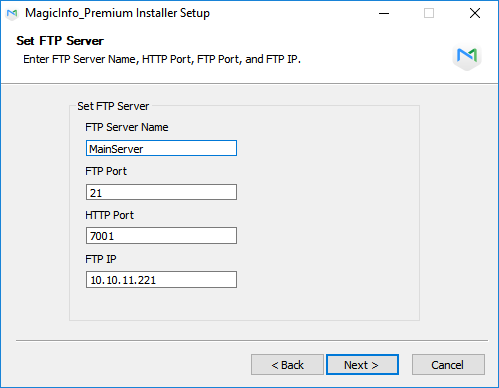
Enter FTP server information and click Next.
|
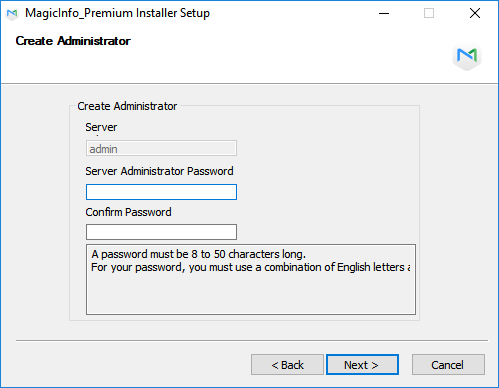
Set the general administrator password and click Next.
|
Installing MagicINFO Server for the first time creates a general administrator account (ID: |
Enter an organization name to use in MagicINFO Server and information on the organization administrator. Click Next.
|
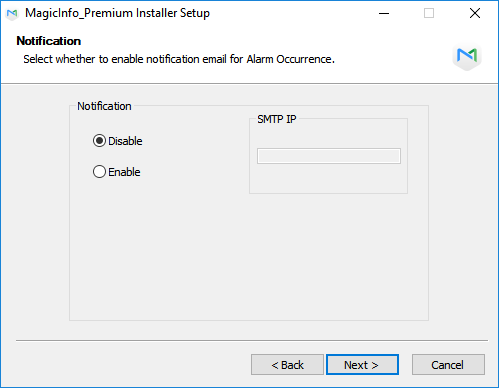
Enable or disable the email notification feature for device alarms and click Next.
To send email notifications to a MagicINFO Server user, select Enable and enter an IP address for the SMTP server.
|
To send email notifications for device alarms to users, first configure SMTP server settings. |
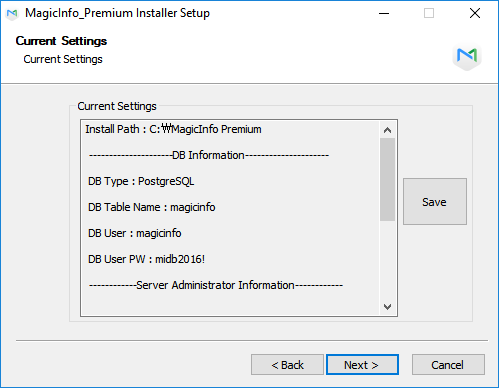
When MagicINFO Server installation information appears, click Save to save the information as a file and click Next.
|
Note down the database user account details. These are needed to use MagicINFO Server. |
Select the Start Menu folder for MagicINFO Server and click Install.
|
When installation is complete, click Next.
|
Click Finish.
|
Change Microsoft Internet Explorer settings as follows after installing the MagicINFO Server.
|

On the screen, specify the installation language and click OK.
|
To proceed with the installation, click Yes.
|
Read installation messages and click Next.
|
Agree to the license agreement and click Next.
|
Choose the location to install MagicINFO Server and click Next.
|
Set the installation type to Advanced Install, select WAS under Select Features, customize the DB and SSL port, and then click Next.
|
|
Enter details of the database and the server where the database is installed, and then click Next.
|
Enter FTP server information and click Next.
|
Enable or disable the email notification feature for device alarms and click Next.
To send email notifications to a MagicINFO Server user, select Enable and enter an IP address for the SMTP server.
|
To send email notifications for device alarms to users, first configure SMTP server settings. |
When MagicINFO Server installation information appears, click Save to save the information as a file and click Next.
|
Note down the database user account details. These are needed to use MagicINFO Server. |
Select the Start Menu folder for MagicINFO Server and click Install.
|
When installation is complete, click Next.
|
Click Finish.
|
Change Microsoft Internet Explorer settings as follows after installing the MagicINFO Server.
|
On the screen, specify the installation language and click OK.
|
To proceed with the installation, click Yes.
|
Read installation messages and click Next.
|
Agree to the license agreement and click Next.
|
Choose the location to install MagicINFO Server and click Next.
|
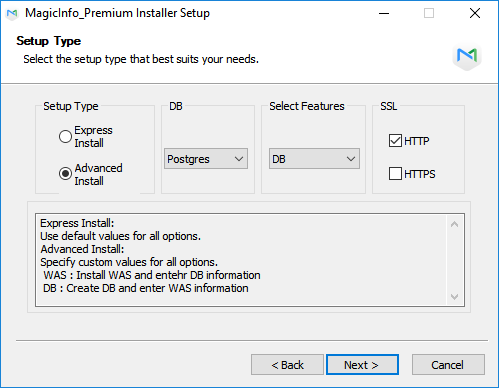
Set the installation type to Advanced Install, select DB under Select Features, customize the DB and SSL port, and then click Next.
|
|
Enter the PostgreSQL administrator password created when installing PostgreSQL, and click Next.
|
This step does not appear when the selected DB is MSSQL. |
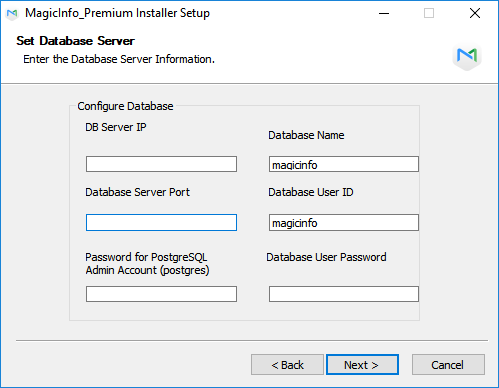
Configure settings for the database to create, such as the database name, database user ID and password. Click Next.
|
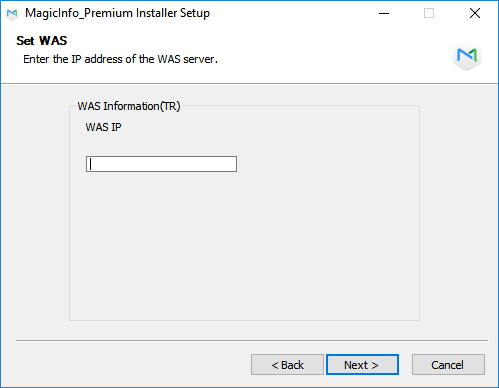
Enter the IP address for WAS server and click Next.
|
Set the general administrator password and click Next.
|
Installing MagicINFO Server for the first time creates a general administrator account (ID: |
Enter an organization name to use in MagicINFO Server and information on the organization administrator. Click Next.
|
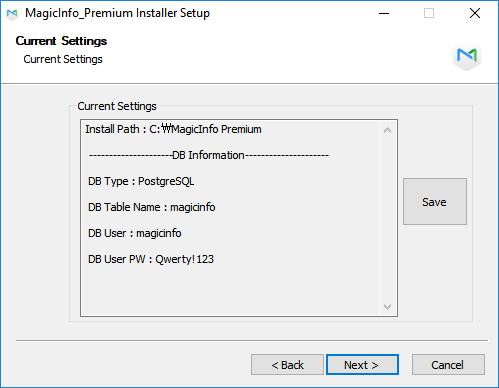
When MagicINFO Server installation information appears, click Save to save the information as a file and click Next.
|
|
Select the Start Menu folder for MagicINFO Server and click Install.
|
When installation is complete, click Next.
|
Click Finish.
|
Change Microsoft Internet Explorer settings as follows after installing the MagicINFO Server.
|