Use the DataLink feature to create dynamic content containing elements that change in real time. Map general media files added to MagicInfo Server or external data collected on the DataLink server to this dynamic content.
DataLink is a web-based application that collects external data at a specified interval and sends data to MagicInfo Player so that the player can play dynamic content. Refer to the MagicInfo DataLink user guide for details on DataLink. |
Use Web Author to create a DataLink template.
Add elements to a content page.
The DataLink feature is only compatible with image, video and text elements. |
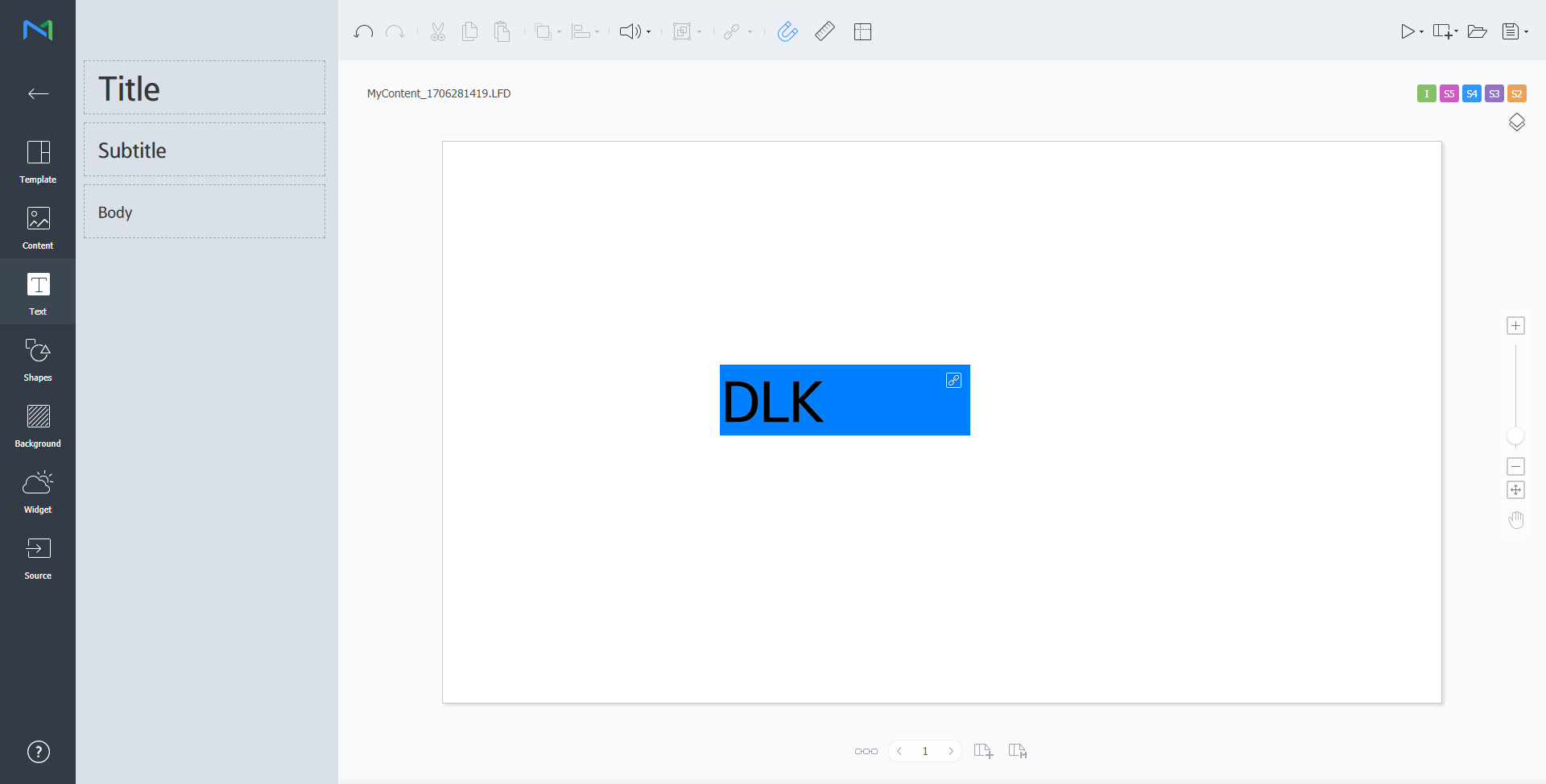
Select an element to which to apply the DataLink feature, and click  from the element editor toolbar. You can also select multiple elements at the same time.
The element displays the  icon.
icon.
 |
With the element selected, configure specific settings.
| Select multiple DataLink elements, and group or ungroup them. |
| Configure DataLink setting.
|
 .
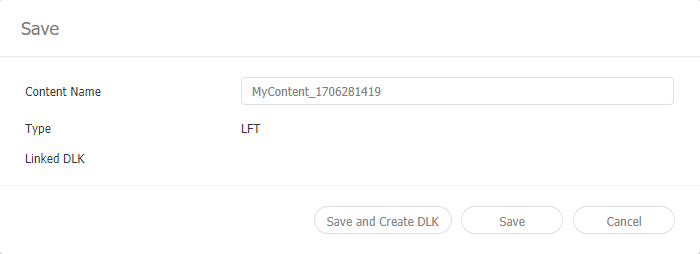
.Configure save details and click Save and Create DLK.
The content is saved as a DataLink template.
 |
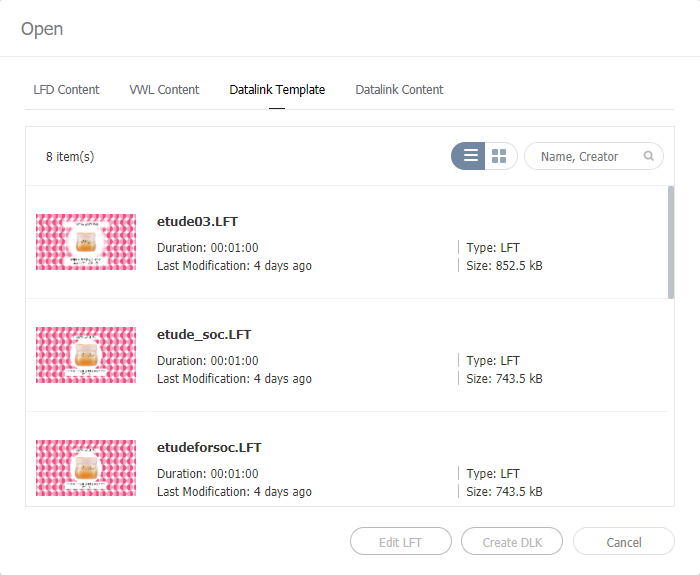
Import and edit a saved DataLink template.
 on the Web Author screen.
Click the Datalink Template tab.
 |
Use a DataLink template to create DLK content to distribute to MagicInfo Player. DLK content can be created either by adding a media file or text or by importing saved DataLink Server settings.
Import a DataLink template in order to create DLK content.
For details on how to create DataLink templates, refer to ► Creating DataLink templates |
on the Web Author screen.Click the Datalink Template tab.
|
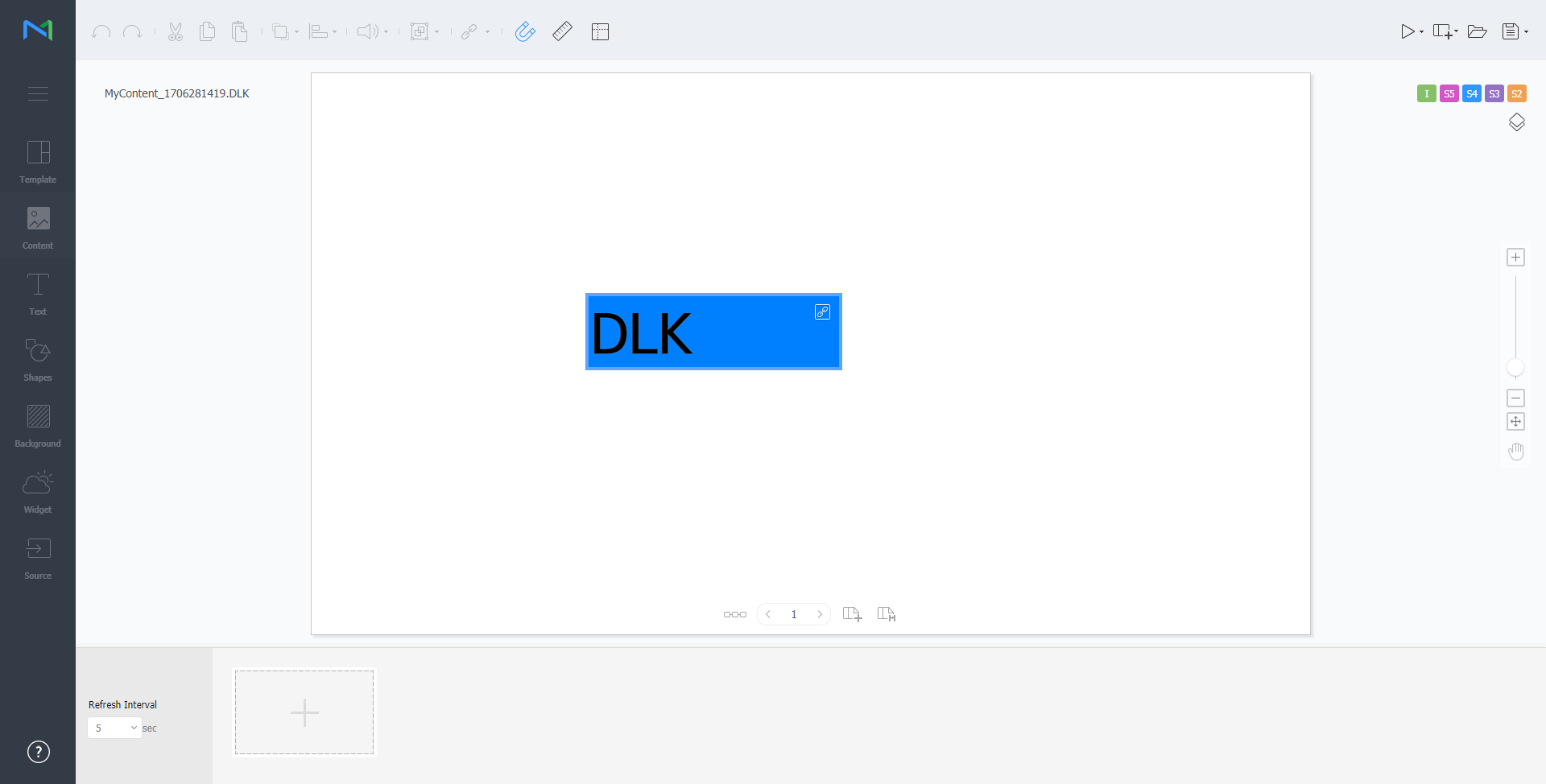
Select a DataLink element.
The DataLink management window appears.
 |
 .
.Select Direct Input and click Add.
|
Enter details and click Save.
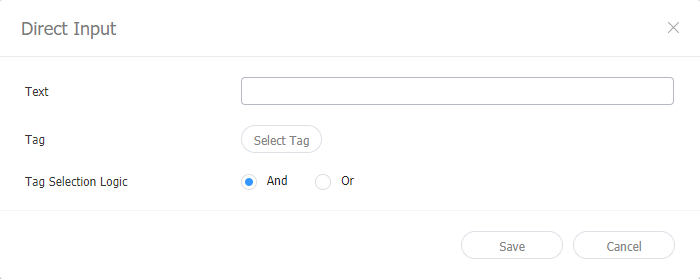 |
| Text | Enter text. | |
| Tag | Add a tag to the text, if required. Select a tag from the tag list and click Save. It is possible to select more than one tag.
| |
| Tag MatchType | Set matching conditions if more than one tag is assigned. |
.Create a DLK content file by mapping data, saved in DataLink Server, to a DLK template.
To create a DLK content file in conjunction with DataLink Server, make sure to connect MagicInfo Server to DataLink Server. For details, refer to ► 외부 서버 관리하기 |
It is not possible to map DataLink Server data to media slide elements. |
Select a DataLink element.
The DataLink management window appears.
|
.Select Link Data and click Add.
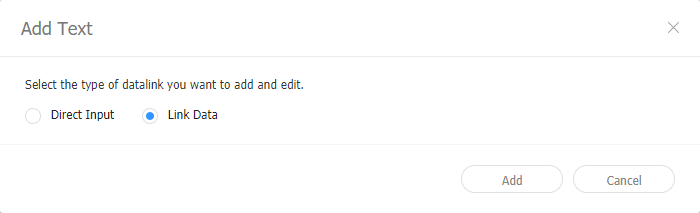 |
Enter details and click Save.
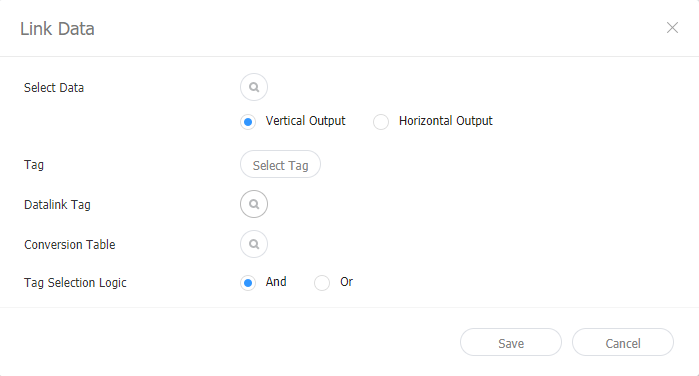 |
| Select Data | Select a DataLink table saved in DataLink Server. In the DataLink table, select data items to use and click Save. | |
| Tag | Add tags to the data items, if required. Select a tag from the tag list and click Save. It is possible to select more than one tag.
| |
| DataLink tags | Add DataLink tags. To add a DataLink tag, select a column from the DataLink table and click OK. For details on using tags, refer to ► 태그 관리하기 | |
| Conversion Table | Using a data substitution table, replace any data in the DataLink table with text, images or videos. In the Select Conversion Table window, select a target for substitution and click OK. | |
| Tag MatchType | Set matching conditions if more than one tag is assigned. |
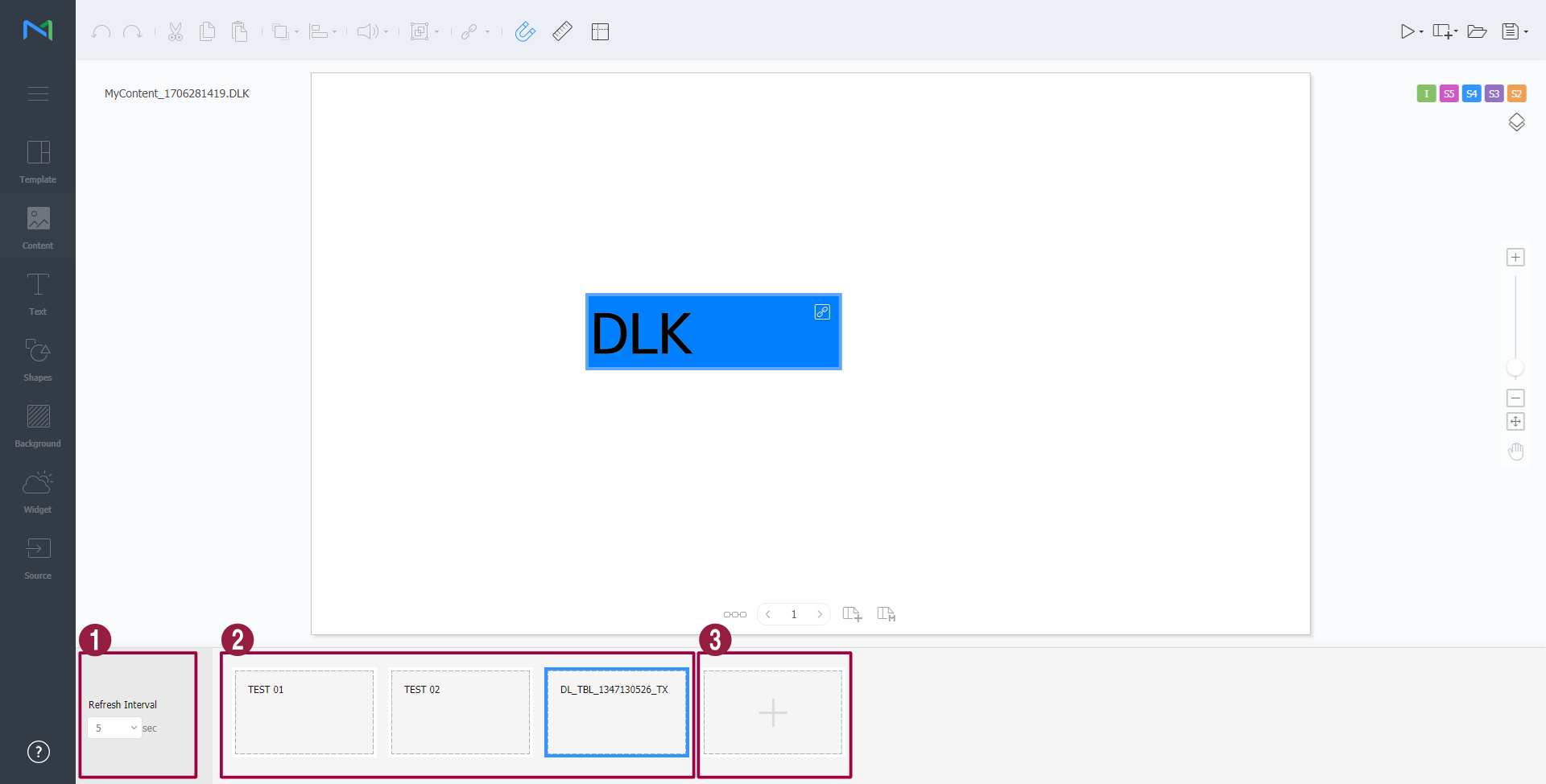
.Manage DataLink, using the following menu items:
|
| 1 | Set intervals to update DataLink elements. |
| 2 |
|
| 3 | Add data. |
Import and edit saved DLK content.
on the Web Author screen.Click the Datalink Content tab.
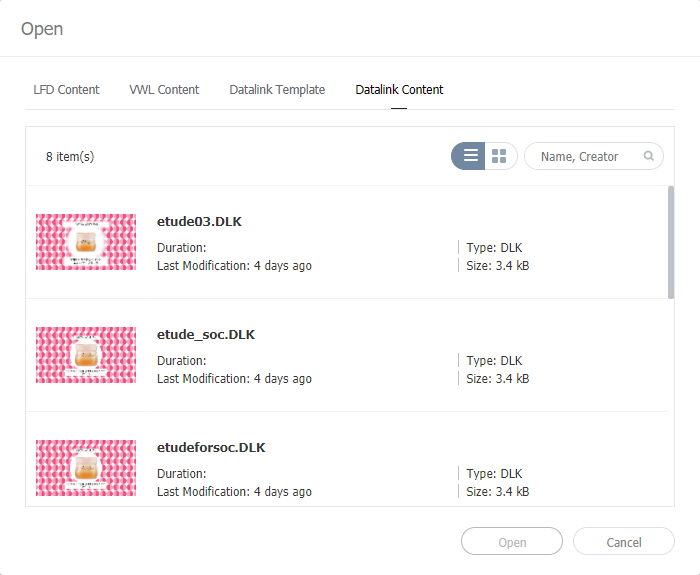 |
 on the Web Author screen.
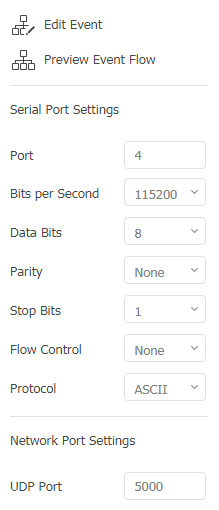
Use the options to configure external event properties.
|
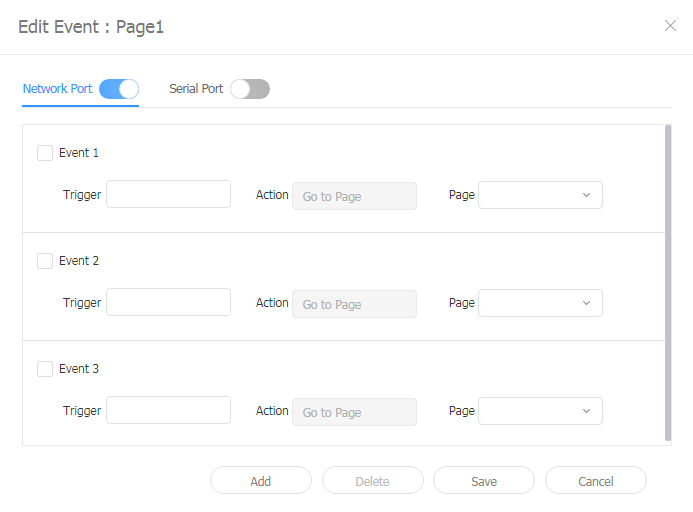
| Edit Event | Activate, deactivate, or edit external events from a network or serial port. For details, refer to ► Configuring Event Triggers |
| Previewing event schedules | This allows you to view set events per page and general flow for all events. For details, refer to ► 이벤트 흐름 미리 보기 |
| Serial ports Settings | Enter the port number to directly configure the serial port. |
| Network ports Settings | The network port can be set by entering the UDP port number. |
on the Web Author screen.Click Add to configure the trigger, action, and page settings for the event. Click Save.
Event settings are now configured and the event is activated.
|
Event actions are currently limited to moving to a page. |
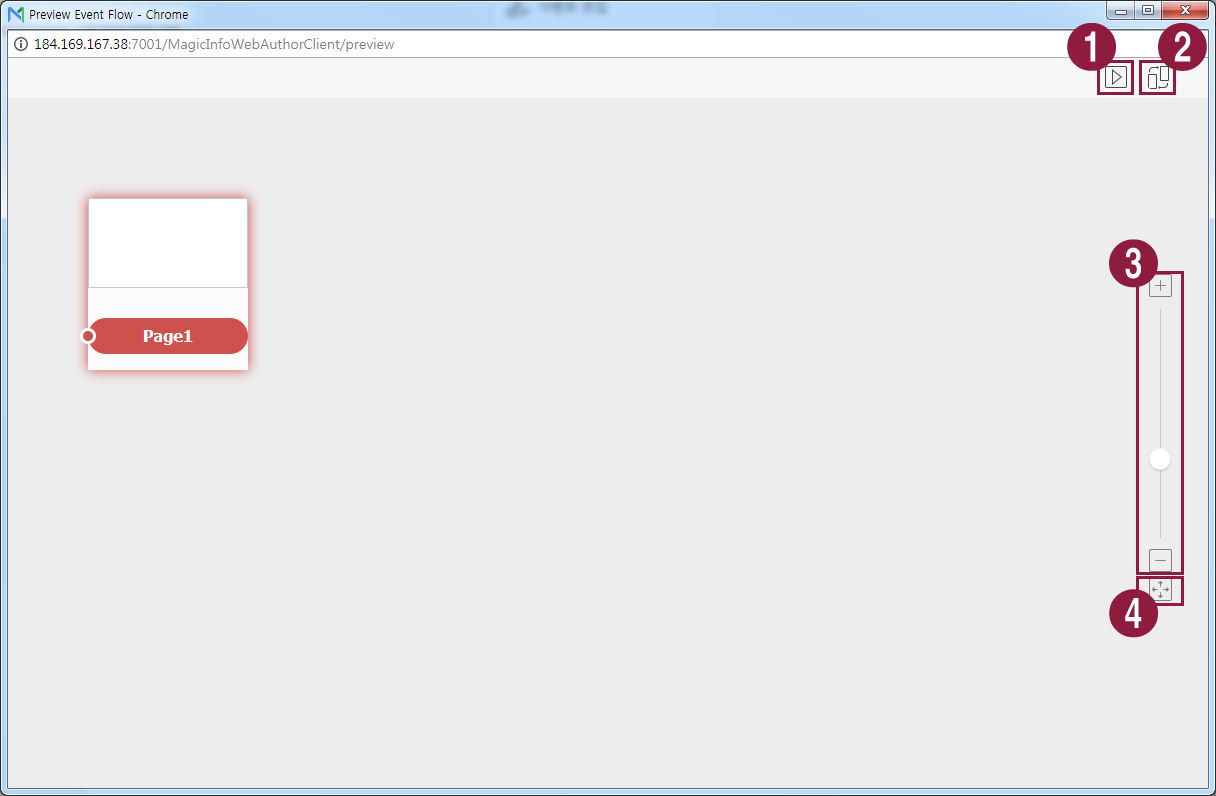
This allows you to view set events per page and general flow for all events.
on the Web Author screen.Click Previewing event schedules
|
| 1 | Test to confirm that each event is triggered in Player as set. |
| 2 | Arrange page thumbnails. |
| 3 | Zoom in or out of the screen. |
| 4 | Fit to screen size. |
 /
/ 

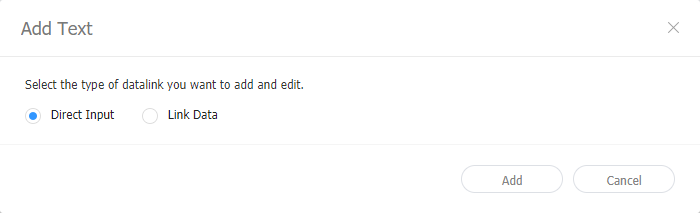
 .
. .
.