
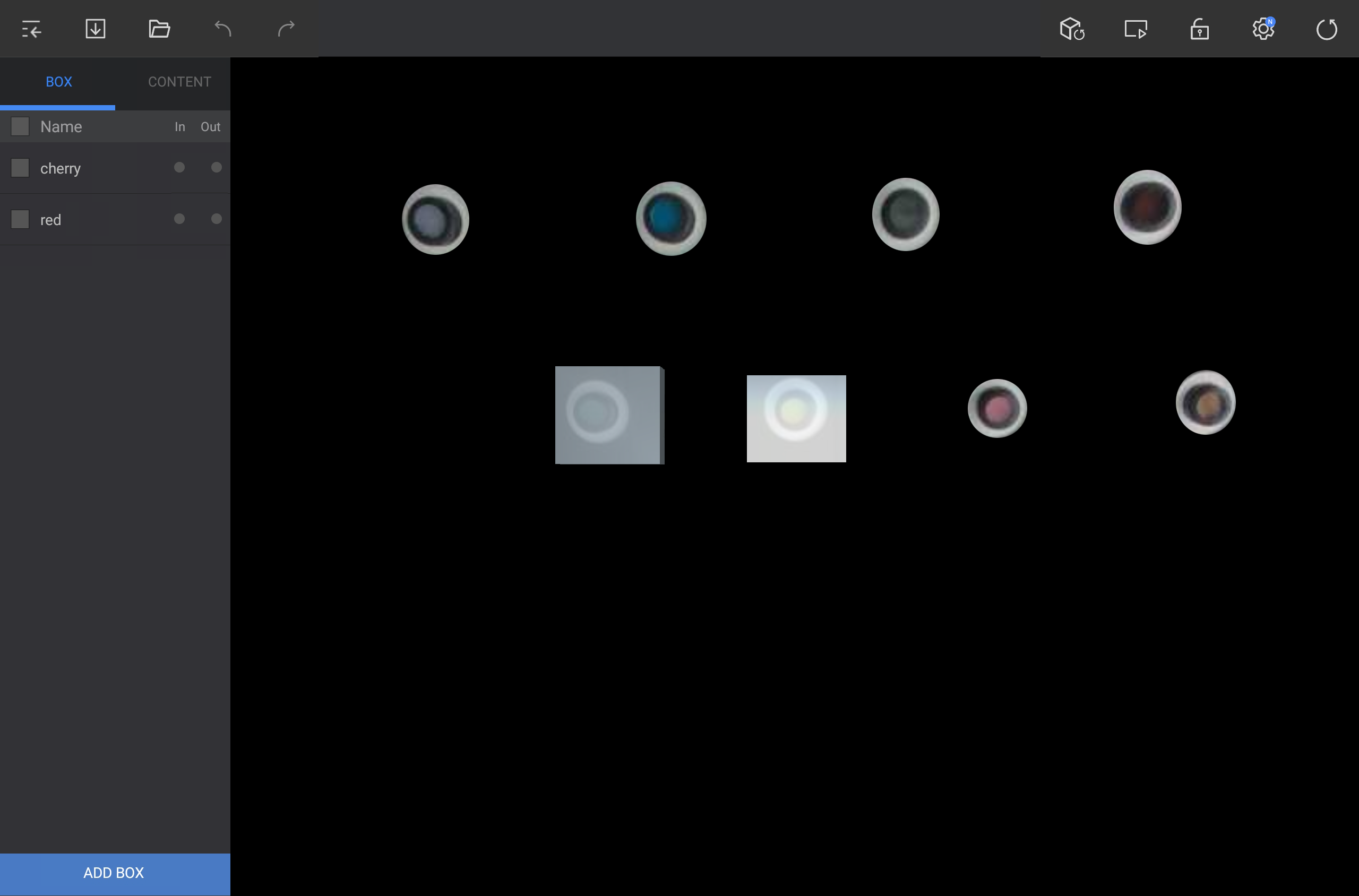
You can add virtual box for detecting operation on screen area that is shown on the camera.
Press Add Box that is located at bottom left side of edit screen and add the box in desired location.
Note
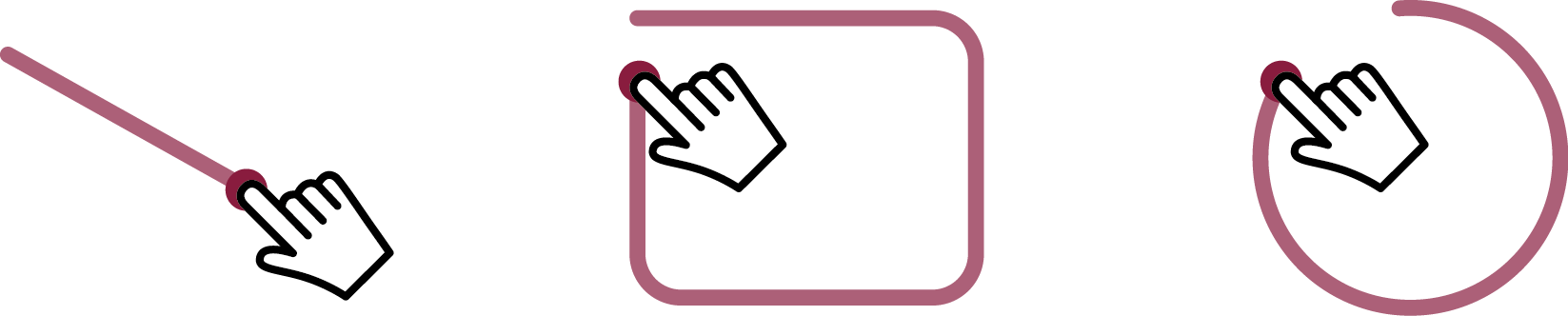
If you drag in diagonal line or circle, box is generated in dragged area.
Editing operation detection box
Select one box from Box tab or press the desired box from angle area.
Execute desired function to edit the box.
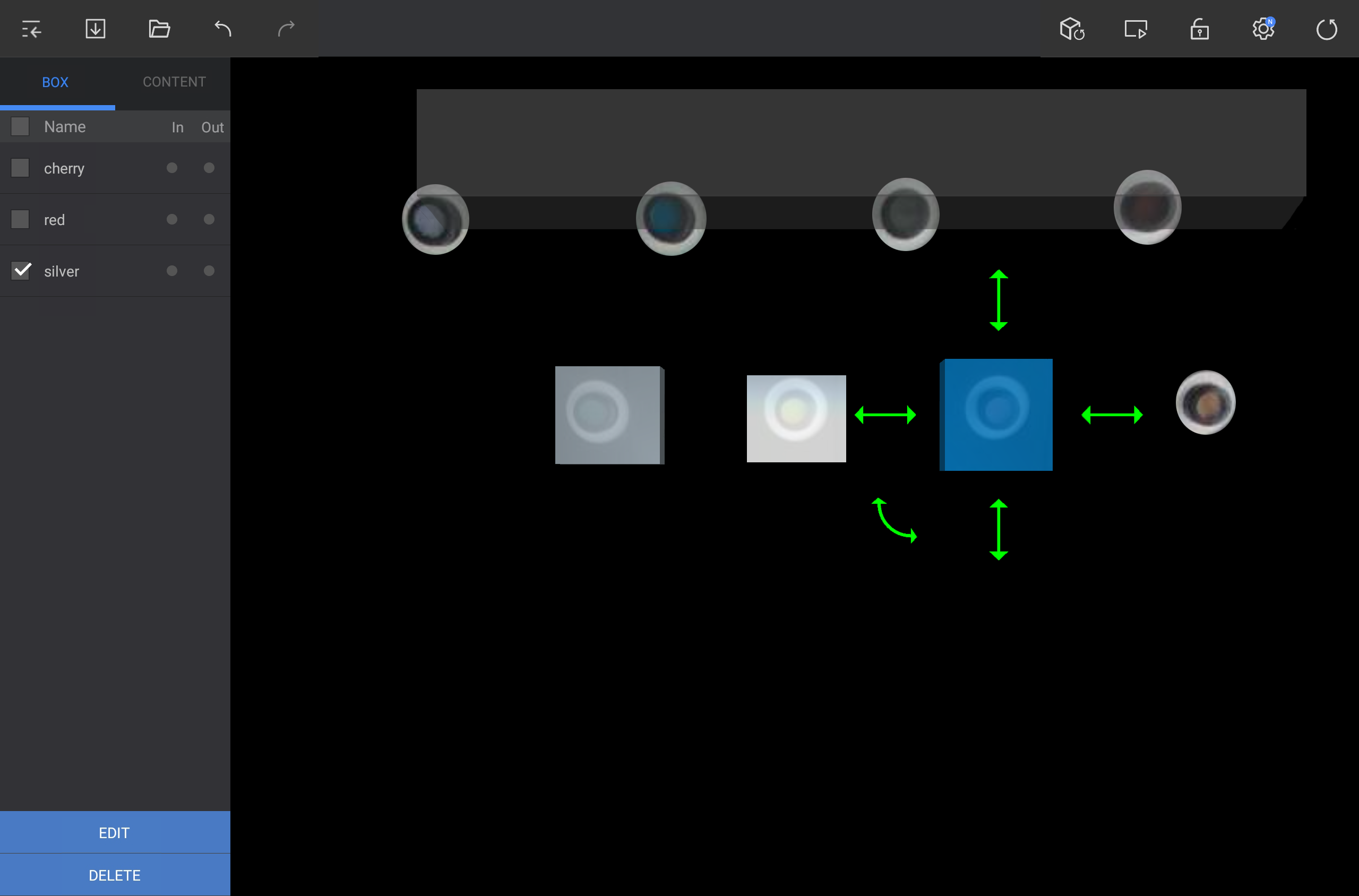
In order to move the box, press the box and drag it to desired location.
In order to adjust the box size, press and drag the both-direction straight arrow that is located at up / down / left / right side.
In order to rotate the box, press and drag the both-direction curve arrow that is located at the edge of the box.
In order to change box name or apply setting on the tag, press Edit that is located at bottom left side of the screen.
To delete the box, press Delete that is located at bottom left side of the screen.
Note
- To delete several boxes at the same time, select every box you wish to delete from Box tab.
- For more precise operation detection, edit the box while checking the operation detection area using the player screen.