Versions Compared

Key

  • This line was added.
  • This line was removed.
  • Formatting was changed.
Sv translation
languageko

설치되어 있는 MagicINFO Server를 최신 버전으로 업그레이드할 경우, 해당 컴퓨터의 사용 환경이  MagicINFO Server 최신 버전에 적합한지 확인하는 사전 점검 과정이 자동으로 실행됩니다.

사용 환경이 설치에 적합하지 않으면 업그레이드가 진행되지 않습니다.

Warning
title프로그램 업그레이드 시 유의 사항
  • MagicINFO Server를 업그레이드하려면 .NET Framework 2.0 이상이 설치되어 있어야 합니다.
  • MagicINFO Server를 업그레이드하려면 PostgreSQL 9.0 이상이 설치되어 있어야 합니다. 9.0 미만 버전을 사용 중인 경우 기존 데이터베이스를 백업한 후 PostgreSQL 9.0 이상을 설치하고 백업한 데이터베이스를 복원해야 합니다.
  • 운영중인 서버의 DB 스키마에 변경 사항이 있을 경우 변경된 내용이 표시됩니다.  DB 스키마가 변경이 된 경우, 업그레이드는 진행될 수 있으나 서버 작동에 문제가 있을 수 있습니다.

  • 업데이트 설치 전 크롬을 미리 설치해야 합니다.  크롬을 설치하지 않으면 DB 업그레이드를 진행할 수 없습니다.


1. 전제조건

  • 설치하는 계정은 관리 권한이 있어야 하며 CMD를 실행할 수 있는 권한이 있어야 합니다. 업그레이드 대상 버전의 설치 파일을 준비합니다.
  • 크롬이 설치되어 있어야 합니다. 크롬을 설치되어있지 않으면 사전체크에서 다음 단계로 진행할 수 없습니다. 다음 링크에서 크롬 설치를 진행하세요. ▶ https://www.google.com/intl/en/chrome/?standalone=1

2. 백업

업그레이드를 시작하기 전에 업그레이드가 실패하고 이전 안정적인 버전으로 롤백할 경우 응용프로그램 서버와 데이터베이스 서버를 백업해야 합니다.

  • Application Server Backup
  • Database Server Backup

3. DB 업그레이드

DB 업그레이드는 기존 설치 환경에 따라 다릅니다.

  • 동일한 서버에 DB가 함께 설치되어 있는 경우

    MagicINFO Server 설치 파일을 실행하여 설치를 진행합니다. DB Upgrade는 자동 반영됩니다.

  • DB가 별도로 분리되어 설치된 경우

    WAS를 업데이트를 할 때 DB 업데이트 페이지에서 DB를 업데이트할 수 있습니다.

  • 정상적으로 DB 업그레이드 가 안 되는 경우, 아래 가이드를 참조하여 수동업데이트 할 수 있습니다.
    DB Manual Update

4. 설정파일 백업

설정이 실패할 경우를 대비하여 아래 파일들을 백업하십시오.

  • C:\ MagicInfo Premium \ conf \ config.properties
  • C:\ MagicInfo Premium \ tomcat \ conf \ Server.xml

5. 업그레이드 설치

업그레이드를 통해 최초 설치와 마찬가지로 설치 파일을 실행할 수 있습니다.

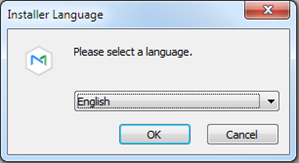
  1. 다운로드한 설치 파일을 실행하고 설치할 언어를 선택합니다.

    Stylesheet
    classscreen

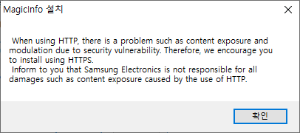
  2. HTTP 사용에 관한 경고창이 나타납니다. 관련 내용을 확인 후 확인 버튼을 클릭하세요.

    Stylesheet
    classscreen

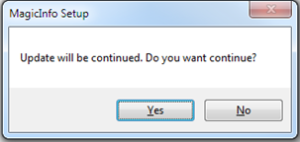
  3. Yes 버튼 클릭

    Stylesheet
    classscreen

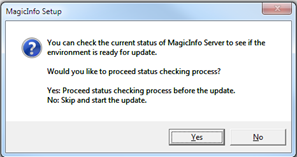
  4. 현재 시스템 상태를 확인하고 진행하려면 예를 클릭합니다.

    Stylesheet
    classscreen

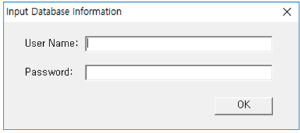
  5. DB 정보를 입력하세요.

    Stylesheet
    classscreen

  6. 확인 완료후  OK 클릭

    Stylesheet
    classscreen

    Warning
    title주의

    DB 스키마에 변경이 있으면 Fail이 표시됩니다. Fail 표시가 되더라도 업데이트는 계속 진행할 수 있지만 서버 작동에 문제가 있을 수 있습니다.

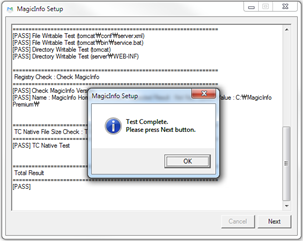
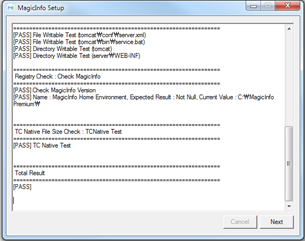
  7. Next 클릭

    Stylesheet
    classscreen

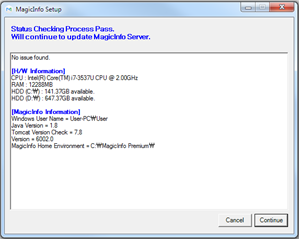
  8. Continue 클릭

    Stylesheet
    classscreen

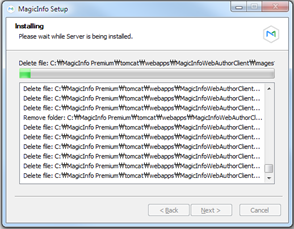
  9. 설치 진행

    Stylesheet
    classscreen

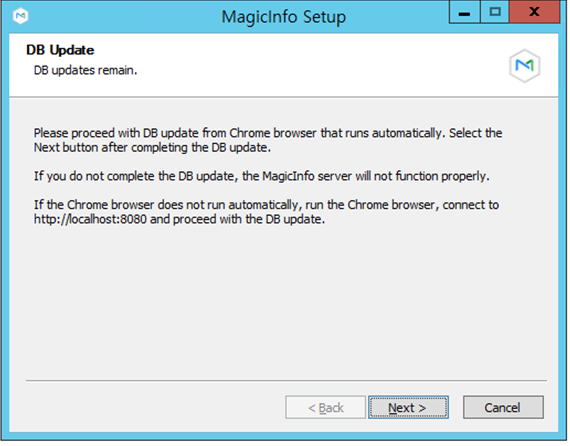
  10. Next 클릭

    Stylesheet
    classscreen

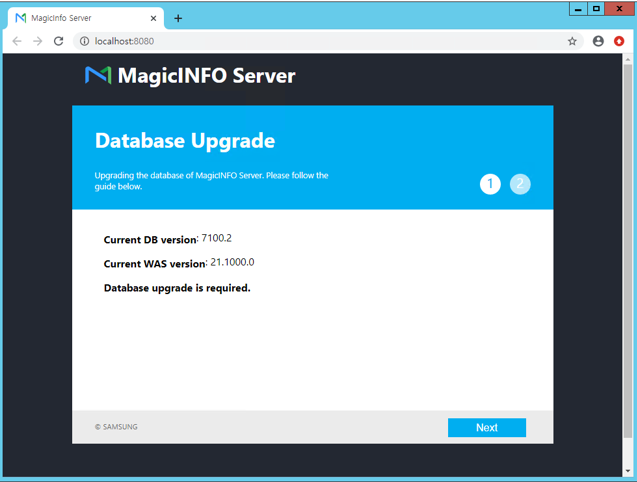
  11. 자동으로 크롬이 실행됩니다.

    Stylesheet
    classscreen

    Warning
    title주의

    업데이트를 하지 않은 상태에서 Next를 선택하면 경고 팝업이 보이고 설치 완료 창으로 이동을 할 수 없습니다.

  12. DB 정보를 확인 한 다음 Next를 클릭

    Stylesheet
    classscreen

  13. DB 업데이트 완료

    Stylesheet
    classscreen

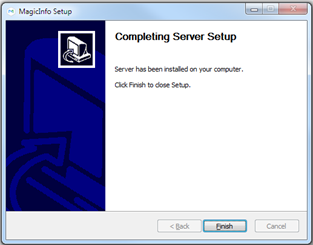
  14. 종료

    Stylesheet
    classscreen

6. 설정화일 복원

2.4 단계에서 백업된 구성 파일을 복원합니다. 복원을 할 때는 다음 사항을 염두에 두시기 바랍니다.

  • 모든 파일을 복원하지 마십시오. MI Server 버전이 업그레이드되면서 새로운 속성이 추가되기 때문입니다.
  • 동일한 정보가 새로 설치된 구성 파일에도 반영됩니다. 예를 들어, DB 연결 정보, 로그 수준, 캐시 사용 설정과 같은 변경사항만 확인합니다.

7. 서비스 시작 및 확인

MagicInfo-i 프리미엄 에디션 서버 항목의 서비스가 Windows Service에 실행 중인지 확인하고, 관리자 페이지에 접속하여 확인한다.

Sv translation
languageen

In case of upgrading MagicINFO Server to the latest version, a preliminary inspection is automatically activated to check if the computing environment is suitable for the latest version of MagicINFO Server.

If the environment is deemed not suitable for installation, the upgrade cannot be proceeded.

Warning
titlePrecautions for program upgrade
  • To upgrade the MagicINFO Server, .NET Framework 2.0 or above must have been installed.
  • To upgrade the MagicINFO Server, PostgreSQL 9.0 or above must have been installed. If a version lower than 9.0 is being used, the existing database should be backed up. Then, PostgreSQL 9.0 or above should be installed and the database that has been backed up should be recovered.
  • If there have been changes to the database schema of the server in use, the changes are shown. If there have been changes to the database schema, upgrade may proceed as normal but the server may not operate properly.

  • Make sure Chrome is installed before installing updates. If Chrome is not installed, database upgrade cannot proceed.


1. Preconditions

  • The account you install must have administrative authority and the authority to run the CMD.Prepare the installation file for the upgrade target version
  • Make sure Chrome is installed. If Chrome is not installed, you cannot proceed to the next stage from preliminary check. Install Chrome from the following link: ▶ https://www.google.com/intl/en/chrome/?standalone=1

2. Backup

If the upgrade fails before the upgrade and roll back to the previous stable version, the application server and database server must be backed up.

  • Application Server Backup
  • Database Server Backup

3. DB Upgrade

DB upgrades vary depending on the existing installation environment.

  • When DB is installed in the same server

    Run the MagicINFO Server installation file and proceed with the installation. DB Upgrade is automatically reflected.

  • In case DB is installed separately

    When updating WAS, you can update the database from the database update page.

  • When DB was not update properly then you can upgrade DB manualy refering guideline below.   
    DB Manual Update

4. Backup setup file

Back up the files below in case the settings fail.

  • C:\ MagicInfo Premium \ conf \ config.properties
  • C:\ MagicInfo Premium \ tomcat \ conf \ Server.xml

5. Upgrade installation

The upgrade allows you to run the installation file just like the initial installation.

  1. Run the downloaded installation file and select the language to install.

    Stylesheet
    classscreen

  2. A warning window regarding use of HTTP appears. Read the details and click OK.

    Stylesheet
    classscreen

  3. Click on the Yes button

    Stylesheet
    classscreen

  4. Click Yes to check and proceed with the current system status.

    Stylesheet
    classscreen

  5. Enter database information.

    Stylesheet
    classscreen

  6. Click OK after confirmation

    Stylesheet
    classscreen

    Warning
    titleCaution

    If there have been changes to the database schema, "Fail" appears. When "Fail" is displayed, update may proceed as normal but the server may not operate properly.

  7. Click Next

    Stylesheet
    classscreen

  8. Click Continue

    Stylesheet
    classscreen

  9. Proceed installation

    Stylesheet
    classscreen

  10. Click Next

    Stylesheet
    classscreen

  11. Chrome runs automatically.

    Stylesheet
    classscreen

    Warning
    titleCaution

    If you select Next without updating the database, a warning message pops up and you cannot proceed to the installation complete window.

  12. Confirm the database information and click Next.

    Stylesheet
    classscreen

  13. Database update is complete.

    Stylesheet
    classscreen

  14. Exit

    Stylesheet
    classscreen

6. Restore settings file

Restore the backed up configuration file in step 2.4 Please keep the following in mind when you restore it.

  • Do not restore all files. This is because new properties are added as the MI Server version is upgraded.
  • The same information is reflected in the newly installed configuration file. For example, only check for changes such as DB connection information, log level, and cache usage settings.

7. Start and confirm the service

MagicInfo-i Check if the service of the premium edition server item is running on the Windows Service, and access the administrator page for confirmation.

...

Sv translation
languagees

En caso de actualizar MagicINFO Server a la versión más reciente, se activa automáticamente una inspección preliminar a fin de comprobar si el entorno es adecuado para la última versión de MagicINFO Server.

Si se considera que el entorno no es adecuado para la instalación, la actualización no puede continuar.

Warning
titlePrecauciones para la actualización del programa
  • Para actualizar MagicINFO Server, debe haberse instalado .NET Framework 2.0 o posterior.
  • Para actualizar MagicINFO Server, debe haberse instalado PostgreSQL 9.0 o posterior. Si se utiliza una versión anterior a la 9.0, es necesario crear una copia de seguridad de la base de datos existente. A continuación, se debe instalar PostgreSQL 9.0 o posterior y recuperar la base de datos de la copia de seguridad.
  • Si se han producido cambios en el esquema de base de datos del servidor en uso, se muestran los cambios. Si se han producido cambios en el esquema de base de datos, puede que la actualización se realice de forma normal, pero es posible que el servidor no funcione correctamente.

  • Asegúrese de que Chrome esté instalado antes de instalar las actualizaciones. Si Chrome no está instalado, la actualización de la base de datos no se puede realizar.


1. Condiciones previas

  • La cuenta de instalación debe tener autoridad administrativa y autoridad para ejecutar la línea de comandos (CMD). Prepare el archivo de instalación para la versión del destino de actualización
  • Asegúrese de que Chrome esté instalado. Si Chrome no está instalado, no se puede pasar a la siguiente etapa desde la verificación preliminar. Instale Chrome mediante el siguiente enlace: ▶ https://www.google.com/intl/en/chrome/?standalone=1

2. Copia de seguridad

Si la actualización falla y retrocede a la versión estable anterior, debe realizarse una copia de seguridad del servidor de aplicaciones y del servidor de bases de datos.

  • Copia de seguridad del servidor de aplicaciones
  • Copia de seguridad del servidor de bases de datos

3. Actualización de bases de datos

Las actualizaciones de bases de datos varían según el entorno de instalación existente.

  • Si la base de datos está instalada en el mismo servidor

    Ejecute el archivo de instalación de MagicINFO Server y continúe con la instalación. La actualización de la base de datos se refleja automáticamente.

  • En caso de que la base de datos se haya instalado de forma independiente

    Al actualizar WAS, puede actualizar la base de datos desde la página de actualización de la base de datos.

4. Copia de seguridad del archivo de configuración

Realice una copia de seguridad de los siguientes archivos por si la configuración falla.

  • C:\ MagicInfo Premium \ conf \ config.properties
  • C:\ MagicInfo Premium \ tomcat \ conf \ Server.xml

5. Instalación de la actualización

La actualización le permite ejecutar el archivo de instalación igual que en la instalación inicial.

  1. Ejecute el archivo de instalación descargado y seleccione el idioma que desea instalar.

    Stylesheet
    classscreen

  2. Aparecerá una ventana de advertencia sobre el uso de HTTP. Lea los detalles y haga clic en Aceptar.

    Stylesheet
    classscreen

  3. Haga clic en el botón Sí

    Stylesheet
    classscreen

  4. Haga clic en Sí para comprobar y continuar con el estado actual del sistema.

    Stylesheet
    classscreen

  5. Introduzca la información de la base de datos.

    Stylesheet
    classscreen

  6. Haga clic en Aceptar después de la confirmación

    Stylesheet
    classscreen

    Warning
    titlePrecaución

    Si se han producido cambios en el esquema de base de datos, aparecerá "Fail". Si se muestra "Fail", puede que la actualización se realice de forma normal, pero es posible que el servidor no funcione correctamente.

  7. Haga clic en Siguiente.

    Stylesheet
    classscreen

  8. Haga clic en Continuar

    Stylesheet
    classscreen

  9. Progreso de la instalación

    Stylesheet
    classscreen

  10. Haga clic en Siguiente.

    Stylesheet
    classscreen

  11. Chrome se ejecuta automáticamente.

    Stylesheet
    classscreen

    Warning
    titlePrecaución

    Si selecciona Siguiente sin actualizar la base de datos, aparecerá un mensaje de advertencia y no podrá acceder a la ventana de finalización de la instalación.

  12. Confirme la información de la base de datos y haga clic en Siguiente.

    Stylesheet
    classscreen

  13. La actualización de la base de datos ha finalizado.

    Stylesheet
    classscreen

  14. Salir

    Stylesheet
    classscreen

6. Restauración del archivo de configuración

Restaure el archivo de configuración cuya copia de seguridad hizo en el paso 2.4. Tenga en cuenta lo siguiente al restaurarlo.

  • No restaure todos los archivos. Esto se debe a que se añaden nuevas propiedades a medida que se actualiza la versión del servidor MI.
  • La misma información se refleja en el archivo de configuración recién instalado. Por ejemplo, solo comprobar si hay cambios como la información de conexión de la base de datos, el nivel de registro y la configuración de uso de caché.

7. Inicio y confirmación del servicio

MagicInfo-i comprueba si el elemento Premium Edition Server se está ejecutando en Windows Service, y accede a la página del administrador para confirmarlo.

Sv translation
languagezh_CN

如果将 MagicINFO Server 升级到最新版本,会自动激活一个初步检查,检查计算环境是否适合最新版本的 MagicINFO Server

如果认为环境不适合安装,则升级无法继续。

Warning
title程序升级的注意事项
  • 要升级 MagicINFO Server,则必须安装 .NET Framework 2.0 或以上版本。
  • 要升级 MagicINFO Server,则必须安装 PostgreSQL 9.0 或以上版本。如果使用低于 9.0 的版本,应备份现有数据库。然后,应安装 PostgreSQL 9.0 或更高版本,并且应恢复已备份的数据库。
  • 如果对正在使用的服务器的数据库架构进行了更改,则会显示更改。如果对数据库架构进行了更改,则升级可以正常进行,但服务器可能无法正常工作。

  • 确保在安装更新之前已安装 Chrome。如果没有安装 Chrome,则无法进行数据库升级。


1.先决条件

  • 您安装的帐户必须具有管理权限和运行 CMD 的权限。为升级目标版本准备安装文件
  • 确保已安装 Chrome。如果没有安装 Chrome,则无法继续进行初步检查后的下一阶段。从以下链接安装 Chrome:▶ https://www.google.com/intl/en/chrome/?standalone=1

2.备份

如果在升级之前升级失败并回滚到以前的稳定版本,则必须备份应用程序服务器和数据库服务器。

  • 应用程序服务器备份
  • 数据库服务器备份

3.数据库升级

数据库升级因现有安装环境而异。

  • 如果数据库安装在相同服务器中

    运行 MagicINFO Server 安装文件并继续安装。数据库升级会自动反映出来。

  • 如果数据库为单独安装

    更新 WAS 时,可以从数据库更新页更新数据库。

4.备份安装文件

如果设置失败,请备份下面的文件。

  • C:\MagicInfo Premium \ conf \ config.properties
  • C:\MagicInfo Premium \ tomcat \ conf \ Server.xml

5.升级安装

升级允许您像初始安装一样运行安装文件。

  1. 运行下载的安装文件并选择要安装的语言。

    Stylesheet
    classscreen

    Image Added

  2. 出现一个关于使用 HTTP 的警告窗口。阅读详细信息,然后单击确定

    Stylesheet
    classscreen

    Image Added

  3. 单击“是”按钮

    Stylesheet
    classscreen

    Image Added

  4. 单击“是”检查并继续当前系统状态。

    Stylesheet
    classscreen

    Image Added

  5. 输入数据库信息。

    Stylesheet
    classscreen

    Image Added

  6. 确认后,单击“确定”

    Stylesheet
    classscreen

    Image Added

    Warning
    title注意

    如果对数据库架构进行了更改,则会出现“失败”。当显示“失败”时,更新可以正常进行,但服务器可能无法正常工作。

  7. 单击 下一步。

    Stylesheet
    classscreen

    Image Added

  8. 单击“继续”

    Stylesheet
    classscreen

    Image Added

  9. 继续安装

    Stylesheet
    classscreen

    Image Added

  10. 单击 下一步。

    Stylesheet
    classscreen

    Image Added

  11. Chrome 自动运行。

    Stylesheet
    classscreen

    Image Added

    Warning
    title注意

    如果在不更新数据库的情况下选择“下一步”,则会弹出一条警告消息,您无法继续前往“安装完成”窗口。

  12. 确认数据库信息并单击“下一步”。

    Stylesheet
    classscreen

    Image Added

  13. 数据库更新完成。

    Stylesheet
    classscreen

    Image Added

  14. 退出

    Stylesheet
    classscreen

    Image Added

6.恢复设置文件

恢复步骤 2 中备份的配置文件。在恢复时,请记住以下几点。

  • 请勿恢复所有文件。因为在升级 MI server 版本时,会添加新属性。
  • 同样的信息反映在新安装的配置文件中。例如,只检查数据库连接信息、日志级别和缓存使用率设置等更改。

7.启动并确认服务

MagicInfo-i 检查高级版本服务器项目的服务是否在 Windows Service 上运行,并访问管理员页面进行确认。