Versions Compared

Key

  • This line was added.
  • This line was removed.
  • Formatting was changed.
Comment: Reverted from v. 163
장치 그룹이 모두 같은 모델로 이루어져 있다면 구성할 비디오월 레이아웃 형태를 선택할 수 있습니다.
  1. MagicINFO Server에서 VWL Layout 관리 > 설정 > 생성을 클릭하세요.
  • 편집 영역에 비디오월 레이아웃이 생성되며 레이아웃 모드가 실행됩니다.
  • 이미 만들어진 비디오월 레이아웃을 사용할 경우 레이아웃 설정 창은 나타나지 않으며 레이아웃 모드가 바로 실행됩니다.

Image Removed

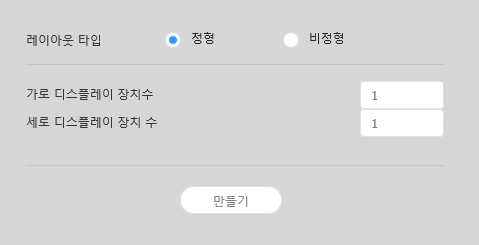
  1. 원하는 레이아웃 타입 및 장치 개수를 설정한 후 만들기를 클릭하세요.
    • VWL Layout Editor가 실행됩니다.
Sv translation
languageko_KR

레이아웃 설정하기

MagicInfo Server에서 Layout Editor를 실행하면 레이아웃 설정 창이 실행됩니다. 해당 창에서 레이아웃 기본 설정 후 
비디오월 레이아웃
콘텐츠명새 비디오월 레이아웃의 이름을 입력할 수 있습니다.
Stylesheet
classscreen

Image Added

레이아웃 타입
  • 정형: 장치를 2X2, 3X4 등 직사각형 형태로 정렬하여 고정된 형태의 비디오월을 구성합니다.
  • 비정형: 장치를 사용자가 원하는 형태로 자유롭게 배치할 수 있습니다.
모델명비디오월 레이아웃을 구성할 장치의 종류가 표시됩니다.
  1. 가로 디스플레이
장치수
  1. 비디오월 레이아웃을 구성할 장치의 가로 개수가 표시됩니다.
    세로 디스플레이
장치수
  1. 장치 수 비디오월 레이아웃을 구성할 장치의 세로 개수가 표시됩니다. 

레이아웃 구성하기

레이아웃 모드에서 비디오월 레이아웃을 원하는대로 구성할 수 있습니다.

  1. Info
    title참고

    선택한 레이아웃 타입에 따라 레이아웃 구성 방법이 다릅니다. 이 사용 설명서에서는 비정형을 기준으로 설명합니다.

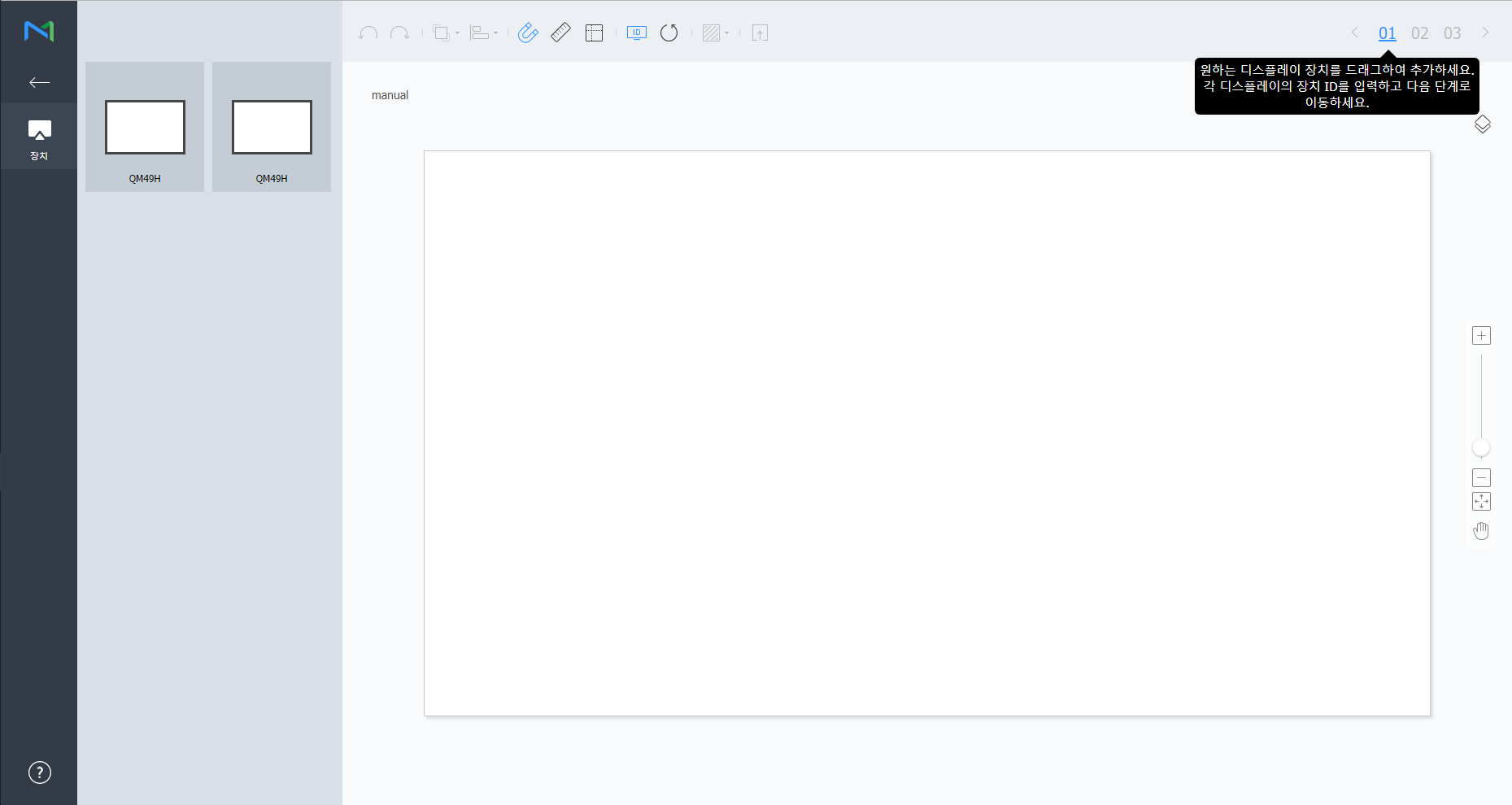
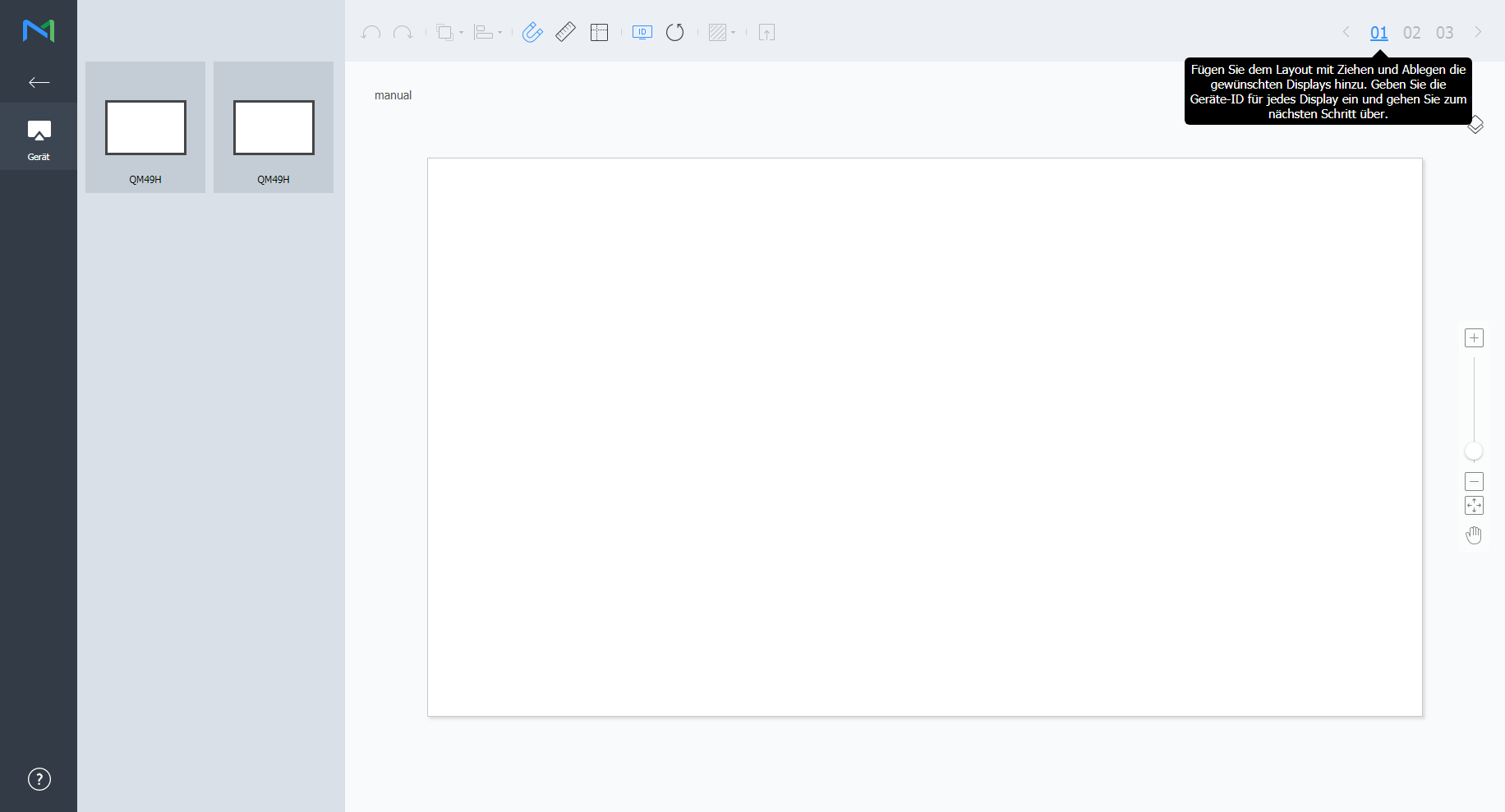
  2. 장치 목록에서 원하는 장치를 선택해 편집 영역으로 드래그하세요.

    Info
    title참고

비디오월 레이아웃이 정형일 때는 미리 설정된 레이아웃 구성을 확인만 할 수 있으며, 편집할 수 없습니다

장치 정렬하기

  1. 편집 영역에서 원하는 장치를 선택하세요.
  2. 원하는 방법을 선택해 장치를 정렬하세요.
    • 방법 1: 메뉴 바의 편집 > 정렬을 클릭한 후 원하는 정렬 기준을 선택하세요.
    • 방법 2: 편집 영역의 장치를 마우스 오른쪽 버튼으로 클릭하면 나타나는 메뉴에서 정렬을 선택한 후 정렬 기준을 지정하세요.
    • 방법 3: 도구 모음에서 원하는 정렬 아이콘(Image Removed)을 클릭하세요.

장치 배치하기

  1. 편집 영역에서 원하는 장치를 선택하세요.
  2. 원하는 방법을 선택해 장치를 배치하세요.
    • 방법 1: 메뉴 바의 편집 > 순서 변경을 클릭한 후 원하는 배치 순서를 선택하세요.
    • 방법 2: 편집 영역의 장치를 마우스 오른쪽 버튼으로 클릭하면 나타나는 메뉴에서 순서를 선택한 후 배치 순서를 지정하세요.
    • 방법 3: 도구 모음에서 원하는 배치순서 아이콘(Image Removed)을 클릭하세요.

섹션 속성 설정하기

Info
title참고

Layout Editor에서는 같은 장치 그룹의 모든 장치를 하나의 섹션으로 인식합니다.

편집 영역에서 섹션을 선택하세요.

Info
title참고

편집 영역 중 가상 장치 화면 이외의 빈 영역을 선택한 상태에서 장치를 클릭하면 섹션이 선택됩니다.

속성 탭에 섹션 상세 정보가 나타나면 섹션의 위치 정보(회전 각도)를 원하는 대로 설정하세요.

위치

X 위치Y 위치: 섹션의 가로, 세로 위치가 표시됩니다.

Info
title참고

X, Y 위치 값은 확인만 가능하며, 수정할 수 없습니다.

회전 각도: 섹션의 배치 각도를 설정할 수 있습니다. 스크롤 바를 좌우로 드래그해 원하는 각도를 설정하세요.

Info
title참고

다음과 같은 방법으로도 회전 각도를 지정할 수 있습니다.

  • 편집 영역에서 섹션을 선택하면 나타나는 Image Removed클릭한 후 원하는 각도로 움직이세요.
  • 편집 영역에서 섹션을 선택한 후 도구 모음에서 각도 설정 도구(Image Removed)로 회전각을 설정하세요.
  • 편집 영역에서 섹션을 선택한 후 도구 모음에서 Image Removed클릭하면 섹션을 90도씩 회전합니다.

장치 속성 설정하기

  • 편집 영역에서 원하는 장치를 선택하세요.
  • 속성 탭에 선택한 장치의 상세 정보가 나타나면 장치 위치 정보를 원하는 대로 설정하세요.

    디스플레이 장치

    디스플레이 장치 정보는 확인만 가능하며, 수정할 수 없습니다.

    • 모델명: 장치의 모델명이 표시됩니다.
    • 가로 해상도: 장치의 가로 해상도 값이 표시됩니다.
    • 세로 해상도: 장치의 세로 해상도 값이 표시됩니다.
    • 가로 크기: 장치의 너비를 표시합니다.
      • 패널 수평 크기: 장치에서 베젤의 좌우 두께를 제외한 가로 크기가 표시됩니다.
      • 베젤 좌우 두께: 장치의 좌우 베젤 두께가 표시됩니다.
    • 세로 크기: 장치의 높이를 표시합니다.
      • 패널 수직 크기: 장치에서 베젤의 상하 두께를 제외한 세로 크기가 표시됩니다.
      • 베젤 상하 두께: 장치의 상하 베젤 두께가 표시됩니다.
    위치

    장치의 위치 정보를 설정할 수 있습니다.

  • 중앙점 X위치: 장치 중앙의 가로 위치를 설정할 수 있습니다. 원하는 위치 값을 입력하면 해당 장치의 위치가 변경됩니다.
  • 중앙점 Y위치: 장치 중앙의 세로 위치를 설정할 수 있습니다. 원하는 위치 값을 입력하면 해당 장치의 위치가 변경됩니다.
  • 회전 각도: 장치의 배치 각도를 설정할 수 있습니다. 스크롤 바를 좌우로 드래그해 원하는 각도를 설정하세요.

    Info
    title참고

    다음과 같은 방법으로도 회전 각도를 지정할 수 있습니다.

    • 편집 영역에서 장치를 선택하면 나타나는 Image Removed클릭한 후 원하는 각도로 움직이세요.
    • 편집 영역에서 장치를 선택한 후 도구 모음에서 각도 설정 도구(Image Removed)로 회전각을 설정하세요.
    • 편집 영역에서 장치를 선택한 후 도구 모음에서 Image Removed클릭하면 장치를 90도씩 회전합니다.
  • 첫 번째 X위치: 장치 위쪽 왼편의 가로 위치를 설정할 수 있습니다.
  • 첫 번째 Y위치: 장치 위쪽 왼편의 세로 위치를 설정할 수 있습니다.
  • 두 번째 X위치: 장치 위쪽 오른편의 가로 위치를 설정할 수 있습니다.
  • 두 번째 Y위치: 장치 위쪽 오른편의 세로 위치를 설정할 수 있습니다.
  • 세 번째 X위치: 장치 아래쪽 오른편의 가로 위치를 설정할 수 있습니다.
  • 세 번째 Y위치: 장치 아래쪽 오른편의 세로 위치를 설정할 수 있습니다.
  • 네 번째 X위치: 장치 아래쪽 왼편의 가로 위치를 설정할 수 있습니다.
  • 네 번째 Y위치: 장치 아래쪽 왼편의 세로 위치를 설정할 수 있습니다.

    Info

    장치의 위치는 편집 영역에서 장치를 선택한 후 원하는 위치로 드래그하여 설정할 수도 있습니다.

    장치 맵핑하기

    레이아웃 모드에서 설정이 완료되면 맵핑 모드를 클릭하세요.

    맵핑 모드에 진입하면 실제 장치 화면에 ID가 나타납니다. 이 ID를 사용하여 편집 영역의 가상 장치와 실제 장치를 연동할 수 있습니다.

    Info
    title참고

    장치 ID는 해당 장치 그룹에 속한 장치 개수에 따라 부여됩니다. 예를 들어, 장치 그룹에 모두 10개의 장치가 있다면 각 장치에는 01~10 까지의 ID가 나타납니다.

    1. 편집 영역에서 원하는 장치를 선택하세요.
    2. 속성 탭에 선택한 장치의 상세 정보가 나타나면 실제 장치에서 확인한 ID를 입력하세요.
      편집 영역의 해당 장치 화면에 입력한 ID가 표시됩니다.
    Info
    title참고
    • 실제 장치 화면에서 각 장치의 ID를 표시/숨기기 하려면 도구 모음에서 Image Removed/Image Removed 클릭하세요.
    • 편집 영역의 각 장치에 지정한 ID를 초기화하려면 도구 모음에서 Image Removed클릭하세요.

    레이아웃 미세 조정하기

    맵핑 모드에서 설정이 완료되면 미세조정 모드를 클릭하세요.

    실제 장치의 위치 설정에 미세한 조정이 필요한 경우 미세조정 모드를 사용하여 간편하게 수정할 수 있습니다.

    Info
    title참고
    • 맵핑 모드에서 장치 ID 설정을 완료해야 미세조정 모드를 사용할 수 있습니다.
    • 미세조정 모드는 필수가 아닌 선택 단계로 이 모드에서 특별한 설정 없이 다음 단계를 바로 진행할 수 있습니다.
    • 미세조정 모드에서는 비디오월 레이아웃이 정형인 경우에도 레이아웃 미세 조정이 가능합니다.
    1. 편집 영역에서 원하는 요소(섹션 또는 장치)를 선택하세요.
    2. 속성 탭에 선택한 요소의 상세 정보가 나타나면 위치 값을 수정하세요.
    3. 도구 모음에서 Image Removed클릭하세요.
      변경 사항이 적용됩니다.
    Info
    title참고
    • 레이아웃을 정확히 조정할 수 있도록 실제 장치 화면에 패턴이 나타납니다. 실제 장치 화면에서 패턴을 표시/숨기기 하려면 도구 모음에서Image Removed/Image Removed 클릭하세요.
    • 실제 장치 화면에 표시된 패턴을 변경하려면 Image Removed클릭하세요.

    MagicInfo Server에 배포하기

    비디오월 레이아웃 구성이 완료되면 작업 완료를 클릭하세요.

    Info

    맵핑 모드에서 장치 ID 설정을 완료해야 작업 완료 단계를 사용할 수 있습니다.

  • 비디오월 레이아웃을 MagicInfo Server로 배포할 것인지 확인하는 창이 나타나면 를 클릭하세요.
    구성한 비디오월 레이아웃이 MagicInfo Server로 배포되며, 해당 장치 그룹에 적용됩니다.
  • Sv translation
    languageen

    Layout settings

    If you launch Layout Editor from MagicInfo Server, the Layout setting window appears. Configure basic layout settings from the window, and then click Create.

    • A videowall layout is created in the edit section, and layout mode activates.
    • Using a previously created videowall layout will start Layout Mode without displaying the Layout setting window.

    Image Removed

    Content NameEnter a new videowall layout name.VideoWall Layout

    Select a videowall layout. This option is available when the device group consists of devices of the same model.

    • Formal: Arrange devices in formal mode using a predefined matrix such as 2x2 and 3x4.
    • Irregular: Customize the arrangement of devices to suit your preferences.
    Model NameThe type of devices that will form a videowall layout is shown
    1. 레이아웃 타입을 정형으로 선택한 경우 이 과정이 생략됩니다. 

      Stylesheet
      classscreen

      Image Added

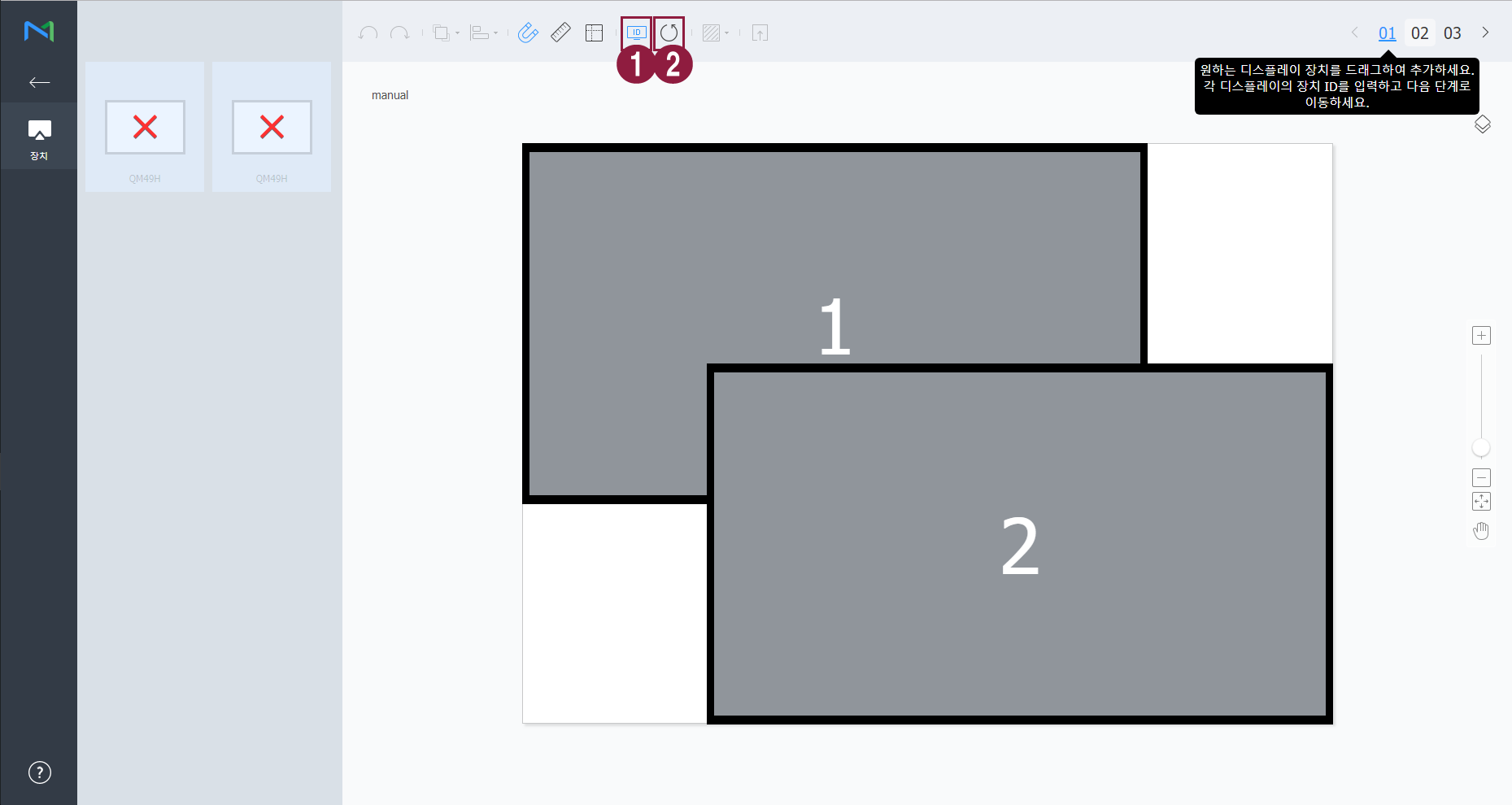
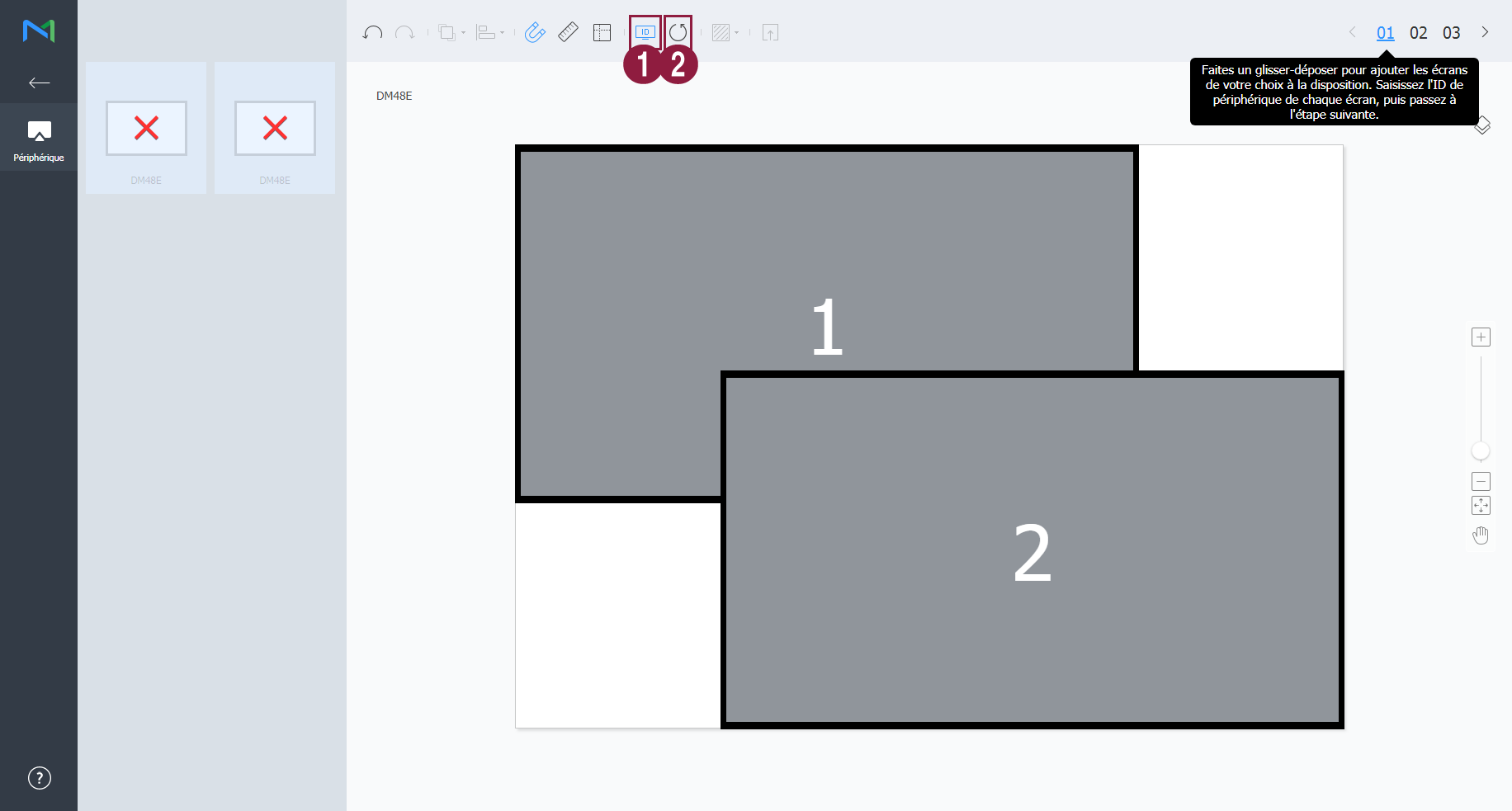
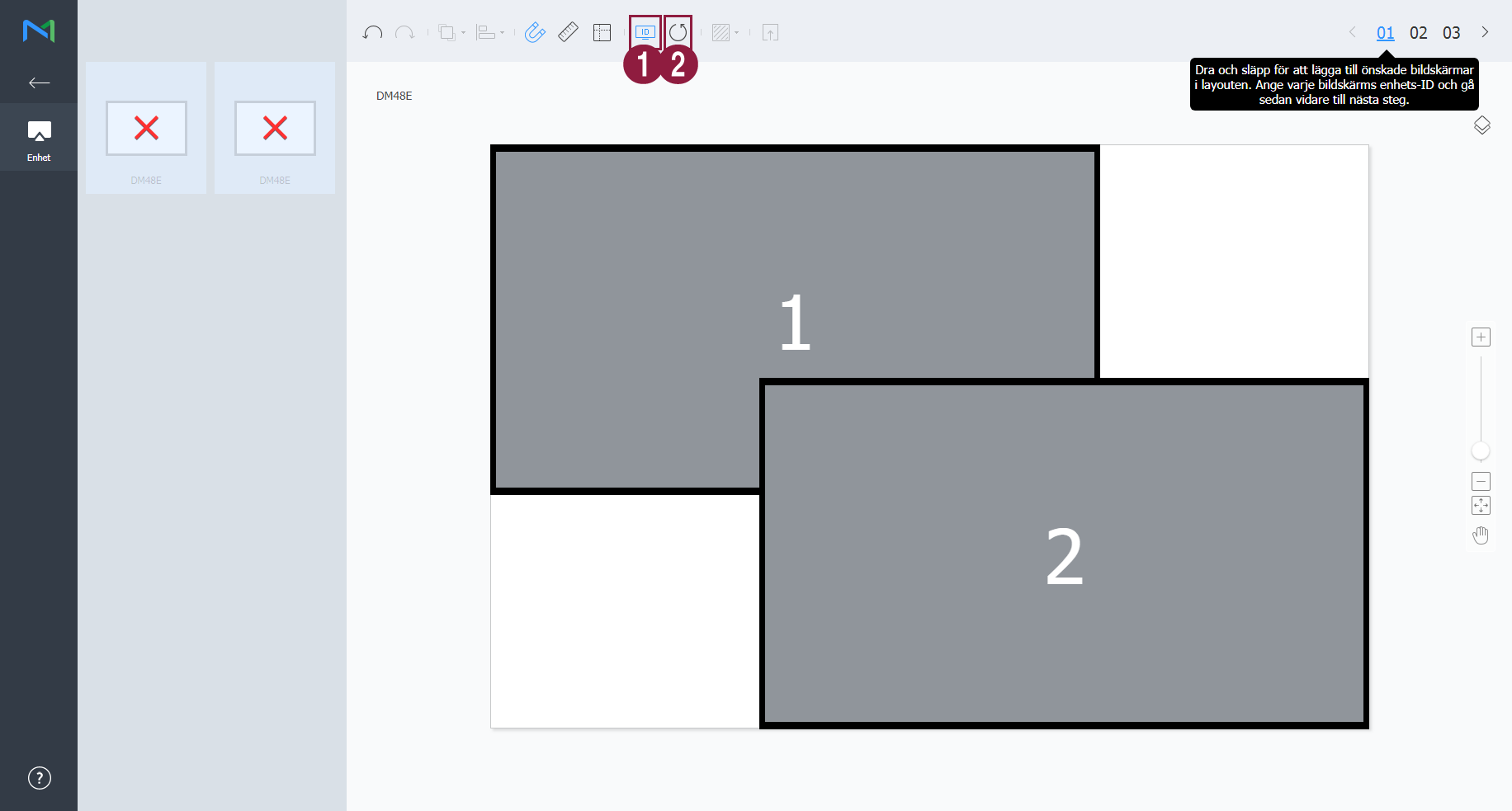
    2. 각 장치에 장치 ID를 입력한 후 02를 클릭하세요.

      Stylesheet
      classscreen

      Image Added

      1입력한 장치 ID를 장치 화면에 표시할 수 있습니다.
      2입력한 장치 ID를 초기화할 수 있습니다. 


    3. 장치의 세부 위치를 조절한 후 03을 클릭하세요.

      Stylesheet
      classscreen

      Image Added

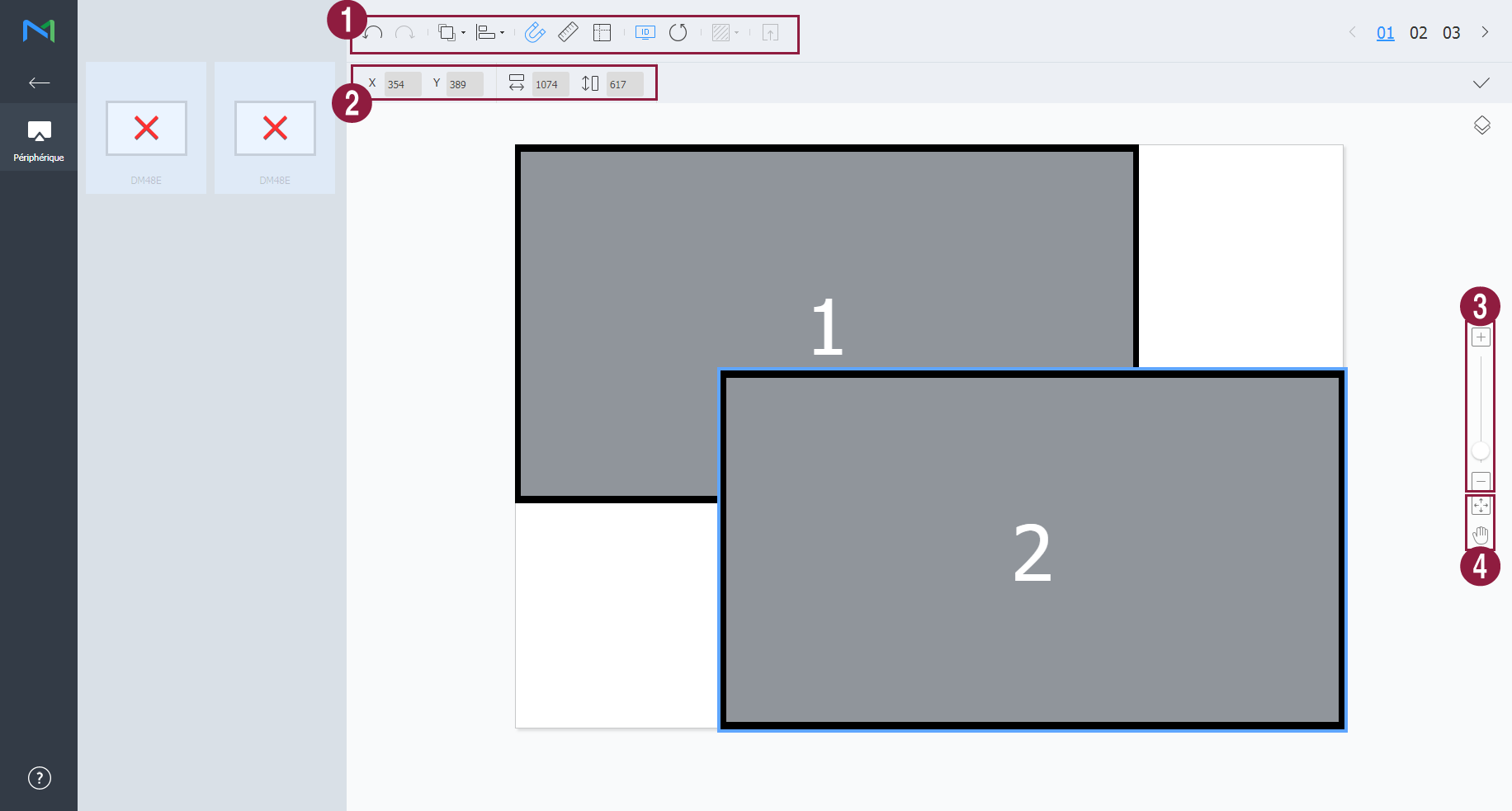
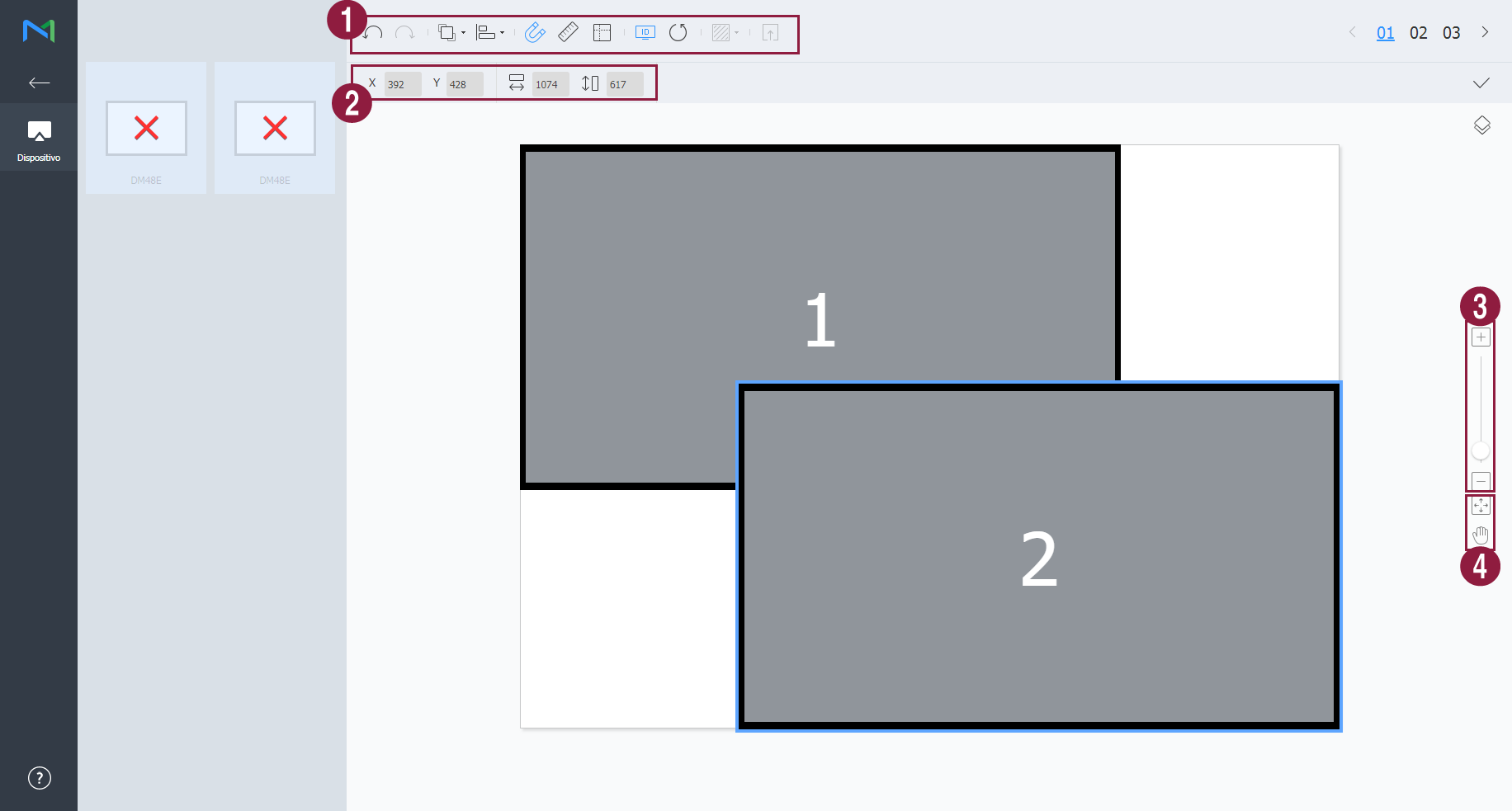
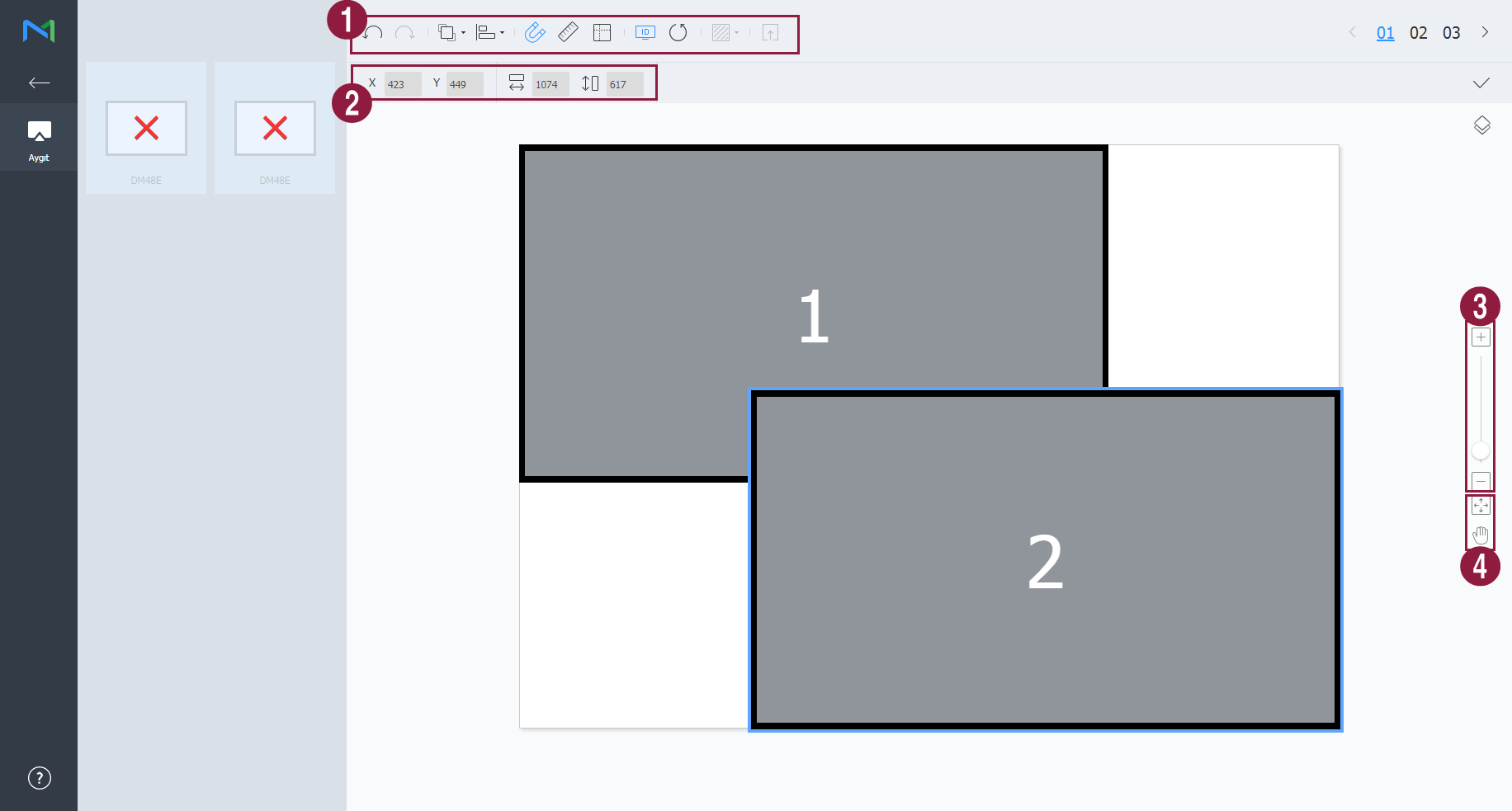
      1
      • Image Added: 마지막에 실행한 작업을 취소하여 이전 상태로 되돌릴 수 있습니다.
      • Image Added: 실행 취소한 작업을 다시 실행할 수 있습니다.
      • Image Added: 여러 개의 장치들을 원하는 정렬 기준에 맞게 한번에 정렬할 수 있습니다.
      • Image Added: 장치가 눈금에 자동으로 맞춰 정렬됩니다.
      • Image Added: 눈금자를 표시합니다.
      • Image Added: 안내선을 표시합니다.
      • Image Added: 장치에 표시할 테스트용 패턴을 선택할 수 있습니다.
      • Image Added: 적용된 레이아웃을 장치에서 미리 볼 수 있습니다.
      2장치의 위치를 미세하게 조절할 수 있습니다.
      3편집 화면의 보기 비율을 확대/축소할 수 있습니다. 슬라이드 바를 조절해 원하는 비율로 설정하세요.
      4
      • Image Added: 편집 화면의 비율과 위치를 창 사이즈에 맞게 조정하여 장치를 한눈에 확인할 수 있습니다.

      • Image Added: 선택된 장치를 이동할 수 있습니다.

      5VWL Layout Editor의 버전 및 오픈 소스 라이선스를 확인할 수 있습니다.
    4. 레이아웃 구성이 끝나면 를 클릭하세요.
      • 해당 비디오월 레이아웃이 서버에 저장됩니다.
    Sv translation
    languageen
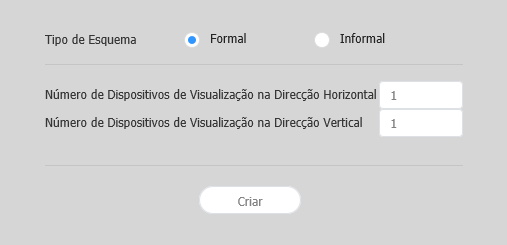
    1. Click VWL Layout Manage > Setting > New.
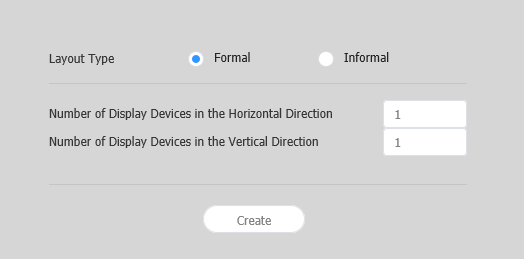
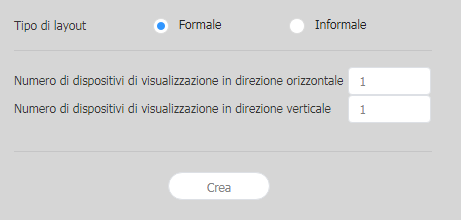
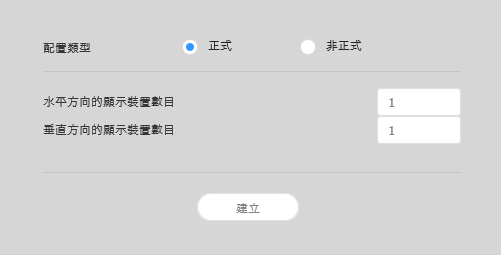
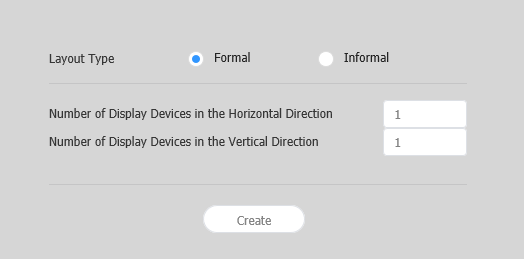
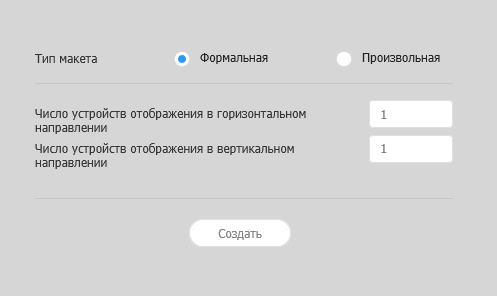
    2. Specify the layout type and the number of devices, and click Create.
      • VWL Layout Editor will launch.
      Stylesheet
      classscreen

      Image Added

      Layout types
      • Formal: Arrange devices in formal mode using a predefined matrix such as 2x2 and 3x4.
      • Informal: Customize the arrangement of devices to suit your preferences.
      Number of Display Devices in the Horizontal DirectionThe number of horizontal devices in a videowall layout is shown.
      Number of Display Devices in the Vertical DirectionThe number of vertical devices in a videowall layout is shown.
      Info
      titleNote

      Configuring layouts depends on the selected layout type. This user manual is based on the Informal type.

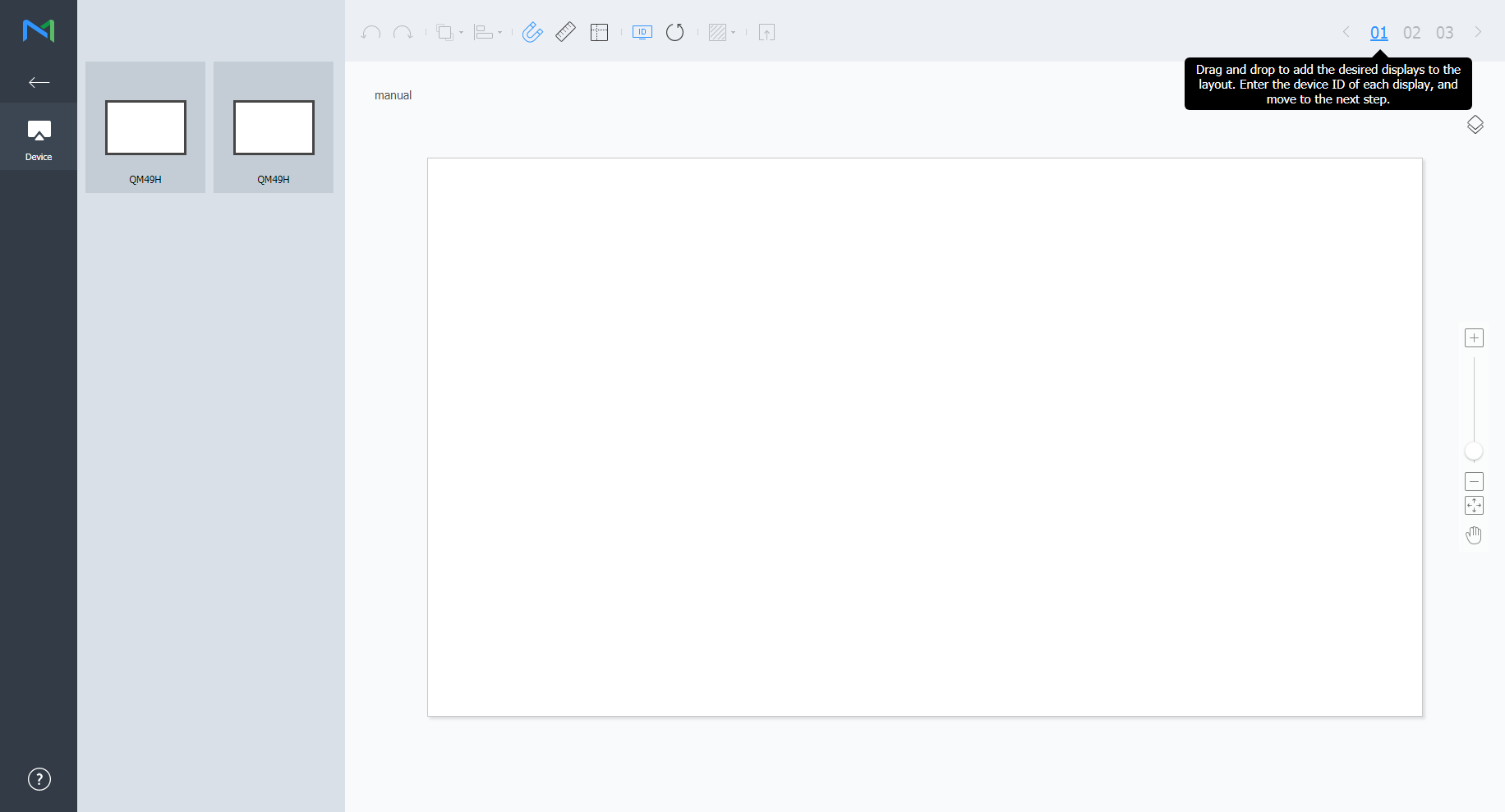
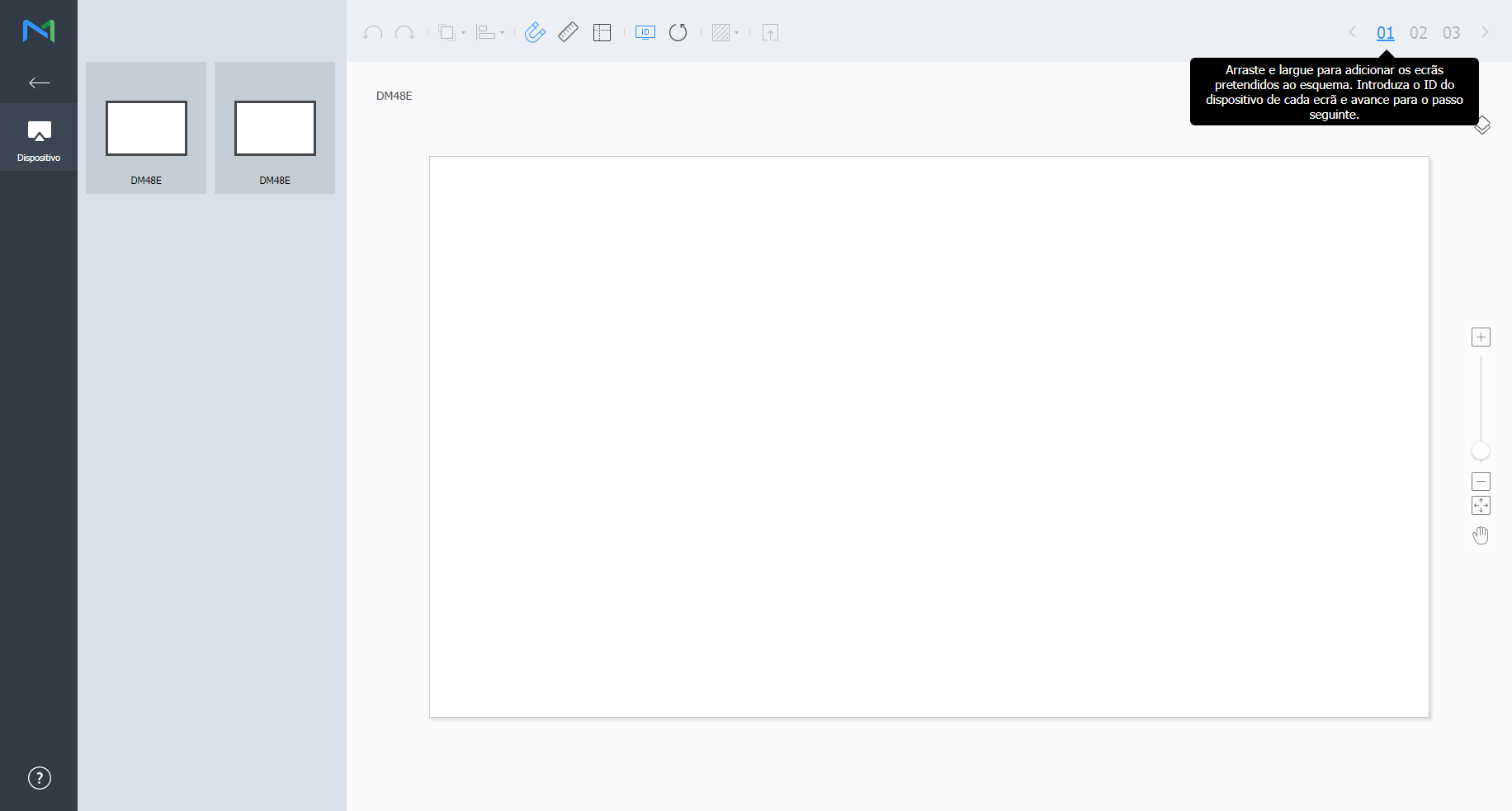
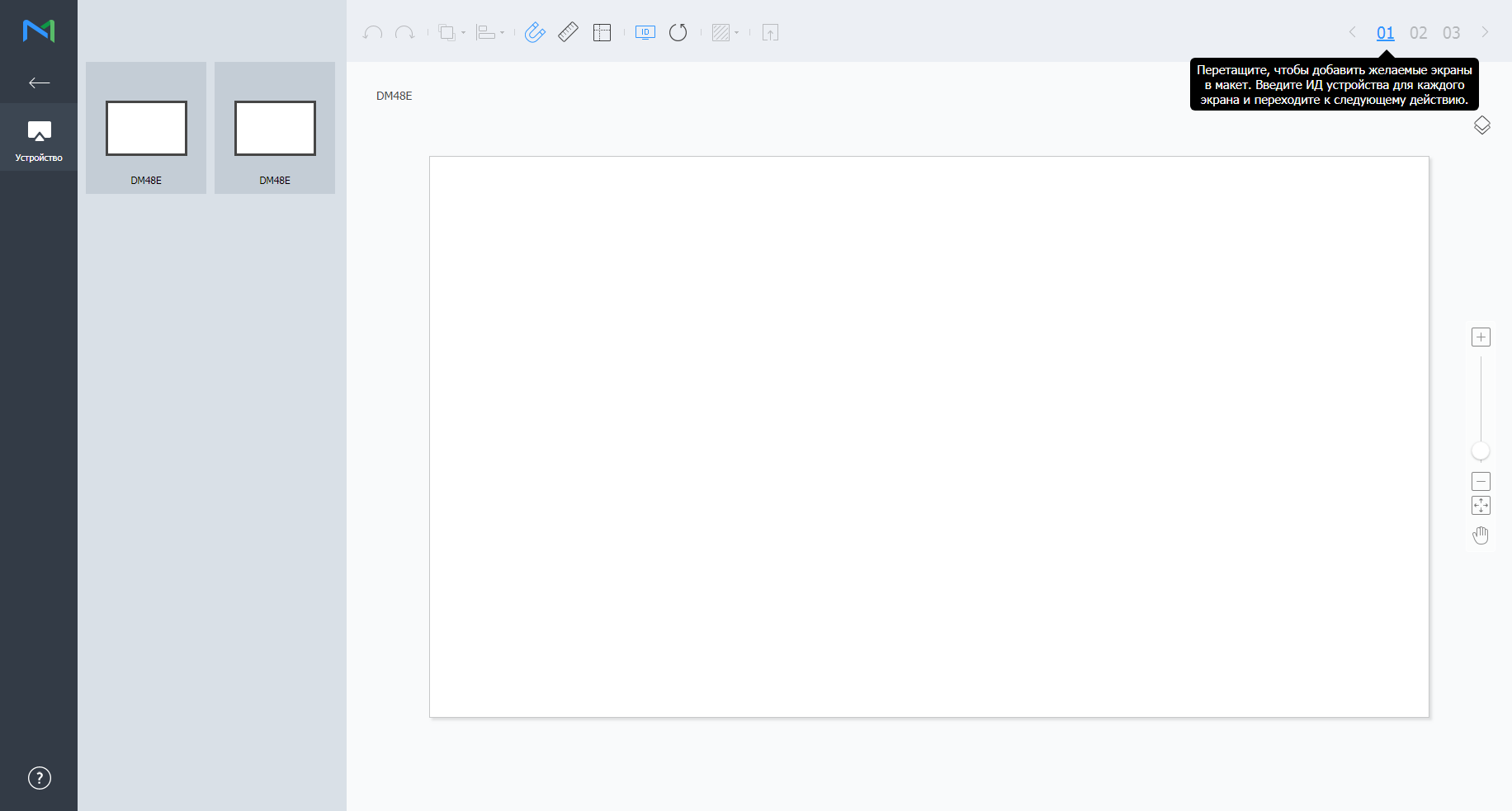
    3. Select devices from the list and drag them into the editor section.

      Info
      titleNote

      This step will not be available if you chose the the Formal type for your layout. 

      Stylesheet
      classscreen

      Image Added

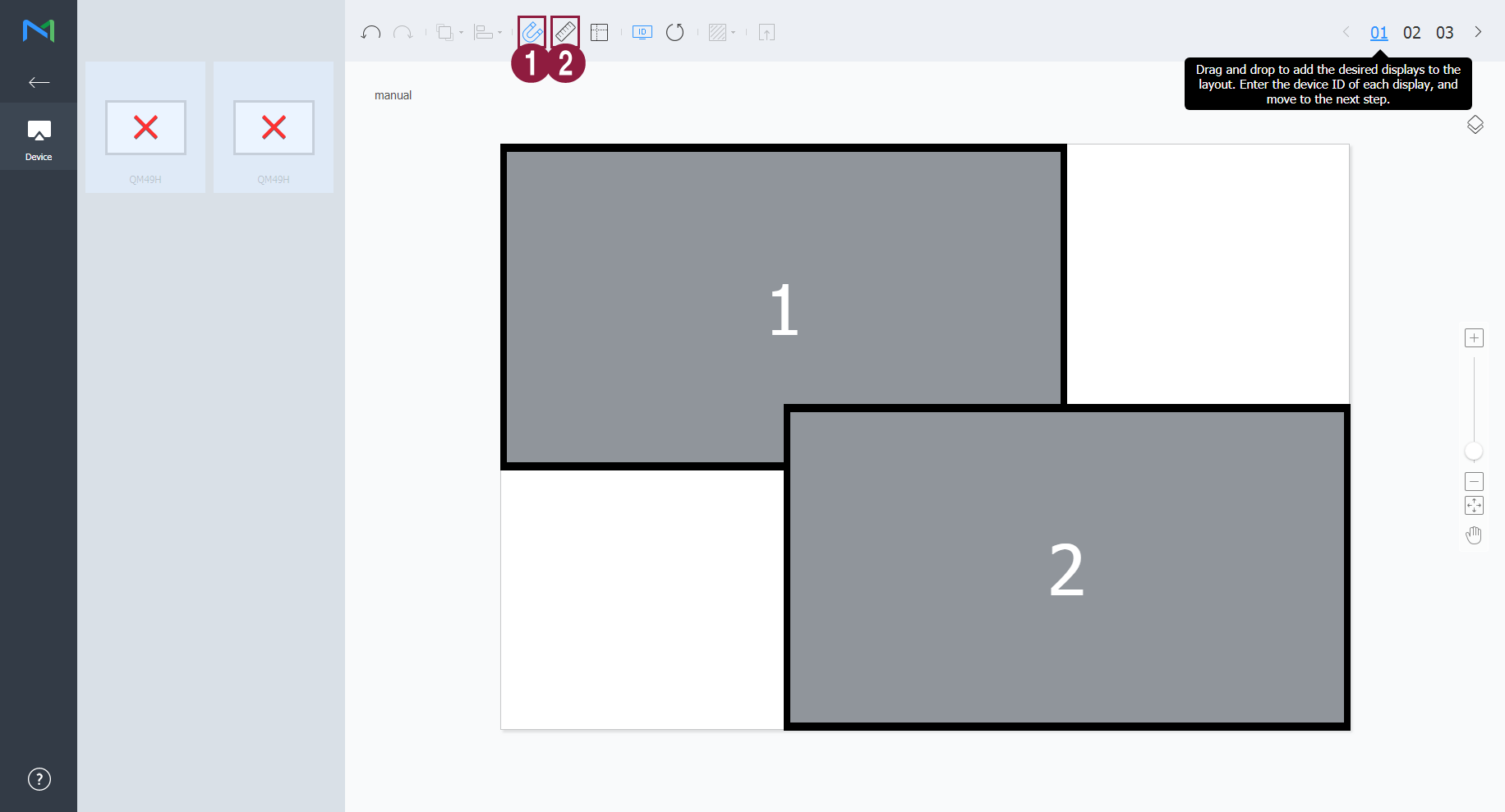
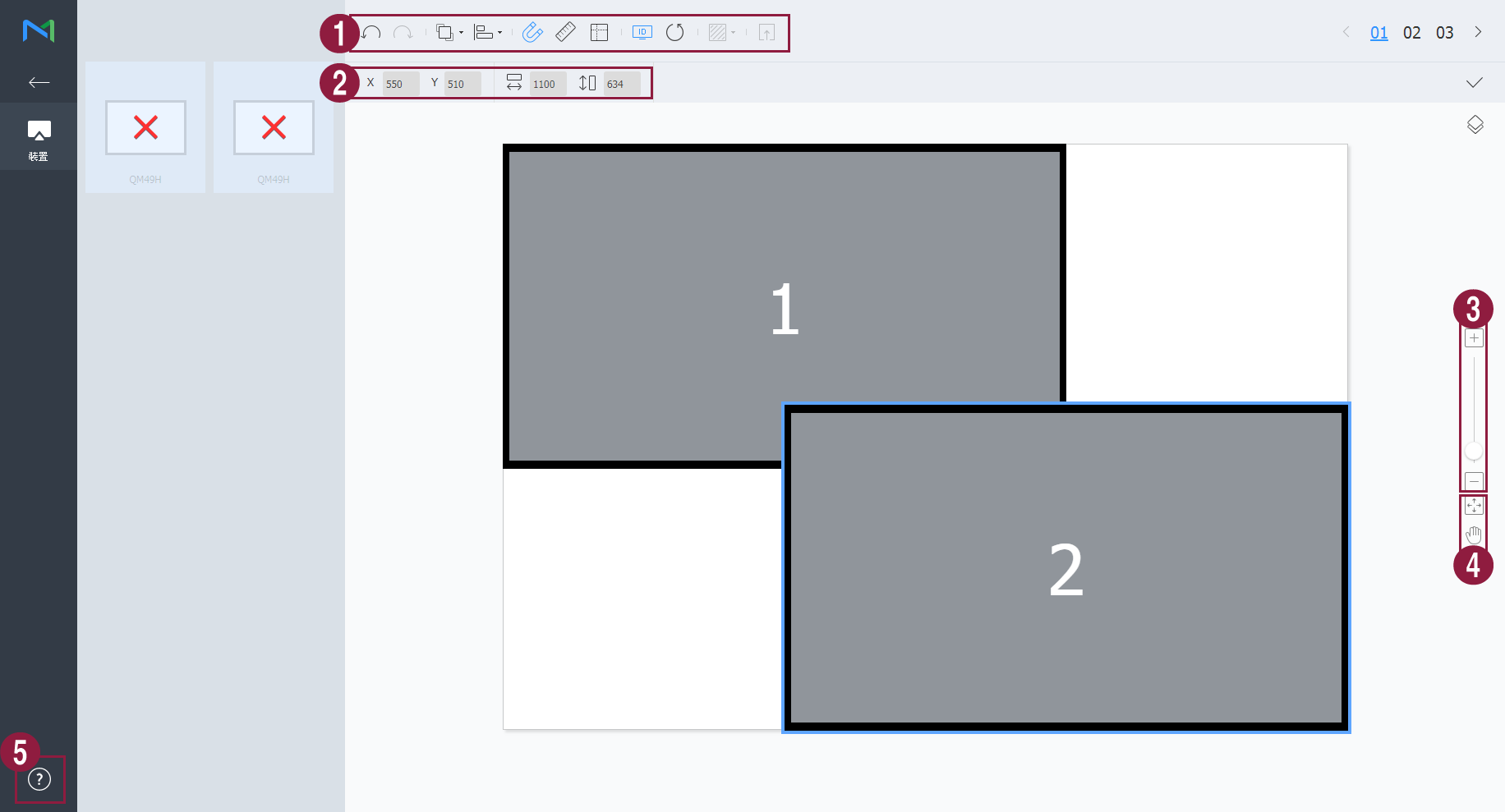
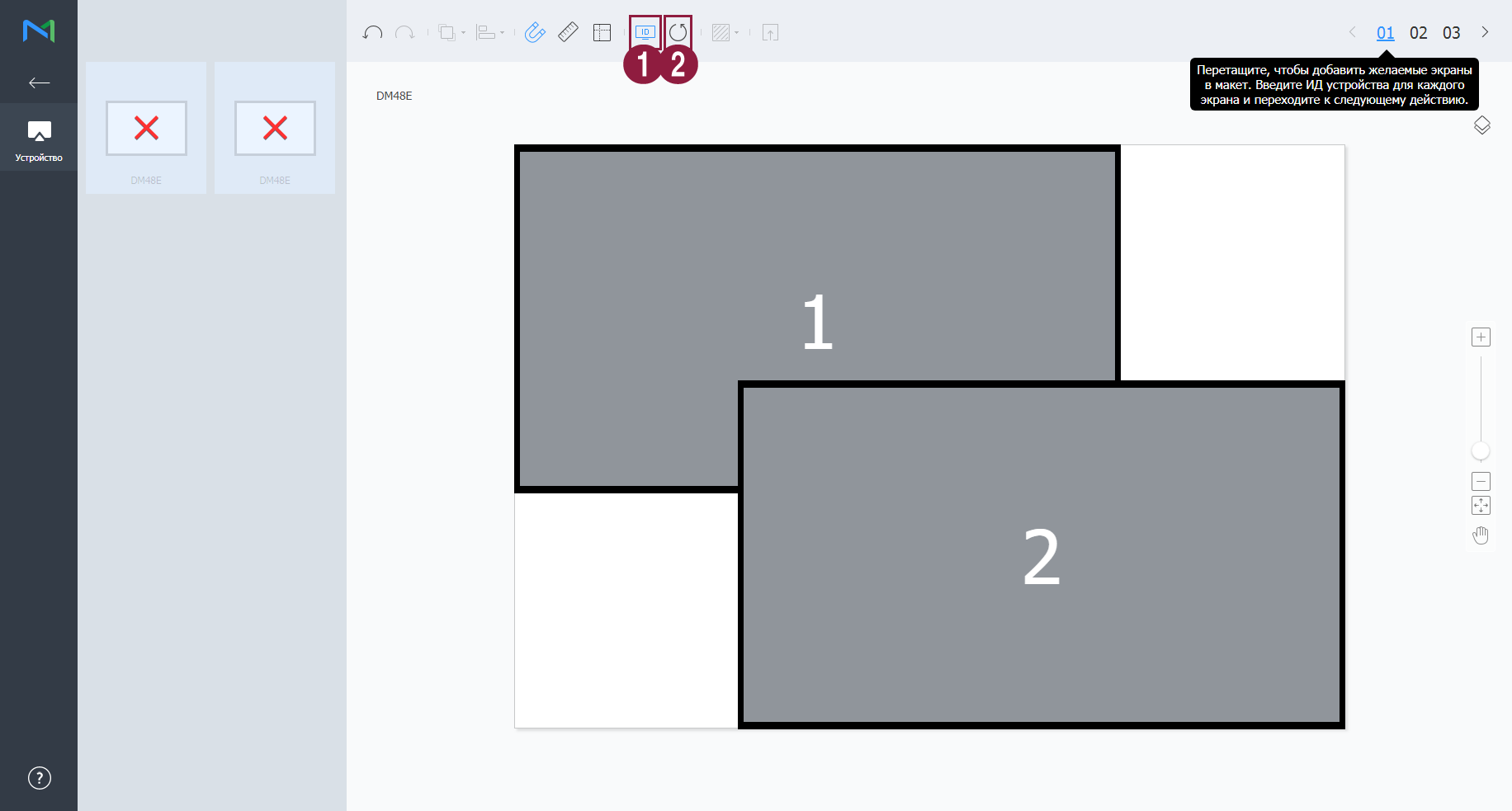
    4. Enter the device ID for each device and click 02.

      Stylesheet
      classscreen

      Image Added

      1Display the device ID on the relevant device screen.
      2Initialize the device ID for that device. 


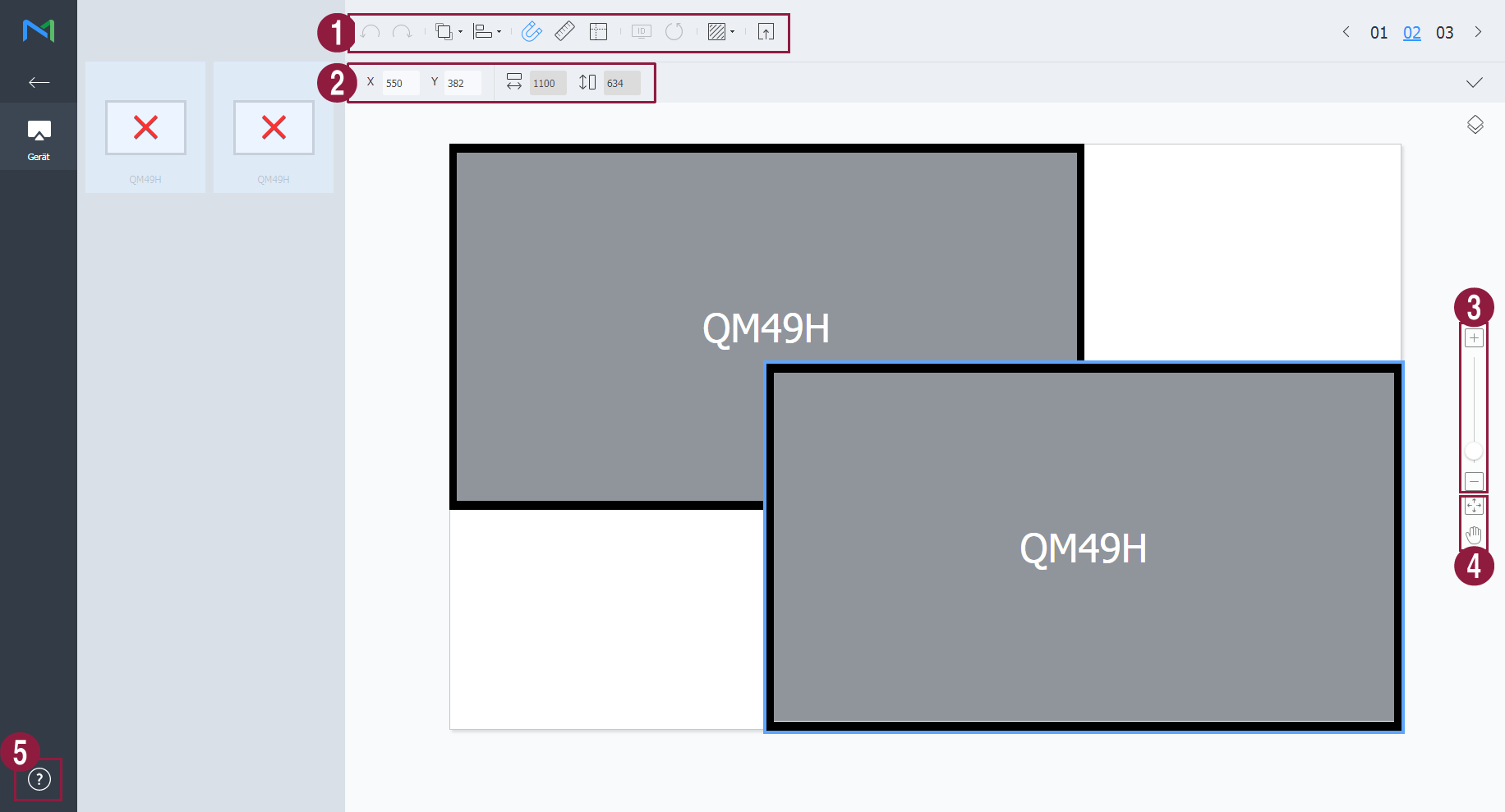
    5. Adjust the device positions and click 03.

      Stylesheet
      classscreen

      Image Added

      1
      • Image Added: Undo the last command to revert back to the previous state.
      • Image Added: Redo a command that has been undone.
      • Image Added: Align several devices based on desired alignment criteria.
      • Image Added: Automatically arrange devices to fit the grid.
      • Image Added: Display the ruler.
      • Image Added: Display the guides.
      • Image Added: Select the test pattern to display on the device.
      • Image Added: Preview the device with the layout applied.
      2Adjust the device position more precisely.
      3Zoom in or out the editor screen view. Use the slide bar to adjust the zoom level.
      4
      • Image Added: Adjust the aspect ratio and position of the editor to fit the window to overview devices.

      • Image Added: Move the selected device.

      5You can review the VWL Layout Editor version and the open source license information.


    6. After configuring the layout, click Yes.
      • The VideoWall layout will be saved to the server.
    Sv translation
    languageit
    1. Cliccare su Gestione layout VWL > Impostazioni > Nuovo.
    2. Specificare il tipo di layout e il numero di dispositivi, quindi cliccare su Crea.
      • Verrà avviato l'editor dei layout VWL.
      Stylesheet
      classscreen

      Image Added

      Tipi di layout
      • Formale: consente di disporre i dispositivi nella modalità formale utilizzando una matrice predefinita, quale 2x2 e 3x4.
      • Informale: consente di personalizzare la disposizione dei dispositivi per adattarsi alle proprie preferenze.
      Numero di dispositivi di visualizzazione in direzione orizzontaleIndica il numero di dispositivi orizzontali in un Layout VideoWall.
      Numero di dispositivi di visualizzazione in direzione verticale Indica il numero di dispositivi verticali in un Layout VideoWall. 
      Info
      titleNota

      Consente di configurare layout a seconda del tipo di layout selezionato. Questo manuale utente si basa sul tipo Informale.

    3. Consente di selezionare dispositivi dall'elenco e di trascinarli nella sezione dell'editor.

      Info
      titleNota

      Questa fase non sarà disponibile se è stato scelto il tipo di layout regolare.

      Stylesheet
      classscreen

      Image Added

    4. Inserire l'ID di ciascun dispositivo e cliccare su 02.

      Stylesheet
      classscreen

      Image Added

      1Consente di visualizzare l'ID del dispositivo sullo schermo del dispositivo pertinente.
      2Consente di avviare l'ID di un particolare dispositivo.


    5. Regolare le posizioni dei dispositivi e cliccare su 03.

      Stylesheet
      classscreen

      Image Added

      1
      • Image Added: annulla l'ultimo comando per ripristinare lo stato precedente.
      • Image Added: ripete un comando precedentemente annullato.
      • Image Added: Consente di allineare diversi dispositivi in base a un criterio di allineamento desiderato.
      • Image Added: Consente di disporre automaticamente i dispositivi per farli rientrare nella griglia.
      • Image Added: Consente di visualizzare il righello.
      • Image Added: Consente di visualizzare le guide.
      • Image Added: Consente di selezionare il modello di prova da visualizzare sul dispositivo.
      • Image Added: Consente di visualizzare l'anteprima del dispositivo con il layout applicato.
      2Consente di regolare più precisamente la posizione del dispositivo.
      3Consente di aumentare o diminuire la visualizzazione della schermata dell'editor. Utilizzare la barra di scorrimento per regolare le dimensioni di visualizzazione.
      4
      • Image Added: Consente di regolare il rapporto d'aspetto e la posizione dell'editor in base alle dimensioni della finestra per una panoramica dei dispositivi.

      • Image Added: consente di spostare il dispositivo selezionato.

      5È possibile consultare la versione dell'editor del layout VWL e le informazioni di licenza open source.
    6. Dopo aver configurato il layout, fare clic su .
      • Il layout VideoWall verrà salvato nel server.


    Sv translation
    languagede
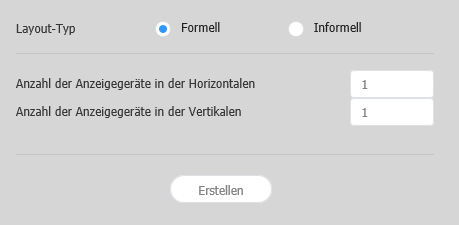
    1. Klicken Sie auf VWL Layout Manage (VWL Layoutverwaltung) > Setting (Einstellung) New (Neu).
    2. Legen Sie den Layout-Typ und die Anzahl der Geräte fest und klicken Sie auf Erstellen.
      • VWL Layout Editor wird gestartet.
      Stylesheet
      classscreen

      Image Added

      Layout types (Layout-Typen)
      • Formell: Ordnen Sie im formalen Modus Geräte anhand einer vordefinierten Matrix wie zum Beispiel 2x2 und 3x4 an.
      • Informell: Passen Sie die Anordnung der Geräte nach Ihren Wünschen an.
      Anzahl der Anzeigegeräte in der HorizontalenDie Anzahl der horizontalen Geräte in einem Videowall-Layout wird angezeigt.
      Anzahl der Anzeigegeräte in der Vertikalen Die Anzahl der vertikalen Geräte in einem Videowall-Layout wird angezeigt. 
      Info
      titleHinweis

      Die Konfiguration der Layouts hängt von dem ausgewählten Layout-Typ ab. Dieses Benutzerhandbuch ist für den Informell Typ gültig.

    3. Wählen Sie Geräte aus der Liste und ziehen Sie sie in den Editor-Abschnitt.

      Info
      titleHinweis

      Dieser Schritt ist nicht verfügbar, wenn Sie den regulären Typ für Ihr Layout wählen.

      Stylesheet
      classscreen

      Image Added

    4. Geben Sie die Geräte-ID für die einzelnen Geräte ein und klicken Sie auf 02.

      Stylesheet
      classscreen

      Image Added

      1Zeigen Sie die Geräte-ID auf dem entsprechenden Gerätebildschirm an.
      2Initialisieren Sie die Geräte-ID für das Gerät.


    5. Passen Sie die Gerätepositionen an und klicken Sie auf 03.

      Stylesheet
      classscreen

      Image Added

      1
      • Image Added : Macht den letzten Befehl rückgängig, um zum vorherigen Zustand zurückzukehren.
      • Image Added : Wiederholt den rückgängig gemachten Befehl.
      • Image Added : Richtet mehrere Geräte in der gewünschten Ausrichtung aus.
      • Image Added : Ordnen Sie automatisch Geräte so an, dass sie in das Raster passen.
      • Image Added : Zeigt das Lineal an.
      • Image Added : Zeigen Sie die Leitlinien an.
      • Image Added : Wählen Sie das Testmuster, das auf dem Gerät angezeigt werden soll.
      • Image Added : Vorschau von Gerät mit angewandtem Layout ansehen.
      2Passen Sie die Geräteposition präziser an.
      3Die Inhaltsansicht heran-/herauszoomen. Verwenden Sie den Schieberegler, um die Anzeigegröße anzupassen.
      4
      • Image Added : Passen Sie das Seitenverhältnis und die Position des Editors so an, dass er in das Fenster für die Geräteübersicht passt.

      • Image Added : Verschieben Sie das ausgewählte Gerät.

      5Sie können die VWL Layout Editor-Version und die Open Source-Lizenzinformationen prüfen.
    6. Klicken Sie nach dem Konfigurieren des Layouts auf Ja.
      • Das VideoWall-Layout wird auf dem Server gespeichert.
    Sv translation
    languagezh_TW
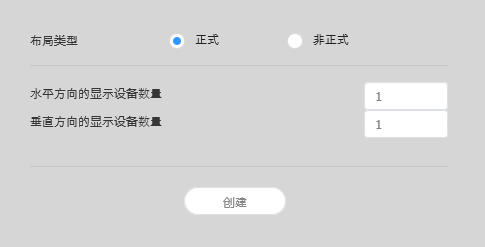
    1. 按一下 VWL 配置管理 > 設定 > 
    2. 指定裝置的配置類型和數量,然後按一下建立
      • VWL 配置編輯器將會啟動。
      Stylesheet
      classscreen

      Image Added

      配置類型
      • 正式:使用預先定義的矩陣 (例如 2x2 和 3x4) 依正式模式排列裝置。
      • 非正式: 自訂裝置的排列以符合您的喜好設定。
      以水平方向顯示的裝置數目會顯示在 VideoWall 配置 中的水平裝置數目。
      以垂直方向顯示的裝置數目 會顯示在 VideoWall 配置 中的垂直裝置數目。 
      Info
      title附註

      設定配置會隨所選配置類型而異。本使用者手冊是根據非正式類型。

    3. 從清單中選擇裝置並拖曳至編輯器區段中。

      Info
      title附註

      若您為配置選擇一般類型,則此步驟將無法使用。 

      Stylesheet
      classscreen

      Image Added

    4. 輸入每個裝置的裝置 ID,然後按一下 02

      Stylesheet
      classscreen

      Image Added

      1在相關裝置螢幕上顯示裝置 ID。
      2初始化該裝置的裝置 ID。 


    5. 調整裝置位置,然後按一下 03

      Stylesheet
      classscreen

      Image Added

      1
      • Image Added : 復原上次指令以回復至先前狀態。
      • Image Added : 重新執行已復原的指令。
      • Image Added : 按照所需的對齊模式對齊數個裝置。
      • Image Added : 自動排列裝置以配合格線。
      • Image Added : 顯示尺規。
      • Image Added : 顯示指南。
      • Image Added : 選擇要在裝置上顯示的測試模式。
      • Image Added : 預覽套用配置的裝置。
      2更精確地調整裝置位置。
      3放大或縮小編輯器畫面檢視。使用滑動列以調整檢視大小。
      4
      • Image Added : 調整編輯器的畫面比例和位置,以配合裝置概覽視窗的大小。

      • Image Added : 移動所選裝置。

      5您可以檢閱 VWL Layout Editor 版本和開放原始碼授權資訊。


    6. 設定配置之後,按一下
      • VideoWall 配置將儲存到伺服器。
    Sv translation
    languagees
    1. Haga clic en VWL Layout Manage (Admin. de diseño VWL) > Setting (Configuración) > New (Nuevo).
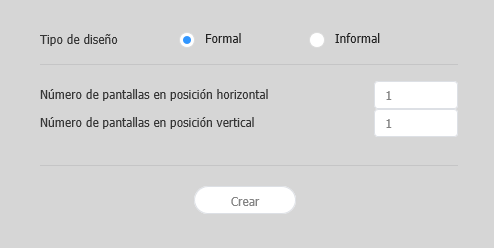
    2. Especifique el tipo de diseño y el número de dispositivos; a continuación, haga clic en Crear.
      • Se ejecutará VWL Layout Editor.
      Stylesheet
      classscreen

      Image Added

      Tipo de diseño
      • Formal: disponga los dispositivos en modo formal utilizando una matriz predefinida, como 2x2 y 3x4.
      • Informal: personalice la disposición de los dispositivos según sus preferencias.
      Número de dispositivos de pantallas en posición horizontalAparece el número de dispositivos colocados en horizontal en un Diseño VideoWall.
       Número de dispositivos de pantallas en posición verticalAparece el número de dispositivos colocados en vertical en un Diseño VideoWall. 
      Info
      titleNota

      La configuración del diseño depende del tipo de diseño seleccionado. Este manual de usuario se basa en el tipo Informal.

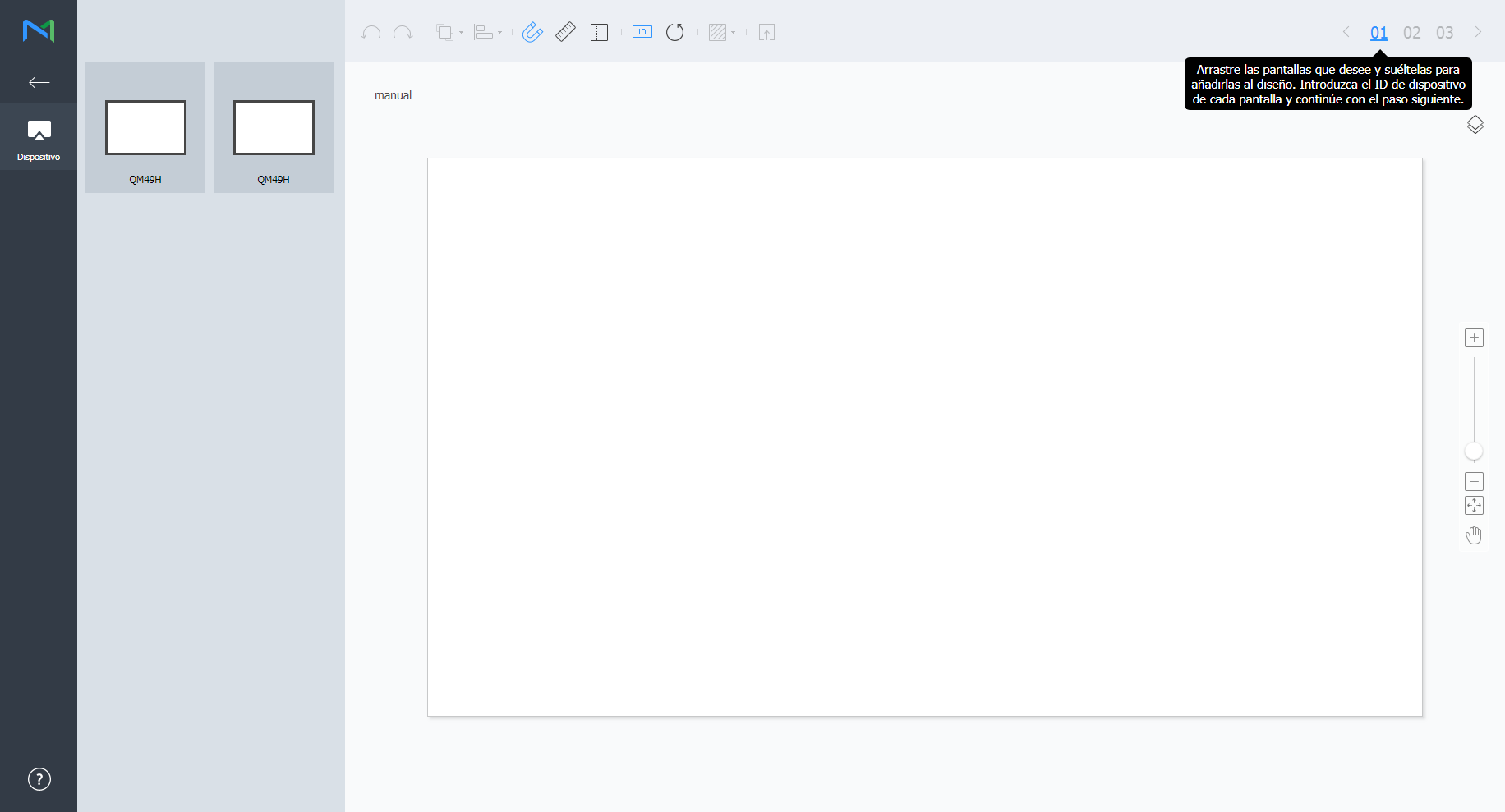
    3. Seleccione los dispositivos en la lista y arrástrelos a la sección del editor.

      Info
      titleNota

      Este paso no estará disponible si elige el tipo Formal para el diseño.

      Stylesheet
      classscreen

      Image Added

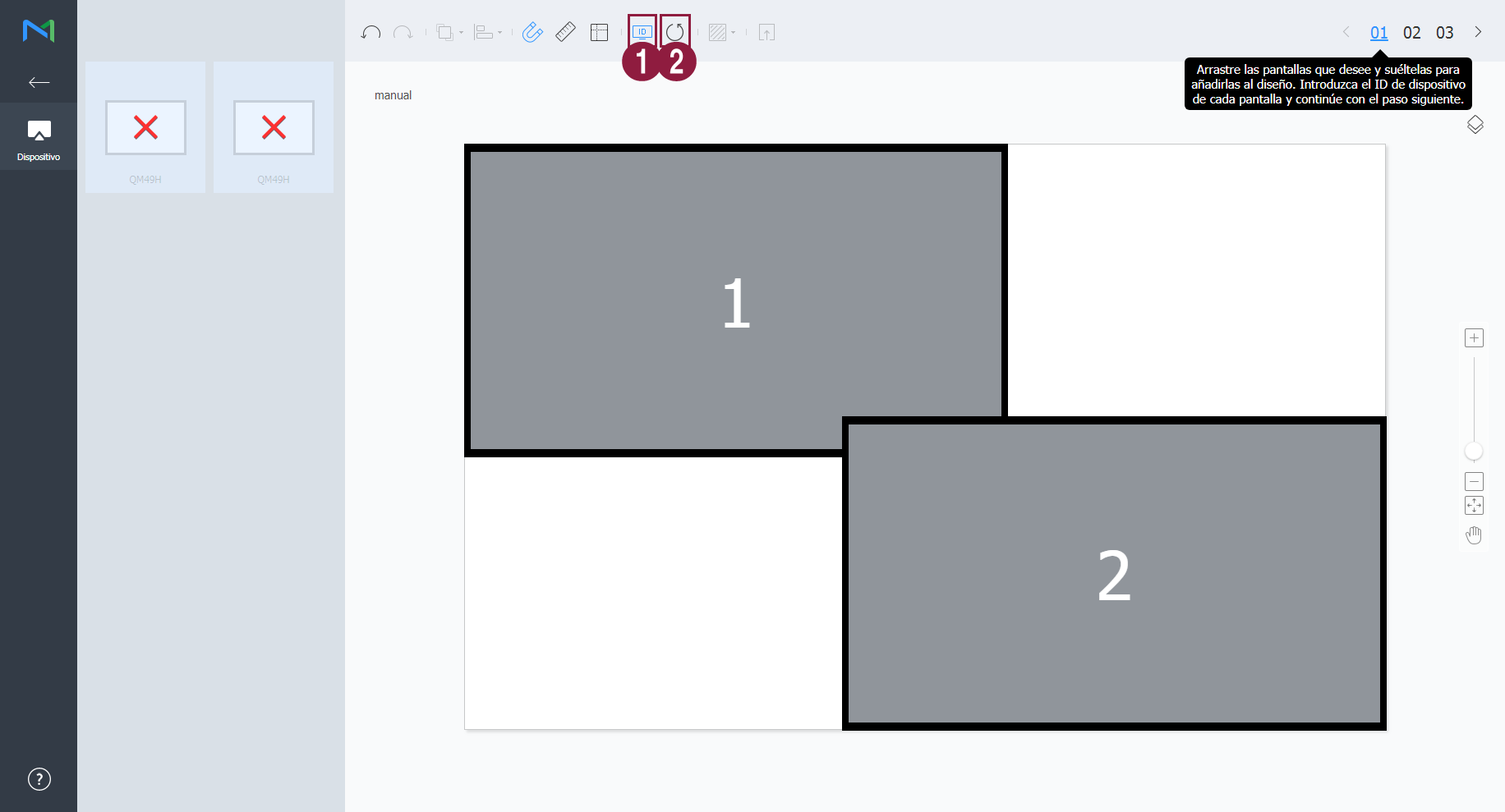
    4. Introduzca el ID de cada uno de los dispositivos y haga clic en 02.

      Stylesheet
      classscreen

      Image Added

      1Permite mostrar el ID del dispositivo en la pantalla del dispositivo relevante.
      2Inicialice el ID correspondiente al dispositivo.


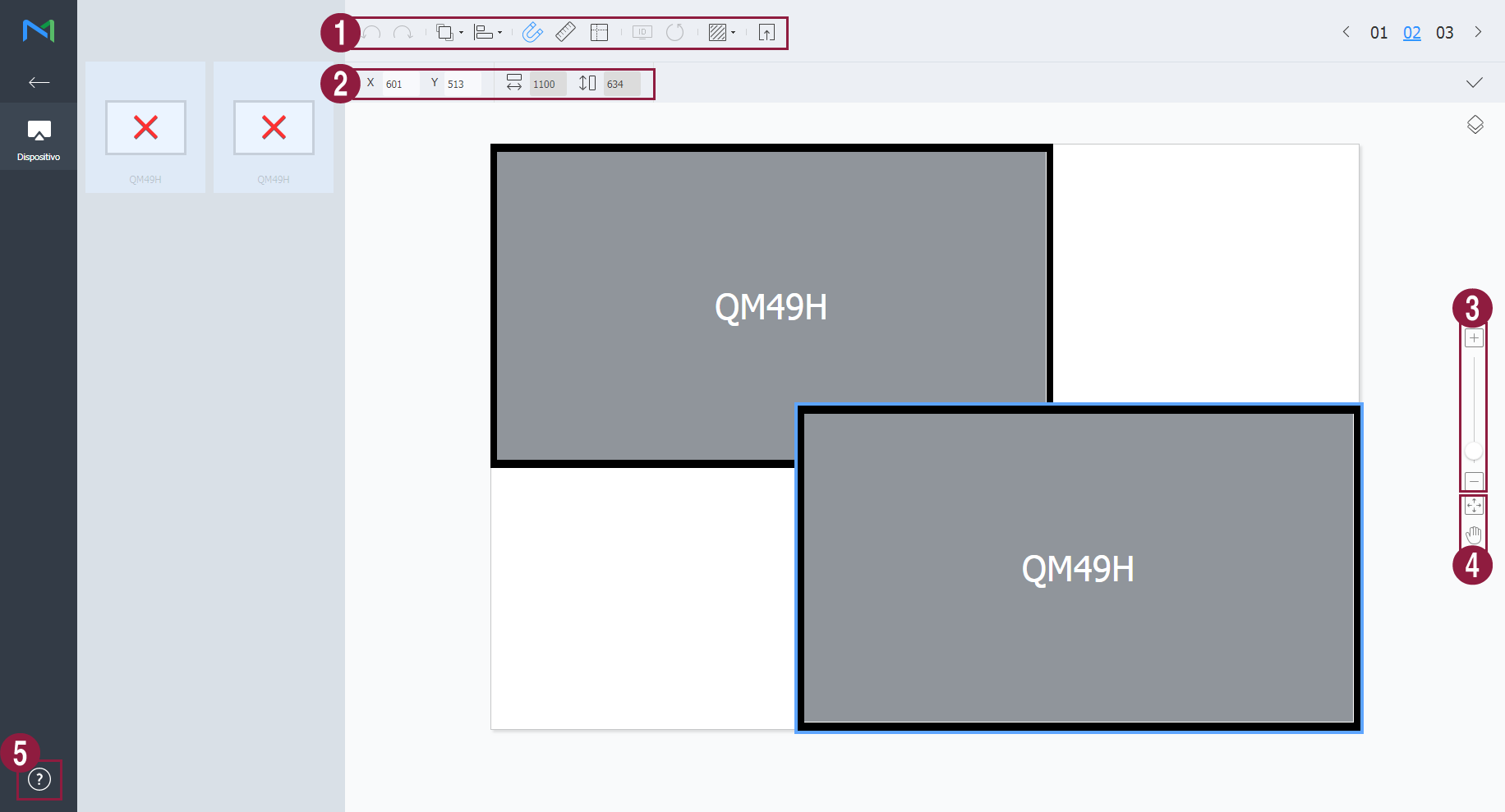
    5. Ajuste las posiciones del dispositivo y haga clic en 03.

      Stylesheet
      classscreen

      Image Added

      1
      • Image Added: deshaga el último comando para regresar al estado anterior.
      • Image Added: rehaga un comando previamente deshecho.
      • Image Added: Alinee varios dispositivos en función de los criterios de alineación que desee.
      • Image Added: Organice automáticamente los dispositivos para que se ajusten a la cuadrícula.
      • Image Added: Muestre la regla.
      • Image Added: También se pueden mostrar las guías.
      • Image Added: Seleccione el patrón de prueba que se mostrará en el dispositivo.
      • Image Added: Muestre una vista previa del dispositivo con el diseño aplicado.
      2Ajuste la posición del dispositivo de forma más precisa.
      3Amplíe o reduzca el zoom en la vista de pantalla del editor. Use la barra deslizante para ajustar el tamaño de visualización.
      4
      • Image Added: Ajuste la relación de aspecto y la posición del editor de acuerdo con la ventana para tener una vista general de los dispositivos.

      • Image Added: mueva el dispositivo seleccionado.

      5Puede revisar la versión de VWL Layout Editor y acceder a la información sobre la licencia de código abierto.


    6. Después de configurar el diseño, haga clic en .
      • El diseño de VideoWall se guardará en el servidor.

    Configuring a layout

    Configure a videowall layout as desired using Layout Mode.

    Sv translation
    languagepl

    Ustawienia układu


    Po uruchomieniu Layout Editor z MagicInfo Server wyświetla się okno ustawień Layout (Układ). Skonfiguruj w oknie podstawowe ustawienia układu, a następnie kliknij Create (Utwórz).

    • Układ videowall jest tworzony w sekcji edytowania i włączy się tryb układu.
    • Użycie utworzonego wcześniej układu videowall uruchomi Layout Mode (Tryb układu) bez wyświetlania okna ustawień Layout (układ).

    Image Added

    Content Name (Nazwa treści)

    Wpisz nazwę nowego układu videowall.

    VideoWall Layout (Układ VideoWall)

    Wybierz układ videowall. Ta opcja jest dostępna jeżeli grupę urządzeń stanowią urządzenia tego samego modelu.

    • Formal (Formalny): Zorganizuj urządzenia w trybie formalnym używając zdefiniowanej wstępnie matrycy, np. 2x2 i 3x4.
    • Irregular (Nieregularny): Dostosuj rozplanowanie urządzeń tak, by pasowały do Twoich preferencji.

    Model Name (Nazwa modelu)

    Wyświetlany jest typ urządzeń, które utworzą układ videowall.

    Number of Display Devices in the Horizontal Direction

    The number of horizontal devices in a videowall layout is shown

    (Liczba urządzeń w poziomie)

    Wyświetlana jest liczba urządzeń układu videowall w poziomie.

    Number of Display Devices in the

    Vertical Direction
    The number of vertical devices in a videowall layout is shown.
    Info
    titleNote

    Under formal videowall layout mode, a predefined layout is read-only and cannot be edited.

    Aligning devices

    1. Select a device from the edit section.
    2. Align devices using one of the following options:
      • Option 1: Click Edit > Sort on the menu bar, and then select an alignment mode.
      • Option 2: Right-click on a device in the edit section and select Sort. Next, specify the alignment mode.
      • Option 3: Click the desired alignment icon (Image Removed) from the toolbar.

    Arranging devices

    1. Select a device from the edit section.
    2. Arrange devices using one of the following options:
      • Option 1: Click Edit > Order from the menu bar, and then select an arrangement order.
      • Option 2: Right-click on a device in the edit section and select Order. Next, specify the arrangement order.
      • Option 3: Click the desired arrangement order icon (Image Removed) from the toolbar.

    Configuring section properties

    Info
    titleNote

    In Layout Editor, devices under a device group are recognized as a single section.

    Select a section from the edit section.

    Info
    titleNote

    To select a section, click on empty area other than the virtual device screen in the edit section and then click a device.

    When detailed section information appears in the Properties tab, change information about the section location (rotation angle) as desired.

    Location

    Position X, Position Y: Horizontal and vertical locations of a section are shown.

    Info
    titleNote

    X and Y values are read only and cannot be edited.

    Rotation: Specify the arrangement angle for a section. Drag the scroll bar left or right to specify the angle.

    Info
    titleNote

    Alternative ways to specify the rotation angle are as follows:

    • Select a section from the edit section, and then click and move the displayed Image Removed until a desired angle is reached.
    • Select a section from the edit section, and then specify the rotation angle using the angle setting tool (Image Removed) on the toolbar.
    • Select a section from the edit section, and then click Image Removed on the toolbar to rotate the section. The section will rotate by 90 degrees each time the icon is clicked.

    Configuring device properties

  • Select a device from the edit section.
  • When detailed information about the selected device appears in the Properties tab, configure information about the device location as desired.

    Display Device

    Display device information is read only and cannot be edited.

    • Model Name: A device model name is shown.
    • Horizontal Resolution: The horizontal resolution for a device is shown.
    • Vertical Resolution: The vertical resolution for a device is shown.
    • Width: View the device width.
      • Panel Horizontal Size: Device width is shown. The bezel thickness is excluded from the width.
      • Bezel Top to Bottom Thickness: The bezel thickness on the left and right edges of a device is shown.
    • Height: Device height is shown.
      • Panel Vertical Size: View the device height with the bezel width excluded.
      • Bezel Left to Right Thickness: The bezel thickness on the top and bottom of a device is shown.
    Location

    Configure information about a device location.

  • Center position X: Specify the horizontal location for the center of a device. Enter a location value. The device location will change.
  • Center position Y: Specify the vertical location for the center of a device. Enter a location value. The device location will change.
  • Rotation: Specify the arrangement angle for a device. Drag the scroll bar left or right to specify the angle.

    Info
    titleNote

    Alternative ways to specify the rotation angle are as follows:

    • Select a device from the edit section, and then click and move the displayed Image Removed until a desired angle is reached.
    • Select a device from the edit section, and then specify the rotation angle using the angle setting tool (Image Removed) on the toolbar.
    • Select a device from the edit section, and then click Image Removed on the toolbar to rotate the device. The device will rotate by 90 degrees each time the icon is clicked.
  • First X Position: Specify the horizontal location for the top left of a device.
  • First Y Position: Specify the vertical location for the top left of a device.
  • Second X Position: Specify the horizontal location for the top right of a device.
  • Second Y Position: Specify the vertical location for the top right of a device.
  • Third X Position: Specify the horizontal location for the bottom right of a device.
  • Third Y Position: Specify the vertical location for the bottom right of a device.
  • Fourth X Position: Specify the horizontal location for the bottom left of a device.
  • Fourth Y Position: Specify the vertical location for the bottom left of a device.

    Info

    A device location can also be configured by dragging the device to a desired location in the edit section.

    Mapping devices

    After configuring the required settings in Layout Mode, click Mapping Mode.

    An ID appears on the actual device screen as soon as Mapping Mode activates. Use the ID to control the virtual device screen in the edit section in conjunction with the actual device.

    Info
    titleNote

    Device IDs are assigned according to the number of devices that form a device group. For example, if a device group has ten devices, different IDs are displayed on each device in the range 01–10.

    1. Select a device from the edit section.
    2. When detailed information about the selected device appears in the Properties tab, enter the ID found on the actual device.
      The ID will be displayed on the device screen in the edit section.
    Info
    titleNote
    • To display or hide the device ID on an actual device screen, click Image Removed / Image Removed on the toolbar.
    • To reset the ID assigned to a device in the edit section, click Image Removed on the toolbar.

    Finely adjusting layouts

    After configuring the required settings in Mapping Mode, click Finetuning Mode.

    To finely adjust location settings for an actual device, use Finetuning Mode to edit the settings.

    Info
    titleNote
    • Finetuning Mode is only available after a device ID is set in Mapping Mode.
    • Finetuning Mode is an optional step. You may skip this step if you want.
    • In Finetuning Mode, a videowall layout can be finely adjusted even when the layout is in formal mode.
    1. Select an element (section or device) from the edit section.
    2. When detailed information about the selected element appears in the Properties tab, edit the location value.
    3. Click Image Removed on the toolbar.
      Changes will be applied.
    Info
    titleNote
    • A pattern appears on an actual device screen so that the layout can be precisely adjusted. To display or hide the pattern on an actual device screen, click Image Removed / Image Removed on the toolbar.
    • To change the pattern on an actual device screen, click Image Removed.

    Deploying to MagicInfo Server

    After configuring a videowall layout, click Complete.

    Info

    Complete step is only available after a device ID is set in Mapping Mode.

  • When prompted to confirm distribution of the VideoWall layout to MagicInfo Server, click Yes.
    The VideoWall layout you configured will be deployed to MagicInfo Server and applied to selected device group(s).
  • Horizontal Direction (Liczba urządzeń w pionie)

    Wyświetlana jest liczba urządzeń układu videowall w pionie.


    Konfiguracja układu


    Konfiguracja żądanego układu videowall z wykorzystaniem Layout Mode (Tryb układu).

    Uwaga:

    • W trybie formalnego układu videowall zdefiniowany wstępnie układ jest tylko do odczytu i nie można go edytować.

    Dopasowanie urządzeń

    1. Wybierz urządzenie z sekcji edycji.
    2. Dopasuj urządzenia wykorzystując jedną z opcji:
    • Opcja 1: Kliknij Edit (Edytuj) > Sort (Sortuj) na pasku menu, a następnie wybierz tryb dopasowania.
    • Opcja 2: Prawym przyciskiem kliknij na urządzenie w sekcji edycji i wybierz Sort (Sortuj). Następnie wskaż tryb dopasowania.
    • Opcja 3: Kliknij żądaną ikonę dopasowania (Image Added) na pasku narzędzi.

    Porządkowanie urządzeń

    1. Wybierz urządzenie z sekcji edycji.
    2. Rozmieść urządzenia wykorzystując jedną z opcji:
    • Opcja 1: Kliknij Edit (Edytuj) > Sort (Sortuj) na pasku menu, a następnie wybierz tryb porządkowania.
    • Opcja 2: Prawym przyciskiem kliknij na urządzenie w sekcji edycji i wybierz Order (Porządkuj). Następnie wskaż tryb porządkowania.
    • Opcja 3: Kliknij żądaną ikonę porządkowania (Image Added) na pasku narzędzi.

    Konfiguracja właściwości sekcji

    Uwaga:

    • W Layout Editor urządzenia w grupie urządzeń traktowane są jako jedna sekcja.
    1. Wybierz sekcję z sekcji edycji.

    Uwaga:

    • Aby wybrać sekcję kliknij puste pole (inne niż ekran urządzenia wirtualnego) w sekcji edycji, a następnie kliknij urządzenie.
    1. Kiedy w zakładce Properties (Właściwości) wyświetlą się szczegółowe informacje o sekcji, zmień informacje o lokalizacji sekcji (kąt obrotu).
    2. Kiedy w zakładce Properties (Właściwości) wyświetlą się szczegółowe informacje o sekcji, zmień informacje o lokalizacji sekcji (kąt obrotu).

    Location (Lokalizacja)

    • Position X (Położenie X)Position Y (Położenie Y): Wyświetlają się poziome i pionowe lokalizacje sekcji.

    Uwaga

    Wartości X i Y są tylko do odczytu i nie można ich edytować.

    • Rotation (Obrót): Wskaż kąt układu sekcji. Przeciągnij pasek przewijania w lewo lub prawo, by określić kąt.

    Uwaga:

    Kąt obrotu można również określić w następujący sposób:

    • Wybierz sekcję z sekcji edycji, a następnie kliknij i przesuń wyświetlany Image Added  aż do osiągnięcia żądanego kąta.
    • Wybierz sekcję z sekcji edycji, a następnie określ kąt obrotu używając narzędzia do ustawiania kąta (Image Added) na pasku narzędzi.
    • Wybierz sekcję z sekcji edycji, a następnie kliknij Image Added  na pasku narzędzi, by obrócić tę sekcję. Sekcja będzie obracać się o 90 stopni za każdym razem, gdy ikona zostanie kliknięta.


    Konfiguracja właściwości urządzeń

    1. Wybierz urządzenie z sekcji edycji.
    2. Kiedy w zakładce Properties (Właściwości) wyświetlą się szczegółowe informacje o wybranym urządzeniu, skonfiguruj informacje o lokalizacji urządzenia.

    Display Device (Urządzenie wyświetlające)

    Informacje o urządzeniu wyświetlającym  są tylko do odczytu i nie można ich edytować.

    • Model Name (Nazwa modelu): Wyświetla się nazwa modelu urządzenia.
    • Horizontal Resolution (Rozdzielczość pozioma): Wyświetla się rozdzielczość pozioma urządzenia.
    • Vertical Resolution (Rozdzielczość pionowa): Wyświetla się rozdzielczość pionowa  urządzenia.
    • Width (Szerokość): Wyświetla się szerokość urządzenia.
    • Panel Horizontal Size (Rozmiar panelu w poziomie): Wyświetla się szerokość urządzenia bez uwzględnienia grubości ramki
    • Bezel Top to Bottom Thickness (Grubość ramki góra-dół): Wyświetla się grubość ramki na lewej i prawej krawędzi urządzenia.

                            Height (Wysokość): Wyświetla się wysokość urządzenia.

    • Panel Vertical Size (Rozmiar panelu w pionie): Wyświetla się wysokość urządzenia bez uwzględnienia szerokości ramki.
    • Bezel Left to Right Thickness (Grubość ramki lewo-prawo): Wyświetla się grubość ramki u góry i na dole urządzenia.

    Location (Lokalizacja)

    Konfiguracja informacji o lokalizacji urządzenia.

                            Center position X (Położenie środkowe X): Określ lokalizację w poziomie dla środka urządzenia. Podaj wartość lokalizacji. Lokalizacja urządzenia zmieni się.

                            Center position Y (Położenie środkowe Y): Określ lokalizację w pionie dla środka urządzenia. Podaj wartość lokalizacji. Lokalizacja urządzenia zmieni się.

                            Rotation (Obrót): Wskaż kąt orientacji urządzenia. Przeciągnij pasek przewijania w lewo lub prawo, by określić kąt.

    Uwaga

    Kąt obrotu można również określić/ustawić w następujący sposób:

    • Wybierz urządzenie z sekcji edycji, a następnie kliknij i przesuń wyświetlany Image Added  aż do osiągnięcia żądanego kąta.
    • Wybierz urządzenie z sekcji edycji, a następnie określ kąt obrotu używając narzędzia do ustawiania kąta (Image Added) na pasku narzędzi.
    • Wybierz urządzenie z sekcji edycji, a następnie kliknij Image Added na pasku narzędzi, by obrócić to urządzenie. Urządzenie będzie obracać się o 90 stopni za każdym razem, gdy ikona zostanie kliknięta.

                            First X Position (Położenie pierwsze X): Określ lokalizację w poziomie dla lewego górnego rogu urządzenia.

                            First Y Position (Położenie pierwsze Y): Określ lokalizację w pionie dla lewego górnego rogu urządzenia.

                            Second X Position (Położenie drugie X): Określ lokalizację w poziomie dla prawego górnego rogu urządzenia.

                            Second Y Position (Położenie drugie Y): Określ lokalizację w pionie dla prawego górnego rogu urządzenia.

                            Third X Position (Położenie trzecie X): Określ lokalizację w poziomie dla prawego dolnego rogu urządzenia.

                            Third Y Position (Położenie trzecie Y): Określ lokalizację w pionie dla prawego dolnego rogu urządzenia.

                            Fourth X Position (Położenie czwarte X): Określ lokalizację w poziomie dla lewego dolnego rogu urządzenia.

                            Fourth Y Position (Położenie czwarte Y): Określ lokalizację w pionie dla lewego dolnego rogu urządzenia.

    Lokalizację urządzenia można także skonfigurować przeciągając urządzenie do żądanej lokalizacji w sekcji edytowania.


    Mapowanie urządzeń


    Po konfiguracji wymaganych ustawień w Layout Mode (Tryb układu) kliknij Mapping Mode (Tryb mapowania).

    Natychmiast po aktywacji Mapping Mode (Trybu mapowania) na ekranie urządzenia wyświetlane jest ID, które służy do sterowania ekranem wirtualnego urządzenia w sekcji edycji łącznie z urządzeniem.

    Uwaga:

    • Identyfikatory urządzeń są przypisywane na podstawie liczby urządzeń, które tworzą grupę. Na przykład jeżeli grupa obejmuje dziesięć urządzeń, na każdym urządzeniu wyświetlane są inne ID w przedziale od 01 do 10.
    1. Wybierz urządzenie z sekcji edycji.
    2. Kiedy w zakładce Properties (Właściwości) wyświetlą się szczegółowe informacje o wybranym urządzeniu, podaj ID wyświetlane na urządzeniu.
      ID będzie wyświetlane na ekranie urządzenia w sekcji edycji.

    Uwaga

    • Aby wyświetlić lub ukryć ID urządzenia na ekranie urządzenia, kliknij Image Added /  Image Added na pasku narzędzi.
    • Aby zresetować ID przypisane do urządzenia w sekcji edycji kliknij Image Added  na pasku narzędzi.

    Dostrajanie układów


    Po konfiguracji wymaganych ustawień w Mapping Mode (Tryb mapowania) kliknij Finetuning Mode (Tryb dostrajania).

    Trybu Finetuning Mode (Tryb dostrajania) używa się do dostrojenia ustawień lokalizacji urządzenia.

    Uwaga

    • Finetuning Mode (Tryb dostrajania) dostępny jest dopiero po ustawieniu ID urządzenia w Mapping Mode (Trybie mapowania).
    • Finetuning Mode (Tryb dostrajania) to krok opcjonalny. Można go pominąć.
    • Finetuning Mode (Tryb dostrajania) można dostroić układ videowall, nawet jeżeli układ jest w trybie formalnym.
    1. Wybierz element (sekcja lub urządzenie) z ekranu edycji.
    2. Kiedy w zakładce Properties (Właściwości) wyświetlą się szczegółowe informacje o wybranym elemencie, edytuj wartość lokalizacji.
    3. Kliknij Image Added na pasku narzędzi.
      Zmiany zostaną zastosowane.

    Uwaga

    • Na ekranie fizycznego urządzenia pojawia się wzór, dzięki któremu można precyzyjnie dostroić układ. Aby wyświetlić lub ukryć ten wzór na ekranie urządzenia, kliknij Image AddedImage Added na pasku narzędzi.
    • Aby zmienić ten wzór na ekranie urządzenia kliknij Image Added .

    Wysyłanie do MagicInfo Server


    1. Po konfiguracji układu videowall kliknij Complete (Zakończ).
      Complete (Zakończ) jako krok jest dostępne dopiero po ustawieniu ID urządzenia w Mapping Mode (Tryb mapowania).
    2. Po wyświetleniu prośby o potwierdzenie wysyłki układu VideoWall do MagicInfo Server kliknij Yes (Tak).
      Skonfigurowany układ VideoWall zostanie wysłany do MagicInfo Server i zastosowany wobec wybranej grupy (lub grup) urządzeń.


    Sv translation
    languagear
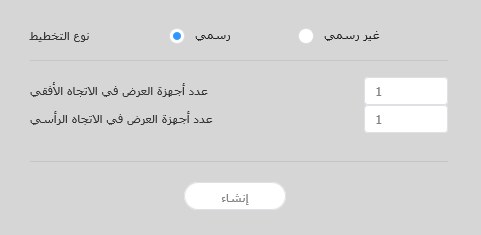
    1. انقر فوق VWL Layout Manage > Setting > New من MagicINFO Server.
    2. حدد نوع المخطط وعدد الأجهزة، ثمّ انقر فوق Create.
      • سيتم تشغيل محرر مخطط VWL.
      Stylesheet
      classscreen

      Image Added

      Layout types
      • رسمي: قم بترتيب الأجهزة في الوضع الرسمي باستخدام مصفوفة مسبقة التعريف مثل 2x2 و3x4.
      • Informal: قم بتخصيص ترتيب الأجهزة ليلائم تفضيلاتك.
      عدد أجهزة العرض في الاتجاه الأفقييظهر عدد الأجهزة الأفقية في videowall layout.
      عدد أجهزة العرض في الاتجاه الرأسي يظهر عدد الأجهزة الرأسية في videowall layout. 
      Info
      titleملاحظة

      يعتمد تكوين المخططات على نوع المخطّط المحدد. يعتمد دليل المستخدم هذا على النوع Informal.

    3. حدّد أجهزة من القائمة واسحبها إلى قسم المحرر.

      Info
      titleملاحظة

      لن تكون هذه الخطوة متاحة إذا اخترت النوع Formal بالنسبة للمخطط الخاص بك. 

      Stylesheet
      classscreen

      Image Added

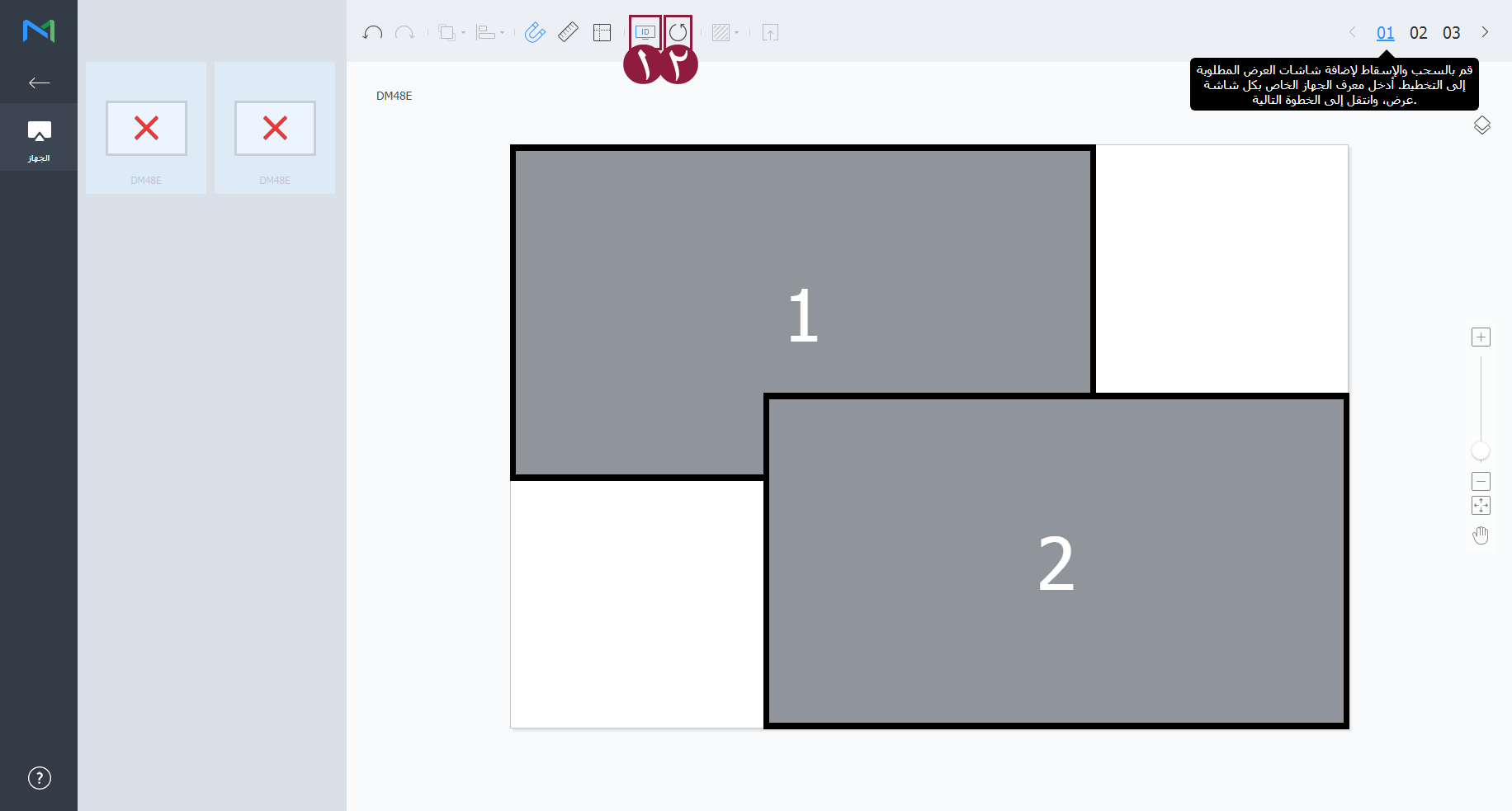
    4. أدخل معرّف الجهاز لكل جهاز وانقر فوق 02.

      Stylesheet
      classscreen

      Image Added

      1لعرض معرّف الجهاز على شاشة الجهاز المعني.
      2تهيئة معرّف الجهاز لذلك الجهاز. 


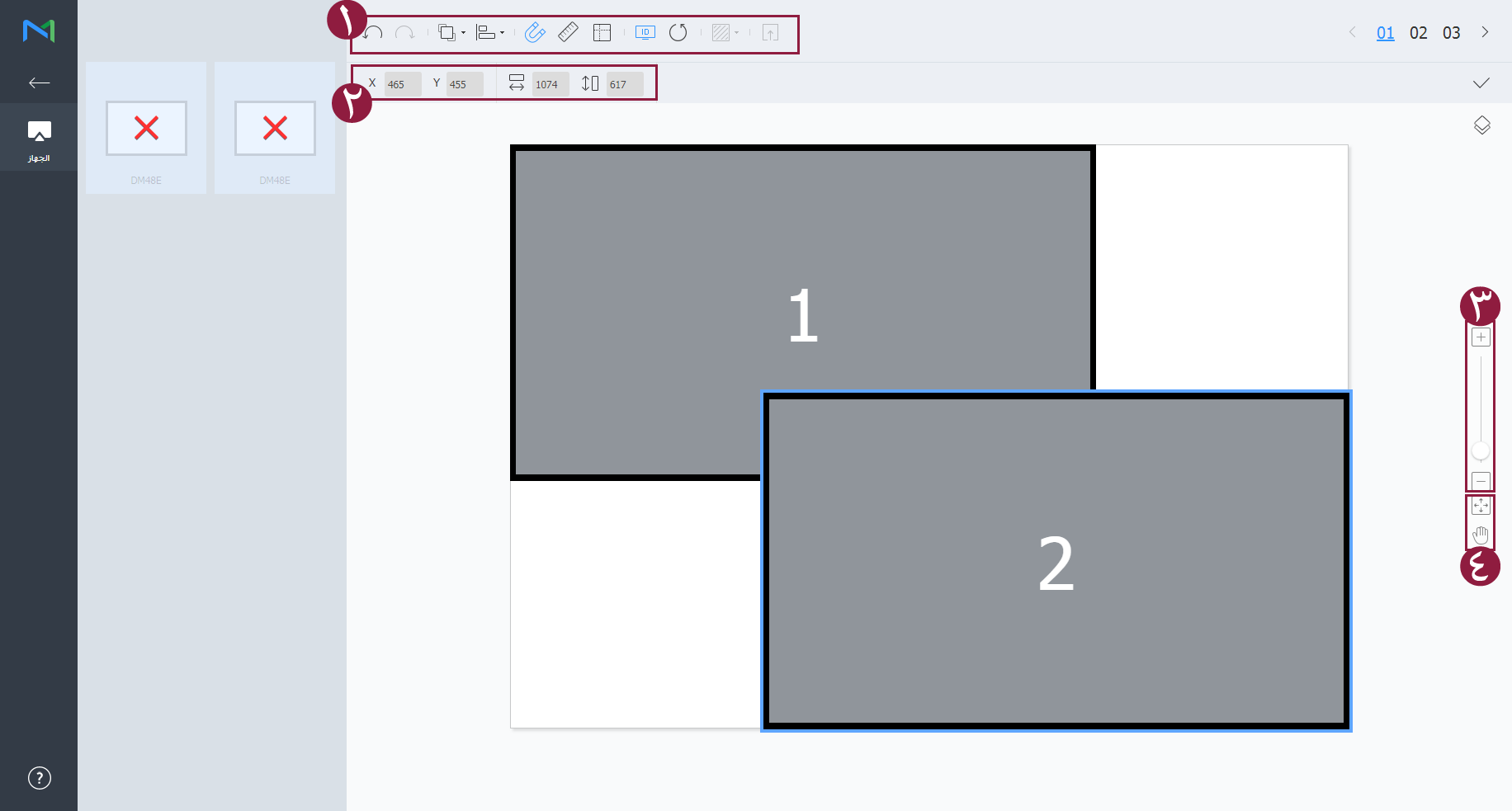
    5. عدّل مواقع الخزانة وانقر فوق 03.

      Stylesheet
      classscreen

      Image Added

      1
      • Image Added: تراجع عن آخر أمر للعودة إلى الحالة السابقة.
      • Image Added: أعد أمرًا تم التراجع عنه.
      • Image Added: محاذاة عدة أجهزة بناءً على معايير المحاذاة المرغوب فيها.
      • Image Added: ترتيب الأجهزة تلقائيًا لتلائم الشبكة.
      • Image Added: عرض المسطرة.
      • Image Added: عرض التوجيهات.
      • Image Added: حدّد نمط الاختبار للعرض على الجهاز.
      • Image Added: معاينة الجهاز مع المخطط المطبّق.
      2اضبط موقع الجهاز بشكل أكثر دقة.
      3قم بتكبير أو تصغير العرض لشاشة المحرر. استخدم شريط التمرير لضبط مستوى التكبير/التصغير.
      4
      • Image Added: اضبط الأبعاد النسبية ووضع المحرر بحيث يلائم النافذة من أجل الاطّلاع على نظرة عامة على الأجهزة.

      • Image Added: نقل الجهاز المحدد.

      5يمكنك مراجعة إصدار محرر مخطط VWL ومعلومات الترخيص مفتوح المصدر.
    6. بعد تكوين المخطط، انقر فوق Yes.
      • سيتم حفظ مخطط VideoWall في الخادم.


    Sv translation
    languagefr
    1. Cliquez sur Gestion dispos. VWL > Réglage > Nouveau dans MagicINFO Server.
    2. Spécifiez le type de disposition et le nombre de périphériques, puis cliquez sur Créer.
      • VWL Layout Editor démarre.
      Stylesheet
      classscreen

      Image Added

      Types de disposition
      • Formel : permet de disposer les périphériques selon un mode formel, en utilisant une matrice prédéfinie, telle que 2 x 2 ou 3 x 4.
      • Informel : permet de personnaliser la disposition des périphériques en fonction de vos préférences.
      Nombre de périphériques d’affichage dans le sens horizontalLe nombre de périphériques horizontaux de Dispo. VideoWall est affiché.
      Nombre de périphériques d’affichage dans le sens vertical Le nombre de périphériques verticaux de Dispo. VideoWall est affiché. 
      Info
      titleRemarque

      La configuration des dispositions varie en fonction du type de disposition sélectionné. Ce manuel d’utilisation se base sur le type Informel.

    3. Sélectionnez des périphériques dans la liste et faites-les glisser dans la section de l’édition.

      Info
      titleRemarque

      Cette étape n’est pas disponible si vous avez choisi le type formel pour la disposition.

      Stylesheet
      classscreen

      Image Added

    4. Entrez l’identifiant du périphérique pour chaque périphérique et cliquez sur 02.

      Stylesheet
      classscreen

      Image Added

      1Affichez l’identifiant de périphérique sur l’écran de périphérique concerné.
      2Initialisez l’identifiant du périphérique pour ce périphérique.


    5. Réglez les positions de périphériques et cliquez sur 03.

      Stylesheet
      classscreen

      Image Added

      1
      • Image Added : permet d’annuler la dernière commande pour rétablir l’état précédent.
      • Image Added : permet d’exécuter de nouveau une commande qui a été annulée.
      • Image Added : Alignez plusieurs périphériques selon le mode d’alignement souhaité.
      • Image Added : Disposez automatiquement les périphériques pour les adapter à la grille.
      • Image Added : Affichez la règle.
      • Image Added : Affichez les guides.
      • Image Added : Sélectionnez le modèle de test à afficher sur le périphérique.
      • Image Added : Examinez le périphérique avec la disposition appliquée.
      2Réglez la position du périphérique plus précisément.
      3Zoomez vers l’avant ou l’arrière sur la vue de l’écran d’éditeur. Utilisez le curseur pour ajuster la taille d'affichage.
      4
      • Image Added : Ajustez la taille de présentation et la position de l’éditeur en fonction de la fenêtre pour obtenir une vue d’ensemble des périphériques.

      • Image Added : Déplacement du périphérique sélectionné.

      5Vous pouvez consulter la version de VWL Layout Editor et les informations de licence open source.
    6. Après avoir configuré la disposition, cliquez sur Oui.
      • La disposition VideoWall est enregistrée sur le serveur.
    Sv translation
    languagept
    1. Clique em Gestão Dispos. VWL > Definição > Novo no MagicINFO Server.
    2. Especifique o tipo de esquema e o número de dispositivos e clique em Criar.
      • O VWL Layout Editor será iniciado.
      Stylesheet
      classEcrã do

      Image Added

      Tipos de esquema
      • Formal: Disponha os dispositivos no modo formal utilizando uma matriz predefinida, como 2x2 e 3x4.
      • Informal: Personalize a disposição dos dispositivos de acordo com as suas preferências.
      Número de Dispositivos de Visualização na Direção HorizontalÉ apresentada a quantidade de dispositivos que se encontram na horizontal num esq. videowall.
      Número de Dispositivos de Visualização na Direção Vertical É apresentada a quantidade de dispositivos que se encontram na vertical num esq. videowall. 
      Info
      titleNota

      A configuração de esquemas depende do tipo de esquema selecionado. Este manual do utilizador tem como base o tipo Informal.

    3. Selecione dispositivos da lista e arraste-os para a secção do editor.

      Info
      titleNota

      Este passo não estará disponível se optar pelo tipo de esquema formal.

      Stylesheet
      classEcrã do

      Image Added

    4. Introduza a ID de cada dispositivo e clique em 02.

      Stylesheet
      classEcrã do

      Image Added

      1Permite apresentar a ID do dispositivo no ecrã do dispositivo relevante.
      2Permite inicializar a ID desse dispositivo.


    5. Ajuste as posições do dispositivo e clique em 03.

      Stylesheet
      classEcrã do

      Image Added

      1
      • Image Added: Anule o último comando para voltar ao estado anterior.
      • Image Added: Reponha um comando que tenha sido anulado.
      • Image Added: permite alinhar vários dispositivos com base nos critérios de alinhamento pretendidos.
      • Image Added: permite ordenar automaticamente dispositivos para se ajustarem ao tamanho da grelha.
      • Image Added: permite apresentar a régua.
      • Image Added: Permite apresentar guias.
      • Image Added: permite selecionar o padrão de teste a apresentar no dispositivo.
      • Image Added: permite pré-visualizar o dispositivo com o esquema aplicado.
      2Permite ajustar a posição do dispositivo de forma mais precisa.
      3Permite ampliar ou reduzir a vista de ecrã do editor. Utilize a barra de deslize para ajustar o tamanho da visualização.
      4
      • Image Added: permite ajustar o formato e a posição do editor ao tamanho da janela para obter uma vista geral dos dispositivos.

      • Image Added: mova o dispositivo selecionado.

      5Pode rever as informações da licença de fonte aberta e a versão do VWL Layout Editor.
    6. Após configurar o esquema, clique em Sim.
      • O esquema VideoWall será guardado no servidor.
    Sv translation
    languageru
    1. Нажмите пункт VWL Layout Manage > Настройка > Новый на MagicINFO Server.
    2. Укажите тип макета и количество устройств, а затем нажмите пункт Создать.
      • Это приведет к запуску VWL Layout Editor.
      Stylesheet
      classэкран

      Image Added

      Типы макетов
      • Формальная: Расположите устройства в формальном режиме, используя предустановленную матрицу, например, 2x2 и 3x4.
      • Неформальный: Настройте размещение устройств согласно вашим предпочтениям.
      Число устройств отображения в горизонтальном направленииБудет отображено число горизонтальных устройств макета видеостены.
      Число устройств отображения в вертикальном направлении Будет отображено число вертикальных устройств макета видеостены.
      Info
      titleПримечание

      Настройка макетов в зависимости от типа макета. В данном руководстве рассматривается Неформальный тип.

    3. Выберите устройства из списка и переместите их в раздел редактора.

      Info
      titleПримечание

      Данное действие недоступно, если выбран формальный тип макета.

      Stylesheet
      classэкран

      Image Added

    4. Укажите идентификатор для каждого устройства и нажмите 02.

      Stylesheet
      classэкран

      Image Added

      1Отображение идентификатора устройства на соответствующем экране устройства.
      2Определение идентификатора этого устройства.


    5. Отрегулируйте расположение устройств и нажмите 03.

      Stylesheet
      classэкран

      Image Added

      1
      • Image Added: Отменить последнюю команду и вернуться к предыдущему состоянию.
      • Image Added: Повторить отмененную команду.
      • Image Added: Выравнивание нескольких устройств в необходимом порядке.
      • Image Added: Автоматическая сортировка устройств по размеру сетки.
      • Image Added: Отображение линейки.
      • Image Added: Отображение инструкций.
      • Image Added: Выбор тестового шаблона для отображения на устройстве.
      • Image Added: Предварительный просмотр устройства с применением макета.
      2Отрегулируйте расположение устройства более точно.
      3Вы можете увеличить или уменьшить размер экрана редактора. Для регулировки масштаба используется ползунок.
      4
      • Image Added: Регулировка соотношения и положения редактора по размеру окна для удобства восприятия общего обзора устройств.

      • Image Added: перемещение выбранного устройства.

      5Вы можете просмотреть версию VWL Layout Editor и информацию о лицензии на открытое ПО.
    6. После завершения настройки макета нажмите Да.
      • Макет видеоэкрана сохраняется на сервере.


    Sv translation
    languagezh_CN
    1. 从 MagicINFO Server 单击 VWL 布局管理 > 设置 > 新建
    2. 指定布局类型和设备数量,然后单击创建
      • 将启动 VWL Layout Editor。
      Stylesheet
      class屏幕

      Image Added

      布局类型
      • 正式:使用预定义的矩阵(例如 2x2 和 3x4)以正式模式排列设备。
      • 非正式:根据您的偏好自定义设备的排列。
      水平方向的显示设备数量VideoWall 布局 中水平设备的数量将会显示。
      垂直方向的显示设备数量VideoWall 布局 中垂直设备的数量将会显示。
      Info
      title

      配置布局取决于所选布局类型。本用户手册基于非正式类型。

    3. 从列表选择设备并将其拖动到编辑器部分中。

      Info
      title

      如果您选择正式类型的布局,则此步骤将不可用。

      Stylesheet
      class屏幕

      Image Added

    4. 输入每个设备的设备 ID,然后单击 02

      Stylesheet
      class屏幕

      Image Added

      1在相关设备屏幕上显示设备 ID。
      2初始化该设备的设备 ID。


    5. 调节设备位置,然后单击 03

      Stylesheet
      class屏幕

      Image Added

      1
      • Image Added:撤消上一个命令而恢复到上一次的状态。
      • Image Added:重新执行已经撤消的命令。
      • Image Added:根据所需的对齐标准对齐多个设备。
      • Image Added:自动排列设备以适应网格。
      • Image Added:显示标尺。
      • Image Added:显示指南。
      • Image Added:选择要在设备上显示的测试图案。
      • Image Added:预览应用布局的设备。
      2更精确地调节设备位置。
      3放大或缩小编辑器屏幕视图。可使用滑动条调节视图大小。
      4
      • Image Added:调节编辑器的纵横比和位置以适应概览设备窗口。

      • Image Added:移动所选的设备。

      5您可以查看 VWL Layout Editor 版本和开源许可证信息。
    6. 配置布局后,单击
      • 屏幕墙布局将保存到服务器。
    Sv translation
    languagetr
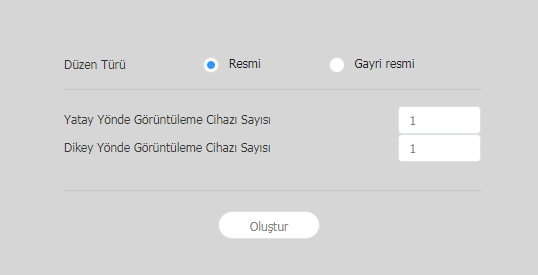
    1. MagicINFO Server'dan VWL Düzenini Yönet > Ayarlar > Yeni öğesini seçin.
    2. Düzen türünü ve aygıt sayısını belirtin ve Oluştur öğesine tıklayın.
      • VWL Layout Editor başlayacaktır.
      Stylesheet
      classekran

      Image Added

      Düzen türleri
      • Resmi: 2x2 ve 3x4 gibi önceden tanımlanmış matris kullanarak aygıtları biçimsel modda düzenleyin.
      • Gayri Resmi: Aygıtların düzenlemelerini kendi tercihlerinize uyacak şekilde özelleştirin.
      Yatay Yönde Görüntüleme Cihazı SayısıBir video duvarı düzenindeki yatay aygıtların sayısı gösterilir.
      Dikey Yönde Görüntüleme Cihazı Sayısı Bir video duvarı düzenindeki dikey aygıtların sayısı gösterilir. 
      Info
      titleNot

      Düzeni yapılandırma seçili düzen türüne bağlıdır. Bu kullanım kılavuzu Gayri Resmi türü temel alır.

    3. Listeden aygıtları seçin ve içerik düzenleme bölümüne sürükleyin.

      Info
      titleNot

      Düzeniniz için resmi türü seçerseniz bu adım kullanılmayacaktır.

      Stylesheet
      classekran

      Image Added

    4. Her aygıt için kimlik bilgisi girin ve 02 öğesine tıklayın.

      Stylesheet
      classekran

      Image Added

      1İlgili aygıt ekranında aygıt kimliğini görüntüler.
      2Bu aygıtın aygıt kimliğini başlatır.


    5. Aygıtların konumunu ayarlayın ve 03'e tıklayın.

      Stylesheet
      classekran

      Image Added

      1
      • Image Added: önceki duruma dönmek için son komutu geri alın.
      • Image Added: Geri alınmış bir komutu yineleyin.
      • Image Added: çeşitli elemanları istenilen hizalama modunda hizalar.
      • Image Added: Izgaraya sığması için aygıtları otomatik olarak düzenler.
      • Image Added: Cetveli görüntüler.
      • Image Added: Kılavuzları görüntüleme.
      • Image Added: Aygıt üzerinde görüntülenecek test örüntüsünü seçer.
      • Image Added: Aygıtı düzen uygulanmış halinin önizlemesini görüntüler.
      2Aygıt konumunu daha net ayarlayın.
      3Editör ekran görüntüsünü yakınlaştırın veya uzaklaştırın. Görünüm büyüklüğünü ayarlamak için kaydırma çubuğunu kullanın.
      4
      • Image Added: Aygıtlara yönelik genel bir bakış sağlamak için editörün en boy oranını ve konumunu ayarlayarak pencere boyutuna sığdırır.

      • Image Added: Seçili aygıtı taşırsınız.

      5VWL Layout Editor sürümünü ve açık kaynak lisans bilgisini inceleyebilirsiniz.
    6. Düzeni yapılandırdıktan sonra Evet'e tıklayın.
      • VideoWall düzeni sunucuya kaydedilecektir.
    Sv translation
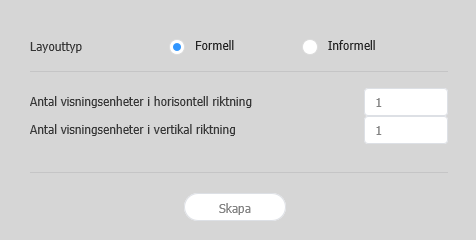
    languagesv
    1. Klicka på Hantera VWL-layout > Inställning > Ny i MagicINFO Server.
    2. Ange layouttypen och antalet enheter och klicka på Skapa.
      • VWL Layout Editor startas.
      Stylesheet
      classskärm

      Image Added

      Layouttyper
      • Formell: Ordna enheterna i formellt läge med en fördefinierad matris, t.ex. 2x2 och 3x4.
      • Informell: Anpassa ordningen av enheterna så att det blir som du vill ha det.
      Antal visningsenheter i horisontell riktningAntalet horisontella enheter i en videovägglayout visas.
      Antal visningsenheter i vertikal riktning Antalet vertikala enheter i en videovägglayout visas. 
      Info
      titleObs!

      Konfigureringslayouterna beroende på den valda layouttypen. Den här användarhandboken är baserad på typen Informell.

    3. Välj enheter i listan och dra dem till redigeringsdelen.

      Info
      titleObs!

      Det här steget kommer inte att vara tillgängligt om du valde den formella typen för din layout.

      Stylesheet
      classskärm

      Image Added

    4. Ange enhets-ID:t för varje enhet och klicka på 02.

      Stylesheet
      classskärm

      Image Added

      1Visa enhets-ID:t på den relevanta enhetens skärm.
      2Initiera enhetens ID för enheten.


    5. Justera enhetspositionerna och klicka på 03.

      Stylesheet
      classskärm

      Image Added

      1
      • Image Added: ångra det senaste kommandot och gå tillbaka till föregående status.
      • Image Added: Gör om ett kommando som har ångrats.
      • Image Added: Justera in flera enheter mot varandra baserat på de justeringsvillkor du önskar.
      • Image Added: Ordna enheter automatiskt så att de anpassas till rutnätet.
      • Image Added: Visa linjalen.
      • Image Added: Visa stödlinjerna.
      • Image Added: Markera det testmönster som ska visas på enheten.
      • Image Added: Förhandsgranska enheten med den aktuella layouten.
      2Justera enhetens position mer i detalj.
      3Zooma in eller ut i redigeringsfunktionens skärmvy. Använd skjutreglaget för att ändra visningsstorlek.
      4
      • Image Added: Justera redigeringsprogrammets storlek och position så att det passar fönstret för en översikt över enheterna.

      • Image Added: Flytta den valda enheten.

      5Du kan granska VWL Layout Editors version och informationen om den öppna källkodslicensen.
    6. Klicka på Ja när du har konfigurerat layouten.
      • VideoWall-layouten sparas på servern.