Versions Compared

Key

  • This line was added.
  • This line was removed.
  • Formatting was changed.
Comment: Content imported from a Scroll Translations translation file.
Sv translation
languageko_KR

레이아웃 설정하기


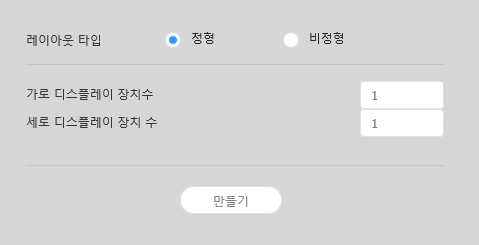
MagicInfo Server에서 Layout Editor를 실행하면 레이아웃 설정 창이 실행됩니다. 해당 창에서 레이아웃 기본 설정 후 생성을 클릭하세요.

  • 편집 영역에 비디오월 레이아웃이 생성되며 레이아웃 모드가 실행됩니다.
  • 이미 만들어진 비디오월 레이아웃을 사용할 경우 레이아웃 설정 창은 나타나지 않으며 레이아웃 모드가 바로 실행됩니다.
Stylesheet
classscreen

콘텐츠명새 비디오월 레이아웃의 이름을 입력할 수 있습니다.
비디오월 레이아웃

장치 그룹이 모두 같은 모델로 이루어져 있다면 구성할 비디오월 레이아웃 형태를 선택할 수 있습니다.

  • 정형: 장치를 2X2, 3X4 등 직사각형 형태로 정렬하여 고정된 형태의 비디오월을 구성합니다.
  • 비정형: 장치를 사용자가 원하는 형태로 자유롭게 배치할 수 있습니다.
모델명비디오월 레이아웃을 구성할 장치의 종류가 표시됩니다.
가로 디스플레이 장치수비디오월 레이아웃을 구성할 장치의 가로 개수가 표시됩니다.
세로 디스플레이 장치수비디오월 레이아웃을 구성할 장치의 세로 개수가 표시됩니다.

레이아웃 구성하기


레이아웃 모드에서 비디오월 레이아웃을 원하는대로 구성할 수 있습니다.

Info
title참고

비디오월 레이아웃이 정형일 때는 미리 설정된 레이아웃 구성을 확인만 할 수 있으며, 편집할 수 없습니다

장치 정렬하기

  1. 편집 영역에서 원하는 장치를 선택하세요.
  2. 원하는 방법을 선택해 장치를 정렬하세요.
    • 방법 1: 메뉴 바의 편집 > 정렬을 클릭한 후 원하는 정렬 기준을 선택하세요.
    • 방법 2: 편집 영역의 장치를 마우스 오른쪽 버튼으로 클릭하면 나타나는 메뉴에서 정렬을 선택한 후 정렬 기준을 지정하세요.
    • 방법 3: 도구 모음에서 원하는 정렬 아이콘()을 클릭하세요.

장치 배치하기

  1. 편집 영역에서 원하는 장치를 선택하세요.
  2. 원하는 방법을 선택해 장치를 배치하세요.
    • 방법 1: 메뉴 바의 편집 > 순서 변경을 클릭한 후 원하는 배치 순서를 선택하세요.
    • 방법 2: 편집 영역의 장치를 마우스 오른쪽 버튼으로 클릭하면 나타나는 메뉴에서 순서를 선택한 후 배치 순서를 지정하세요.
    • 방법 3: 도구 모음에서 원하는 배치순서 아이콘()을 클릭하세요.

섹션 속성 설정하기

Info
title참고

Layout Editor에서는 같은 장치 그룹의 모든 장치를 하나의 섹션으로 인식합니다.

  1. 편집 영역에서 섹션을 선택하세요.

    Info
    title참고

    편집 영역 중 가상 장치 화면 이외의 빈 영역을 선택한 상태에서 장치를 클릭하면 섹션이 선택됩니다.

  2. 속성 탭에 섹션 상세 정보가 나타나면 섹션의 위치 정보(회전 각도)를 원하는 대로 설정하세요.

    위치
    • X 위치Y 위치: 섹션의 가로, 세로 위치가 표시됩니다.

      Info
      title참고

      X, Y 위치 값은 확인만 가능하며, 수정할 수 없습니다.

    • 회전 각도: 섹션의 배치 각도를 설정할 수 있습니다. 스크롤 바를 좌우로 드래그해 원하는 각도를 설정하세요.

      Info
      title참고

      다음과 같은 방법으로도 회전 각도를 지정할 수 있습니다.

      • 편집 영역에서 섹션을 선택하면 나타나는 클릭한 후 원하는 각도로 움직이세요.
      • 편집 영역에서 섹션을 선택한 후 도구 모음에서 각도 설정 도구()로 회전각을 설정하세요.
      • 편집 영역에서 섹션을 선택한 후 도구 모음에서 클릭하면 섹션을 90도씩 회전합니다.

장치 속성 설정하기

  1. 편집 영역에서 원하는 장치를 선택하세요.
  2. 속성 탭에 선택한 장치의 상세 정보가 나타나면 장치 위치 정보를 원하는 대로 설정하세요.

    디스플레이 장치

    디스플레이 장치 정보는 확인만 가능하며, 수정할 수 없습니다.

    • 모델명: 장치의 모델명이 표시됩니다.
    • 가로 해상도: 장치의 가로 해상도 값이 표시됩니다.
    • 세로 해상도: 장치의 세로 해상도 값이 표시됩니다.
    • 가로 크기: 장치의 너비를 표시합니다.
      • 패널 수평 크기: 장치에서 베젤의 좌우 두께를 제외한 가로 크기가 표시됩니다.
      • 베젤 좌우 두께: 장치의 좌우 베젤 두께가 표시됩니다.
    • 세로 크기: 장치의 높이를 표시합니다.
      • 패널 수직 크기: 장치에서 베젤의 상하 두께를 제외한 세로 크기가 표시됩니다.
      • 베젤 상하 두께: 장치의 상하 베젤 두께가 표시됩니다.
    위치

    장치의 위치 정보를 설정할 수 있습니다.

    • 중앙점 X위치: 장치 중앙의 가로 위치를 설정할 수 있습니다. 원하는 위치 값을 입력하면 해당 장치의 위치가 변경됩니다.
    • 중앙점 Y위치: 장치 중앙의 세로 위치를 설정할 수 있습니다. 원하는 위치 값을 입력하면 해당 장치의 위치가 변경됩니다.
    • 회전 각도: 장치의 배치 각도를 설정할 수 있습니다. 스크롤 바를 좌우로 드래그해 원하는 각도를 설정하세요.

      Info
      title참고

      다음과 같은 방법으로도 회전 각도를 지정할 수 있습니다.

      • 편집 영역에서 장치를 선택하면 나타나는 클릭한 후 원하는 각도로 움직이세요.
      • 편집 영역에서 장치를 선택한 후 도구 모음에서 각도 설정 도구()로 회전각을 설정하세요.
      • 편집 영역에서 장치를 선택한 후 도구 모음에서 클릭하면 장치를 90도씩 회전합니다.
    • 첫 번째 X위치: 장치 위쪽 왼편의 가로 위치를 설정할 수 있습니다.
    • 첫 번째 Y위치: 장치 위쪽 왼편의 세로 위치를 설정할 수 있습니다.
    • 두 번째 X위치: 장치 위쪽 오른편의 가로 위치를 설정할 수 있습니다.
    • 두 번째 Y위치: 장치 위쪽 오른편의 세로 위치를 설정할 수 있습니다.
    • 세 번째 X위치: 장치 아래쪽 오른편의 가로 위치를 설정할 수 있습니다.
    • 세 번째 Y위치: 장치 아래쪽 오른편의 세로 위치를 설정할 수 있습니다.
    • 네 번째 X위치: 장치 아래쪽 왼편의 가로 위치를 설정할 수 있습니다.
    • 네 번째 Y위치: 장치 아래쪽 왼편의 세로 위치를 설정할 수 있습니다.

      Info

      장치의 위치는 편집 영역에서 장치를 선택한 후 원하는 위치로 드래그하여 설정할 수도 있습니다.

장치 맵핑하기


레이아웃 모드에서 설정이 완료되면 맵핑 모드를 클릭하세요.

맵핑 모드에 진입하면 실제 장치 화면에 ID가 나타납니다. 이 ID를 사용하여 편집 영역의 가상 장치와 실제 장치를 연동할 수 있습니다.

Info
title참고

장치 ID는 해당 장치 그룹에 속한 장치 개수에 따라 부여됩니다. 예를 들어, 장치 그룹에 모두 10개의 장치가 있다면 각 장치에는 01~10 까지의 ID가 나타납니다.

  1. 편집 영역에서 원하는 장치를 선택하세요.
  2. 속성 탭에 선택한 장치의 상세 정보가 나타나면 실제 장치에서 확인한 ID를 입력하세요.
    편집 영역의 해당 장치 화면에 입력한 ID가 표시됩니다.
Info
title참고
  • 실제 장치 화면에서 각 장치의 ID를 표시/숨기기 하려면 도구 모음에서 / 클릭하세요.
  • 편집 영역의 각 장치에 지정한 ID를 초기화하려면 도구 모음에서 클릭하세요.

레이아웃 미세 조정하기


맵핑 모드에서 설정이 완료되면 미세조정 모드를 클릭하세요.

실제 장치의 위치 설정에 미세한 조정이 필요한 경우 미세조정 모드를 사용하여 간편하게 수정할 수 있습니다.

Info
title참고
  • 맵핑 모드에서 장치 ID 설정을 완료해야 미세조정 모드를 사용할 수 있습니다.
  • 미세조정 모드는 필수가 아닌 선택 단계로 이 모드에서 특별한 설정 없이 다음 단계를 바로 진행할 수 있습니다.
  • 미세조정 모드에서는 비디오월 레이아웃이 정형인 경우에도 레이아웃 미세 조정이 가능합니다.
  1. 편집 영역에서 원하는 요소(섹션 또는 장치)를 선택하세요.
  2. 속성 탭에 선택한 요소의 상세 정보가 나타나면 위치 값을 수정하세요.
  3. 도구 모음에서 클릭하세요.
    변경 사항이 적용됩니다.
Info
title참고
  • 레이아웃을 정확히 조정할 수 있도록 실제 장치 화면에 패턴이 나타납니다. 실제 장치 화면에서 패턴을 표시/숨기기 하려면 도구 모음에서/ 클릭하세요.
  • 실제 장치 화면에 표시된 패턴을 변경하려면 클릭하세요.

MagicInfo Server에 배포하기


  1. 비디오월 레이아웃 구성이 완료되면 작업 완료를 클릭하세요.

    Info

    맵핑 모드에서 장치 ID 설정을 완료해야 작업 완료 단계를 사용할 수 있습니다.

  2. 비디오월 레이아웃을 MagicInfo Server로 배포할 것인지 확인하는 창이 나타나면 를 클릭하세요.
    구성한 비디오월 레이아웃이 MagicInfo Server로 배포되며, 해당 장치 그룹에 적용됩니다.


Sv translation
languageen

Layout settings


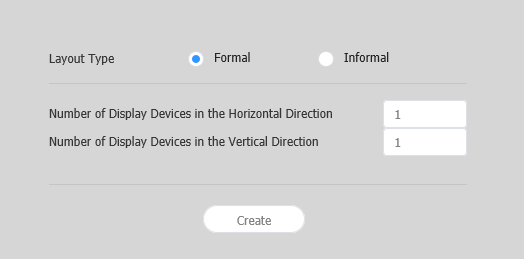
If you launch Layout Editor from MagicInfo Server, the Layout setting window appears. Configure basic layout settings from the window, and then click Create.

  • A videowall layout is created in the edit section, and layout mode activates.
  • Using a previously created videowall layout will start Layout Mode without displaying the Layout setting window.
Stylesheet
classscreen

Content NameEnter a new videowall layout name.
VideoWall Layout

Select a videowall layout. This option is available when the device group consists of devices of the same model.

  • Formal: Arrange devices in formal mode using a predefined matrix such as 2x2 and 3x4.
  • Irregular: Customize the arrangement of devices to suit your preferences.
Model NameThe type of devices that will form a videowall layout is shown.
Number of Display Devices in the Horizontal DirectionThe number of horizontal devices in a videowall layout is shown.
Number of Display Devices in the Vertical DirectionThe number of vertical devices in a videowall layout is shown.

Configuring a layout


Configure a videowall layout as desired using Layout Mode.

Info
titleNote

Under formal videowall layout mode, a predefined layout is read-only and cannot be edited.

Aligning devices

  1. Select a device from the edit section.
  2. Align devices using one of the following options:
    • Option 1: Click Edit > Sort on the menu bar, and then select an alignment mode.
    • Option 2: Right-click on a device in the edit section and select Sort. Next, specify the alignment mode.
    • Option 3: Click the desired alignment icon () from the toolbar.

Arranging devices

  1. Select a device from the edit section.
  2. Arrange devices using one of the following options:
    • Option 1: Click Edit > Order from the menu bar, and then select an arrangement order.
    • Option 2: Right-click on a device in the edit section and select Order. Next, specify the arrangement order.
    • Option 3: Click the desired arrangement order icon () from the toolbar.

Configuring section properties

Info
titleNote

In Layout Editor, devices under a device group are recognized as a single section.

  1. Select a section from the edit section.

    Info
    titleNote

    To select a section, click on empty area other than the virtual device screen in the edit section and then click a device.

  2. When detailed section information appears in the Properties tab, change information about the section location (rotation angle) as desired.

    Location
    • Position X, Position Y: Horizontal and vertical locations of a section are shown.

      Info
      titleNote

      X and Y values are read only and cannot be edited.

    • Rotation: Specify the arrangement angle for a section. Drag the scroll bar left or right to specify the angle.

      Info
      titleNote

      Alternative ways to specify the rotation angle are as follows:

      • Select a section from the edit section, and then click and move the displayed until a desired angle is reached.
      • Select a section from the edit section, and then specify the rotation angle using the angle setting tool () on the toolbar.
      • Select a section from the edit section, and then click on the toolbar to rotate the section. The section will rotate by 90 degrees each time the icon is clicked.

Configuring device properties

  1. Select a device from the edit section.
  2. When detailed information about the selected device appears in the Properties tab, configure information about the device location as desired.

    Display Device

    Display device information is read only and cannot be edited.

    • Model Name: A device model name is shown.
    • Horizontal Resolution: The horizontal resolution for a device is shown.
    • Vertical Resolution: The vertical resolution for a device is shown.
    • Width: View the device width.
      • Panel Horizontal Size: Device width is shown. The bezel thickness is excluded from the width.
      • Bezel Top to Bottom Thickness: The bezel thickness on the left and right edges of a device is shown.
    • Height: Device height is shown.
      • Panel Vertical Size: View the device height with the bezel width excluded.
      • Bezel Left to Right Thickness: The bezel thickness on the top and bottom of a device is shown.
    Location

    Configure information about a device location.

    • Center position X: Specify the horizontal location for the center of a device. Enter a location value. The device location will change.
    • Center position Y: Specify the vertical location for the center of a device. Enter a location value. The device location will change.
    • Rotation: Specify the arrangement angle for a device. Drag the scroll bar left or right to specify the angle.

      Info
      titleNote

      Alternative ways to specify the rotation angle are as follows:

      • Select a device from the edit section, and then click and move the displayed until a desired angle is reached.
      • Select a device from the edit section, and then specify the rotation angle using the angle setting tool () on the toolbar.
      • Select a device from the edit section, and then click on the toolbar to rotate the device. The device will rotate by 90 degrees each time the icon is clicked.
    • First X Position: Specify the horizontal location for the top left of a device.
    • First Y Position: Specify the vertical location for the top left of a device.
    • Second X Position: Specify the horizontal location for the top right of a device.
    • Second Y Position: Specify the vertical location for the top right of a device.
    • Third X Position: Specify the horizontal location for the bottom right of a device.
    • Third Y Position: Specify the vertical location for the bottom right of a device.
    • Fourth X Position: Specify the horizontal location for the bottom left of a device.
    • Fourth Y Position: Specify the vertical location for the bottom left of a device.

      Info

      A device location can also be configured by dragging the device to a desired location in the edit section.

Mapping devices


After configuring the required settings in Layout Mode, click Mapping Mode.

An ID appears on the actual device screen as soon as Mapping Mode activates. Use the ID to control the virtual device screen in the edit section in conjunction with the actual device.

Info
titleNote

Device IDs are assigned according to the number of devices that form a device group. For example, if a device group has ten devices, different IDs are displayed on each device in the range 01–10.

  1. Select a device from the edit section.
  2. When detailed information about the selected device appears in the Properties tab, enter the ID found on the actual device.
    The ID will be displayed on the device screen in the edit section.
Info
titleNote
  • To display or hide the device ID on an actual device screen, click / on the toolbar.
  • To reset the ID assigned to a device in the edit section, click on the toolbar.

Finely adjusting layouts


After configuring the required settings in Mapping Mode, click Finetuning Mode.

To finely adjust location settings for an actual device, use Finetuning Mode to edit the settings.

Info
titleNote
  • Finetuning Mode is only available after a device ID is set in Mapping Mode.
  • Finetuning Mode is an optional step. You may skip this step if you want.
  • In Finetuning Mode, a videowall layout can be finely adjusted even when the layout is in formal mode.
  1. Select an element (section or device) from the edit section.
  2. When detailed information about the selected element appears in the Properties tab, edit the location value.
  3. Click on the toolbar.
    Changes will be applied.
Info
titleNote
  • A pattern appears on an actual device screen so that the layout can be precisely adjusted. To display or hide the pattern on an actual device screen, click / on the toolbar.
  • To change the pattern on an actual device screen, click .

Deploying to MagicInfo Server


  1. After configuring a videowall layout, click Complete.

    Info

    Complete step is only available after a device ID is set in Mapping Mode.

  2. When prompted to confirm distribution of the VideoWall layout to MagicInfo Server, click Yes.
    The VideoWall layout you configured will be deployed to MagicInfo Server and applied to selected device group(s).