Versions Compared

Key

  • This line was added.
  • This line was removed.
  • Formatting was changed.

...

Shows the content items that were played more frequently compared to other content items
Sv translation
languageen

View information about frequently played content. the playback status for each index, e.g., an individual index or key index group, and the status of playback in which key indexes are combined. Retrieved data is shown in visual format, e.g., graphs and a table, so that you can obtain an intuitive view of content index playback status by period.

  1. From the menu bar on the Insight screen, click Playback > Content Index .
  2. Set the analysis period in the search area at the top. Analysis result is displayed based on the period specified in Settings > Index Settings > Date Range .

    Info
    titleNote
    • To select all data items or only analyze specific data items, click Open Detailed Search . It is possible to select specific device groups or key indexes, as well as a search period. It is also possible to analyze data collected during a maximum of 60 days within the last two years.
    • Logs and processed data are retained for a maximum of two years.
  3. Click Search . The statistics that match the search conditions are presented in graphs and a table.

    Stylesheet
    classscreen
    Image RemovedImage Added
  4. To save retrieved statistics as a PDF or HTML file, click Export .

Understanding retrieved data

The following data items are displayed.

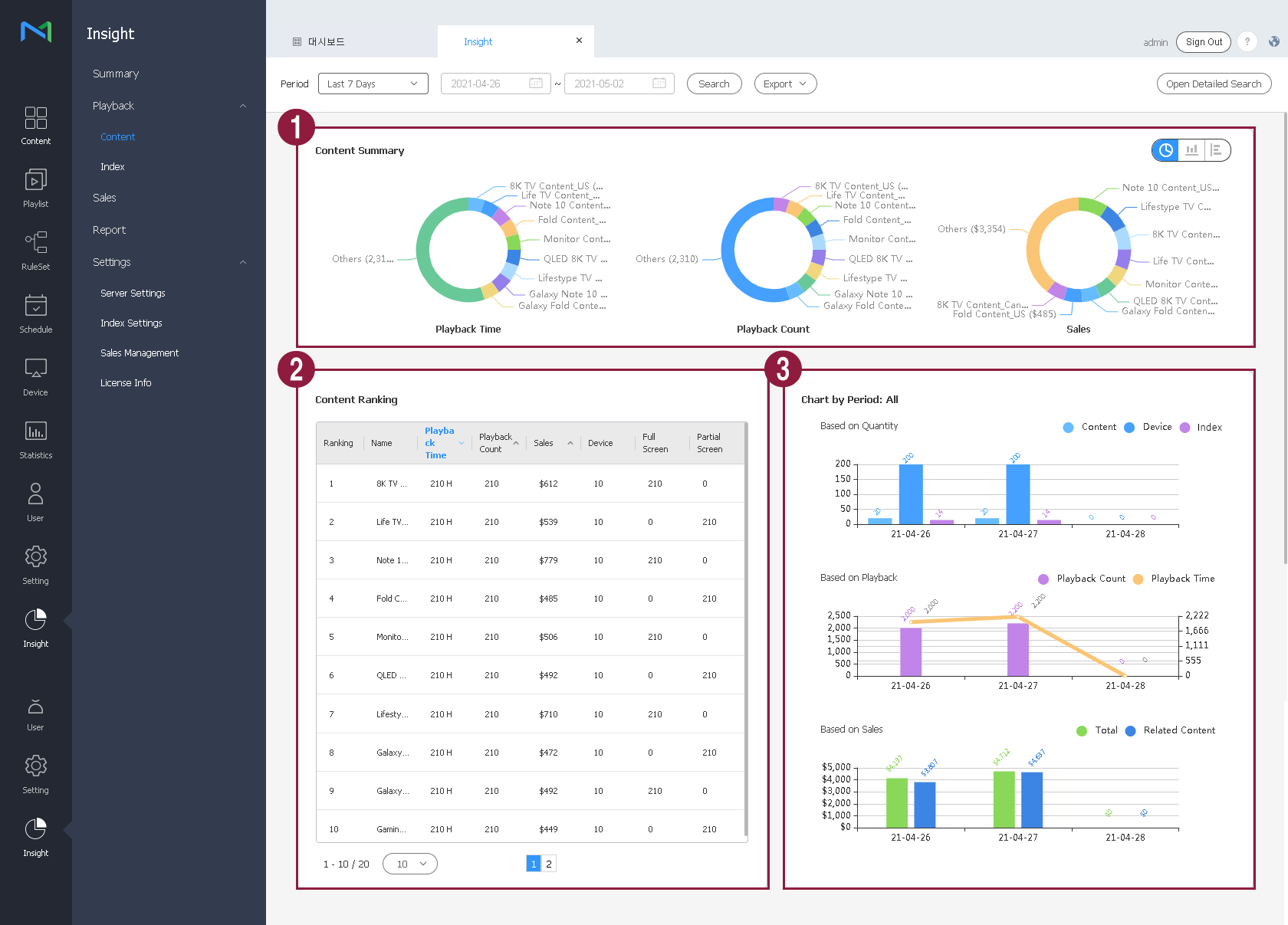
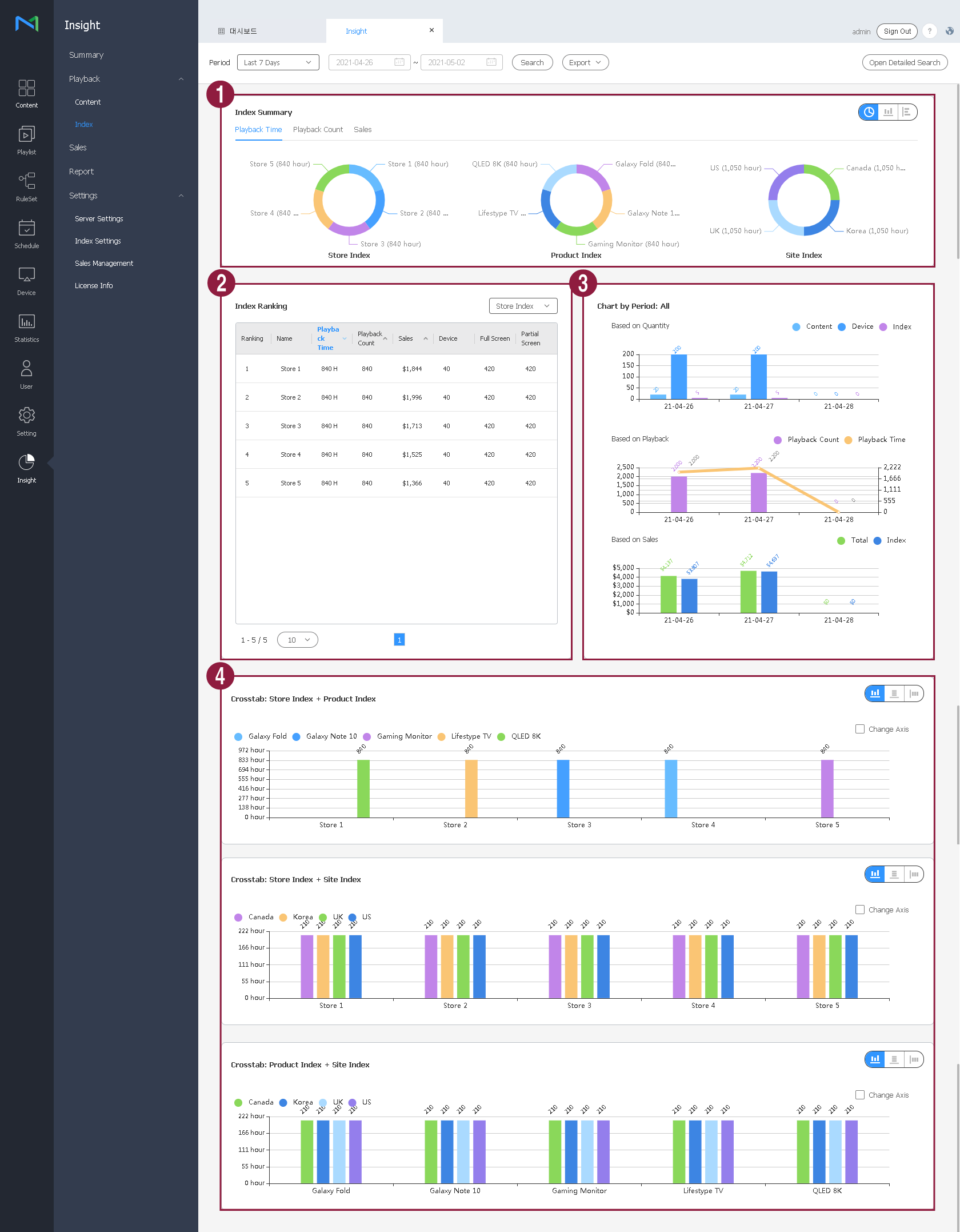
1
Content

Index Summary

View

the graphs showing the percentages of

indexes set as key indexes, based on the playback time, playback count, and sales

occupied by each of all content items. The percentages occupied by top nine content items for each criterion are shown; the sum of percentages occupied by the rest of content items are displayed as "Others."
2

Content ranking

. You can change the graph type by selecting a preferred graph type icon from the top right of the graph page.

2

Index Ranking

Shows the indexes that were played more frequently among individual key indexes or all indexes, based on the playback time. If there are ten or more indexes, move between pages to view indexes not shown on the current page.

View the

overall

index rankings,

content

index names, playback time, playback count, sales, devices used for playback, and full/split-screen playback details. You can view all key indexes or select specific key indexes to view.

  • To view details of a specific
content
  • index as a graph, click the
content
  • index in the ranking list.
If there are ten or more content items, move between pages to view content items not shown on the current page.
3

Chart by period

  • Based on Quantity : Shows the results of analysis on all
content items
  • indexes as a time graph. If you click a legend item (e.g., Content, Device, Index) at the top of the graph, the screen automatically displays updated analysis results with the clicked item excluded.
 
  • Based on Playback : Shows
content
  • index playback count and playback time as a graph. If you click a legend item (e.g., Playback Count, Playback Time) at the top of the graph, the screen automatically displays updated analysis results with the clicked item excluded.
  • Based on Sales : Shows the total sales and the sales
of related content
  • for each key index as a graph. If you click a legend item (e.g., All,
Related Content
  • Index) at the top of the graph, the screen automatically displays updated analysis results with the clicked item excluded.
4

Cross-tabulation analysis

Select and combine specific key indexes to display the playback time and the relationship between individual indexes as graphs. If key indexes A, B, and C are selected, the screen displays graphs in which three different pairs (A-B, B-C, and C-A) are analyzed.

  • If only one key index is selected: Cross-tabulation analysis does not take place.
  • If two key indexes are selected: The screen displays one cross-tabulation analysis graph in which two key indexes (A and B) are combined and analyzed.
  • If three key indexes are selected: The screen displays three cross-tabulation analysis graphs in which three different key index pairs (A-B, B-C, and C-A) are analyzed.

 You can select a preferred type from the variety of graph types. You can also display information about specific indexes simply by clicking the index names at the top of the graph.