Versions Compared

Key

  • This line was added.
  • This line was removed.
  • Formatting was changed.
Comment: Content imported from a Scroll Translations translation file.

...

Sv translation
languageen
  1. Press  > Player.

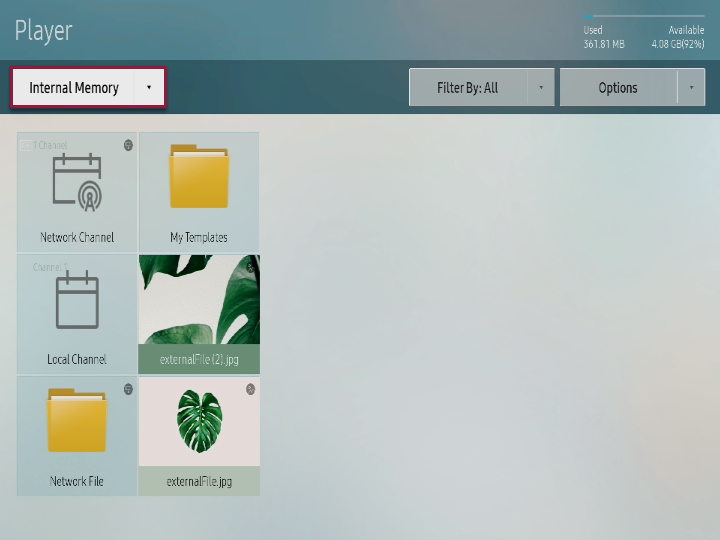
    Player screen is executed.

    Info
    titleNote

    When it is connected to external memory, player screen is automatically executed.

  2. Select internal memory or external memory that is connected.

    Stylesheet
    classscreen

  3. Select desired file.
    Corresponding contents are played on the screen.
Info
titleNote
  • Press > MagicInfo S to play the contents that were last displayed in S player.
  • You can apply setting to automatically play MagicINFO contents that are saved in corresponding memory when it is connected to external memory. Refer to following for details. ► Setting USB automatic play

Anchor
1239_m_z_q_38910
1239_m_z_q_38910
Setting USB automatic play

You can apply setting to automatically play S player when connecting to external memory where MagicINFO contents are contained.

  1. Select  > System > Security Setting > Lock USB Auto Play > OFF
  2. Insert the external memory where distributed contents are saved into S player.
    • Or create MagicInfoSlide folder in external memory and save desired contents. Then, insert to S player.
    Contents that are saved in external memory are automatically played.
Info
titleNote

Distributed contents are played when distributed contents exist both in external memory and MagicInfoSlide folder.

Functions during contents playing


Control using remote controller

You can use remote controller to play or stop the contents and move contents in play list.

You can use player menu.

You can check the information of the contents that are being played.

You can move to previous file or previous page.

You can move to next file or next page.

/ /

You can play or stop slide show or video.

You can finish contents playing and return to player screen.

You can rewind the video.

You can fast forward the video.
Info
titleNote
  • In case of contents with page (Office, PDF, LFD), enter / to play previous / next page.
  • If several channels are registered on the schedule, enter / to move the channel.

Control using player menu

Press  button on remote controller to select desired option when playing contents.

  • Play list: You can check the list of contents that are being played. Press desired contents from contents list to change the contents to be played.
  • Channel list: You can check the channel list. You can press desired channel from channel list to change the channel.

    Info
    titleNote

    This menu is only displayed when contents that are distributed to network channel, local channel, or server are played.

  • Sound mode: You can apply setting to sound mode depending on the environment. Repeatedly press  to change the sound mode.

    Info
    titleNote

    This menu is only displayed when contents saved in internal memory are played.

  • Repeat: You can apply setting to repeated play method for contents. Repeatedly press  to change the repeated play method.
  • Background music: You can insert background music that can be played when contents are played.
    Refer to following for details. ► Setting background music

    Info
    titleNote

    When video contents are played while background music is set, background music is played instead of video sound.

Anchor
14132_h_js_e_143421
14132_h_js_e_143421
Setting background music

  1. Press  > Background music.
  2. Select internal memory or external memory that is connected.
  3. Select desired music file and press Play in shuffle or Play at upper side.
  4. Execute desired functions to control music that is being played.
    • Initialization: You can initialize to status before setting background music.
    • Stop: You can stop playing background music.
    • Previous: You can play previous music.
    • Next: You can play next music.
Sv translation
languagear
  1. اضغط على Image Added > Player.

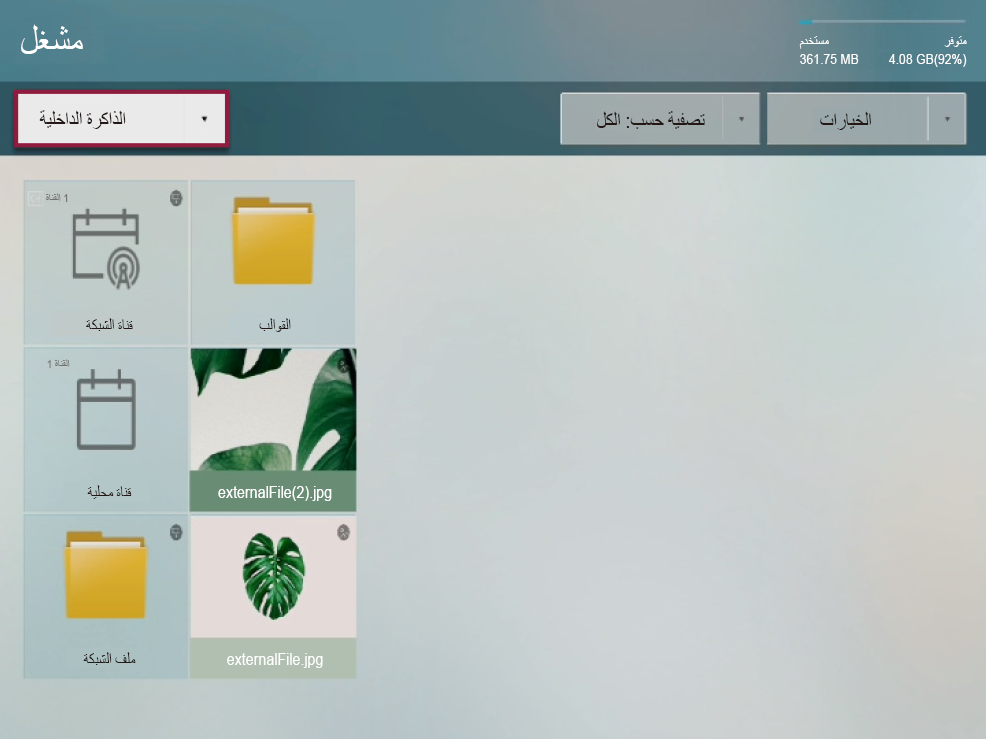
    يتم عرض شاشة المشغل.

    Info
    titleملحوظة

    يتم تشغيل شاشة المشغل تلقائيًا عندما يكون متصلاً بجهاز External Memory.

  2. حدد Internal Memory أو External Memory المتصلة.

    Stylesheet
    classالشاشة

    Image Added

  3. حدد الملف الذي تريده.
    يتم تشغيل المحتويات المحددة على الشاشة.
Info
titleملحوظة
  • اضغط على Image Added > MagicInfo S لتشغيل المحتويات التي تم عرضها حديثًا على S Player.
  • يمكنك تطبيق الإعدادات لتشغيل محتويات MagicINFO المحفوظة على الذاكرة المقابلة تلقائيًا عندما يكون متصلاً بجهاز External Memory. يرجى الرجوع إلى ما يلي لمزيد من التفاصيل: ► Setting USB automatic play

Anchor
1239_m_z_q_38910
1239_m_z_q_38910
إعداد تشغيل USB تلقائيًا

يمكنك تطبيق الإعدادات لتشغيل مشغل S Player تلقائيًا عند الاتصال بجهاز External Memory المحفوظ عليه محتويات MagicINFO.

  1. حدد Image Added > System > Security Setting > Lock USB Auto Play > OFF
  2. أدخل جهاز External Memory، المحفوظ عليه المحتويات التي تم توزيعها، في S Player.
    • أو قم بإنشاء مجلد MagicInfoSlide في جهاز External Memory واحفظ المحتويات التي تريدها. ثم، أدخله في S Player.
    يتم تشغيل المحتويات المحفوظة في جهاز External Memory تلقائيًا.
Info
titleملحوظة

يتم تشغيل المحتويات التي تم توزيعها عندما توجد في جهاز External Memory ومجلد MagicInfoSlide معًا.

الوظائف المتاحة خلال تشغيل المحتويات


التحكم باستخدام جهاز التحكم عن بُعد

يمكنك استخدام جهاز التحكم عن بُعد لتشغيل المحتويات أو إيقافها ونقل المحتويات في قائمة التشغيل.

Image Added

يمكنك استخدام قائمة المشغل.

Image Added

يمكنك التحقق من معلومات المحتويات الجاري عرضها.

Image Added

يمكنك الانتقال إلى ملف سابق أو صفحة سابقة.

Image Added

يمكنك الانتقال إلى ملف تالٍ أو صفحة تالية.

Image Added / Image Added / Image Added

يمكنك تشغيل عرض الشرائح أو الفيديو أو إيقافه.

Image Added

يمكنك الانتهاء من المحتويات الجاري عرضها والعودة إلى شاشة المشغل.

Image Added

يمكنك إعادة الفيديو.

Image Added

يمكنك تسريع الفيديو للأمام.
Info
titleملحوظة
  • يمكنك في حالة المحتويات المتضمنة صفحات (Office أو PDF أو LFD)، إدخال Image Added / Image Added لعرض الصفحة السابقة/التالية.
  • في حالة تسجيل العديد من القنوات في الجدول، أدخل Image Added / Image Added للانتقال إلى القناة.

التحكم باستخدام قائمة المشغل

اضغط على الزر Image Added في وحدة التحكم عن بعد لتحديد الخيار المطلوب عند تشغيل المحتويات.

  • Play list: يمكنك التحقق من قائمة المحتويات الجاري عرضها. كما يمكنك الضغط على المحتويات المطلوبة من قائمة المحتويات لتغيير المحتويات المطلوب تشغيلها.
  • Channel list: يمكنك التحقق من قائمة القنوات. وتستطيع الضغط على القناة المطلوبة من قائمة القنوات لتغيير القناة.

    Info
    titleملحوظة

    لا يتم عرض هذه القائمة إلا عند تشغيل المحتويات التي تم توزيعها إلى قناة الشبكة أو القناة المحلية أو الخادم.

  • Sound mode: يمكنك تطبيق الإعدادات على وضع الصوت وفقًا للبيئة. اضغط باستمرار على Image Added لتغيير وضع الصوت.

    Info
    titleملحوظة

    لا يتم عرض هذه القائمة إلا عند تشغيل المحتويات المحفوظة على Internal Memory.

  • Repeat: يمكنك تطبيق الإعدادات على أساليب تشغيل متكررة للمحتويات. اضغط باستمرار على Image Added لتغيير وضع التشغيل المتكرر.
  • Background music: يمكنك استخدام موسيقى في الخلفية يمكن تشغيلها عند تشغيل المحتويات.
    يرجى الرجوع إلى ما يلي لمزيد من التفاصيل: ► Setting background music

    Info
    titleملحوظة

    عندما يتم تشغيل محتويات فيديو أثناء استخدام موسيقى في الخلفية، يتم تشغيل الموسيقى في الخلفية بدلاً من صوت الفيديو.

Anchor
14132_h_js_e_143421
14132_h_js_e_143421
Setting background music

  1. اضغط على Image Added > Background music.
  2. حدد Internal Memory أو External Memory المتصلة.
  3. حدد ملف الموسيقى الذي تريده ثم اضغط على Play in shuffle أو Play الموجود بالجزء العلوي.
  4. قم بتنفيذ الوظائف التي تريدها للتحكم في الموسيقى الجاري تشغيلها.
    • Initialization: يمكنك تهيئة الحالة قبل إعداد الموسيقى في الخلفية.
    • Stop: يمكنك إيقاف تشغيل الموسيقى في الخلفية.
    • Previous: يمكنك تشغيل ملف الموسيقى السابق.
    • Next: يمكنك تشغيل ملف الموسيقى التالي.