Versions Compared

Key

  • This line was added.
  • This line was removed.
  • Formatting was changed.
Comment: Content imported from a Scroll Translations translation file.
Sv translation
languageko
  1. 리모컨으로 Image Modified > 스케줄을 누르세요.
    스케줄 화면이 실행됩니다.
  2. 원하는 기능을 실행하세요.

    Stylesheet
    classscreen

    Image Modified

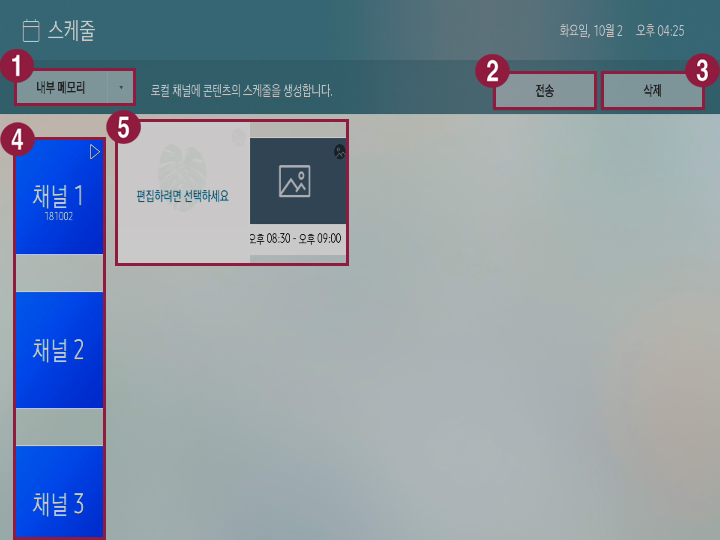
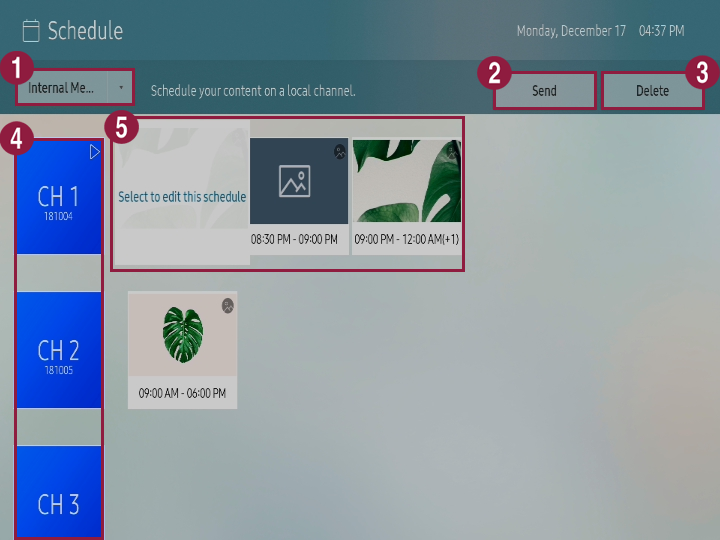
    1S Player로 재생할 스케줄의 저장 위치를 선택할 수 있습니다.
    • 네트워크: Server에서 배포한 스케줄을 확인할 수 있습니다.
    • 내부 메모리/외부 메모리: 로컬 채널에 콘텐츠 스케줄을 등록할 수 있습니다.

    외부 메모리는 S Player에 외부 메모리가 연결되어 있을 경우에만 나타납니다. 외부 메모리의 이름은 연결된 외부 메모리의 종류에 따라 다르게 표기됩니다.

    2

    내부 메모리에 저장된 채널을 외부 메모리로 내보내거나 외부 메모리에 저장된 채널을 내부 메모리로 가져올 수 있습니다. 자세한 내용은 다음을 참고하세요. ► 로컬 스케줄 복사하기

    Info
    title참고

    스케줄이 등록되어 있는 채널만 전송할 수 있습니다.

    3

    채널을 삭제할 수 있습니다.

    Info
    title참고

    스케줄이 등록되어 있는 채널만 삭제할 수 있습니다.

    4

    채널 목록을 확인하고 각 채널에 스케줄을 등록할 수 있습니다.
    채널에 스케줄을 등록하려면 채널 목록에서 원하는 채널을 선택하세요. 자세한 내용은 다음을 참고하세요. ► 로컬 스케줄 등록하기

    5채널에 등록된 스케줄 목록을 확인하고 스케줄을 편집할 수 있습니다.
    스케줄을 편집하려면 원하는 스케줄을 선택한 후 한 번 더 누르세요.

네트워크 스케줄 확인하기


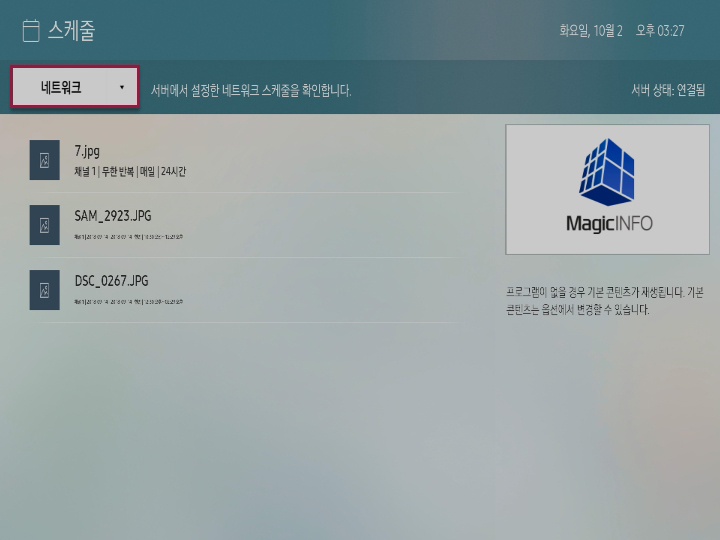
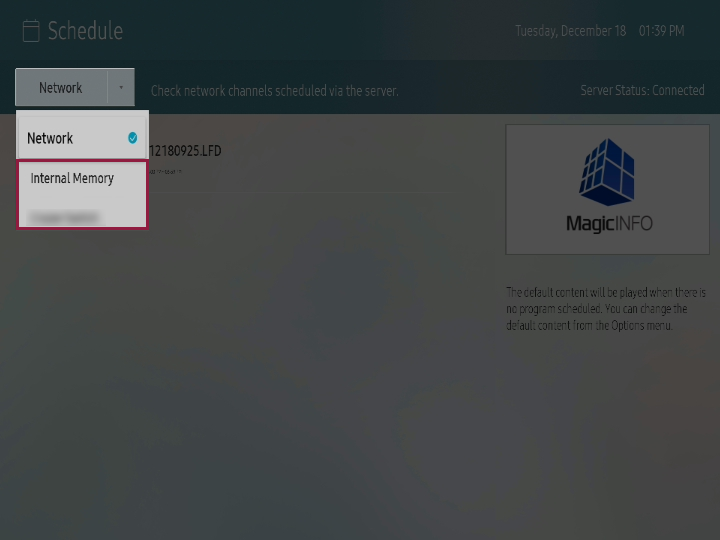
스케줄 화면에서 네트워크를 선택하세요.

Server에서 배포한 스케줄 목록을 확인할 수 있습니다.

Info
title참고

스케줄이 나타나지 않을 경우 Server와의 연결 상태를 확인하세요.

Stylesheet
classscreen

Image Modified

Anchor
eee_354_2234_s454
eee_354_2234_s454
로컬 스케줄 등록하기


로컬 채널에 콘텐츠 스케줄을 등록할 수 있습니다.

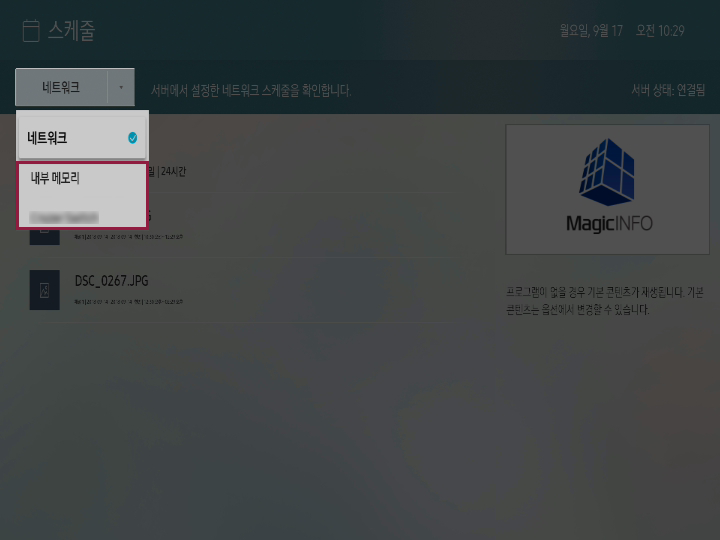
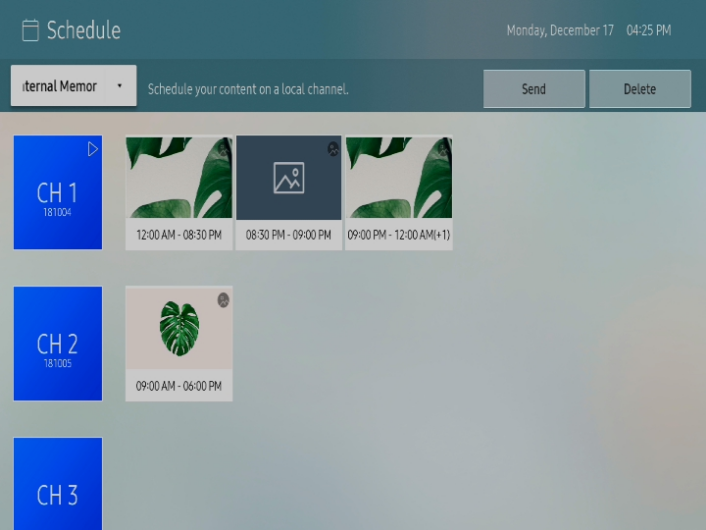
  1. 스케줄 화면에서 내부 메모리 또는 연결되어 있는 외부 메모리를 선택하세요.

    Stylesheet
    classscreen

    Image Modified

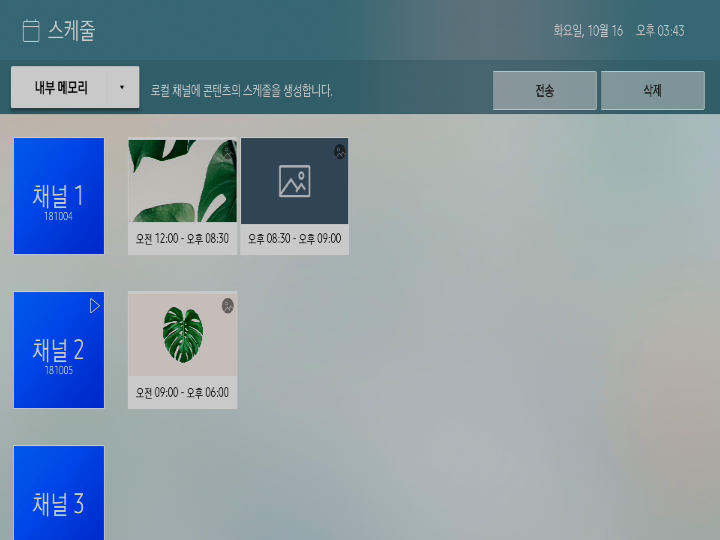
  2. 스케줄을 등록할 채널을 선택한 후 한 번 더 누르세요.

    Stylesheet
    classscreen

    Image Modified

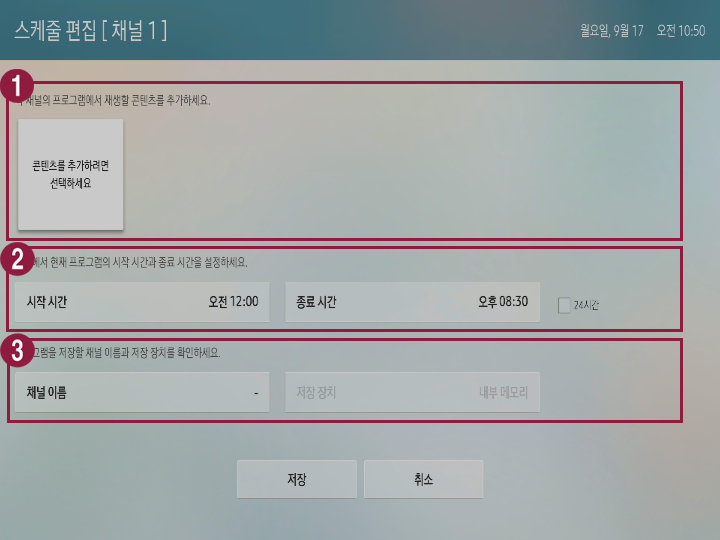
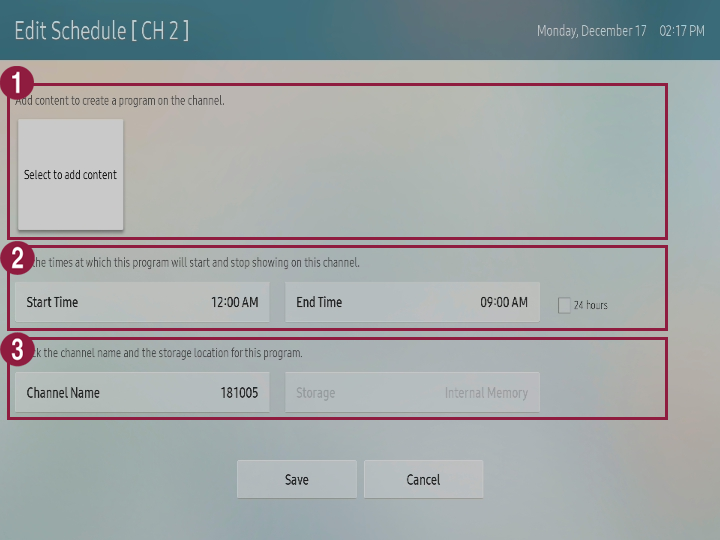
  3. 원하는 항목을 설정한 후 저장을 누르세요.

    Stylesheet
    classscreen

    Image Modified

    1재생할 콘텐츠를 추가하거나 삭제할 수 있습니다.
    • 콘텐츠를 추가하려면 콘텐츠를 추가하려면 선택하세요를 누른 후 원하는 콘텐츠를 선택하세요.
    • 추가된 콘텐츠를 삭제하려면 삭제할 콘텐츠를 선택해 한 번 더 누르세요.
    2채널에 등록할 콘텐츠 스케줄의 시작 시간과 종료 시간을 설정할 수 있습니다.
    3콘텐츠 스케줄의 이름을 설정하고 저장 위치를 확인할 수 있습니다.

Anchor
11456_w_f_15
11456_w_f_15
로컬 스케줄 복사하기

내부 메모리에 저장된 채널을 외부 메모리로 내보내거나 외부 메모리에 저장된 채널을 내부 메모리로 가져올 수 있습니다.

  1. 스케줄 화면에서 내부 메모리 또는 연결되어 있는 외부 메모리를 선택하세요.
  2. 원하는 채널을 선택하세요.

    Info
    title참고

    스케줄이 등록되어 있는 채널만 선택할 수 있습니다.

  3. 상단의 전송을 눌러 전송할 장치를 선택하세요.
    선택한 채널과 채널에 등록된 스케줄이 해당 장치로 복사됩니다.
Sv translation
languageen
  1. Press Image Added > Schedule using remote controller.
    Schedule screen is executed.
  2. Execute desired functions.

    Stylesheet
    classscreen

    Image Added

    1You can select storage location for the schedule that will be played using S player.
    • Network: You can check the schedule that is distributed from the server.
    • Internal memory/External memory: You can register contents schedule on local channel.

    External memory is only displayed when external memory is connected to S player. Name of the external memory is displayed differently depending on the external memory type that is connected.

    2

    You can send the channel that is saved in internal memory to external memory or bring the channel that is saved in external memory to internal memory. Refer to following for details. ► Copying local schedule

    Info
    titleNote

    You can only send the channel where schedule is registered.

    3

    You can delete the channel.

    Info
    titleNote

    You can only delete the channel where schedule is registered.

    4

    You can check for the channel list and register schedule on each channel.
    To register schedule to channel, select desired channel from the channel list. Refer to following for details. ► Register local schedule

    5You can check for the schedule list that is registered on channel and edit the schedule.
    To edit the schedule, select desired schedule and press it once again.

Checking network schedule


Select Network from schedule screen.

You can check for the schedule list that is distributed from the server.

Info
titleNote

If schedule is not displayed, check for the connection status with the server.

Stylesheet
classscreen

Image Added

Anchor
eee_354_2234_s454
eee_354_2234_s454
Register local schedule


You can register contents schedule on local channel.

  1. Select internal memory or external memory that is connected from schedule screen.

    Stylesheet
    classscreen

    Image Added

  2. Select the channel for registering schedule and press it once again.

    Stylesheet
    classscreen

    Image Added

  3. Apply setting to desired items and press Save.

    Stylesheet
    classscreen

    Image Added

    1You can add or delete the contents to be played.
    • To add the contents, press Select to add the contents and select desired contents.
    • To delete the added contents, select the contents to be deleted and press it once again.
    2You can apply setting to start time and end time to contents schedule that will be registered on the channel.
    3Apply setting to name of contents schedule and check for storage location.

Anchor
11456_w_f_15
11456_w_f_15
Copy local schedule

You can send the channel that is saved in internal memory to external memory or bring the channel that is saved in external memory to internal memory.

  1. Select internal memory or external memory that is connected from schedule screen.
  2. Select desired channel.

    Info
    titleNote

    You can only select the channel where schedule is registered.

  3. Press Send from upper side to select the device for sending.
    Selected channel and schedule that is registered on channel are copied to corresponding device.