Versions Compared

Key

  • This line was added.
  • This line was removed.
  • Formatting was changed.
Comment: Content imported from a Scroll Translations translation file.
Sv translation
languageko
  1. Image Modified > 플레이어를 누르세요.

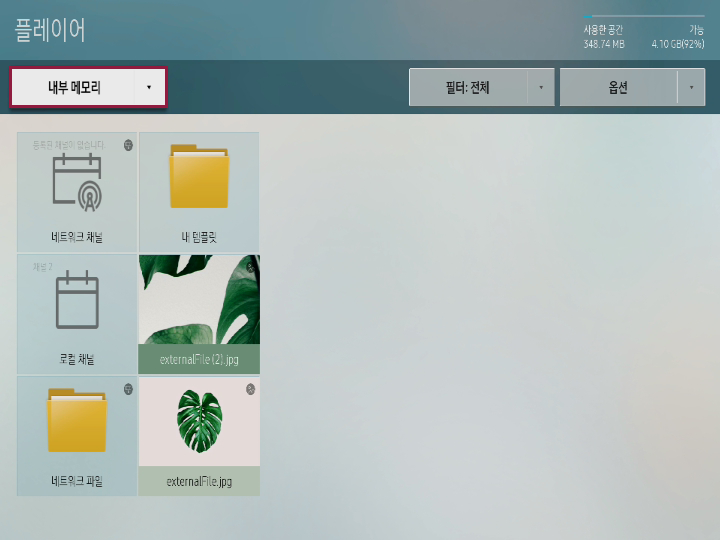
    플레이어 화면이 실행됩니다.

    Info
    title참고

    외부 메모리 연결 시 자동으로 플레이어 화면이 실행됩니다.

  2. 내부 메모리 또는 연결되어 있는 외부 메모리를 선택하세요.

    Stylesheet
    classscreen

    Image Modified

  3. 원하는 파일을 선택하세요.
    해당 콘텐츠가 화면에 재생됩니다.
Info
title참고
  • Image Modified > MagicInfo S를 누르면 S Player에서 가장 마지막으로 재생했던 콘텐츠가 재생됩니다.
  • 외부 메모리 연결 시, 해당 메모리에 저장되어 있는 MagicINFO 콘텐츠를 자동으로 재생하도록 설정할 수 있습니다. 자세한 내용은 다음을 참조하세요. ► USB  자동 재생 설정하기

Anchor
1239_m_z_q_38910
1239_m_z_q_38910
USB  자동 재생 설정하기

MagicINFO 콘텐츠가 들어 있는 외부 메모리를 연결하면 자동으로 S Player가 실행되도록 설정할 수 있습니다.

  1. Image Modified > 시스템 > 보안 설정 > USB 자동 재생 잠금 > 꺼짐을 선택하세요. 
  2. 배포 콘텐츠가 저장되어 있는 외부 메모리를 S Player에 꽂으세요.
    • 또는 외부 메모리에 MagicInfoSlide 폴더를 만들어 원하는 콘텐츠를 저장한 후 S Player에 꽂으세요.
    외부 메모리에 저장되어 있는 콘텐츠가 자동으로 재생됩니다.
Info
title참고

외부 메모리에 배포 콘텐츠와 MagicInfoSlide 폴더 내의 콘텐츠가 모두 존재할 경우 배포 콘텐츠가 재생됩니다.

콘텐츠 재생 중 기능


리모컨으로 제어하기

리모컨으로 콘텐츠를 재생하거나 일시 정지할 수 있으며, 재생 목록의 콘텐츠를 이동할 수 있습니다.

Image Modified

플레이어 메뉴를 활용할 수 있습니다.

Image Modified

재생 중인 콘텐츠의 정보를 확인할 수 있습니다.

Image Modified

이전 파일 또는 이전 페이지로 이동할 수 있습니다.

Image Modified

다음 파일 또는 다음 페이지로 이동할 수 있습니다.

Image Modified / Image Modified / Image Modified

슬라이드 쇼 또는 비디오를 재생하거나 일시 정지할 수 있습니다.

Image Modified

콘텐츠 재생을 종료하고 플레이어 화면으로 돌아갈 수 있습니다.

Image Modified

비디오를 뒤로 감을 수 있습니다.

Image Modified

비디오를 빨리 감을 수 있습니다.
Info
title참고
  • 페이지가 있는 콘텐츠(Office, PDF, LFD)의 경우 Image Modified / Image Modified 입력 시 이전/다음 페이지가 재생됩니다.
  • 여러 개의 채널이 등록된 스케줄일 경우 Image Modified / Image Modified 입력 시 채널을 이동할 수 있습니다.

플레이어 메뉴로 제어하기

콘텐츠 재생 시 리모컨으로 Image Modified 버튼을 눌러 원하는 옵션을 선택할 수 있습니다.

  • 재생 목록: 재생 중인 콘텐츠 목록을 확인할 수 있습니다. 콘텐츠 목록에서 원하는 콘텐츠를 누르면 재생할 콘텐츠를 변경할 수 있습니다.
  • 채널 목록: 채널 목록을 확인할 수 있습니다. 채널 목록에서 원하는 채널을 누르면 채널을 변경할 수 있습니다.

    Info
    title참고

    이 메뉴는 네트워크 채널 또는 로컬 채널, Server에서 배포한 콘텐츠를 재생한 경우에만 나타납니다.

  • 음향 모드: 환경에 맞춰 원하는 음향 모드를 설정할 수 있습니다. Image Modified 반복해서 누르면 음향 모드를 변경할 수 있습니다.

    Info
    title참고

    이 메뉴는 내부 메모리에 저장된 콘텐츠를 재생한 경우에만 나타납니다.

  • 반복: 콘텐츠 반복 재생 방식을 설정할 수 있습니다. Image Modified 반복해서 누르면 반복 재생 방식을 변경할 수 있습니다.
  • 배경 음악: 콘텐츠 재생 시 지정한 음악이 함께 재생되도록 배경 음악을 삽입할 수 있습니다.
    자세한 내용은 다음을 참고하세요. ► 배경 음악 설정하기

    Info
    title참고

    배경 음악이 설정된 상태에서 동영상 콘텐츠를 재생할 경우 동영상의 음향 대신 배경 음악이 재생됩니다.

Anchor
14132_h_js_e_143421
14132_h_js_e_143421
배경 음악 설정하기

  1. Image Modified > 배경 음악을 누르세요.
  2. 내부 메모리 또는 연결되어 있는 외부 메모리를 선택하세요.
  3. 원하는 음악 파일을 선택한 후 상단의 셔플재생 또는 재생을 누르세요.
  4. 재생 중인 음악을 제어하려면 원하는 기능을 실행하세요.
    • 초기화: 배경 음악을 설정하기 전 상태로 초기화할 수 있습니다.
    • 일시정지: 배경 음악을 일시 정지할 수 있습니다.
    • 이전: 이전 곡을 재생할 수 있습니다.
    • 다음: 다음 곡을 재생할 수 있습니다.
Sv translation
languageen
  1. Press Image Added > Player.

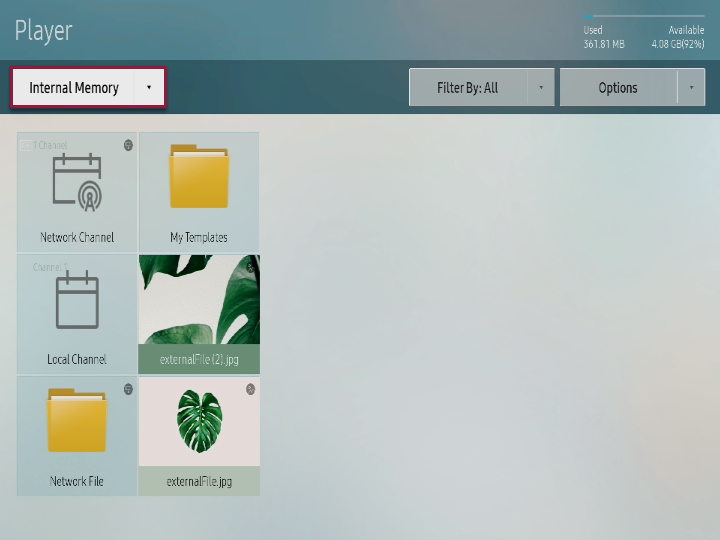
    Player screen is executed.

    Info
    titleNote

    When it is connected to external memory, player screen is automatically executed.

  2. Select internal memory or external memory that is connected.

    Stylesheet
    classscreen

    Image Added

  3. Select desired file.
    Corresponding contents are played on the screen.
Info
titleNote
  • Press Image Added > MagicInfo S to play the contents that were last displayed in S player.
  • You can apply setting to automatically play MagicINFO contents that are saved in corresponding memory when it is connected to external memory. Refer to following for details. ► Setting USB automatic play

Anchor
1239_m_z_q_38910
1239_m_z_q_38910
Setting USB automatic play

You can apply setting to automatically play S player when connecting to external memory where MagicINFO contents are contained.

  1. Select Image Added > System > Security Setting > Lock USB Auto Play > OFF
  2. Insert the external memory where distributed contents are saved into S player.
    • Or create MagicInfoSlide folder in external memory and save desired contents. Then, insert to S player.
    Contents that are saved in external memory are automatically played.
Info
titleNote

Distributed contents are played when distributed contents exist both in external memory and MagicInfoSlide folder.

Functions during contents playing


Control using remote controller

You can use remote controller to play or stop the contents and move contents in play list.

Image Added

You can use player menu.

Image Added

You can check the information of the contents that are being played.

Image Added

You can move to previous file or previous page.

Image Added

You can move to next file or next page.

Image Added / Image Added / Image Added

You can play or stop slide show or video.

Image Added

You can finish contents playing and return to player screen.

Image Added

You can rewind the video.

Image Added

You can fast forward the video.
Info
titleNote
  • In case of contents with page (Office, PDF, LFD), enter Image Added / Image Added to play previous / next page.
  • If several channels are registered on the schedule, enter Image Added / Image Added to move the channel.

Control using player menu

Press Image Added button on remote controller to select desired option when playing contents.

  • Play list: You can check the list of contents that are being played. Press desired contents from contents list to change the contents to be played.
  • Channel list: You can check the channel list. You can press desired channel from channel list to change the channel.

    Info
    titleNote

    This menu is only displayed when contents that are distributed to network channel, local channel, or server are played.

  • Sound mode: You can apply setting to sound mode depending on the environment. Repeatedly press Image Added to change the sound mode.

    Info
    titleNote

    This menu is only displayed when contents saved in internal memory are played.

  • Repeat: You can apply setting to repeated play method for contents. Repeatedly press Image Added to change the repeated play method.
  • Background music: You can insert background music that can be played when contents are played.
    Refer to following for details. ► Setting background music

    Info
    titleNote

    When video contents are played while background music is set, background music is played instead of video sound.

Anchor
14132_h_js_e_143421
14132_h_js_e_143421
Setting background music

  1. Press Image Added > Background music.
  2. Select internal memory or external memory that is connected.
  3. Select desired music file and press Play in shuffle or Play at upper side.
  4. Execute desired functions to control music that is being played.
    • Initialization: You can initialize to status before setting background music.
    • Stop: You can stop playing background music.
    • Previous: You can play previous music.
    • Next: You can play next music.