Versions Compared

Key

  • This line was added.
  • This line was removed.
  • Formatting was changed.
Comment: Content imported from a Scroll Translations translation file.

...

Sv translation
languageen

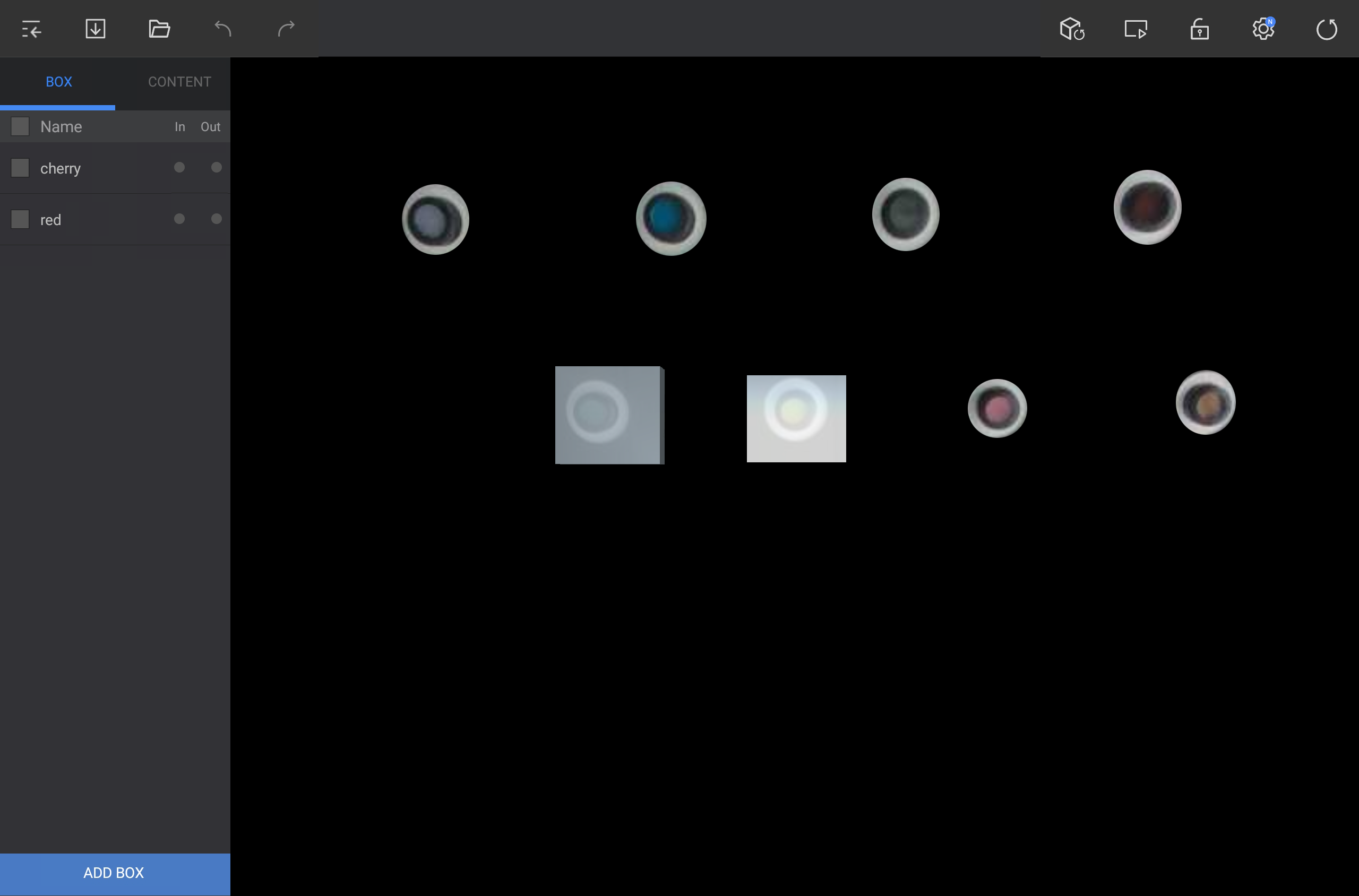
Add a virtual box to detect events in the camera view area.

Tap ADD BOX on the lower left screen in the editor and add a box to a desired position.

Stylesheet
classscreen

Info
titleNote

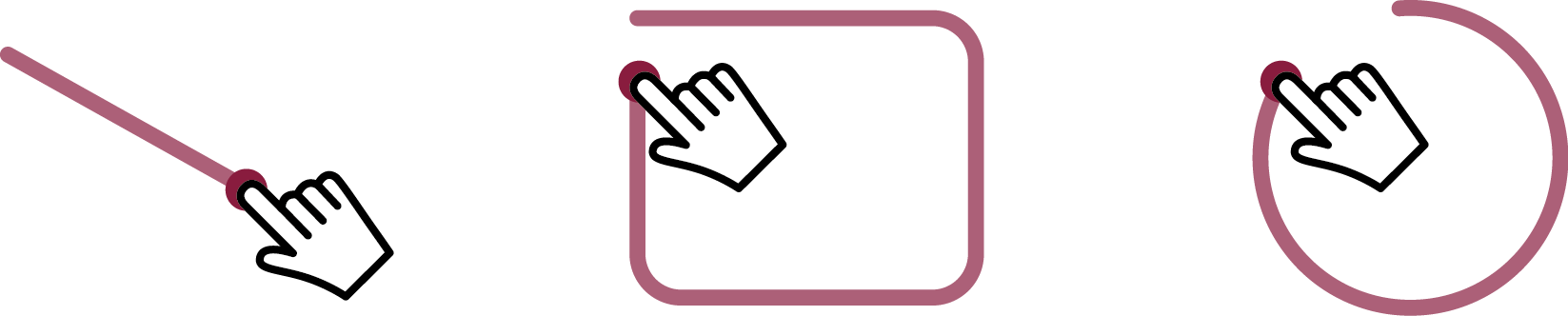
Drag diagonally or in circle to create a box that fits the dragged space.


Editing a box


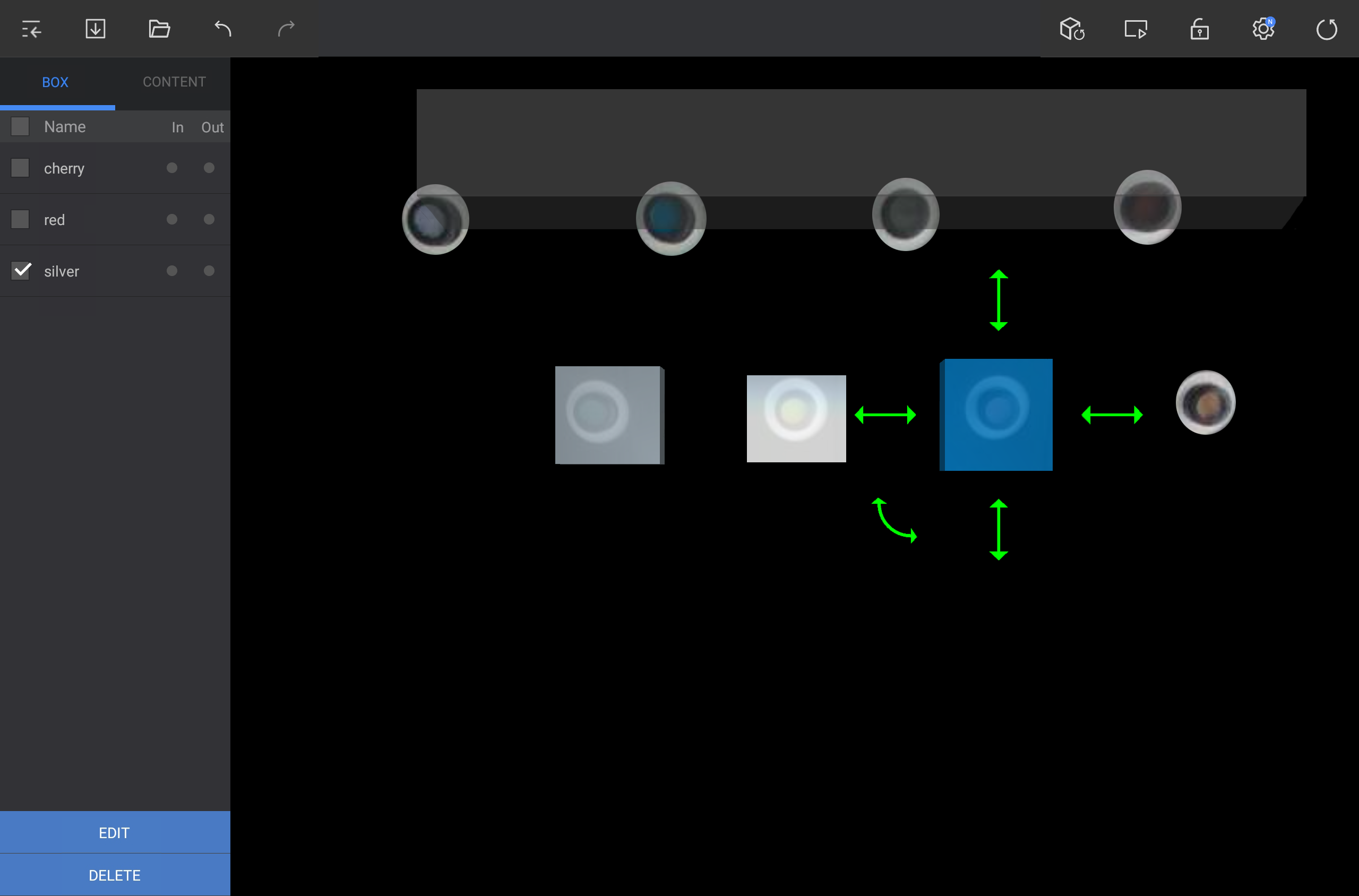
  1. Select a box from the BOX tab or in the angle area.

  2. Use the available options to edit the box.

    Stylesheet
    classscreen

    • To reposition the box, press and hold the box and then drag it to a desired position.

    • To adjust the box size, press and hold and then drag the straight double arrows around the box (up/down/right/left).

    • To rotate the box, press and hold and then drag the curved double arrow.

    • To rename the box or add a tag, tap EDIT on the lower left screen.

    • To delete the box, tap DELETE on the lower left screen.

      Info
      titleNote
      • To delete multiple boxes at once, select them from the BOX tab.
      • When editing boxes, check the effective area using the Player screen to allow more precise detection.
Sv translation
languagede

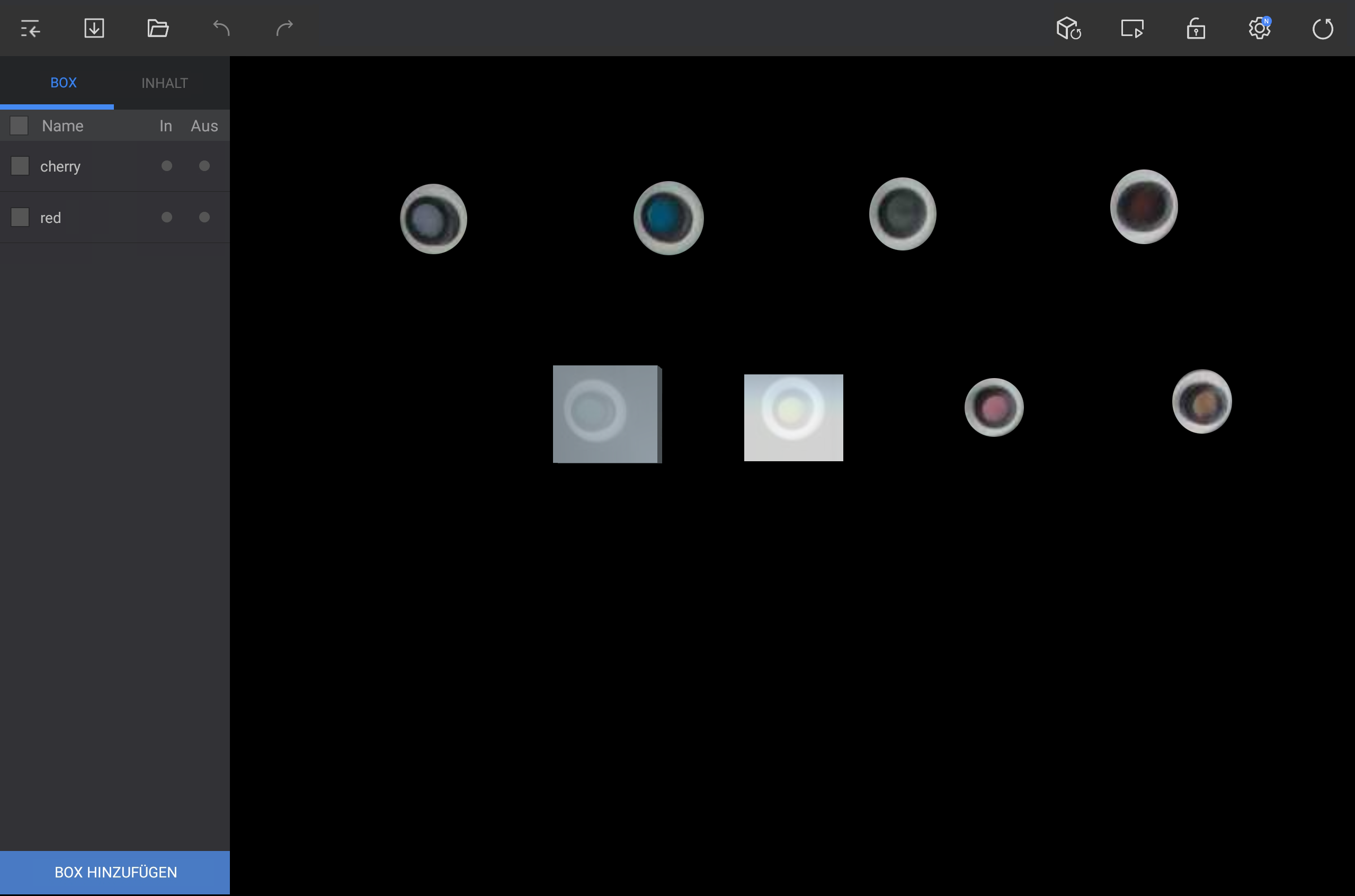
Fügen Sie eine virtuelle Box hinzu, um Ereignisse im Kameraansichtsbereich zu erkennen.

Tippen Sie im Editor unten links auf BOX HINZUFüGEN und fügen Sie an der gewünschten Position eine Box hinzu.

Stylesheet
classscreen

Image Added

Info
titleHinweis

Ziehen Sie diagonal oder im Kreis, um eine Box zu erstellen, die auf den gezogenen Bereich passt.

Image Added


Bearbeiten einer Box


  1. Wählen Sie eine Box aus der Registerkarte BOX oder im Winkelbereich aus.

  2. Verwenden Sie die verfügbaren Optionen, um die Box zu bearbeiten.

    Stylesheet
    classscreen

    Image Added

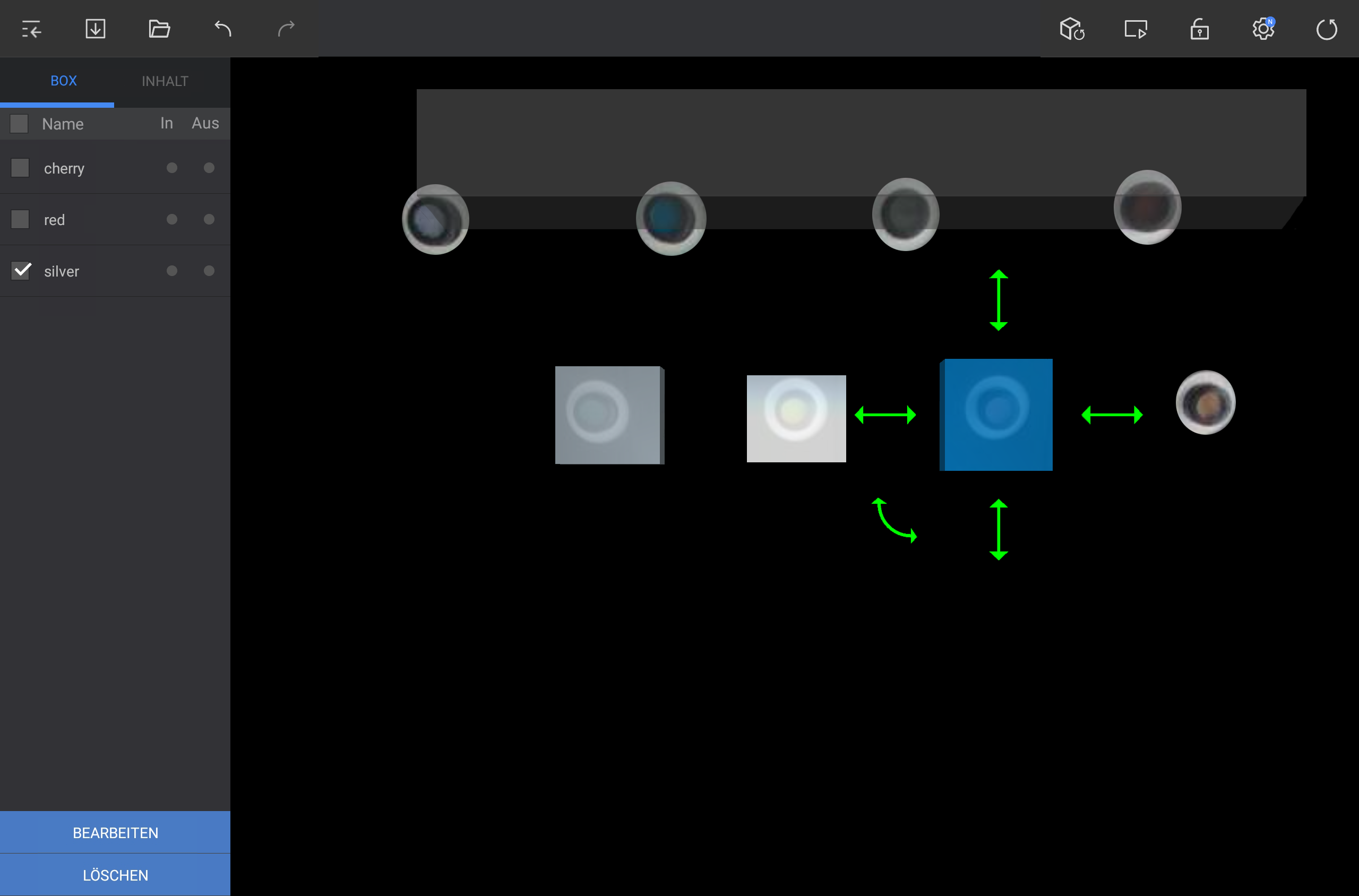
    • Um die Box neu zu positionieren, halten Sie die Box gedrückt, und ziehen Sie sie an die gewünschte Position.

    • Um die Boxgröße anzupassen, halten Sie sie gedrückt und ziehen Sie an den geraden Doppelpfeilen am Rand der Box (oben/unten/rechts/links).

    • Um die Box zu drehen, halten Sie die Box gedrückt, und ziehen Sie sie am gekrümmten Doppelpfeil.

    • Um die Box umzubenennen oder einen Tag hinzuzufügen, tippen Sie unten links auf BEARBEITEN.

    • Um die Box zu löschen, tippen Sie unten links auf LöSCHEN.

      Info
      titleHinweis
      • Um mehrere Boxen gleichzeitig zu löschen, wählen Sie sie auf der Registerkarte BOX aus.
      • Wenn Sie Boxen bearbeiten, überprüfen Sie den effektiven Bereich mithilfe des Player-Bildschirms, um eine genauere Erkennung zu ermöglichen.