Versions Compared

Key

  • This line was added.
  • This line was removed.
  • Formatting was changed.
Comment: Content imported from a Scroll Translations translation file.

...

Sv translation
languageen

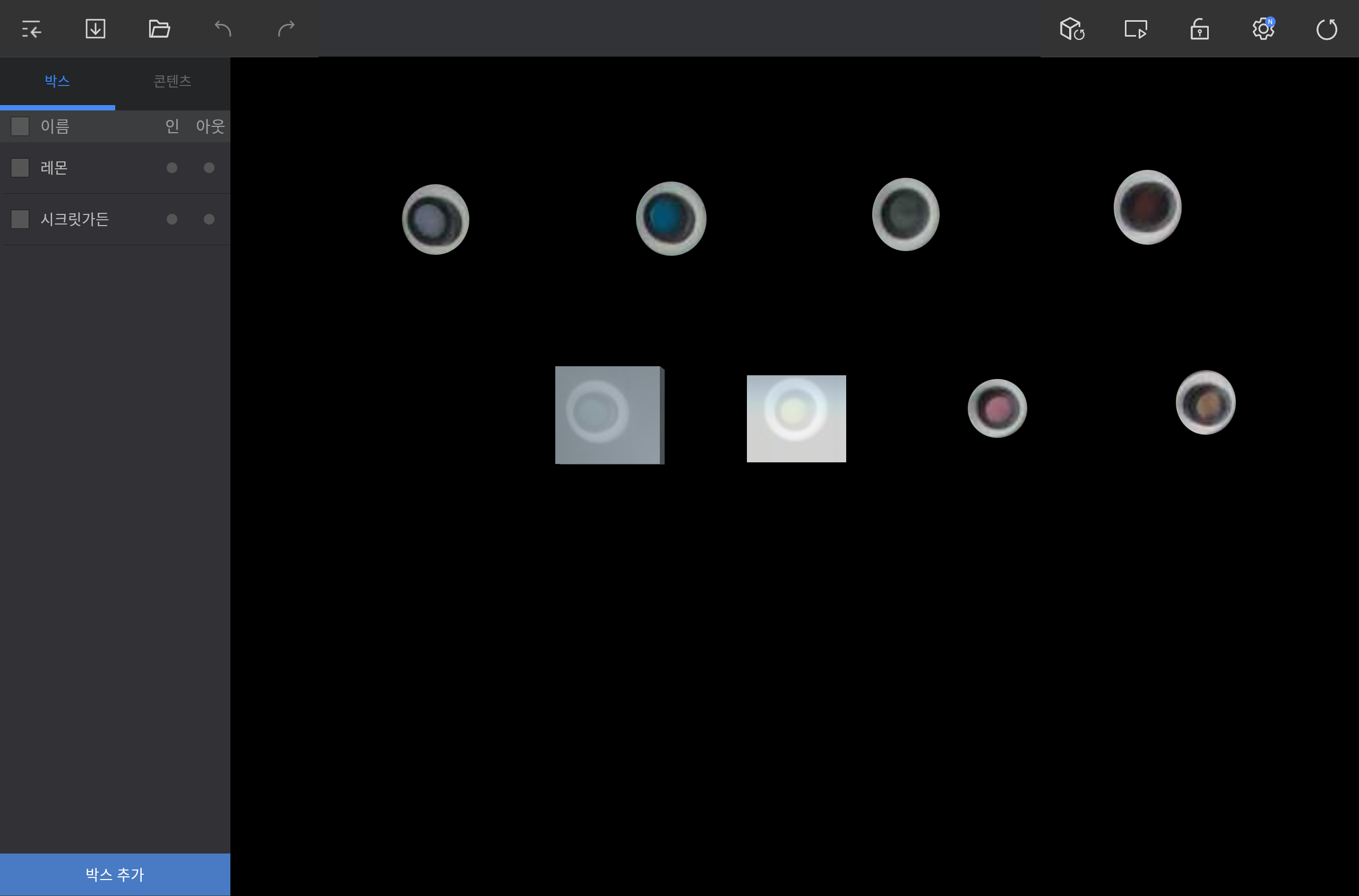
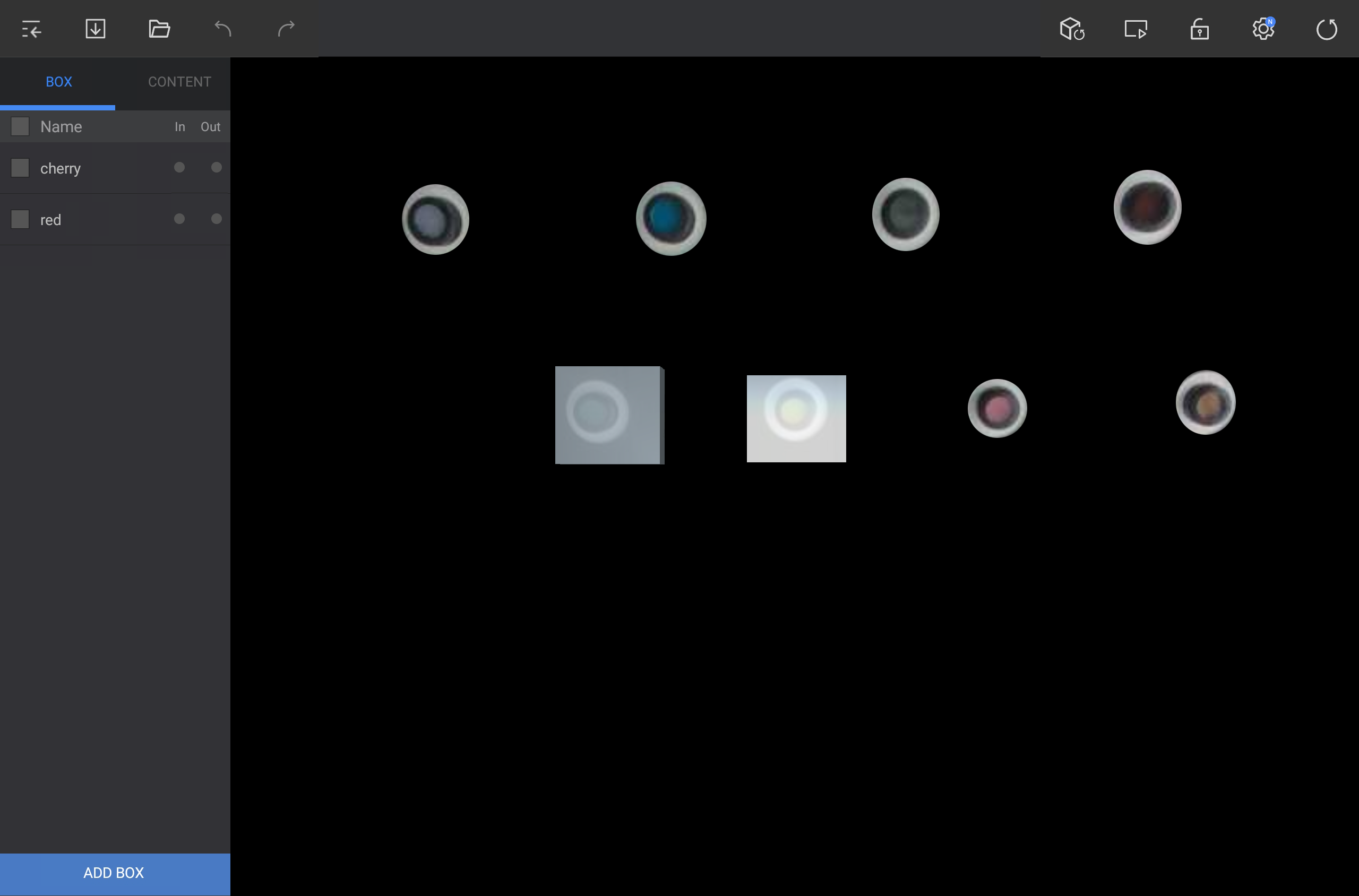
Add a virtual box to detect events in the camera view area.

Tap ADD BOX on the lower left screen in the editor and add a box to a desired position.

Stylesheet
classscreen

Image RemovedImage Added

Info
titleNote

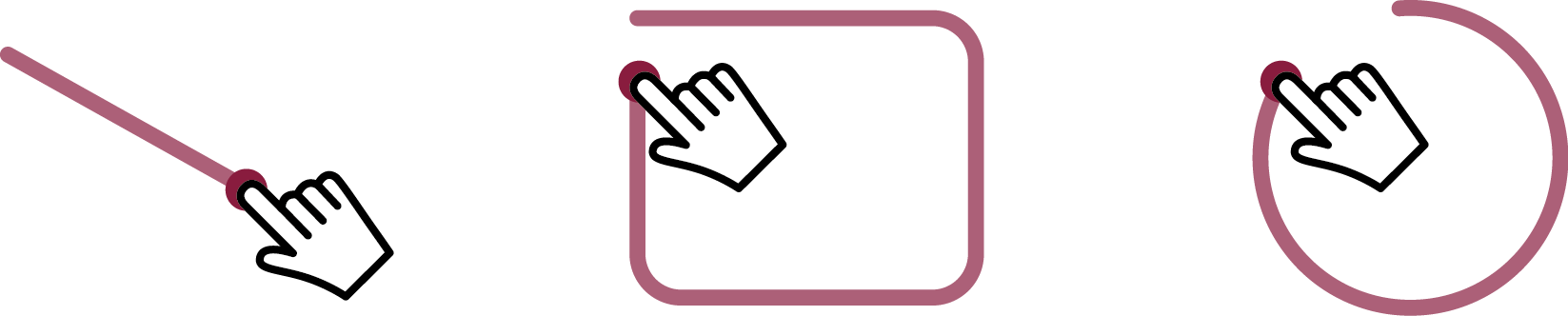
Drag diagonally or in circle to create a box that fits the dragged space.


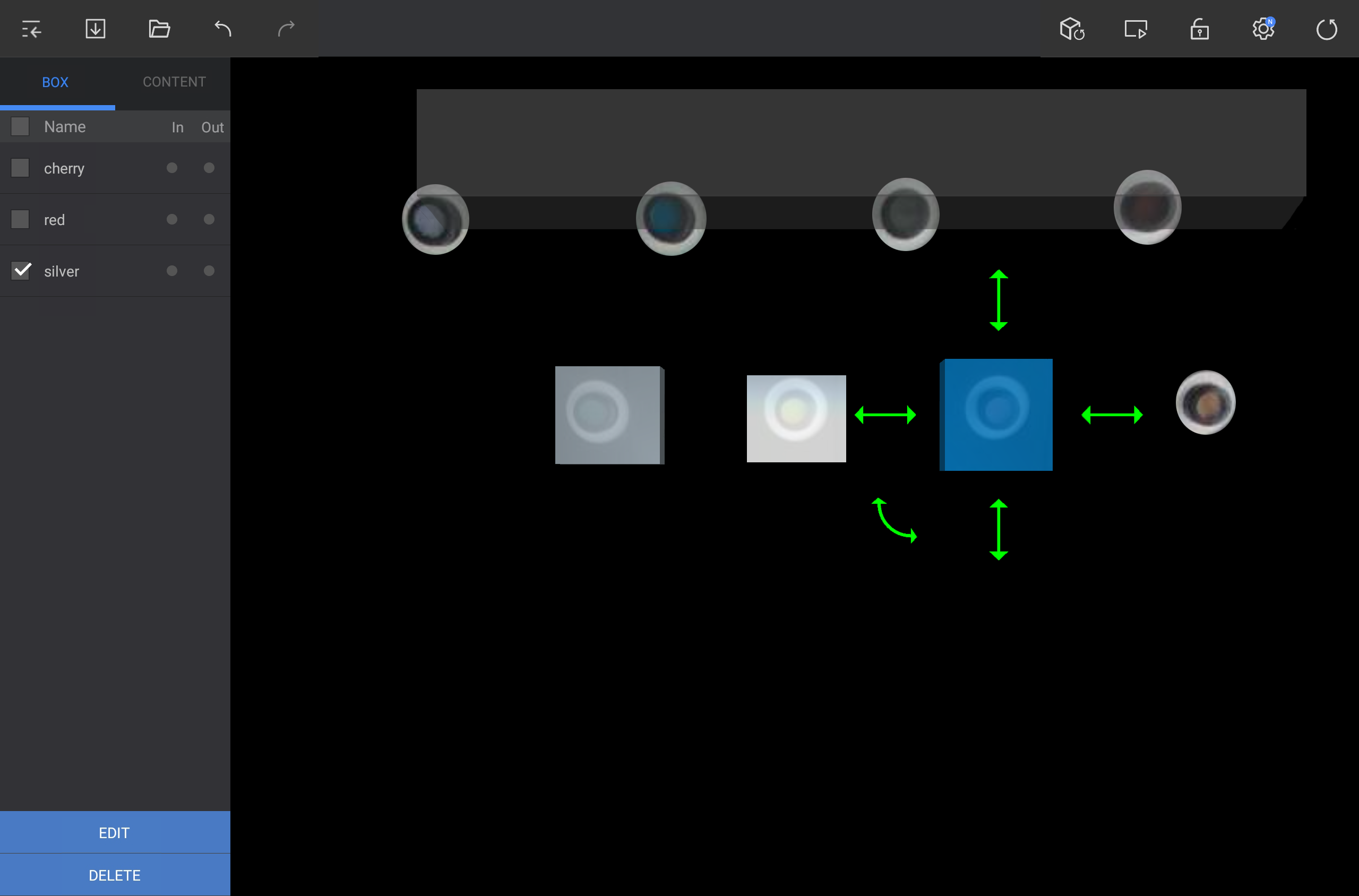
Editing a box


  1. Select a box from the BOX tab or in the angle area.

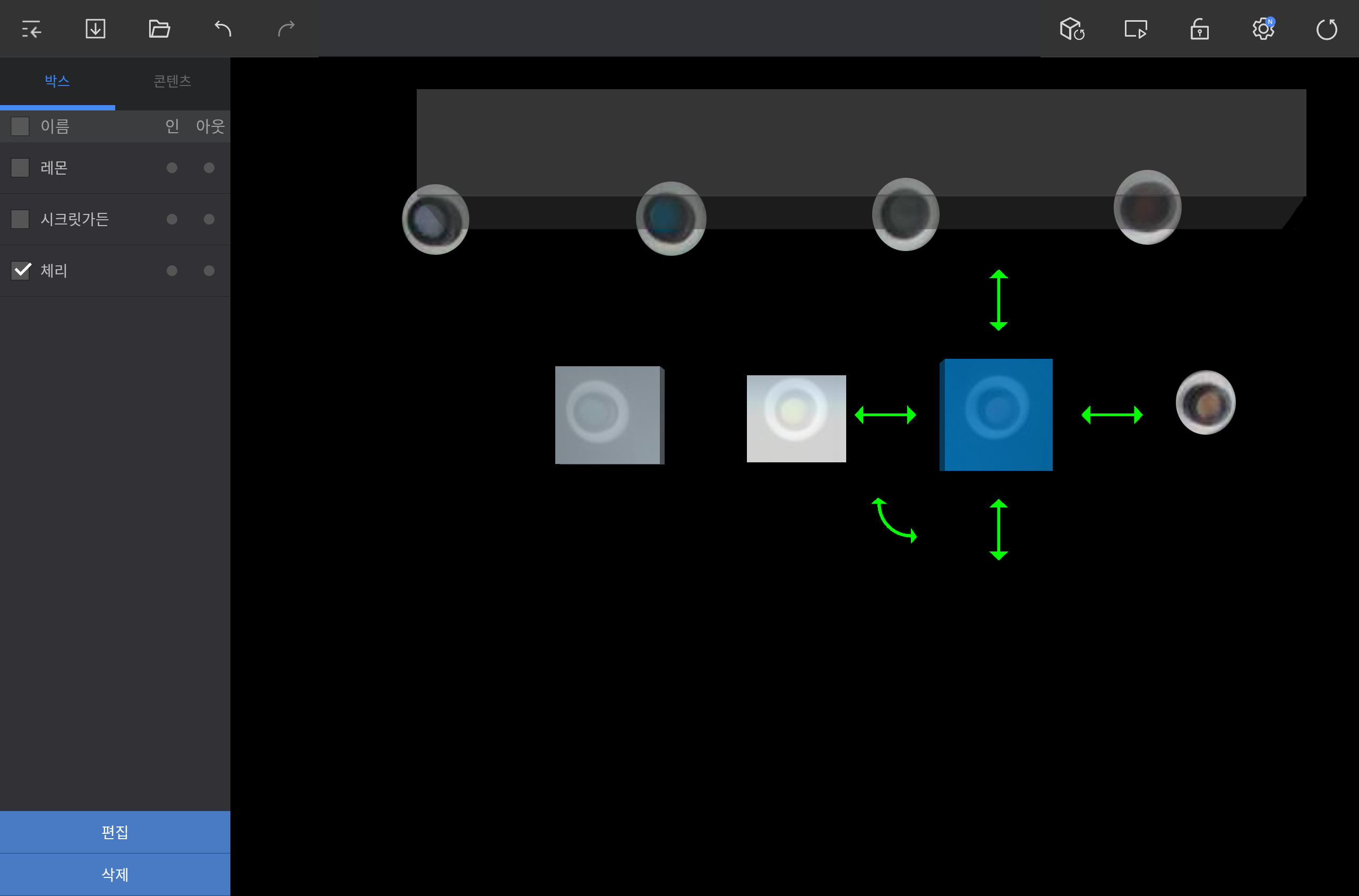
  2. Use the available options to edit the box.

    Stylesheet
    classscreen

    Image RemovedImage Added

    • To reposition the box, press and hold the box and then drag it to a desired position.

    • To adjust the box size, press and hold and then drag the straight double arrows around the box (up/down/right/left).

    • To rotate the box, press and hold and then drag the curved double arrow.

    • To rename the box or add a tag, tap EDIT on the lower left screen.

    • To delete the box, tap DELETE on the lower left screen.

      Info
      titleNote
      • To delete multiple boxes at once, select them from the BOX tab.
      • When editing boxes, check the effective area using the Player screen to allow more precise detection.