Versions Compared

Key

  • This line was added.
  • This line was removed.
  • Formatting was changed.
Sv translation
languageko_KR
  1. 메인 메뉴 모음에서 (콘텐츠) 클릭하세요.
  2. 콘텐츠 만들기를 클릭하세요. Web Author가 실행됩니다.
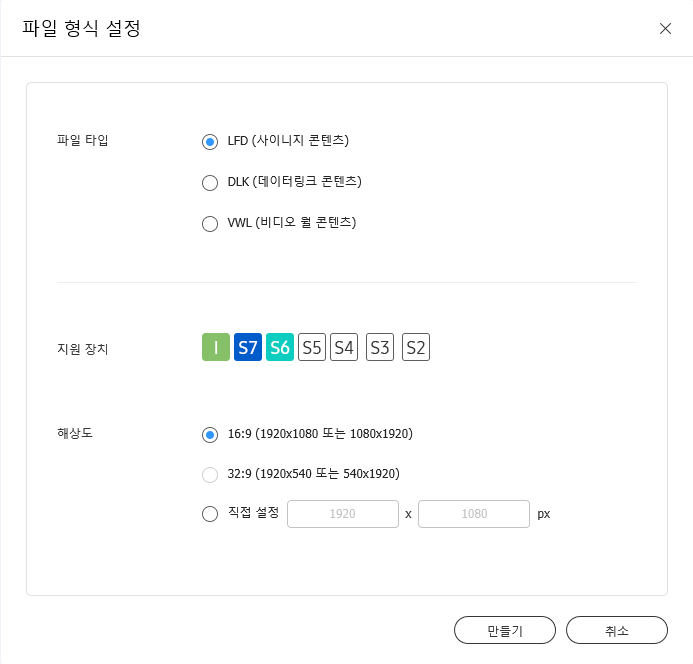
  3. Web Author가 실행되면 장치 타입, 지원 장치, 해상도를 설정하세요.

    Info
    title참고

    장치 타입으로 비디오월을 선택한 경우 서버에 등록된 그룹 중 비디오월 속성이 적용된 그룹을 선택해야 합니다.

  4. 만들기를 클릭하면 설정된 내용에 따라 콘텐츠를 만들 수 있는 화면으로 이동합니다.

    Stylesheet
    classscreen


Sv translation
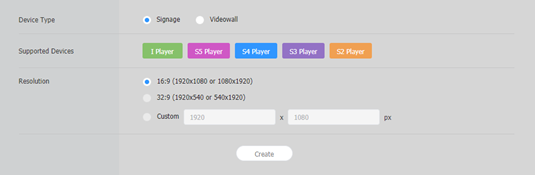
languageen
  1. Click (Content) on the main menu bar.
  2. Click Create Contents. Web Author is launched.
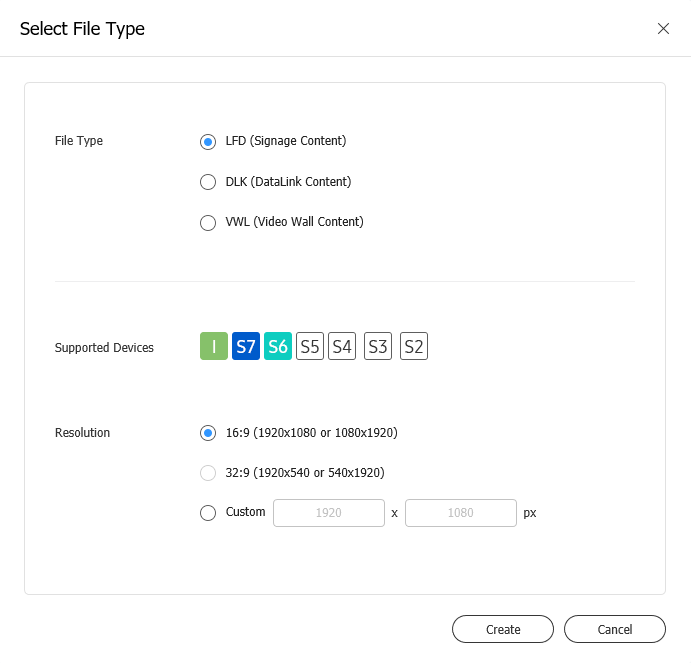
  3. When Web Author is launched, set the device type, supported devices, and resolution.

    Info
    titleNote

    If the device type is set to Videowall, a group, registered on the server, that has videowall properties must be selected.


  4. Click Create. The screen used to create content based on settings appears.

    Stylesheet
    classscreen


Sv translation
languageit
  1. Cliccare su (Contenuto) nella barra dei menu principale.
  2. Cliccare su Crea contenuto. Si avvia Web Author.
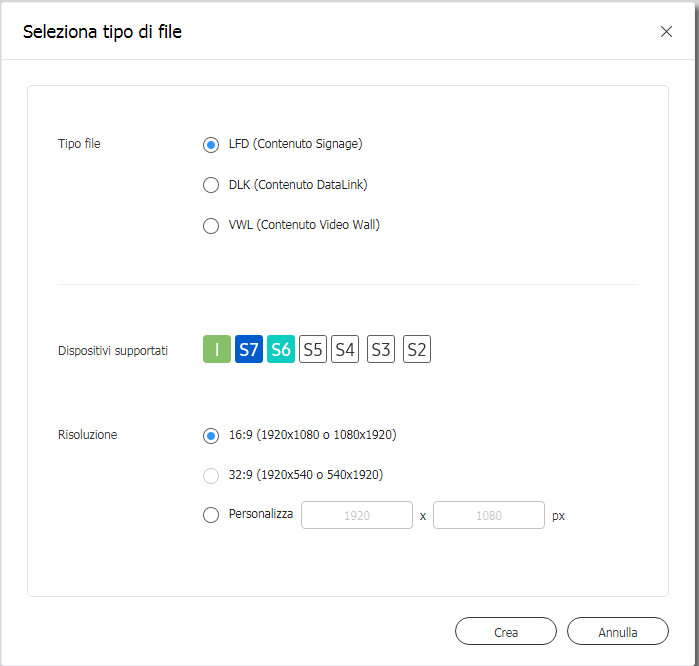
  3. Quando si avvia Web Author, impostare il tipo di dispositivo, i dispositivi supportati e la risoluzione.

    Info
    titleNota

    Se il tipo di dispositivo è impostato su Videowall, è necessario selezionare un gruppo, registrato sul server, che disponga di proprietà videowall.

  4. Cliccare su Crea. Si visualizza la schermata usata per creare contenuto in base alle impostazioni.

    Stylesheet
    classscreen


Sv translation
languagede
  1. Klicken Sie auf (Inhalt) in der Hauptmenüleiste.
  2. Klicken Sie auf Inhalte erstellen. Web Author wird gestartet.
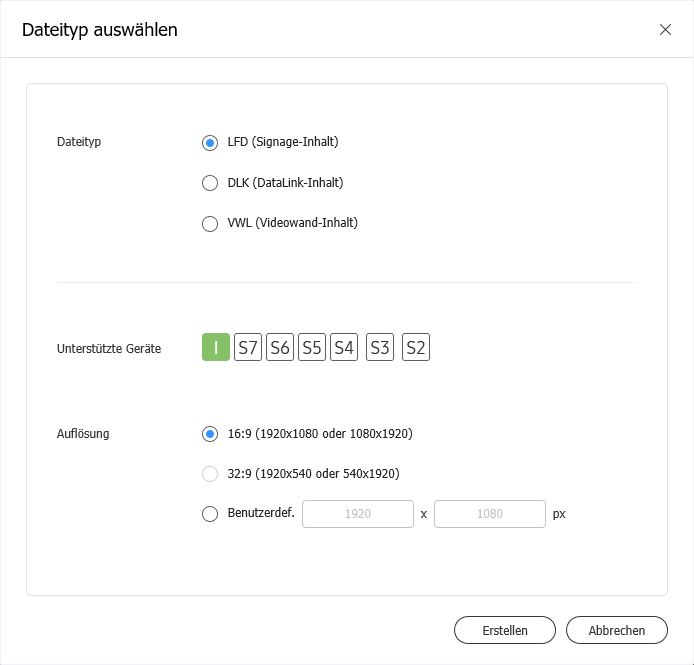
  3. Wenn Web Author gestartet wird, stellen Sie den Gerätetyp, die unterstützten Geräte und die Auflösung ein.

    Info
    titleHinweis

    Wenn der Gerätetyp auf Videowand eingestellt ist, muss eine auf dem Server registrierte Gruppe ausgewählt werden, die Videowandeigenschaften hat.

  4. Klicken Sie auf Erstellen. Der Bildschirm zum Erstellen von Inhalten basierend auf den Einstellungen wird angezeigt.

    Stylesheet
    classscreen


Sv translation
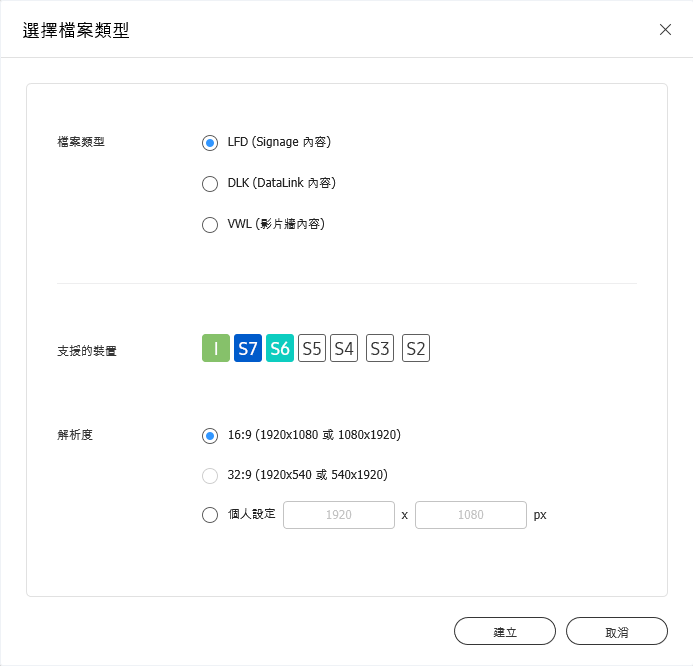
languagezh_TW
  1. 按一下主要選單列上的 (內容)。
  2. 按一下建立內容。Web Author 已啟動。
  3. 啟動 Web Author 時,請設定裝置類型、支援裝置和解析度。

    Info
    title附註

    若裝置類型設定為 Videowall,則必須選擇已在伺服器上註冊且有 Videowall 屬性的群組。


  4. 按一下建立。會出現用來根據設定建立內容的畫面。

    Stylesheet
    classscreen


Sv translation
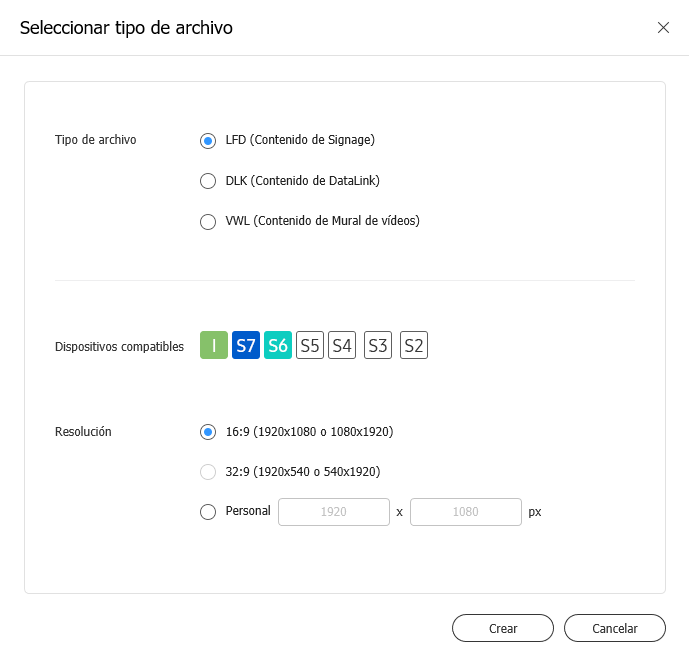
languagees
  1. Haga clic en (Contenido) en la barra de menús principal.
  2. Haga clic en Crear contenidos. Se ejecuta Web Author.
  3. Cuando se ejecute Web Author, defina el tipo de dispositivo, los dispositivos compatibles y la resolución.

    Info
    titleNota

    Si el tipo de dispositivo se establece en MuralVídeos, se debe seleccionar un grupo, registrado en el servidor, que tenga propiedades de mural de vídeos.


  4. Haga clic en Crear. Aparecerá la pantalla que permite crear contenido de acuerdo con la configuración.

    Stylesheet
    classscreen


Sv translation
languagepl
  1. Na pasku menu głównego kliknij  (Content (Treści)).
  2. Kliknij Create Contents (Utwórz treści). Uruchomi się Web Author.
  3. Po uruchomieniu Web Author ustaw typ urządzenia, obsługiwane urządzenia oraz rozdzielczość.
    Jeżeli typ urządzenia ustawiony jest na Videowall, należy wybrać zarejestrowaną na serwerze grupę, która ma ustawioną opcję videowall.
  4. Kliknij Create (Utwórz). Wyświetla się ekran używany do tworzenia treści na podstawie ustawień.