Add devices, to which content files will be distributed, to MagicInfo Premium Server.
Select (Device) on the main menu bar.
Info
title
Note
The general administrator is only authorized to approve new devices.
To add a device to MagicInfo Premium Server, click Unapproved. A list of devices connected to MagicInfo Premium Server that are waiting for approval will appear.
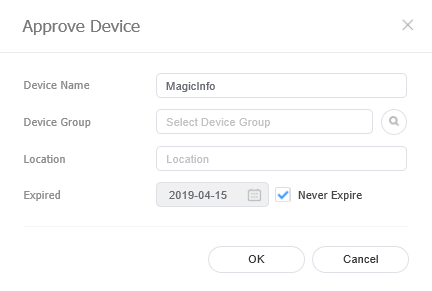
Select a device and click Approve. A window appears where a device can be authorized.
Specify the name, group, location and expiration date. Click OK. The device has been authorized.
Stylesheet
class
screen
Info
title
Note
To delete an unauthorized device without authorizing it, select the device and click Delete.
To authorize multiple devices of the same model, select devices and click Approve. If you enter representative names of devices, the device names are saved in the "representative name_(sequence number)" format.