
Page History
| Sv translation | ||||||||||||||||||||||||||||||||||||||||||||||||
|---|---|---|---|---|---|---|---|---|---|---|---|---|---|---|---|---|---|---|---|---|---|---|---|---|---|---|---|---|---|---|---|---|---|---|---|---|---|---|---|---|---|---|---|---|---|---|---|---|
| ||||||||||||||||||||||||||||||||||||||||||||||||
|

| Sv translation | |||||||||||||||
|---|---|---|---|---|---|---|---|---|---|---|---|---|---|---|---|
| |||||||||||||||
Layout settingsIf you launch Layout Editor from MagicInfo Server, the Layout setting window appears. Configure basic layout settings from the window, and then click Create.
Configuring a layoutConfigure a videowall layout as desired using Layout Mode.
Aligning devices
Arranging devices
Configuring section properties
Select a section from the edit section.
When detailed section information appears in the Properties tab, change information about the section location (rotation angle) as desired. | |||||||||||||||
| Location |
| ||||||||||||||
| Display Device | Display device information is read only and cannot be edited.
| ||||||||||||||
| Location | Configure information about a device location.
|




| Info | ||
|---|---|---|
| ||
Device IDs are assigned according to the number of devices that form a device group. For example, if a device group has ten devices, different IDs are displayed on each device in the range 01–10. |
- Select a device from the edit section.
- When detailed information about the selected device appears in the Properties tab, enter the ID found on the actual device.
The ID will be displayed on the device screen in the edit section.
| Info | ||
|---|---|---|
| ||
|


Finely adjusting layouts
After configuring the required settings in Mapping Mode, click Finetuning Mode.
To finely adjust location settings for an actual device, use Finetuning Mode to edit the settings.
| Info | ||
|---|---|---|
| ||
|
- Select an element (section or device) from the edit section.
- When detailed information about the selected element appears in the Properties tab, edit the location value.
- Click
 on the toolbar.
Changes will be applied.
| Info | ||
|---|---|---|
| ||
|


Deploying to MagicInfo Server
After configuring a videowall layout, click Complete.
Info Complete step is only available after a device ID is set in Mapping Mode.
- When prompted to confirm distribution of the VideoWall layout to MagicInfo Server, click Yes.
The VideoWall layout you configured will be deployed to MagicInfo Server and applied to selected device group(s)Stylesheet class screen
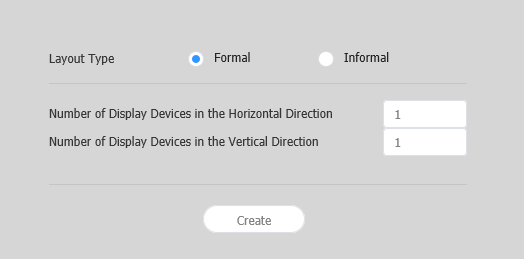
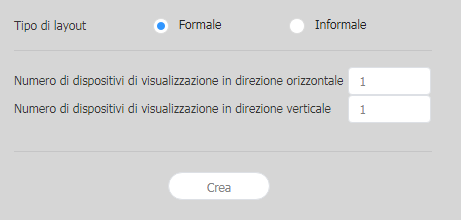
Select a videowall layout. This option is available when the device group consists of devices of the same model.
- Formal: Arrange devices in formal mode using a predefined matrix such as 2x2 and 3x4.
- Irregular: Customize the arrangement of devices to suit your preferences.
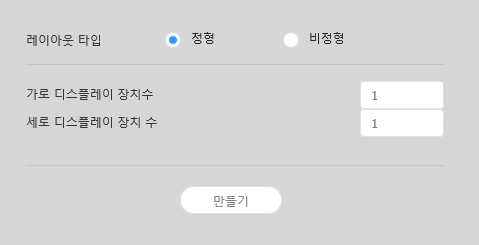
Layout types - 정형: 장치를 2X2, 3X4 등 직사각형 형태로 정렬하여 고정된 형태의 비디오월을 구성합니다.
- 비정형: 장치를 사용자가 원하는 형태로 자유롭게 배치할 수 있습니다.
Number of Displays The number of horizontal X vertical devices to configure a VideoWall layout. Info title 참고 Configuring layouts depends on the selected layout type. This user manual is based on the irregular type.
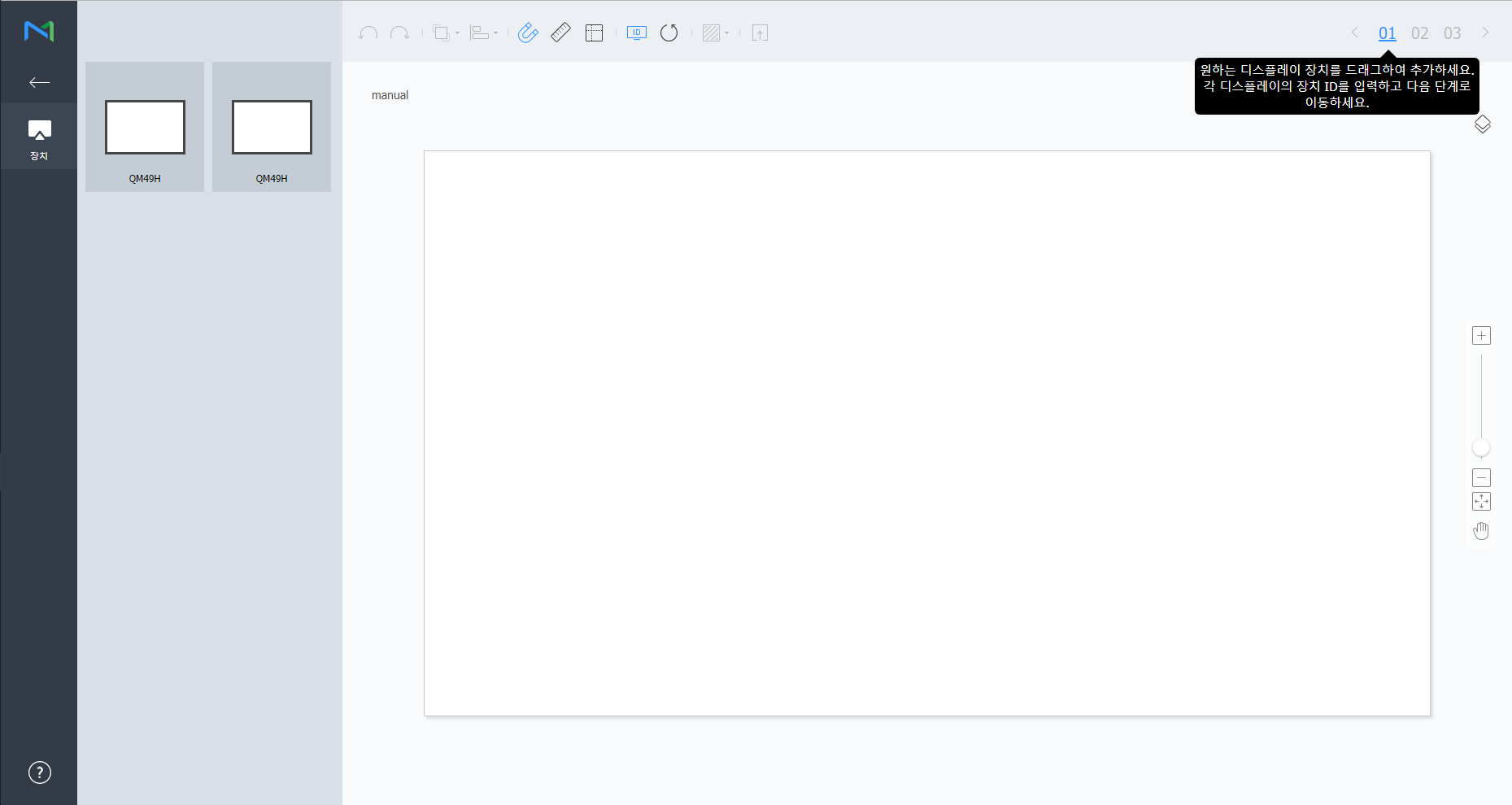
Select devices from the list and drag them into the editor section.
Info title Note This step will not be available if you chose the the regular type for your layout.
Stylesheet class screen 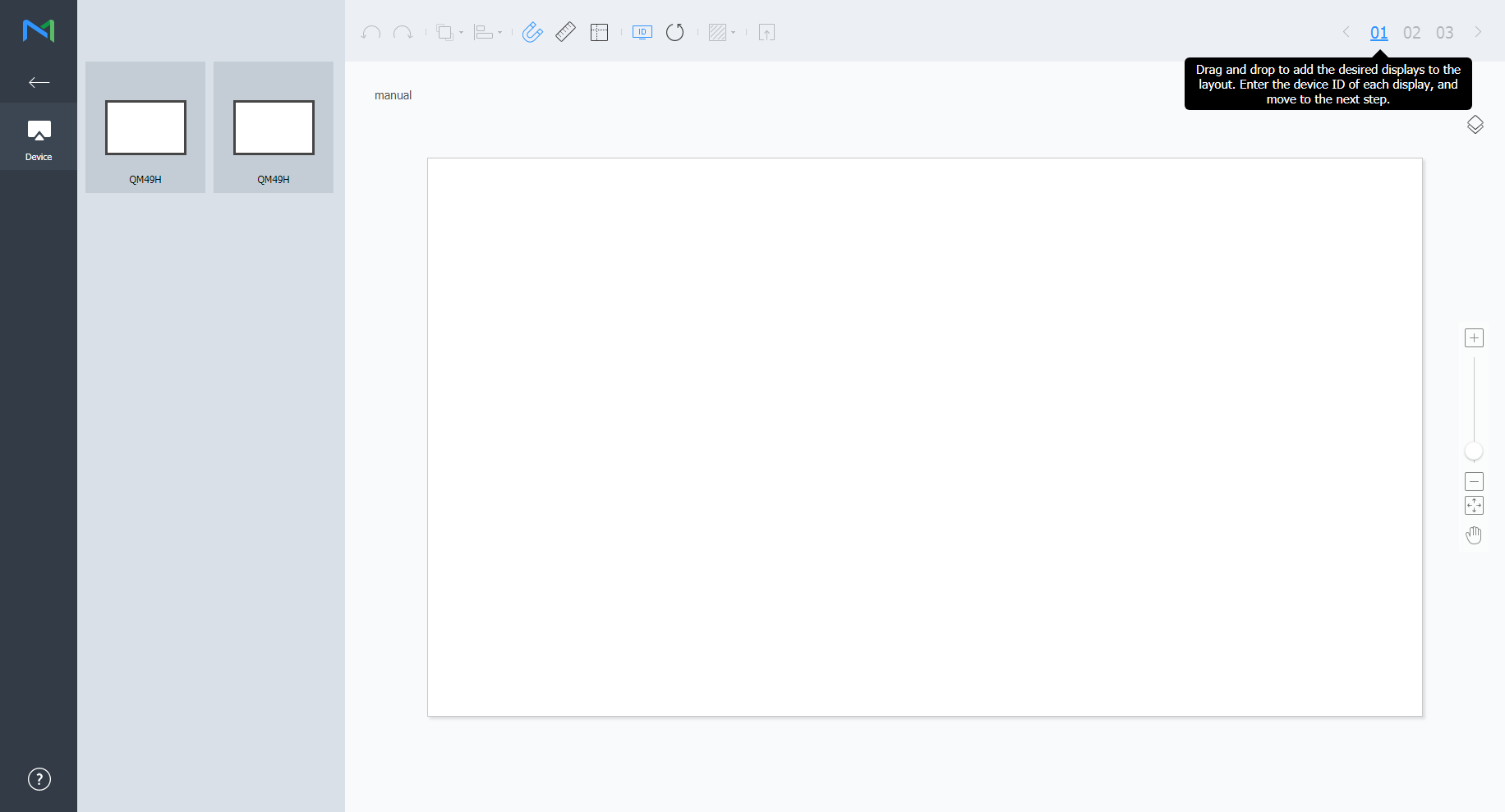
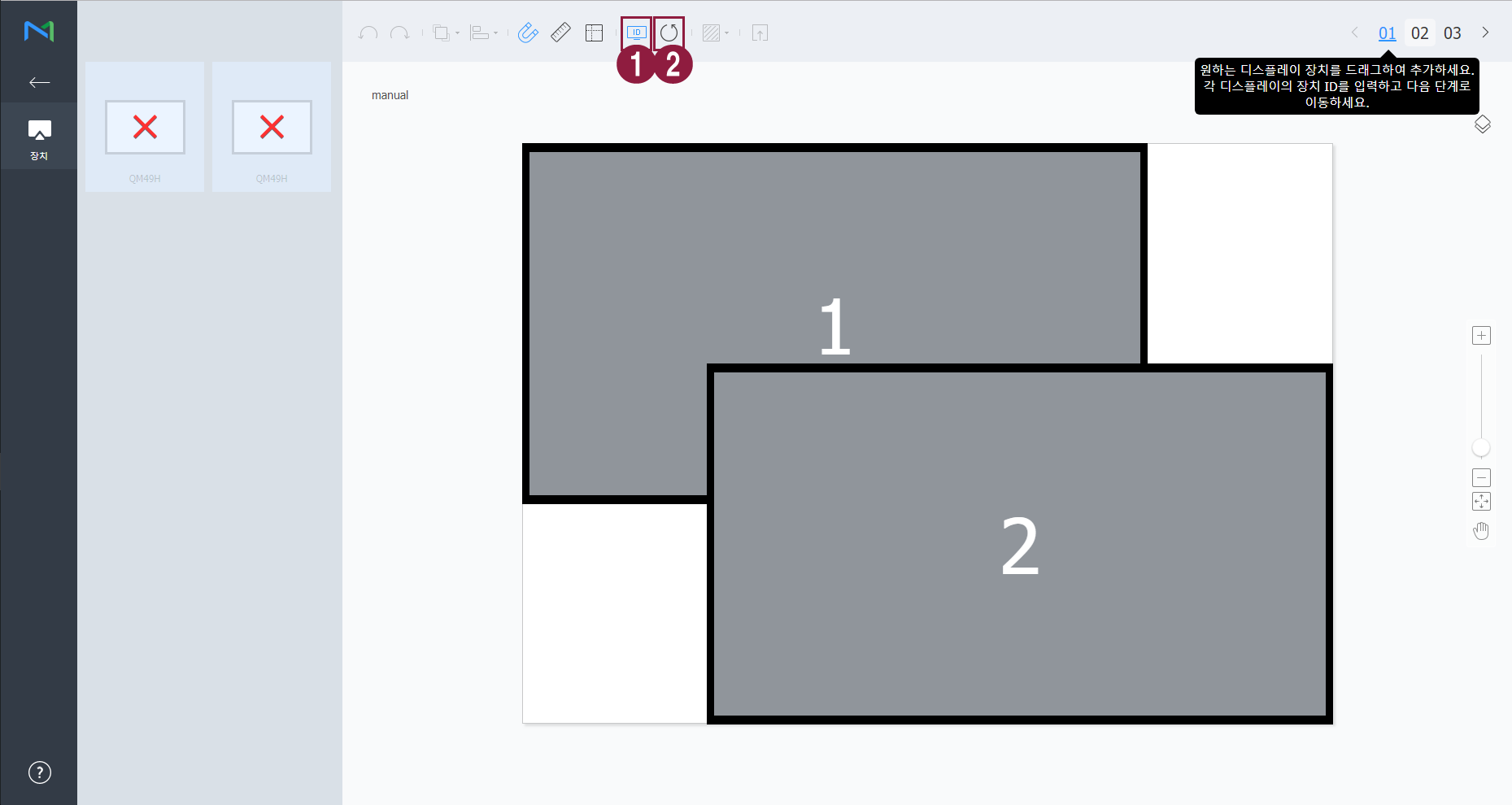
Enter the device ID for each device and click 02.
Stylesheet class screen 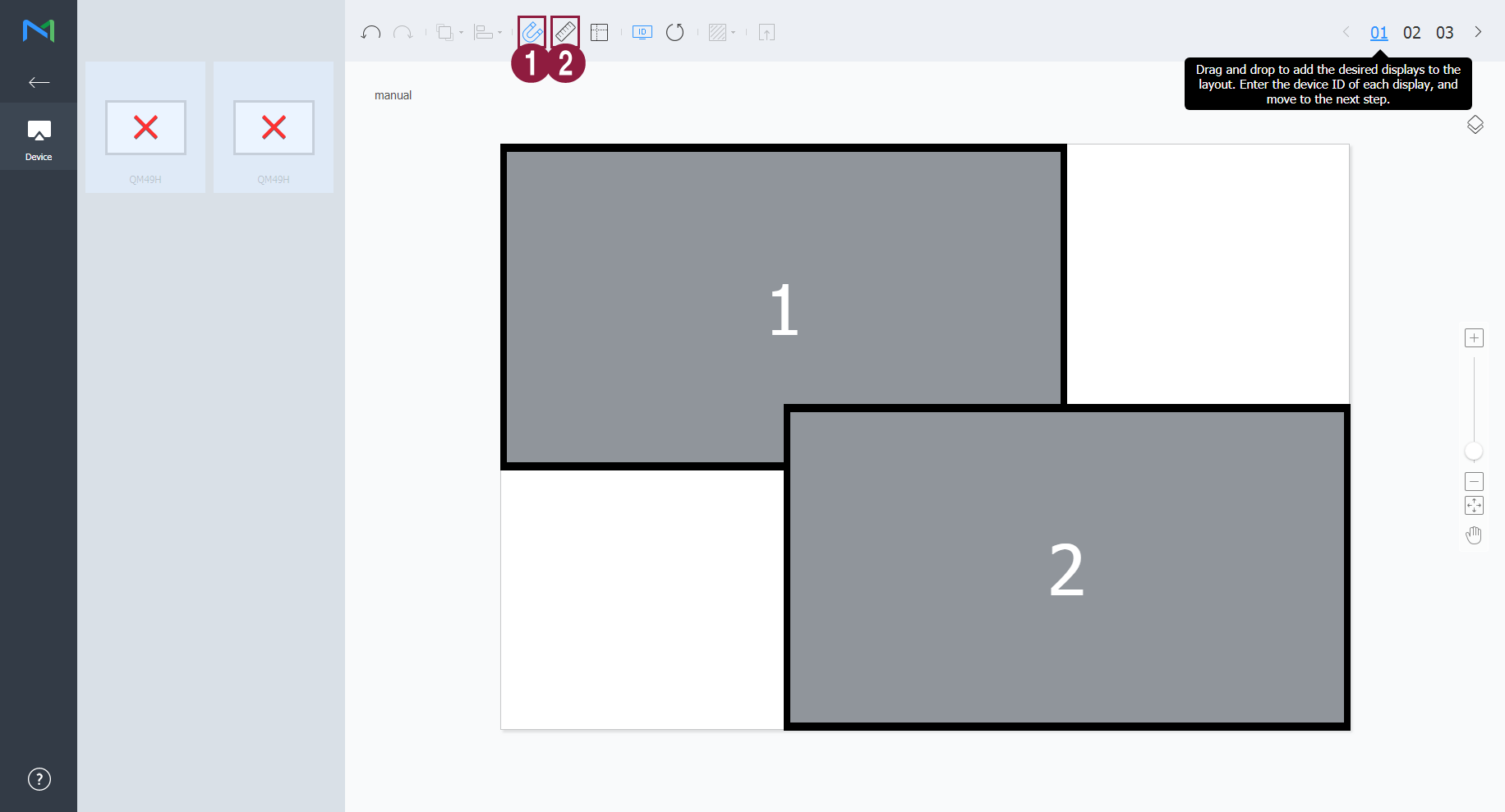
1 Display the device ID on the relevant device screen. 2 Initialize the device ID for that device. Adjust the device positions and click 03.
Stylesheet class screen 
1  : Undo the last command to revert back to the previous state.
 : Redo a command that has been undone.
 : Align several devices based on desired alignment criteria.
 : Automatically arrange devices to fit the grid.
 : Display the ruler.
 : Display the guides.
 : Select the test pattern to display on the device.
 : Preview the device with the layout applied.
2 Adjust the device position more precisely. 3 Zoom in or out the editor screen view. Use the slide bar to adjust the zoom level. 4  : Adjust the aspect ratio and position of the editor to fit the window to overview devices.
 : Move the selected device.
5 You can review the VWL Layout Editor version and the open source license information. - After configuring the layout, click Yes.
- The VideoWall layout will be saved to the server.
| Sv translation | |||||||||||||||||||||||||||||||||||||||||||||||||||||||||||||||||||||||||||
|---|---|---|---|---|---|---|---|---|---|---|---|---|---|---|---|---|---|---|---|---|---|---|---|---|---|---|---|---|---|---|---|---|---|---|---|---|---|---|---|---|---|---|---|---|---|---|---|---|---|---|---|---|---|---|---|---|---|---|---|---|---|---|---|---|---|---|---|---|---|---|---|---|---|---|---|
| |||||||||||||||||||||||||||||||||||||||||||||||||||||||||||||||||||||||||||
Impostazioni layoutSe si avvia Layout Editor da MagicInfo Server, viene visualizzata la finestra Impostazione layout. Configurare le impostazioni base del layout dalla finestra, quindi cliccare su Crea.
Configurazione di un layoutConfigura un layout videowall come desiderato utilizzando Modalità layout.
Allineamento di dispositivi
Disposizione di dispositivi
Configurazione delle proprietà sezione
Configurazione delle proprietà dispositivo
Mappatura di dispositiviDopo aver configurato le impostazioni richieste in Modalità layout, cliccare su Modalità mappatura. Nella schermata del dispositivo reale verrà visualizzato un ID non appena Modalità mappatura si attiva. Utilizzare l'ID per controllare lo schermo del dispositivo virtuale nella sezione di modifica in congiunzione con il dispositivo reale.
Regolazione di precisione di layoutDopo aver configurato le impostazioni richieste in Modalità mappatura, cliccare su Modalità sintonizzazione. Per eseguire la regolazione di precisione delle impostazioni di posizione per un dispositivo reale, utilizzare Modalità sintonizzazione per modificare le impostazioni.
Distribuzione a MagicInfo Server
|
...