Versions Compared

Key

  • This line was added.
  • This line was removed.
  • Formatting was changed.
Sv translation
languageko_KR

DataLink 기능을 이용해 콘텐츠 안의 요소가 실시간으로 바뀌는 동적 콘텐츠를 제작할 수 있습니다. 이 콘텐츠에는 MagicInfo Server에 등록된 일반 미디어 파일뿐만 아니라, DataLink 서버에 수집된 외부 데이터를 맵핑할 수도 있습니다.

Info
title참고

DataLink란 외부 데이터를 일정 주기에 따라 수집하고, MagicInfo Player에 원하는 데이터를 전달하여 동적인 콘텐츠를 표현할 수 있도록 지원하는 웹 기반 애플리케이션입니다. DataLink에 대한 자세한 사항은 MagicInfo DataLink 사용 설명서를 참조하세요.


Web Author를 이용해 DataLink 템플릿을 생성할 수 있습니다.

  1. 콘텐츠 페이지에 요소를 추가하세요.

    Info
    title참고

    이미지, 동영상, 텍스트 요소에만 DataLink 기능을 설정할 수 있습니다.

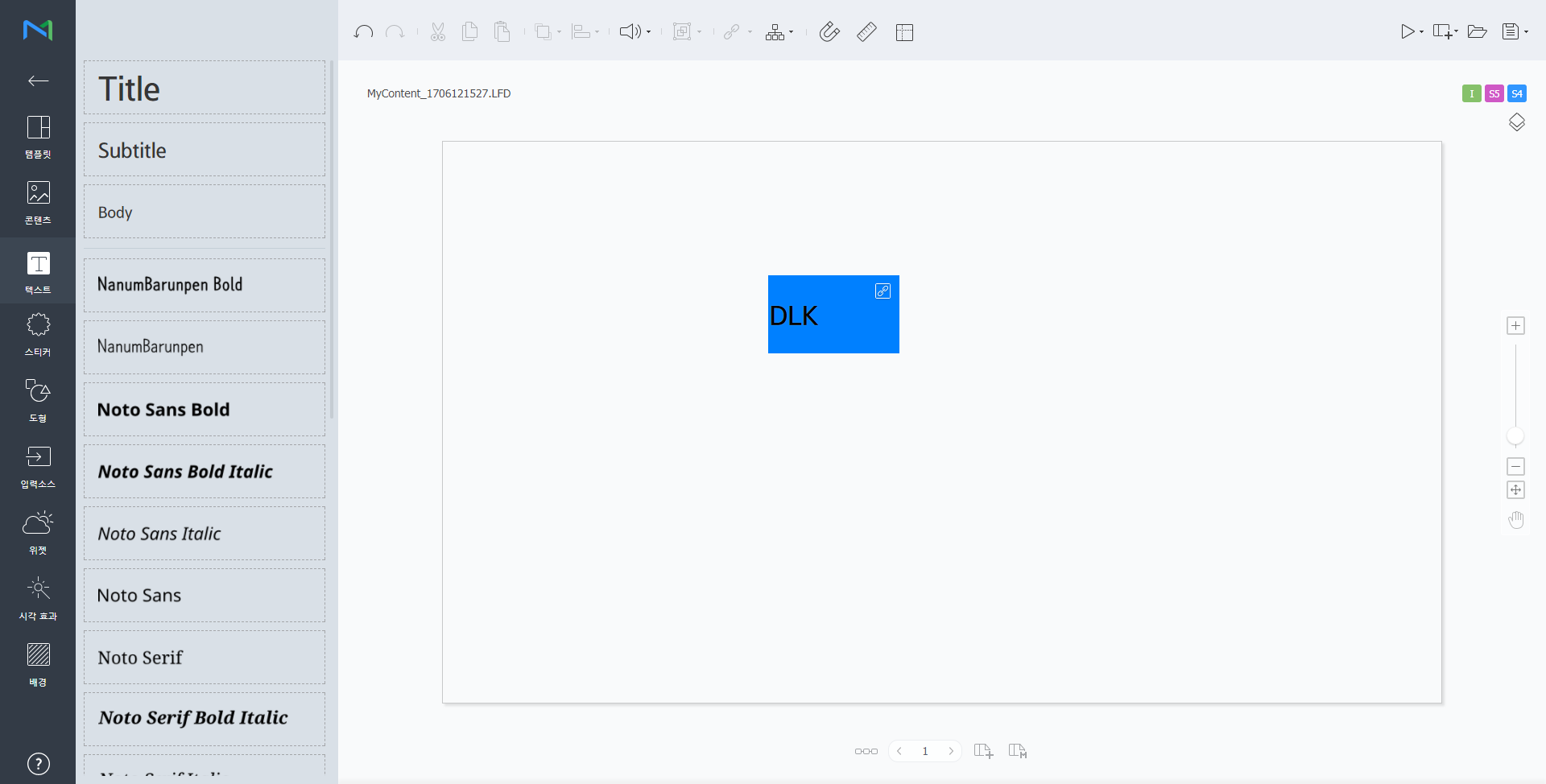
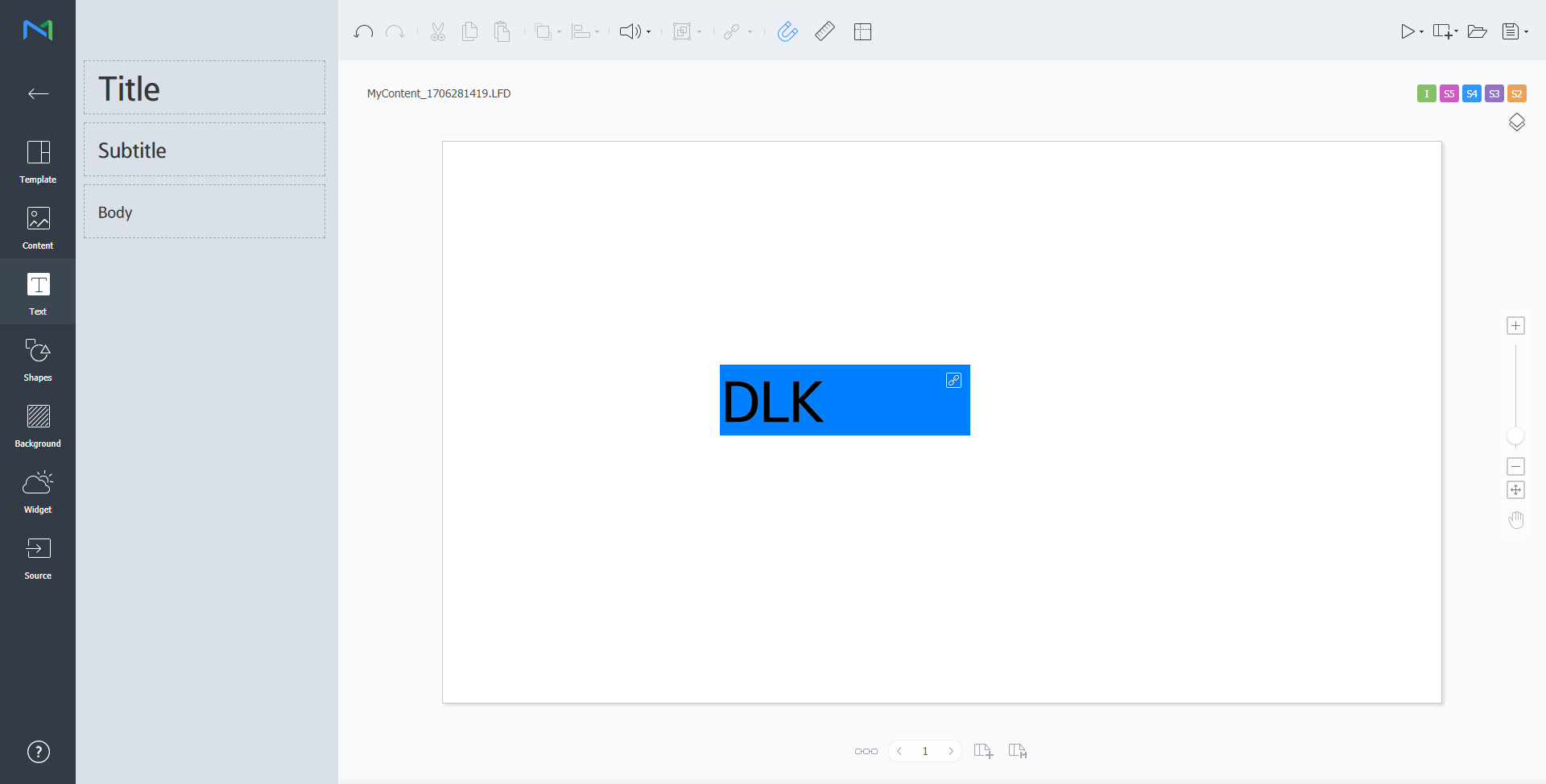
  2. DataLink 기능을 설정할 요소를 선택한 후 요소 편집 도구에서 클릭하세요. 여러 개의 요소를 동시에 선택할 수도 있습니다.
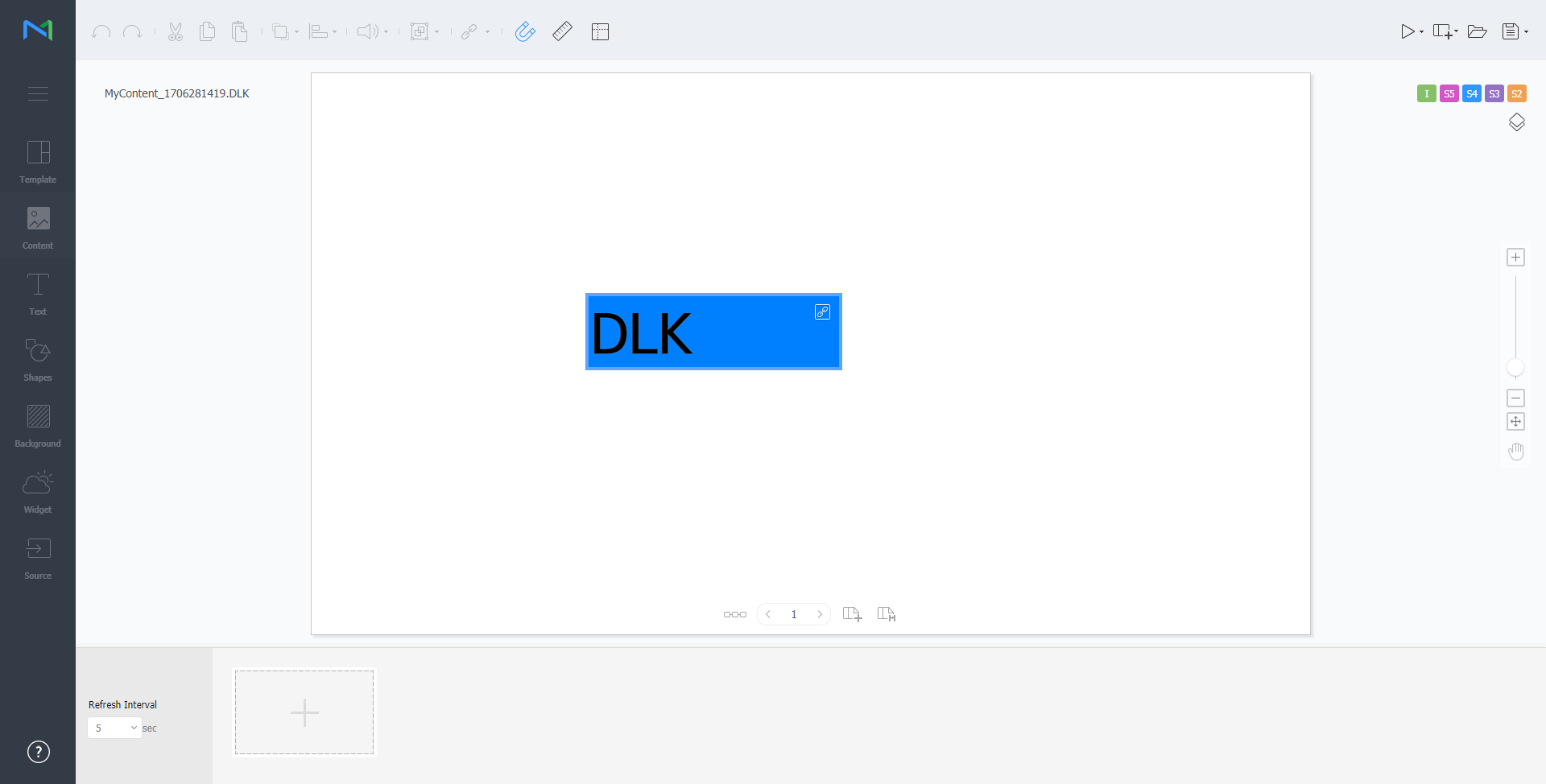
    요소에 아이콘이 나타납니다.

    Stylesheet
    classscreen
  3. 해당 요소가 선택된 상태에서 세부 사항을 설정하세요.

    /

    여러 개의 DataLink 요소를 동시에 선택한 후 요소들을 그룹화하거나, 그룹 해제할 수 있습니다.

    DataLink 정보를 설정할 수 있습니다.

    • 전환 속도: DataLink 요소가 업데이트되는 간격을 설정할 수 있습니다.
    • 데이터 동기화: 데이터 동기화 여부를 설정할 수 있습니다.
    • 이전 데이터 유지: 이전 데이터 유지 여부를 설정할 수 있습니다.
    • 데이터 그룹화: 여러 개의 DataLink 요소를 동시에 선택한 후 요소들을 그룹화할 수 있습니다.
    • 데이터 그룹 해제: 그룹화된여러 개의 DataLink 요소를 그룹 해제할 수 있습니다.
    • 치환 테이블 수정: 데이터 치환 테이블을 이용하여 DataLink 테이블의 특정 데이터를 텍스트 또는 이미지, 동영상으로 치환할 수 있습니다. 치환 테이블 창에서 추가를 클릭하면 치환 테이블을 추가할 수 있습니다. 원하는 치환 대상을 선택한 후 저장을 클릭하세요


  4. 설정이 완료되면 클릭하세요.
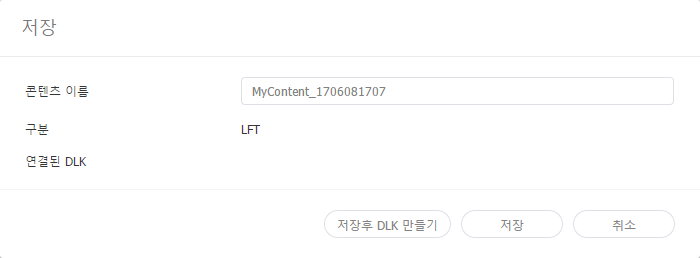
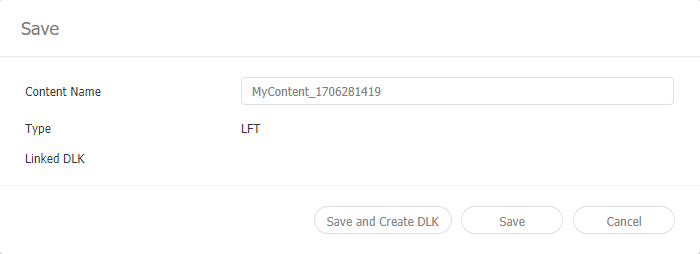
  5. 저장 정보를 설정한 후 저장후 DLK 만들기를 클릭하세요.
    해당 콘텐츠가 DataLink 템플릿으로 저장됩니다.

    Stylesheet
    classscreen

DataLink 템플릿 수정하기

저장한 DataLink 템플릿을 불러온 후 수정할 수 있습니다.

  1. Web Author 화면에서 클릭하세요.
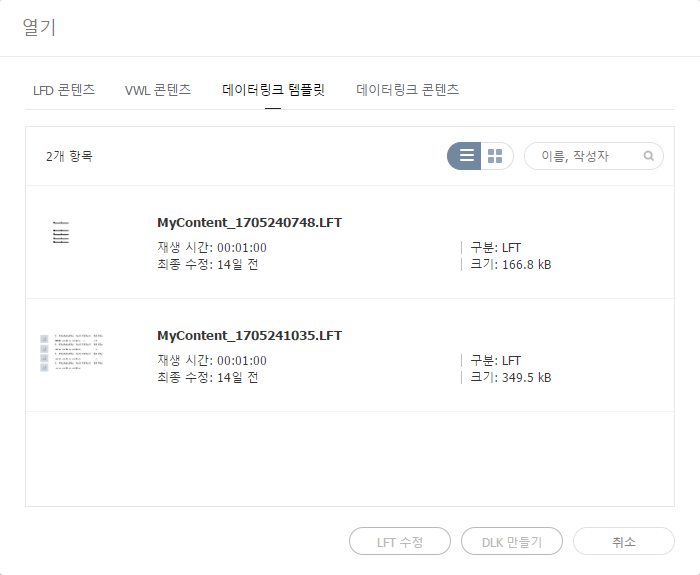
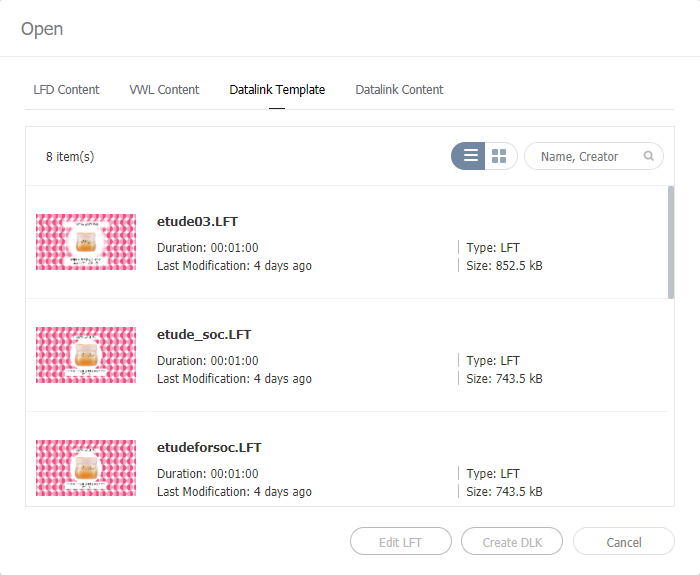
  2. 데이터링크 템플릿 탭을 클릭하세요.

    Stylesheet
    classscreen
  3. 원하는 템플릿을 선택한 후 LFT 수정을 클릭하세요.
  4. DataLink 템플릿을 생성하는 것과 동일한 방법으로 DataLink 템플릿을 수정할 수 있습니다.

DLK 콘텐츠 생성하기


DataLink 템플릿으로 MagicInfo Player에 배포할 DLK 콘텐츠를 생성할 수 있습니다. DLK 콘텐츠는 미디어 파일 또는 텍스트를 직접 등록하거나, 등록된 DataLink Server의 정보를 불러와서 생성할 수 있습니다.

DataLink 템플릿 불러오기

DLK 콘텐츠를 생성하기 위해 DataLink 템플릿을 불러올 수 있습니다.

Info
title참고

DataLink 템플릿을 생성하는 방법은 다음을 참고하세요. DataLink 템플릿 생성하기

  1. Web Author 화면에서 클릭하세요.
  2. 데이터링크 템플릿 탭을 클릭하세요.

    Stylesheet
    classscreen
  3. 원하는 템플릿을 선택한 후 DLK 만들기를 클릭하세요.
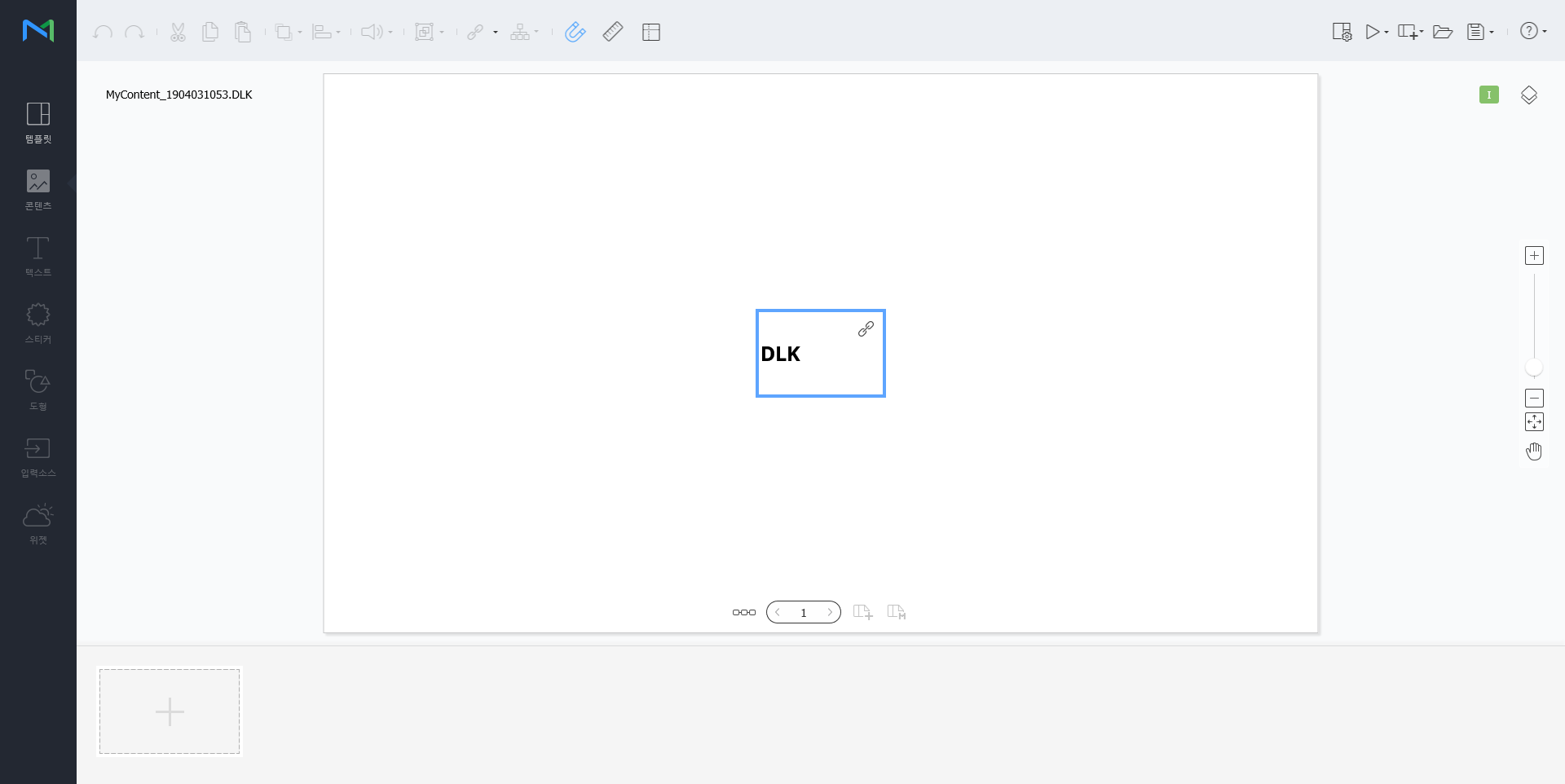
    DLK 콘텐츠 생성 화면이 나타납니다.

직접 입력하여 DLK 콘텐츠 만들기

  1. DataLink 템플릿을 불러오세요.
  2. DataLink 요소를 선택하세요.
    DataLink 관리 창이 나타납니다.

    Stylesheet
    classscreen
  3. 데이터를 추가하려면  클릭하세요.
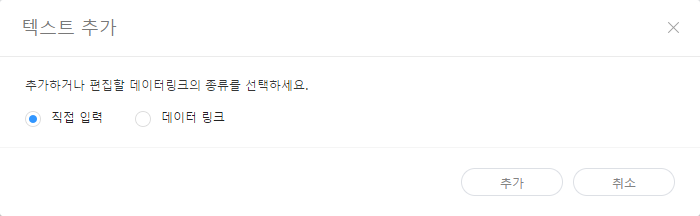
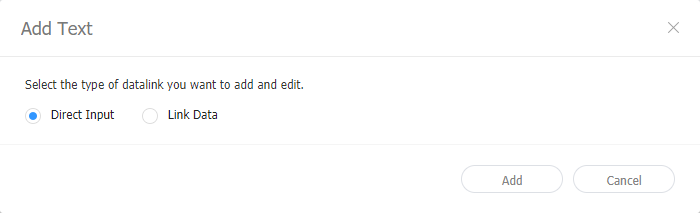
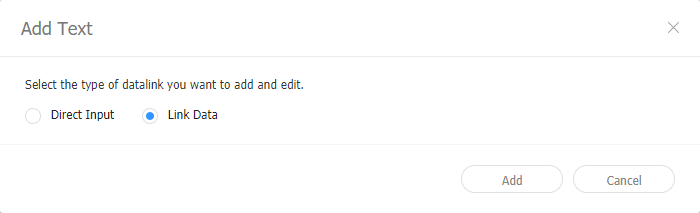
  4. 직접 입력을 선택한 후 추가를 클릭하세요.

    Stylesheet
    classscreen

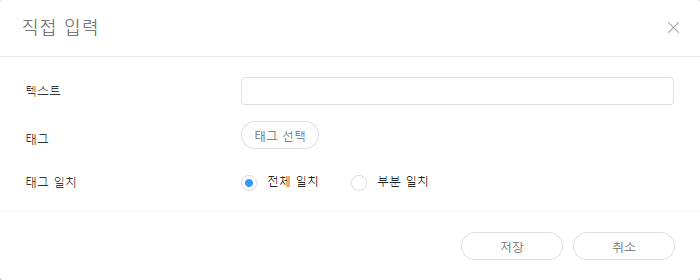
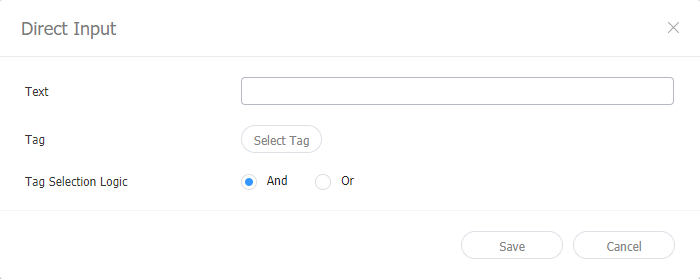
  5. 세부 정보를 입력한 후 저장을 클릭하세요.

    Stylesheet
    classscreen
    텍스트텍스트를 입력하세요.
    태그

    텍스트에 태그를 추가할 수 있습니다. 태그 목록에서 원하는 태그를 선택하고 저장을 클릭하세요. 복수의 태그를 선택할 수도 있습니다.

    Info
    title참고
    • 태그가 설정된 콘텐츠는 동일한 태그를 가진 장치에서만 재생 됩니다.
    • 텍스트에 태그를 설정하려면 먼저, MagicInfo Server에 태그가 추가되어 있어야 합니다. 태그 추가 관련 내용은 다음을 참조하세요. ► 태그 추가하기
    • 태그 사용 관련 내용은 다음을 참조하세요. ► 태그 설정하기
    태그 일치복수의 태그를 설정한 경우, 일치 조건을 설정하세요.


  6. 설정이 완료되면 클릭하세요.
  7. 저장 정보를 설정한 후 저장을 클릭하세요.
    해당 콘텐츠가 DLK 콘텐츠로 저장됩니다.

DataLink Server와 연동하여 DLK 콘텐츠 만들기

DataLink Server의 데이터를 DLK 템플릿에 맵핑하여 DLK 콘텐츠를 구성할 수 있습니다.

Tip
titleDataLink Server와 연동하여 DLK 콘텐츠 만들기

DataLink Server와 연동하여 DLK 콘텐츠를 만들기 위해서는 MagicInfo Server와 DataLink Server를 연결해야 합니다. 관련 내용은 다음을 참조하세요. ► 외부 서버 관리하기

Warning
title미디어 슬라이드 요소

미디어 슬라이드 요소에는 DataLink Server의 데이터를 맵핑할 수 없습니다.

  1. DataLink 템플릿을 불러오세요.
  2. DataLink 요소를 선택하세요.
    DataLink 관리 창이 나타납니다.

    Stylesheet
    classscreen
  3. 데이터를 추가하려면 클릭하세요.
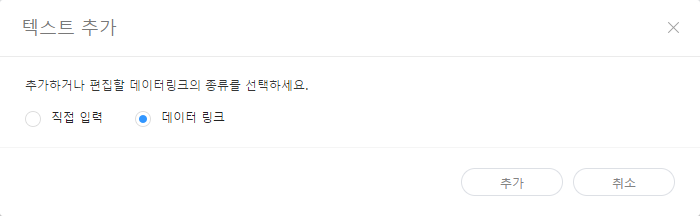
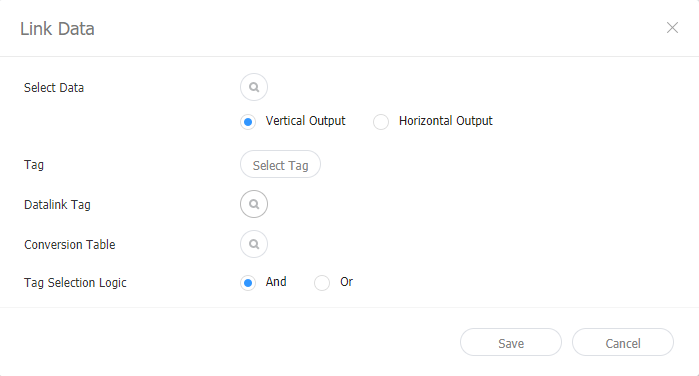
  4. 데이터 링크를 선택한 후 추가를 클릭하세요.

    Stylesheet
    classscreen
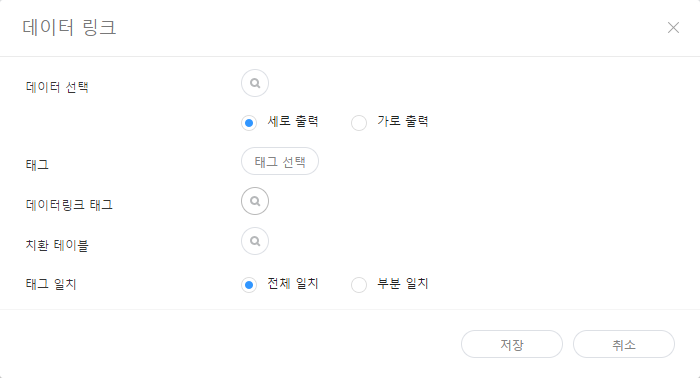
  5. 세부 정보를 입력한 후 저장을 클릭하세요.

    Stylesheet
    classscreen
    데이터 선택

    DataLink Server에 등록된 DataLink 테이블을 선택하세요. DataLink 테이블에서 사용하고 싶은 데이터를 선택한 후 저장을 클릭하세요.

    태그

    데이터에 태그를 추가할 수 있습니다. 태그 목록에서 원하는 태그를 선택하고 저장을 클릭하세요. 복수의 태그를 선택할 수도 있습니다.

    Info
    title참고
    • 태그가 설정된 콘텐츠는 동일한 태그를 가진 장치에서만 재생 됩니다.
    • 데이터에 태그를 설정하려면 먼저, MagicInfo Server에 태그가 추가되어 있어야 합니다. 태그 추가 관련 내용은 다음을 참조하세요. ► 태그 추가하기
    데이터링크 태그

    부가적으로 데이터링크 태그를 추가할 수 있습니다. 데이터링크 태그를 추가하려면 DataLink 테이블에서 컬럼을 선택한 후 확인을 클릭하세요. 태그 사용 관련 내용은 다음을 참조하세요. ► 태그 관리하기

    치환 테이블

    데이터 치환 테이블을 이용하여 DataLink 테이블의 특정 데이터를 텍스트 또는 이미지, 동영상으로 치환할 수 있습니다. 치환 테이블 선택 창에서 원하는 치환 대상을 선택한 후 확인을 클릭하세요.

    태그 일치복수의 태그를 설정한 경우, 일치 조건을 설정하세요.


  6. 설정이 완료되면 클릭하세요.
  7. 저장 정보를 설정한 후 저장을 클릭하세요.
    해당 콘텐츠가 DLK 콘텐츠로 저장됩니다.

데이터링크 관리하기

  1. DataLink 템플릿 또는 DLK 콘텐츠를 불러오세요.
  2. DataLink 요소를 선택하세요.
    DataLink 관리 창이 나타납니다.
  3. 원하는 기능을 사용하여 DataLink를 관리하세요.

    Stylesheet
    classscreen

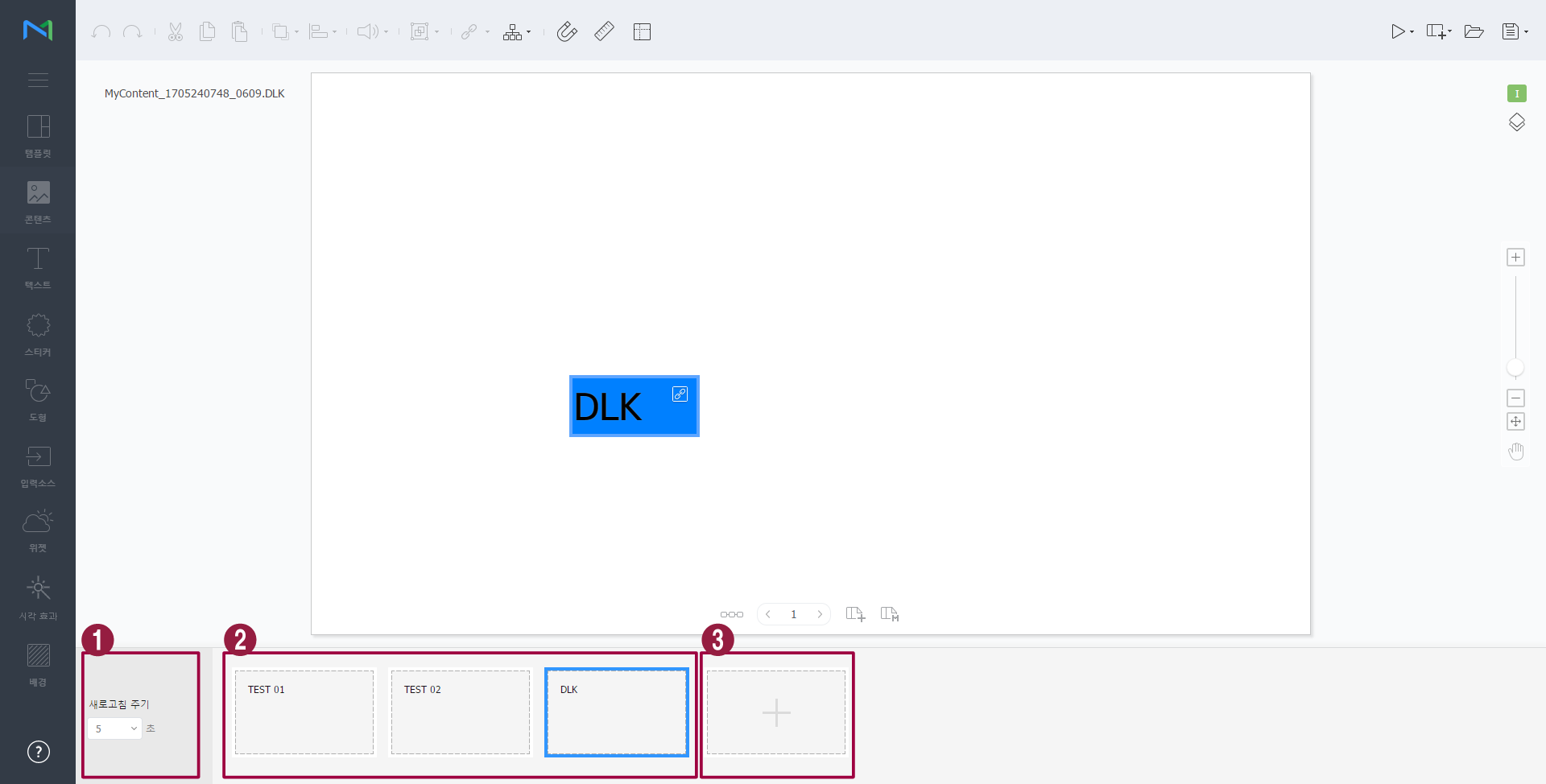
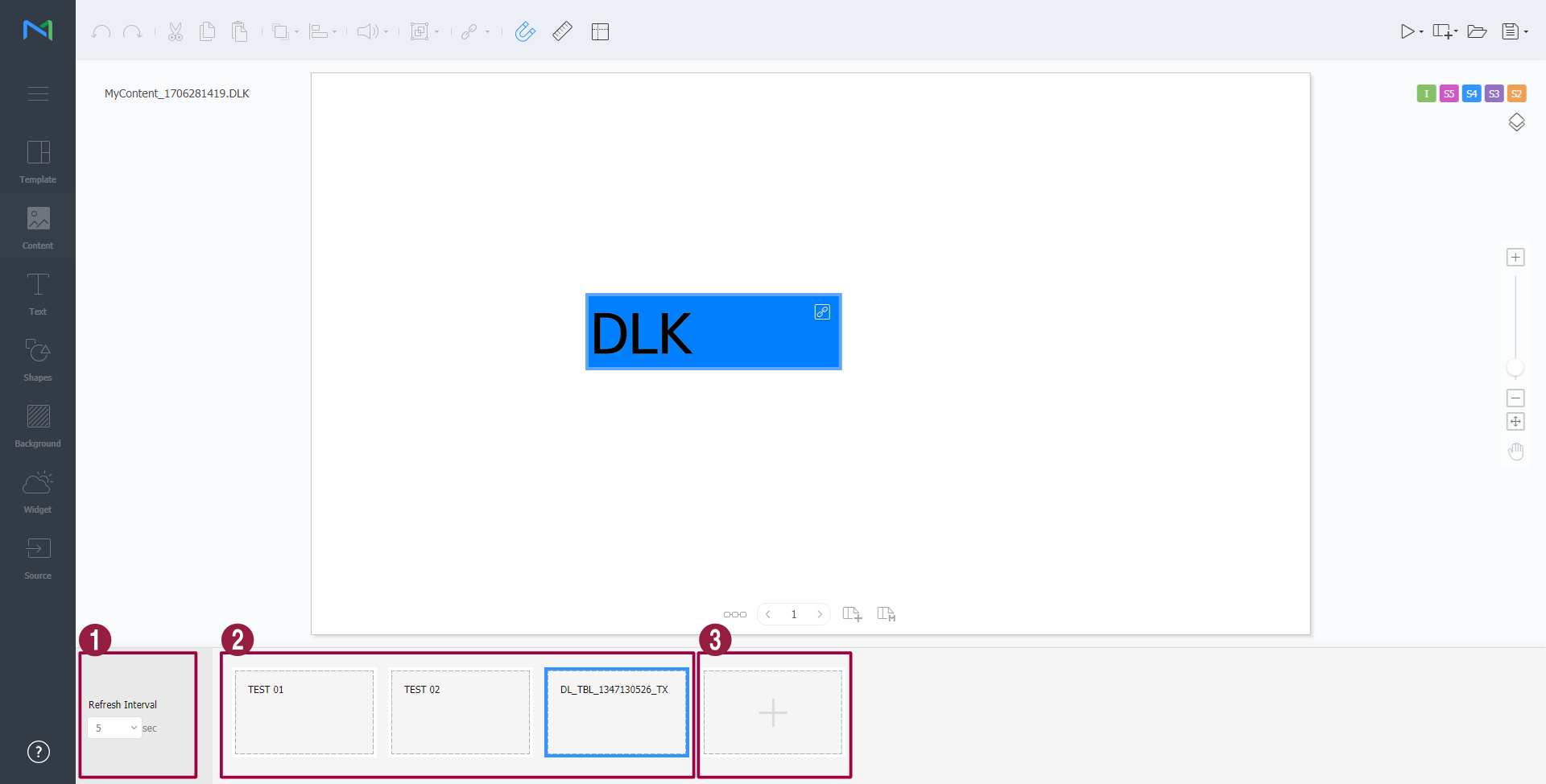
    1DataLink 요소가 업데이트되는 간격을 설정할 수 있습니다.
    2
    • 추가한 데이터를 삭제하려면 삭제할 데이터에 마우스 커서를 올린 후 클릭하세요.
    • 추가한 데이터를 수정하려면 수정할 데이터에 마우스 커서를 올린 후 클릭하세요
    3데이터를 추가할 수 있습니다.

DLK 콘텐츠 수정하기

저장한 DLK 콘텐츠를 불러온 후 수정할 수 있습니다.

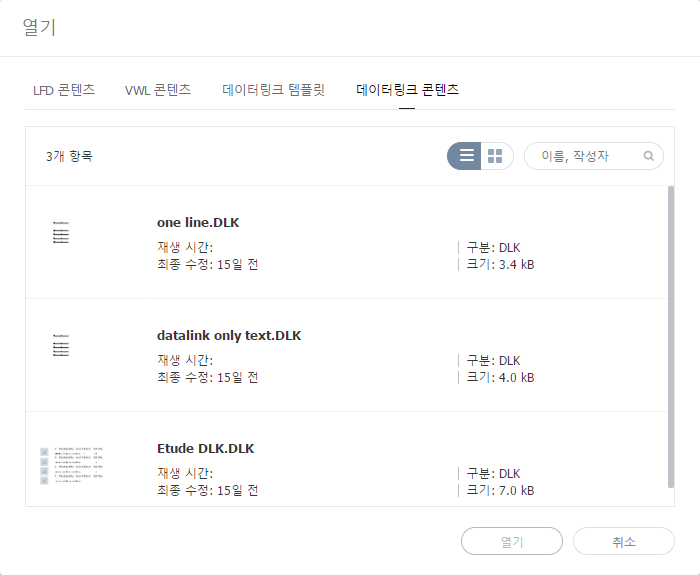
  1. Web Author 화면에서 클릭하세요.
  2. 데이터링크 콘텐츠 탭을 클릭하세요.

    Stylesheet
    classscreen
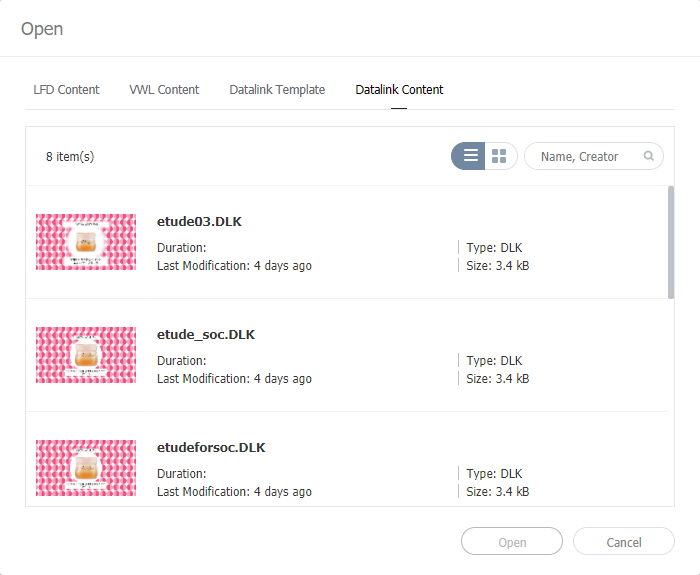
  3. 원하는 콘텐츠를 선택한 후 열기를 클릭하세요.
  4. DLK 콘텐츠를 생성하는 것과 동일한 방법으로 DLK 콘텐츠를 수정할 수 있습니다.

이벤트 트리거 설정하기

  1. Web Author 화면에서 [xx] 클릭하세요.
  2. 원하는 기능을 사용하여 외부 이벤트 속성을 설정하세요.

    Stylesheet
    classscreen


    이벤트 편집

    네트워크 포트 또는 시리얼 포트의 외부 이벤트를 활성화, 비활성화 또는 편집할 수 있습니다. 자세한 내용은 다음을 참조하세요.

    이벤트 트리거 구성하기

    DataLink 설정하기

    이벤트 흐름 미리보기각 페이지에 설정된 이벤트를 확인하고 전체 이벤트 흐름을 한눈에 파악할 수 있습니다. 자세한 내용은 다음을 참조하세요.
    이벤트 흐름 미리 보기
    DataLink 설정하기
    시리얼 포트 설정포트 번호를 직접 입력하고 시리얼 포트를 설정할 수 있습니다.
    네트워크 포트 설정UDP 포트 번호를 입력하여 네트워크 포트를 설정할 수 있습니다.

Anchor
이벤트 트리거 구성하기
이벤트 트리거 구성하기
이벤트 트리거 구성하기

  1. Web Author 화면에서 [xx] 클릭하세요.
  2. 이벤트 편집을 클릭하세요.
  3. 활성화할 포트를 클릭하세요.
  4. 추가를 클릭해 이벤트의 트리거, 동작, 페이지를 설정하고 저장을 클릭하세요.
    이벤트 설정이 완료되고 해당 이벤트가 활성화됩니다.

    Stylesheet
    classscreen


    Info

    현재 이벤트 동작은 페이지 이동만 사용할 수 있습니다.

Anchor
이벤트 흐름 미리 보기
이벤트 흐름 미리 보기
이벤트 흐름 미리 보기

각 페이지에 설정된 이벤트를 확인하고 전체 이벤트 흐름을 한눈에 파악할 수 있습니다.

  1. Web Author 화면에서 [xx] 클릭하세요.
  2. 이벤트 흐름 미리보기를 클릭하세요.

    Stylesheet
    classscreen


    1각 이벤트가 Player에서 올바르게 발생하는지 테스트할 수 있습니다.
    2자동으로 페이지 썸네일을 정렬합니다.
    3화면을 확대 또는 축소합니다.
    4화면 크기에 맞춥니다.
Sv translation
languageen

Use the DataLink feature to create dynamic content containing elements that change in real time. Map general media files added to MagicInfo Server or external data collected on the DataLink server to this dynamic content.

Info
titleNote

DataLink is a web-based application that collects external data at a specified interval and sends data to MagicInfo Player so that the player can play dynamic content. Refer to the MagicInfo DataLink user guide for details on DataLink.


Use Web Author to create a DataLink template.

  1. Add elements to a content page.

    Info
    titleNote

    The DataLink feature is only compatible with image, video and text elements.


  2. Select an element to which to apply the DataLink feature, and click from the element editor toolbar. You can also select multiple elements at the same time.
    The element displays the icon.

    Stylesheet
    classscreen


  3. With the element selected, configure specific settings.

    /

    Select multiple DataLink elements, and group or ungroup them.

    Configure DataLink setting.

    • Transition Duration: Set intervals to update DataLink elements.
    • Sync Data: Select whether to sync data.
    • Keep Previous Data: Select whether to maintain previous data.


  4. After configuring required settings, click .
  5. Configure save details and click Save and Create DLK.
    The content is saved as a DataLink template.

    Stylesheet
    classscreen


Editing DataLink templates

Import and edit a saved DataLink template.

  1. Click on the Web Author screen.
  2. Click the Datalink Template tab.

    Stylesheet
    classscreen


  3. Select a template and click Edit LFT.
  4. Edit the DataLink template, using the same method to create a DataLink template.

Creating DLK content files


Use a DataLink template to create DLK content to distribute to MagicInfo Player. DLK content can be created either by adding a media file or text or by importing saved DataLink Server settings.

Importing DataLink templates

Import a DataLink template in order to create DLK content.

Info
titleNote

For details on how to create DataLink templates, refer to Creating DataLink templates

  1. Click on the Web Author screen.
  2. Click the Datalink Template tab.

    Stylesheet
    classscreen


  3. Select a template and click Create DLK.
    The DLK content creation page appears.

Creating DLK content by manually entering data

  1. Import a DataLink template.
  2. Select a DataLink element.
    The DataLink management window appears.

    Stylesheet
    classscreen


  3. To add data, click .
  4. Select Direct Input and click Add.

    Stylesheet
    classscreen


  5. Enter details and click Save.

    Stylesheet
    classscreen


    TextEnter text.
    Tag

    Add a tag to the text, if required. Select a tag from the tag list and click Save. It is possible to select more than one tag.

    Info
    titleNote
    • A content file with a tag plays only on a device that has the same tag.
    • To assign a tag to text, first make sure the tag is saved on the MagicInfo Server. For details on adding tags, refer to ► Adding Tags
    • For details on using tags, refer to ► 태그 설정하기


    Tag MatchTypeSet matching conditions if more than one tag is assigned.


  6. After configuring required settings, click .
  7. Configure save details and click Save.
    The content is saved as DLK content.

Creating a DLK file in conjunction with DataLink Server

Create a DLK content file by mapping data, saved in DataLink Server, to a DLK template.

Tip
titleCreating a DLK file in conjunction with DataLink Server

To create a DLK content file in conjunction with DataLink Server, make sure to connect MagicInfo Server to DataLink Server. For details, refer to ► 외부 서버 관리하기


Warning
titleMedia slide elements

It is not possible to map DataLink Server data to media slide elements.

  1. Import a DataLink template.
  2. Select a DataLink element.
    The DataLink management window appears.

    Stylesheet
    classscreen


  3. To add data, click .
  4. Select Link Data and click Add.

    Stylesheet
    classscreen


  5. Enter details and click Save.

    Stylesheet
    classscreen


    Select Data

    Select a DataLink table saved in DataLink Server. In the DataLink table, select data items to use and click Save.

    Tag

    Add tags to the data items, if required. Select a tag from the tag list and click Save. It is possible to select more than one tag.

    Info
    titleNote
    • A content file with a tag plays only on a device that has the same tag.
    • To assign tags to data items, first make sure the tags are saved on the MagicInfo Server. For details on adding tags, refer to ► Adding Tags


    DataLink tags

    Add DataLink tags. To add a DataLink tag, select a column from the DataLink table and click OK. For details on using tags, refer to ► 태그 관리하기

    Conversion Table

    Using a data substitution table, replace any data in the DataLink table with text, images or videos. In the Select Conversion Table window, select a target for substitution and click OK.

    Tag MatchTypeSet matching conditions if more than one tag is assigned.


  6. After configuring required settings, click .
  7. Configure save details and click Save.
    The content is saved as DLK content.
  1. Import a DataLink template or DLK content.
  2. Select a DataLink element.
    The DataLink management window appears.
  3. Manage DataLink, using the following menu items:

    Stylesheet
    classscreen


    1Set intervals to update DataLink elements.
    2
    • To delete added data, hover the mouse pointer over the data item to delete and click .
    • To edit added data, hover the mouse pointer over the data item to edit and click .
    3Add data.


Editing DLK content

Import and edit saved DLK content.

  1. Click on the Web Author screen.
  2. Click the Datalink Content tab.

    Stylesheet
    classscreen


  3. Select a content file and click Open.
  4. Edit the DLK content, using the same method to create DLK content.


...